exportToPDF
Description
将甘特图导出为 PDF 格式
exportToPDF: (export?: any) => void
Parameters
export- object - optional, 带有导出设置的对象(请见详情)
Example
gantt.exportToPDF();

//或
gantt.exportToPDF({
  name: "mygantt.pdf"
});

gantt.exportToPDF({
    name: "mygantt.pdf",
    header: "<h1>My company</h1>",
    footer: "<h4>Bottom line</h4>",
    locale: "en",
    start: "01-04-2026",
    end: "11-04-2026",
    skin: "terrace",
    data: { },
    server: "https://myapp.com/myexport/gantt",
    raw: true,
    callback: (res) => {
        alert(res.url);
    }
});
Details
该方法在 export 扩展中定义,因此您需要激活 export_api 插件。请在 文章中阅读详细信息。
注:如果您使用的 Gantt 版本低于 8.0,请在页面中包含 https://export.dhtmlx.com/gantt/api.js 以启用在线导出服务,例如:
<script src="codebase/dhtmlxgantt.js"></script>
<script src="https://export.dhtmlx.com/gantt/api.js"></script>
exportToPDF 方法接受一个对象参数,包含多种可选属性:
| name | (string) 输出文件的名称 |
| skin | ('terrace', 'skyblue', 'meadow', 'broadway') 输出的甘特图的皮肤 |
| locale | (string) 设置输出甘特图所使用的语言 |
| start | (string) 设置将出现在输出甘特图中的数据范围的起始日期。日期格式由 配置定义 |
| end | (string) 设置将出现在输出甘特图中的数据范围的结束日期。日期格式由 配置定义 |
| data | (object) 设置将在输出甘特图中展示的自定义数据源 |
| header | (string) 指定将添加到输出 PDF 图像中的页眉。请注意,可以在此处使用任意 HTML |
| footer | (string) 指定将添加到输出 PDF 图像中的页脚。请注意,可以在此处使用任意 HTML |
| server | (string) 设置请求的 API 端点。可与本地安装的导出服务一起使用。默认值为 https://export.dhtmlx.com/gantt |
| raw | (boolean) 定义将按原样导出所有 Gantt 标记及自定义元素。false 为默认值。 阅读详情 |
| callback | (function) 如果您希望接收生成的 PDF 文件的下载 URL,可以使用 callback 属性。它接收一个带有 url 属性的 JSON 对象 |
| additional_settings | (object) 包含额外设置的对象。该对象可包含以下属性:
|
Time restrictions
导出服务有时间限制。
如果处理时间超过 20 秒,导出将被取消并出现以下错误:
Error: Timeout trigger 20 seconds
如果多人同时导出 Gantt,处理时间可能比平时长。但这没关系,因为来自特定用户的导出请求所花费的时间会单独计数。
如果需要导出大型图表,您可以使用 standalone export module。导出模块在您获得 Gantt 的 Commercial、Enterprise 或 Ultimate 许可时免费提供,或者您也可以 单独购买该模块。
Multi-page export
请注意,导出模块在技术上无法实现以下功能:
- 控制截断位置(因此任务可能在两页之间被截断)
- 在每页显示刻度线而不覆盖任务
- 在每页显示页眉和页脚而不覆盖任务行
因此,要实现上述功能,您需要应用自定义解决方案。下面给出了一些示例。
在一个文件中自动导出数据
对于在一个文件中进行多页导出,您可以使用在线导出服务(具有 time restrictions 的限制)或独立的 export module(没有限制)。 只需在 additional_settings 对象中使用 merge_pages 属性即可:
gantt.exportToPDF({
    additional_settings: {
        merge_pages: true,
        format: "A4"
    }
});
如果图表不太大,导出服务很合适。若图表很大,数据将部分导出。 在这种情况下,您可以 手动进行多次数据导出 或使用导出模块。导出模块将自行导出全部数据,并提供一个包含所有页的文件。
相关示例: Multi-page export in one file
这种方法的缺点是数据导出所花费的时间要比在单页导出所有数据长。为了在导出甘特数据时花费更少的时间, 你可以改变缩放级别,将数据绘制成周、月或年的形式,这样甘特图的宽度会变小,从而减少导出次数。
在 相关博客文章 中查看多页导出的一览
手动进行多次数据导出
由于甘特图的大小几乎总是超过标准文档尺寸,因此图表需要多于一页才能放下。 在导出甘特图时,每次都会将最左边部分导出到 PDF 文档中。 因此,要实现多页导出,需要多次导出,并每次向左移动甘特图。
要在导出的文件中移动甘特图,需在 header 参数中添加以下样式规则:
const width = 1000;
const height = 1000;
const total_width = gantt.$task_bg.scrollWidth + gantt.$grid.scrollWidth;

for (let i = 0; i < total_width; i += width) {
    gantt.exportToPDF({
        header:`<style>#gantt_here{left:-${i}px;position: absolute;}</style>`,
        //raw: true,
        additional_settings: {
            width: width,
            height: height,
        }
    });
}
相关示例: Export to the file of defined sizes
如果您想将 Gantt 导出为特定格式(例如 'A3'),请注意,文件格式以毫米为单位定义,而 HTML 中的尺寸以像素表示。因此,您需要将毫米单位的位移值转换为像素值。
const widthMM = 297;
const width = widthMM / (25.4 inch / 96 PDF PPI);
相关示例: Export to the file of defined format
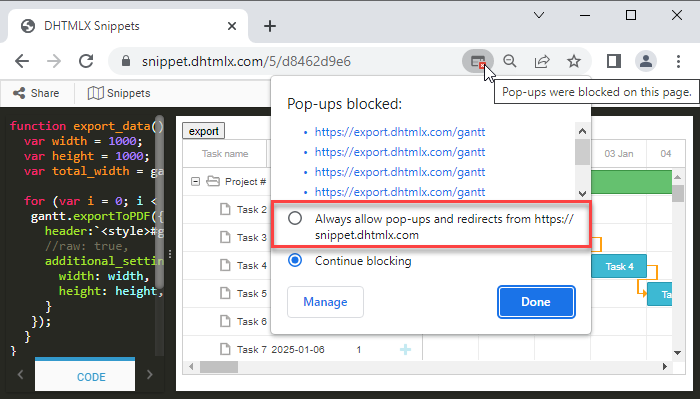
Note,如果你导出多页 Gantt 但只得到一个 PDF 文件,说明浏览器阻止了弹出窗口,因为该函数会同时打开它们。 在这种情况下,请启用弹出窗口并重试导出。
在导出的文件中为每一页显示时间线和网格标题
您可以通过在 additional_settings 对象中使用 fixed_headers 属性,在导出的文件的每一页显示时间线和网格标题。请注意,此功能也仅在启用了 merge_pages 属性时有效:
gantt.exportToPDF({
    additional_settings: {
        merge_pages: true,
        fixed_headers: true,
        format: "A4"
    }
});
相关示例: Multi-page export with timeline and grid headers on each page
相关示例: Multi-page export with timeline and grid headers on each page for the Resource panel view
如需在不使用该配置的情况下工作,例如您想进行多次导出并手动合并文件,可以使用以下样式:
.grid_cell .gantt_grid_scale,
.timeline_cell .gantt_task_scale {
    position: fixed;
    top:0;
    z-index:99999;
}
Related API
- exportToMSProject
- exportToPrimaveraP6
- exportToExcel
- exportToICal
- exportToPNG
- exportToJSON
- importFromExcel
- importFromPrimaveraP6
- importFromMSProject