작업 시간 계산
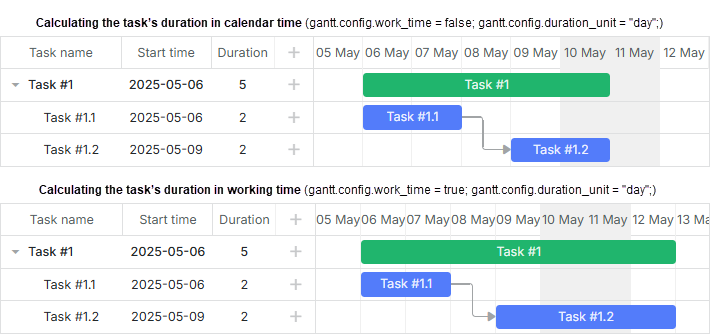
기본적으로 dhtmlxGantt는 작업 기간을 캘린더 시간으로 계산합니다. 즉, 주말과 공휴일이 전체 기간에 포함됩니다.
자세한 일정 종료일 형식에 대해서는 Task end date display & Inclusive end dates 문서를 참고하세요.
작업 시간 계산 활성화
작업 기간을 근무 시간만 기준으로 계산하려면 work_time에 설명된 옵션을 활성화하세요:
작업 기간에 대해 작업 시간 계산 활성화
gantt.config.work_time = true;     // 작업 기간 계산에서 비근무 시간 제외 /*!*/
gantt.config.skip_off_time = true; /*!*/   // 차트에서 비근무 시간 숨김

gantt.init("gantt_here");
skip_off_time 옵션은 PRO 버전에서만 사용할 수 있습니다.
Duration includes only working days
duration_unit 설정에 따라 dhtmlxGantt는 작업 기간을 다양한 단위(예: duration_unit = "hour"인 경우, 근무 시간 기준)로 계산합니다.
소수점 형식의 작업 기간
이 기능은 PRO 에디션에서만 사용할 수 있습니다.
버전 6.3부터 dhtmlxGantt는 Duration Formatter 모듈을 이용해 작업 기간을 소수점 형식("2.5 days",
"0.5 hours", "3.75 hours")으로 지정할 수 있습니다.
내부적으로 Gantt는 작업 기간을 정수 값으로 저장한다는 점에 유의해야 합니다.
formatter 모듈은 사용자가 입력한 소수점 기간을 Gantt가 사용하는 내부 형식으로 변환하는 데 도움을 줍니다(예: 사용자가 "1.5 hours"를 입력하면 90분으로 저장). 또한 저장된 값을 사람이 읽을 수 있는 형식(예: 12시간을 "0.5 days"로 변환)으로 다시 변환합니다.
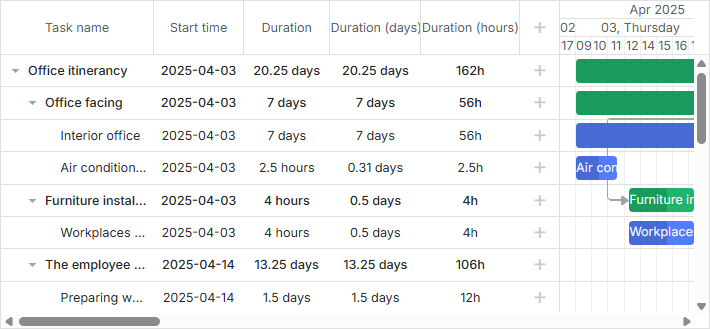
작업 기간은 duration_unit에서 지원하는 시간, 일 등 다양한 단위의 소수로 표현할 수 있으나, 분(minute) 단위는 제외됩니다.
소수점 형식 구현
작업 기간을 소수점 형식으로 표시하려면 다음 단계를 따르세요:
- duration_unit를 "minute"으로 설정
gantt.config.work_time = true;
gantt.config.duration_unit = "minute"; /*!*/
기간을 저장하는 단위는 소수점으로 표시할 단위보다 더 작아야 합니다. 쉽게 말해:
-
사용자가 시간 단위 소수(예: "0.5 hours")로 입력할 수 있게 하려면 duration_unit를 "minute"으로 설정
-
일 단위 소수를 허용하려면 duration_unit를 "hour"로 설정합니다. 이 경우 사용자는 "0.5 day"와 같이 입력할 수 있지만, "0.5 hour"는 1시간으로 반올림됩니다(기간은 정수 시간 단위로 저장됨).
기본적으로 작업 날짜는 타임스케일에 스냅됩니다. 스케일이 일(day) 단위인 경우, 하루 내에서 시간 단위로 작업을 드래그하려면 이 기능을 비활성화하세요.
이 기능을 사용하려면 round_dnd_dates를 비활성화하고 time_step에 적절한 값을 설정하세요.
예시:
// 전역 타임스텝을 15분으로 설정, duration_unit이 "minute"이어야 함
gantt.config.time_step = 15;
gantt.config.round_dnd_dates = false;
또는
// 전역 타임스텝을 1시간으로 설정,
// duration_unit이 "hour"인 경우에 적합
gantt.config.time_step = 60;
gantt.config.round_dnd_dates = false;
- formatter 객체를 생성하여 기간 포맷을 처리합니다:
// duration formatter 설정
const formatter = gantt.ext.formatters.durationFormatter({
    enter: "day",
    store: "minute", // duration_unit
    format: "day",
    hoursPerDay: 8,
    hoursPerWeek: 40,
    daysPerMonth: 30
});
- "Duration" 열에 formatter를 추가하려면, 포맷된 기간을 반환하는 template 함수를 정의하세요:
gantt.config.columns = [
    { name: "text", tree: true, width: 170, resize: true, editor: textEditor },
    { name: "start_date", align: "center", resize: true, editor: dateEditor },
    { name: "duration", label: "Duration", resize: true, align: "center",
        template: task => formatter.format(task.duration), width: 100 },
    { name: "add", width: 44 }
];
- lightbox의 time 컨트롤의 formatter 속성에 formatter를 할당하여 추가합니다:
gantt.config.lightbox.sections = [
    { name: "description", map_to: "text", type: "textarea", height: 70, focus: true },
    { name: "time", map_to: "auto", type: "duration", formatter: formatter }
];
- 그리드에서 인라인 편집이 활성화된 경우, durationEditor 객체의 formatter 속성에도 formatter를 추가하세요:
const durationEditor = {
    type: "duration",
    map_to: "duration",
    formatter: formatter, /*!*/
    min: 0,
    max: 1000
};

gantt.config.columns = [
    { name: "text", tree: true, width: 170, resize: true },
    { name: "start_date", align: "center", resize: true },
    { name: "duration", label: "Duration", resize: true, align: "center",
        template: (task) => formatter.format(task.duration),
        editor: durationEditor, width: 100 },
    { name: "add", width: 44 }
];
이미 Gantt에서 작업 기간을 분, 시간 또는 다른 단위로 저장하고 있다면, Duration Formatter 모듈을 사용해 소수점 형식으로 표시할 수 있습니다.
전역 설정
근무 시간 설정
기본 근무 시간은 다음과 같습니다:
- 근무일: 월요일 ~ 금요일
- 근무 시간: 8:00 - 12:00, 13:00 - 17:00
근무 시간을 사용자 정의하려면 setWorkTime 메서드를 사용하세요:
근무 시간 사용자 정의
// 근무일의 근무 시간 변경
gantt.setWorkTime({ hours: ["9:00-18:00"] });

// 모든 금요일을 휴일로 지정
gantt.setWorkTime({ day: 5, hours: false });

// 금요일, 토요일의 근무 시간 지정
gantt.setWorkTime({ day: 5, hours: ["8:00-12:00"] });
gantt.setWorkTime({ day: 6, hours: ["8:00-12:00"] });

// 특정 날짜를 근무일로 지정
gantt.setWorkTime({ date: new Date(2025, 2, 31) });

// 특정 날짜를 휴일로 지정
gantt.setWorkTime({ date: new Date(2025, 0, 1), hours: false });
야간 근무 시간 설정
setWorkTime 메서드에서 hours 속성을 설정할 때, 시간 구간은 오름차순으로 나열해야 합니다. 순서가 올바르지 않으면 일부 구간이 무시될 수 있습니다. 예를 들어, 아래와 같이 18:00 이후 구간은 무시됩니다:
// 잘못된 순서의 예시
gantt.setWorkTime({ day: 5, hours: ["16:00-18:00", "14:00-15:00", "08:00-10:00"] });
gantt.setWorkTime({ day: 5, hours: ["16:00-18:00", "00:00-04:00", "05:00-06:00"] });
야간 근무처럼 하루를 넘기는 근무 시간은 두 날짜에 걸쳐 구간을 나누어 지정해야 합니다:
- 첫째 날의 24시간 내에서
- 다음 날의 24시간 내에서
예시:
gantt.setWorkTime({ day: 5, hours: ["16:00-18:00"] });
gantt.setWorkTime({ day: 6, hours: ["00:00-04:00", "05:00-06:00"] });
근무 시간 규칙 구성
setWorkTime 메서드의 customWeeks 속성을 사용하여 기간별로 다양한 근무 시간 규칙을 정의할 수 있습니다. 예를 들어, 겨울철 근무 시간 조정:
// 겨울철 근무 시간 변경
gantt.setWorkTime({
    customWeeks: {
        winter: {
            from: new Date(2025, 11, 1), // 2025년 12월 1일
            to: new Date(2026, 2, 1), // 2026년 3월 1일
            hours: ["9:00-13:00", "14:00-16:00"],
            days: [1, 1, 1, 1, 0, 0, 0]
        }
    }
});
분 단위(예: "8:15-12:45")로 근무 시간을 지정하려면 duration_unit를 *"minute"*으로 설정하세요.
분 단위로 근무 시간 설정
gantt.config.duration_unit = "minute";

// 분 단위로 근무 시간 설정
gantt.setWorkTime({ hours: ["8:15-12:45"] });
7.0 버전 이전에 사용하던 근무 시간 형식도 계속 지원됩니다:
gantt.setWorkTime({ hours: [9, 18] });
근무 시간 규칙 덮어쓰기
같은 날짜에 대해 메서드를 여러 번 호출하면 이전 근무 시간 규칙이 덮어써집니다. 규칙을 해제하려면 setWorkTime를 다른 구성으로 호출하세요:
gantt.setWorkTime({ hours: ["8:00-12:00"] });
gantt.setWorkTime({ hours: ["13:00-17:00"] });
// 최종 근무 시간은 13:00-17:00만 적용되며,
// 두 설정이 결합되지 않습니다.
사용자 지정 근무일/휴무일 설정
모든 근무일이나 근무 시간을 제외하는 근무 시간 설정은 적용할 수 없다는 점에 유의하세요. 예를 들어, 아래와 같은 코드는 동작하지 않습니다.
gantt.setWorkTime({ day: 0, hours: [] });
gantt.setWorkTime({ day: 1, hours: [] });
gantt.setWorkTime({ day: 2, hours: [] });
gantt.setWorkTime({ day: 3, hours: [] });
gantt.setWorkTime({ day: 4, hours: [] });
gantt.setWorkTime({ day: 5, hours: [] });
gantt.setWorkTime({ day: 6, hours: [] });
이 경우 Gantt는 적어도 한 근무일에 대해서는 메서드 호출을 무시하며, 해당 요일에는 여전히 근무 시간이 남아 있게 됩니다.
특정 날짜에서 가장 가까운 근무 시간이나 기간을 계산하려고 하면, 유효한 날짜나 기간을 찾지 못하게 됩니다. 즉, 이런 캘린더 설정은 실제로 작동하지 않습니다. 특정 날짜에 근무 시간을 설정하더라도, Gantt는 근무일과 근무 시간이 포함된 범위 내에서만 날짜를 계산할 수 있으므로 올바르게 동작하지 않습니다. 이 범위 밖의 계산은 실패하거나 오류를 발생시킬 수 있습니다.
몇 개월 또는 몇 년 전체가 모두 휴무일인 캘린더를 만들고 싶다면, setWorkTime() 메서드의 customWeeks 옵션을 사용해야 합니다. 원하는 범위 내에서 근무일과 근무 시간을 정의하려면 다음과 같이 해야 합니다.
- 범위를 근무 시간이 없는 기간으로 분할합니다.
- 필요한 날짜에 근무 시간을 설정합니다.
gantt.setWorkTime({ date: new Date(2025, 3, 10), hours: ["8:00-12:00"] })
gantt.setWorkTime({ date: new Date(2025, 3, 11), hours: ["13:00-17:00"] })

gantt.setWorkTime({
    customWeeks: {
        period1: {
            from: new Date(2025, 3, 1),
            to: new Date(2025, 3, 10),
            hours: false,
        },

        period2: {
            from: new Date(2025, 3, 12),
            to: new Date(2025, 5, 1),
            hours: false,
        },

    }
});
Related example: Using customWeeks to make all days in the calendar days-off
근무 시간 해제하기
unsetWorkTime 메서드를 사용하여 근무 시간 설정을 제거할 수 있습니다.
// 근무일의 근무 시간을 ["8:00-17:00"]에서 ["8:00-12:00"]로 변경
gantt.setWorkTime({ hours: ["8:00-12:00"] });
// 근무 시간 설정 제거
gantt.unsetWorkTime({ hours: ["8:00-12:00"] });
근무 시간 확인하기
특정 날짜가 근무 시간 내에 포함되는지 확인하려면 isWorkTime 메서드를 사용하세요.
// 2025년 1월 1일을 휴무일로 지정
gantt.setWorkTime({ date: new Date(2025, 0, 1), hours: false });
gantt.isWorkTime(new Date(2025, 0, 1)); // -> false  /*!*/

// 2025년 3월 15일을 8:00~17:00 근무일로 지정
gantt.setWorkTime({ date: new Date(2025, 2, 15), hours: ["8:00-17:00"] });
gantt.isWorkTime(new Date(2025, 2, 15, 10, 0), "hour"); // -> true  /*!*/
gantt.isWorkTime(new Date(2025, 2, 15, 8, 0), "hour"); // -> false  /*!*/
근무 시간 조회하기
특정 날짜의 근무 시간을 조회하려면 getWorkHours 메서드를 사용하세요.
gantt.getWorkHours(new Date(2025, 3, 30)); // -> ["8:00-17:00"]
주어진 날짜에서 가장 가까운 근무일을 찾으려면 getClosestWorkTime 메서드를 사용하세요.
gantt.getClosestWorkTime(new Date(2025, 3, 30));
특정 근무 시간 반복 설정
매월 마지막 금요일을 단축 근무일로 지정하거나 12월 25일을 휴일로 지정하는 등, 특정 요일이나 날짜에만 반복적으로 근무 시간을 설정해야 하는 경우가 있습니다.
현재 dhtmlxGantt는 이런 반복 근무 시간에 대한 내장 설정을 제공하지 않습니다. 지원되는 기능은 다음과 같습니다.
- 요일별 근무 시간 설정 (월요일, 화요일 등)
- 특정 날짜의 근무 시간 설정 (예: 2025년 6월 4일)
- 날짜 범위에 대한 근무 시간 규칙 재정의 (예: 2025년 6월 1일 ~ 9월 1일)
따라서 근무 시간 규칙에 예외가 있다면, 조건에 맞는 날짜를 직접 찾아서 각 날짜에 근무 시간 설정을 적용해야 합니다.
예를 들어, 프로젝트가 5년에 걸쳐 진행되고 1월 1일을 매년 휴무일로 지정하려면 다음과 같이 하드코딩할 수 있습니다.
gantt.setWorkTime({ hours: false, date: new Date(2025, 0, 1) });
gantt.setWorkTime({ hours: false, date: new Date(2026, 0, 1) });
gantt.setWorkTime({ hours: false, date: new Date(2027, 0, 1) });
gantt.setWorkTime({ hours: false, date: new Date(2028, 0, 1) });
gantt.setWorkTime({ hours: false, date: new Date(2029, 0, 1) });
다음은 프로젝트 기간 동안 매월 마지막 금요일을 단축 근무일로 지정하는 예시입니다.
const lastFridayOfMonth = (date) => {
    let lastDay = new Date(date.getFullYear(), date.getMonth() + 1, 0);

    if (lastDay.getDay() < 5) {
        lastDay.setDate(lastDay.getDate() - 7);
    }

    lastDay.setDate(lastDay.getDate() - (lastDay.getDay() - 5));

    return lastDay;
};

const projectStart = new Date(2025, 5, 1);
const projectEnd = new Date(2026, 5, 1);
let currentDate = new Date(projectStart);

while (currentDate <= projectEnd) {
    const lastFriday = lastFridayOfMonth(currentDate);
    gantt.setWorkTime({ hours: ["8:00-12:00", "13:00-15:00"], date: lastFriday });
    currentDate = gantt.date.add(currentDate, 1, "month");
}
휴무 시간 색상 표시하기
차트 영역에서 휴무 시간을 강조 표시하려면 timeline_cell_class 템플릿을 사용하세요.
gantt.templates.timeline_cell_class = (task, date) =>
    !gantt.isWorkTime({ task, date }) ? "week_end" : "";
자세한 내용은 타임 슬롯 하이라이트하기 문서를 참고하세요.
휴무 시간을 숨기고 싶다면, 스케일에서 시간 단위 숨기기 문서에 설명된 방법을 참고하세요.
다중 근무 시간 캘린더
글로벌 근무 시간 설정 외에도, Gantt에서는 여러 개의 근무 시간 캘린더를 생성할 수 있습니다. 이러한 캘린더는 특정 작업이나 작업 그룹에 할당할 수 있습니다.
근무 캘린더 생성하기
createCalendar 메서드를 사용하여 새로운 캘린더 인스턴스를 생성할 수 있습니다.
이 방법에는 두 가지 방식이 있습니다.
- 파라미터 없이 호출하면, 하루 24시간, 주 7일 근무하는 전체 근무 캘린더가 생성됩니다.
const calendar = gantt.createCalendar();
- 기존 캘린더를 기반으로 새로운 옵션으로 캘린더를 만들고 싶다면, 기존 캘린더를 createCalendar 메서드의 인자로 전달하면 됩니다.
const newCalendar = gantt.createCalendar(calendar);
처음 생성된 캘린더 객체는 Gantt와 분리되어 있으며, Gantt에 추가할 때까지 아무런 영향을 미치지 않습니다.
근무 캘린더 Gantt에 추가하기
캘린더를 생성한 후에는 addCalendar 메서드를 사용하여 Gantt에 추가해야 합니다. 방법은 두 가지가 있습니다.
- 기존 캘린더 구성을 추가하기
const calendarId = gantt.addCalendar(calendar);
- 또는, 캘린더 id와 근무일/근무 시간이 포함된 worktime 객체를 포함하여 새로운 캘린더 구성을 설정할 수 있습니다.
const calendarId = gantt.addCalendar({
    id: "custom", // 옵션
    worktime: {
        hours: ["8:00-17:00"],
        days: [1, 1, 1, 1, 1, 1, 1]
    }
});
이 옵션은 캘린더 생성에도 사용할 수 있습니다.
기간별 근무 시간 설정
v7.1부터는 하나의 캘린더 내에서 여러 기간에 대해 서로 다른 근무 시간 규칙을 정의할 수 있습니다. 예를 들어, 겨울철에는 별도의 근무 일정을 적용할 수 있습니다. 이를 위해 addCalendar 메서드의 customWeeks 속성을 사용하세요.
const calendarId = gantt.addCalendar({
    id: "global", // 옵션
    worktime: {
        hours: ["8:00-17:00"],
        days: [1, 1, 1, 1, 1, 1, 1],
        customWeeks: {
            winter: {
                from: new Date(2025, 11, 1), // 2025년 12월 1일
                to: new Date(2026, 2, 1), // 2026년 3월 1일 00:00
                hours: ["9:00-13:00", "14:00-16:00"],
                days: [1, 1, 1, 1, 0, 0, 0]
            }
        }
    }
});
Different worktimes for different time periods
근무 시간 변경하기
setWorkTime() 메서드를 사용하여 캘린더의 특정 요일에 대한 근무 시간을 업데이트할 수 있습니다.
const calendar = gantt.getCalendar("custom");
calendar.setWorkTime({ day: 6, hours: ["8:00-12:00"] });
calendar.setWorkTime({ date: new Date(2025, 0, 1), hours: ["8:00-12:00"] });
캘린더 조회하기
근무 캘린더 객체를 조회하는 방법에는 여러 가지가 있습니다.
글로벌 Gantt 캘린더 조회
글로벌 Gantt 캘린더 객체를 가져오려면 getCalendar 메서드를 사용하세요.
const calendar = gantt.getCalendar(id);
calendar 객체는 calendar 인터페이스의 인스턴스입니다.
기본 캘린더(글로벌 설정)는 미리 정의된 "global" id로 접근할 수 있습니다.
const globalSettings = gantt.getCalendar("global");
이 캘린더는 work time methods에서 별도의 캘린더가 지정되지 않았을 때 사용됩니다. 기본적으로 모든 작업에 할당됩니다.
작업에 할당된 캘린더 조회
특정 작업에 할당된 근무 캘린더를 가져오려면, 작업 객체를 전달하여 getTaskCalendar 메서드를 사용하세요.
const task = gantt.getTask(taskId);
const calendar = gantt.getTaskCalendar(task);

if (calendar.isWorkTime(date)) {
    alert("TaskWorkTime");
}
Gantt 설정에서 근무 시간이 비활성화된 경우, 이 메서드는 24/7 근무 캘린더를 반환합니다.
글로벌 메서드를 통한 캘린더 접근
Gantt 객체의 work time methods를 사용하면, 캘린더에 직접 접근하지 않고도 작업의 기간을 계산할 수 있습니다.
이 메서드들은 관련 "task" 객체를 포함하는 객체 인자를 받습니다.
if (gantt.isWorkTime({ date: date, task: task })) {
    alert(`Work time of a task: ${task.text}`);
}
다음과 동일합니다.
const calendar = gantt.getTaskCalendar(task);

if (calendar.isWorkTime({ date: date })) {
    alert(`Work time of a task: ${task.text}`);
}
const endDate = gantt.calculateEndDate({
    start_date: date, duration: duration, task: task
});
// 또는
const endDate = gantt.calculateEndDate(task);
const duration = gantt.calculateDuration({
    start_date: start, end_date: end, task: task
});
// 또는
const duration = gantt.calculateDuration(task);
const closestTime = gantt.getClosestWorkTime({ date: date, task: task });
모든 Gantt 캘린더 조회
Gantt에 추가된 모든 캘린더(글로벌 캘린더 및 특정 작업에 할당된 캘린더 포함)를 조회하려면 getCalendars 메서드를 사용하세요.
const calendars = gantt.getCalendars();
이 메서드는 Calendar interface 객체 배열을 반환합니다.
캘린더 삭제하기
더 이상 필요하지 않은 캘린더는 id를 전달하여 deleteCalendar 메서드로 삭제할 수 있습니다.
// 캘린더 추가
gantt.addCalendar({
    id: "custom",
    worktime: {
        hours: ["8:00-17:00"],
        days: [1, 1, 1, 1, 1, 1, 1]
    }
});

// 캘린더 삭제
gantt.deleteCalendar("custom");
작업에 캘린더 할당하기
작업에 근무 캘린더를 할당하려면, 먼저 id와 근무일 및 근무시간을 지정하는 worktime 객체와 함께 캘린더를 추가합니다:
gantt.addCalendar({
    id: "custom", // 선택 사항
    worktime: {
        hours: ["8:00-17:00"],
        days: [1, 1, 1, 1, 1, 1, 1]
    }
});
그런 다음, 작업 객체의 "calendar_id" 속성에 해당 캘린더의 id를 값으로 지정합니다:
{
    id: 2, text: "Task #1", start_date: "02-04-2025", duration: 8,
    calendar_id: "custom" /*!*/
}
작업에 캘린더를 연결하는 데 사용할 속성의 이름은 calendar_property 구성 옵션을 통해 변경할 수 있습니다:
gantt.config.calendar_property = "property_name";
리소스에 캘린더 할당하기
이 기능은 PRO 에디션에서만 사용할 수 있습니다.
특정 자원(사람, 장비 등)이 필요한 작업에 대해 별도의 근무 캘린더를 할당하는 것도 가능합니다.
예를 들어, 작업에 할당된 사용자에 따라 개별 캘린더를 설정할 수 있습니다. 절차는 다음과 같습니다:
- resource_property 구성 속성을 사용하여 자원 id를 저장할 작업 속성을 정의합니다. 아래 예시에서는 user라는 속성이 사용자 id를 저장합니다:
gantt.config.resource_property = "user";
- resource_calendars 구성 옵션을 이용하여 각 사용자별로 캘린더를 추가하고, 이를 하나의 객체로 그룹화합니다:
gantt.config.resource_calendars = {
    1 : gantt.addCalendar({
        worktime: {
            days: [0, 1, 1, 1, 1, 1, 0]
        }
    }),
    2 : gantt.addCalendar({
        worktime: {
            days: [1, 0, 0, 0, 0, 0, 1]
        }
    }),
    3 : gantt.addCalendar({
        worktime: {
            days: [0, 1, 1, 1, 0, 1, 1]
        }
    })
};
이 객체는 자원 id를 키로, addCalendar 메서드가 반환하는 캘린더 id를 값으로 매핑합니다.
- 작업 구성 객체에서 user 속성을 지정합니다. 값은 resource_calendars 구성에 있는 해당 캘린더의 키와 일치해야 합니다:
{ id: 1, user: 1, text: "Project #2", start_date: "01-04-2025", duration: 5 },
{ id: 2, user: 0, text: "Task #1", start_date: "02-04-2025", duration: 2 },
{ id: 3, user: 2, text: "Task #2", start_date: "11-04-2025", duration: 4 },
{ id: 4, user: 3, text: "Task #3", start_date: "13-04-2025", duration: 3 },
{ id: 5, user: 0, text: "Task #1.1", start_date: "02-04-2025", duration: 7 },
{ id: 6, user: 1, text: "Task #1.2", start_date: "03-04-2025", duration: 7 }
작업에 커스텀 캘린더와 리소스 캘린더가 모두 할당된 경우, 커스텀 캘린더가 우선 적용되어 리소스 캘린더 설정을 덮어씁니다.
여러 캘린더 병합하기
v7.0부터 여러 개의 캘린더를 하나로 병합할 수 있습니다.
예를 들어, 서로 다른 근무 캘린더를 가진 두 리소스가 같은 작업에 할당되어 있다면 - 한 명은 9:0015:00, 다른 한 명은 12:0017:00 근무 - 이 캘린더를 병합하면 12:00~15:00의 근무 시간이 생성됩니다.
dynamic_resource_calendars 구성을 true로 설정하면 이 기능이 자동으로 활성화됩니다:
gantt.config.dynamic_resource_calendars = true;
Merge work Calendars of different resources
또한 mergeCalendars 메서드를 사용하여 수동으로 캘린더를 병합할 수도 있습니다:
const johnCalendarId = gantt.addCalendar({
    worktime: {
        hours: ["0:00-24:00"],
        days: [0, 1, 1, 1, 1, 1, 0]
    }
});

const mikeCalendarId = gantt.addCalendar({
    worktime: {
        hours: ["8:00-12:00", "13:00-17:00"],
        days: [0, 1, 1, 1, 1, 1, 0]
    }
});

const joinedCalendar = gantt.mergeCalendars(
    gantt.getCalendar(mikeCalendarId),
    gantt.getCalendar(johnCalendarId)
);
근무 시간이 어떻게 병합되는지에 대한 자세한 내용은 mergeCalendars() 문서를 참고하세요.
프로젝트에 캘린더 할당하기
이 기능은 PRO 에디션에서만 사용할 수 있습니다.
개별 작업이나 리소스뿐만 아니라 프로젝트에도 근무 캘린더를 할당할 수 있습니다. 이를 통해 하위 작업이 상위 프로젝트의 캘린더를 상속받게 할 수 있습니다.
상속 로직은 다음과 같습니다:
- 하위 프로젝트에 캘린더가 할당되어 있고, 그 하위에 작업이 있을 경우, 모든 작업은 해당 캘린더를 상속받습니다.
- 작업에 별도의 캘린더가 할당되어 있다면, 상위 프로젝트가 아닌 해당 캘린더를 사용합니다.
이 기능을 활성화하려면 inherit_calendar 구성 옵션을 true로 설정하세요. 기본값은 비활성화입니다.
gantt.config.inherit_calendar = true;
- true일 경우, 캘린더가 할당되지 않은 작업은 상위 summary 작업(또는 그 상위 작업)에서 캘린더를 상속받습니다.
- false일 경우, 해당 작업은 글로벌 캘린더를 사용합니다.
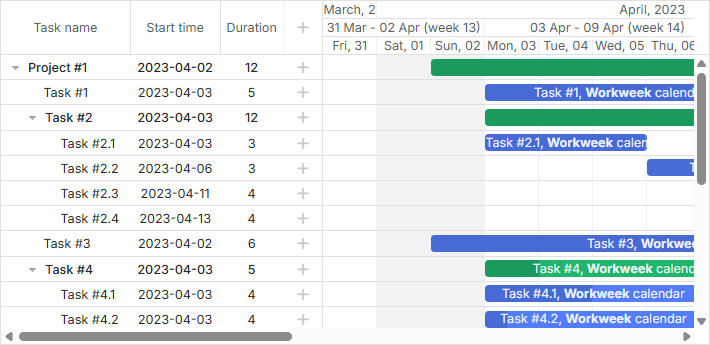
아래 예시에서는 작업들이 기본적으로 상위 프로젝트로부터 캘린더를 상속받습니다. 자체 캘린더가 있는 작업은 해당 캘린더를 사용합니다. 예를 들어, "Task #2.2"와 "Task #3"은 상위 프로젝트와 달리 "Full week" 캘린더를 사용합니다:
캘린더 동적 변경
버전 7.0부터 Gantt는 작업의 캘린더가 변경될 경우 이를 자동으로 감지하여 작업 일정을 업데이트합니다.
필요하다면, 캘린더가 변경될 때 작업 일정을 수동으로 조정할 수도 있습니다. 예를 들어, 라이트박스에서 캘린더 변경 이벤트를 처리할 수 있습니다:
const updateTaskTiming = (task) => {
    task.start_date = gantt.getClosestWorkTime({
        dir: "future",
        date: task.start_date,
        unit: gantt.config.duration_unit,
        task: task
    });
    task.end_date = gantt.calculateEndDate(task);
};

gantt.attachEvent("onLightboxSave", (id, task, is_new) => {
    updateTaskTiming(task);
    return true;
});
또는 필요시 모든 작업에 대해 일괄적으로 재계산을 트리거할 수도 있습니다:
gantt.batchUpdate(() => {
    gantt.eachTask((task) => {
        task.start_date = gantt.getClosestWorkTime({
            dir: "future",
            date: task.start_date,
            unit: gantt.config.duration_unit,
            task: task
        });
        task.end_date = gantt.calculateEndDate(task);
        gantt.updateTask(task.id);
    });
});
Related example: 근무 시간 설정을 토글하고 작업을 근무일로 이동시키기
Related example: 근무 시간 설정을 토글하고 작업의 종료일 재계산하기