Plain JS/HTML에서의 dhtmlxGantt
dhtmlxGantt로 애플리케이션을 개발할 때 가장 먼저 필요한 것은 초기화하거나, 간단히 말해 페이지에 Gantt 차트를 표시하는 것입니다.
이 가이드는 plain JS와 HTML에서의 dhtmlxGantt 초기화에 대해 설명합니다. 또한 프런트엔드 프레임워크와의 통합에 대한 가이드를 확인할 수 있습니다:
 |  |  |  |
| Angular | React | Svelte | Vue.js |
기본 Gantt 차트 만들기
페이지에 기본 Gantt를 표시하려면 아래의 3단계를 따르십시오:
- 페이지에 dhtmlxGantt 코드 파일을 포함합니다.
- 페이지에 DIV 컨테이너를 생성합니다.
- 새로 생성한 컨테이너에서 init 메서드를 사용해 dhtmlxGantt를 초기화합니다. 메서드의 매개변수로 Gantt 차트를 표시할 HTML 컨테이너(또는 그 ID)를 넘깁니다.
<!DOCTYPE html>
<html>
<head>
    <script src="codebase/dhtmlxgantt.js"></script>
    <link href="codebase/dhtmlxgantt.css" rel="stylesheet">
</head>
<body>
    <div id="gantt_here" style='width:1000px; height:400px;'></div>
    <script type="text/javascript">
        gantt.init("gantt_here");
    </script>
</body>
</html>
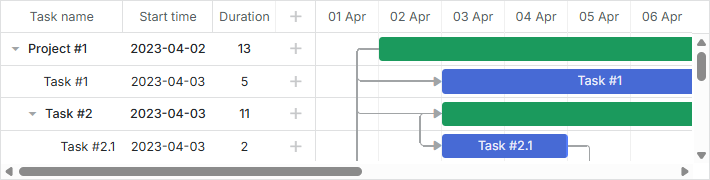
관련 샘플: Basic initialization
프로젝트에 Gantt 소스 파일 추가하기
생성하는 애플리케이션의 유형에 따라 Gantt 코드 파일을 프로젝트에 추가하는 여러 가지 방법이 있습니다:
- <script> 태그를 통해 파일 포함하기
- ES6/7 및 TypeScript 앱에 파일 임포트하기
- Vite에서 Gantt 사용하기
- Svelte 생산 빌드
- RequireJS 기반 앱에 파일 포함하기
<script> 태그를 통한 파일 포함하기
dhtmlxGantt를 페이지에 포함시키려면 2개의 파일을 포함해야 합니다:
- dhtmlxgantt.js
- dhtmlxgantt.css
<script src="codebase/dhtmlxgantt.js"></script>
<link href="codebase/dhtmlxgantt.css" rel="stylesheet">
다음 파일이 어디에 있는지 확인하기 위해 dhtmlxGantt 패키지의 구조를 빠르게 살펴보겠습니다.
패키지를 구성하는 주요 폴더와 파일은 다음과 같습니다:
- sources - 라이브러리의 원본 코드 파일들입니다. 이 파일들은 미니파이되지 않았고 읽기 쉽습니다. 패키지는 주로 디버깅 컴포넌트를 위해 사용됩니다.
- samples - 코드 샘플
- codebase - 라이브러리의 압축된 코드 파일들. 이 파일들은 더 작고 프로덕션에서 사용하기에 적합합니다. 앱에서는 이 폴더의 파일을 사용해야 합니다
ES6/7 및 TypeScript 앱에 파일 가져오기
다음 명령어를 사용하여 파일을 가져옵니다:
import { gantt } from 'dhtmlx-gantt';
커머셜, 엔터프라이즈 또는 얼티밋 버전의 경우 명령어는 다음과 같이 보입니다:
import { gantt, Gantt } from 'dhtmlx-gantt';
Vite로 Gantt 사용하기
프로젝트에서 Vite를 사용하는 경우, 애플리케이션에 Gantt가 올바르게 포함되도록 vite.config.js 파일에 다음 설정이 필요합니다:
optimizeDeps: {
    include: [
        'dhtmlx-gantt',
    ]
}
Svelte 프로덕션 빌드
Svelte 앱에서 Gantt를 사용하는 경우, 생산 빌드를 위해 vite.config.js 파일에 다음 설정을 추가해야 합니다. gantt_9.0.14_evaluation 폴더를 Gantt 폴더의 경로로 바꿔서 사용합니다:
build: {
    commonjsOptions: {
        include: [
            "node_modules",
            "gantt_9.0.14_evaluation/codebase/dhtmlxgantt.js"
        ]
    },
}
RequireJS 기반 앱에 파일 포함하기
RequireJS 기반 앱에 dhtmlxGantt 파일을 포함하려면 아래 예제에서 보여주는 로직을 따라야 합니다:
requirejs(["codebase/dhtmlxgantt"], (dhx) => {
    const gantt = dhx.gantt;
    const Gantt = dhx.Gantt; // Enterprise 빌드는 선택 사항

    gantt.init("gantt_here");
    gantt.parse({
        tasks: [
            { id: 1, text: "Project #2", start_date: "01-04-2025", duration: 18, progress: 0.4, open: true },
            { id: 2, text: "Task #1", start_date: "02-04-2025", duration: 8, progress: 0.6, parent: 1 },
            { id: 3, text: "Task #2", start_date: "11-04-2025", duration: 8, progress: 0.6, parent: 1 }
            ],
        links: [
            { id: 1, source: 1, target: 2, type: "1" },
            { id: 2, source: 2, target: 3, type: "0" }
        ]
    });
});
dhtmlxGantt 라이브러리는 상용 버전에서 gantt와 Gantt 필드를 포함하는 객체를 반환합니다 - 이를 아래의 여기에서 설명된 gantt 및 Gantt 객체로 사용할 수 있습니다.
RequireJS에서 Gantt를 커스텀 확장과 함께 사용할 때는 RequireJS의 shim 구성을 명시하고, Gantt에서 확장의 의존성을 직접 설정해야 합니다.
다음 예제는 커스텀 확장 파일 custom_tooltip_plugin.js를 올바르게 설정하는 방법을 보여줍니다:
requirejs.config({
    paths: {
        "dhtmlxgantt": "../../codebase/dhtmlxgantt",
        "ext/dhtmlxgantt_custom_tooltip": "../custom_tooltip_plugin"
    },
    shim: {
        "ext/dhtmlxgantt_custom_tooltip": ["dhtmlxgantt"]
    }
});

requirejs(["dhtmlxgantt"], (dhx) => {
    const gantt = dhx.gantt;

    const date_to_str = gantt.date.date_to_str(gantt.config.task_date);
    const today = new Date();

    gantt.addMarker({
        start_date: today,
        css: "today",
        text: "Today",
        title: `Today: ${date_to_str(today)}`
    });

    gantt.init("gantt_here");
    gantt.parse({
        tasks: [
            { id: 1, text: "Project #2", start_date: "01-04-2025", duration: 18, progress: 0.4, open: true },
            { id: 2, text: "Task #1", start_date: "02-04-2025", duration: 8, progress: 0.6, parent: 1 },
            { id: 3, text: "Task #2", start_date: "11-04-2025", duration: 8, progress: 0.6, parent: 1 }
        ],
        links: [
            { id: 1, source: 1, target: 2, type: "1" },
            { id: 2, source: 2, target: 3, type: "0" }
        ]
    });
});
패키지 내 파일의 모듈 이름은 항상 패키지의 'codebase' 폴더 내부 상대 경로와 파일 이름으로 지정되어야 한다는 것을 확인하십시오. 예를 들면 다음과 같습니다:
코어 라이브러리:
- "dhtmlxgantt": "./vendor/dhtmlxgantt/dhtmlxgantt"
전체 화면 모드
다양한 브라우저에서 Gantt 차트를 올바르게 전체 화면 모드로 표시하려면 페이지에 다음 스타일을 정의합니다:
<style type="text/css" media="screen">
    html, body {
        margin: 0;
        padding: 0;
        height: 100%;
        overflow: hidden;
    }
</style>