데이터 로딩
dhtmlxGantt는 두 가지 데이터 형식을 사용할 수 있습니다:
데이터로 Gantt 차트를 채우려면 parse 또는 load 메서드를 사용하십시오.
gantt.init("gantt_here");
gantt.load("tasks.json");
관련 샘플: Basic initialization
Gantt에 잘못된 데이터를 전달하면 트리와 같은 구조가 순환 형태가 되어 cyclic reference error가 발생합니다.
객체에서 로딩하기
객체에서 데이터를 로드하려면 parse 메서드를 사용하십시오:
const data = {
    tasks: [
        { id: 1, text: "Project #1", start_date: "01-12-2025", duration: 18 },
        { id: 2, text: "Task #1",    start_date: "02-12-2025", duration: 8, parent: 1 },
        { id: 3, text: "Task #2",    start_date: "11-12-2025", duration: 8, parent: 1 }
    ]
};

gantt.init("gantt_here");
gantt.parse(data); /*!*/
관련 샘플: Basic initialization
데이터 객체에 "start_date"와 "end_date" 값이 모두 포함되어 있고, 날짜 값이 시간 부분을 포함하지 않는 경우(예: 01-12-2025이고 01-12-2025 00:00이 아닌 경우) 추가 구성이 필요할 수 있습니다. 이 기사 Task end date display & Inclusive end dates를 꼭 확인하십시오.
서버에서 로딩하기
클라이언트 측
서버에서 데이터를 로드하려면 load 메서드를 사용하십시오:
gantt.init("gantt_here");
gantt.load("data.json"); /*!*/
load 메서드는 지정된 URL로 AJAX 요청을 보내고, 응답으로 지원되는 형식 중 하나의 데이터를 기대합니다. 예를 들면:
{
    "tasks": [
        { "id": 1, "text": "Project #1", "start_date": "01-12-2025", "duration": 18 },
        { "id": 2, "text": "Task #1", "start_date": "02-12-2025", "duration": 8,"parent": 1 },
        { "id": 3, "text": "Task #2", "start_date": "11-12-2025", "duration": 8, "parent": 1 }
    ],
    "links": [
        { "id": 1, "source": 1, "target": 2, "type": "1" },
        { "id": 2, "source": 2, "target": 3, "type": "0" }
    ]
}
형식은 메서드의 두 번째 인자에서 지정됩니다: "json", "xml" 또는 "oldxml"입니다.
gantt.load("data.xml", "xml");
서버 측
서버에는 데이터가 있는 정적 파일이나, 데이터 원천으로부터 데이터를 수집해 응답으로 작성하는 스크립트가 있을 수 있습니다. 서버 측 구현은 사용하려는 프레임워크에 따라 다릅니다.
예를 들어 Node.js의 경우 Gantt가 데이터에 대한 AJAX 요청을 보낼 URL에 대한 서버 경로를 추가해야 합니다.
gantt.load("/data");
JSON 형식에 해당하는 응답을 생성합니다.
app.get("/data", (req, res) => {
    db.query("SELECT * FROM gantt_tasks", (err, tasks) => {
        if (err) console.log(err);

        db.query("SELECT * FROM gantt_links", (err, links) => {
            if (err) console.log(err);

            tasks.forEach((task) => {
                task.start_date = task.start_date.format("YYYY-MM-DD");
                task.open = true;
            });

            res.send({ tasks, links });
        });
    });
});
모든 지원되는 데이터 형식은 기사 Supported Data Formats을 참조하십시오.
작업 날짜 로딩
작업 일정 설정
데이터 피드에서 작업의 일정을 정의하는 방법은 3가지가 있습니다:
- start_date + duration
- start date + end_date
- duration + end_date
명시되지 않은 속성은 데이터 객체에 정의된 속성을 기반으로 계산됩니다.
관련 샘플: Backward planning
End_date는 duration 매개변수보다 더 높은 우선순위를 가집니다. 작업 객체에 3개의 매개변수가 지정되면 Gantt는 duration 매개변수를 무시하고 다른 기간 값으로 작업을 로드합니다. 예를 들면:
{
    "id": "20", "text": "Project #2",
    "start_date": "01-12-2025",
    "duration": 3,
    "end_date": "05-12-2025",
}

// 위 작업은 주어진 'start_date'와 'end_date'에 따라
// 계산된 기간 값으로 로드됩니다
{
    "id": "20", "text": "Project #2",
    "start_date": "01-12-2025",
    "duration": 4,
    "end_date": "05-12-2025",
}
ISO 형식의 날짜 로딩
v9.1.3부터 Gantt는 ISO 8601 날짜 문자열을 자동으로 감지하고 구문 분석합니다. 설정이 필요하지 않습니다.
지원 형식:
2026-01-06- 날짜만2026-01-06T10:30:00- 날짜 및 시간2026-01-06T10:30:00.000- 밀리초가 있는 날짜 및 시간2026-01-06T10:30:00.000Z- UTC2026-01-06T10:30:00+02:00- 시간대 오프셋 포함
gantt.parse({
    tasks: [
        { id: 2, text: "Task #1", start_date: "2026-01-06T10:30:00Z", duration: 3 }
    ],
    links: []
});
// ISO 날짜는 자동으로 구문 분석되며 템플릿 재정의가 필요하지 않습니다
입력에서 ISO 날짜가 감지되면 DataProcessor에 전달될 때 자동으로 ISO 문자열로 다시 직렬화됩니다. 날짜 전용 문자열(예: "2026-01-06")은 원래 형식을 보존하면서 날짜 전용 문자열로 다시 직렬화됩니다. 입력에 날짜 전용 문자열과 전체 날짜 시간 문자열이 혼합되어 있으면 모든 날짜가 전체 날짜-시간으로 직렬화됩니다.
Date-only 문자열(예: "2026-01-06")은 server_utc가 false로 설정되면 로컬 자정으로 구문 분석됩니다(기본값).
gantt.templates.parse_date 또는 gantt.templates.format_date를 명시적으로 재정의하면 ISO 자동 감지 및 자동 직렬화보다 우선합니다.
v9.1.3 이전 버전에서는 ISO 날짜가 자동으로 감지되지 않습니다. 예전 버전을 사용하는 경우 ISO 문자열을 처리하도록 parse_date 및 format_date 템플릿을 재정의해야 합니다:
gantt.templates.parse_date = (date) => {
    return new Date(date);
};

gantt.templates.format_date = (date) => {
    return date.toISOString();
};
v9.1.3+에서는 이러한 템플릿이 비ISO 날짜 문자열에 대한 폴백으로 여전히 사용됩니다. 전체 구문 분석 파이프라인은 gantt.date.parseDate()에서 확인하십시오.
날짜 형식을 동적으로 변경하기
날짜 형식을 동적으로 변경해야 하는 경우에는 parse_date 템플릿을 다음과 같이 수정해야 합니다:
const cfg = gantt.config;
const strToDate = gantt.date.str_to_date(cfg.date_format, cfg.server_utc);

gantt.templates.parse_date = (date) => {
    return strToDate(date);
};
Task end date display & Inclusive end date
이 섹션은 다음 질문에 대한 답을 제공합니다: "작업의 종료 날짜를 어떻게 정확하게 저장하고 표시합니까?"
먼저, 작업 날짜를 다룰 때 직면할 수 있는 두 가지 가능한 시나리오를 살펴보겠습니다:
시나리오 1
- 작업 기간이 전체 일수로 측정되는 경우(duration_unit="day")
- 작업 데이터 객체가 "%Y-%m-%d" 또는 "%d-%m-%Y" 형식의 시작 및 종료 날짜를 포함하는 경우(예: 시간 부분이 없는 경우)
dhtmlxGantt가 작업의 종료 날짜를 해석하고 저장하는 방식의 상세 lose로 인해 결과 날짜가 기대와 다를 수 있습니다.
다음 예제를 보십시오:
gantt.parse({
    tasks: [
        {
            id: 1,
            text: "Task 1",
            start_date: "22-12-2025",
            end_date: "22-12-2025"
        }
    ],
    links: []
});

console.log(gantt.getTask(1).end_date);
// 22 December 2025 00:00:00

console.log(gantt.getTask(1).duration);
// 0
이 예제에서 시작 날짜와 종료 날짜는 같은 시점을 가리키며 작업 기간은 0이 됩니다.
시나리오 2
- 그리드에 작업 종료 날짜가 표시되는 경우
- 종료 날짜 형식에 시간 부분이 포함되지 않는 경우
gantt.config.columns = [
    { name: "text", label: "Name", tree: true, width: 200, resize: true },
    { name: "duration", label: "Duration", width: 80, align: "center", resize: true },
    { name: "start_date", label: "Start", width: 80, align: "center", resize: true },
    { name: "end_date", label: "Finish", width: 80, align: "center", resize: true }
];

gantt.init("gantt_here");

gantt.parse({
    tasks: [
        {
            id: 1,
            text: "Task 1",
            start_date: "22-12-2025",
            end_date: "23-12-2025"
        }
    ],
    links: []
});
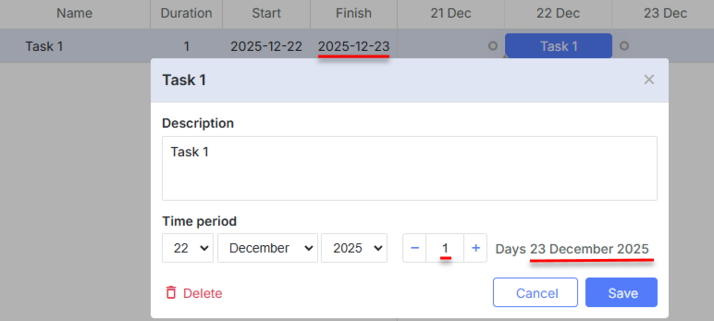
이 예제에서 Finish 날짜(end_date)는 12월 23일로 지정되지만, 작업 자체는 12월 22일의 끝까지 종료됩니다.

아래에서 Gantt가 종료 날짜를 저장하는 방식의 세부 사항을 설명합니다.
Gantt가 종료 날짜를 저장하는 방식
작업 날짜에 시간 부분을 명시하지 않더라도(duration_unit = "day"), 클라이언트 측에서 end_date를 항상 JS Date로 저장합니다. 이 객체는 시/분/초/밀리초를 포함합니다.
현재 종료 날짜 형식은 다음과 같습니다:
- 초 및 밀리초 부분은 항상 0이며, 1분 미만의 단위를 지원하지 않습니다
- 작업의 종료 날짜는 마지막 바쁜 날 이후의 시작 시점인 하루의 시작으로 지정됩니다(“day-hour-minute” 이후의 시작 시점). 즉:
- 12월 22일에 시작하여 1일간 지속되는 작업은 시작 날짜와 종료 날짜가 다음과 같이 됩니다: "22-12-2025 00:00:00 - 23-12-2025 00:00:00" 종료일은 12월 23일의 시작 시점과 일치합니다
- 12월 22일 13:00에 시작하여 1시간 지속되는 작업은 시작 및 종료 날짜가 다음과 같습니다: "22-12-2025 13:00:00 - 22-12-2025 14:00:00" 종료 날짜는 다음 시간의 시작 시점과 일치
화면에 종료 날짜를 시간 부분 없이 표시하면 오해가 생길 수 있습니다. 위의 시나리오 2 예에서 시작 및 종료 날짜는 "22-12-2025 - 23-12-2025"처럼 보일 수 있으며, 이는 작업이 1일이 아닌 2일 동안 지속된 것으로 오해하게 만듭니다.
이는 기본 동작이며 혼란스러울 수 있지만 구성 변경으로 수정할 수 있습니다. 아래에서는 이를 처리하는 몇 가지 방법을 보여 드립니다.
기본 동작 변경 방법
- 먼저 해야 할 일은 실제 gantt에 저장된 작업 날짜를 변경하는 것이 아닙니다.
또한 gantt에 로드된 작업 날짜를 수정하여 종료 날짜를 22-12-2025 23:59:59와 같이 지정하고 싶을 수 있습니다. 그러나 이러한 결정은 작업 기간 계산과 자동 스케줄링과 충돌할 수 있으므로 피하는 것이 좋습니다.
대신 다음 방법을 사용하는 것이 좋습니다:
2a) 작업의 종료 날짜 형식(종료 날짜를 작업 기간에 포함시키는 것)을 변경하려면 task_end_date 템플릿을 재정의할 수 있습니다.
12월 22일 2025년에 시작하고 하루 동안 지속되는 작업을 예로 들면, 템플릿이 종료 날짜를 어떻게 바꿀 수 있는지 살펴보겠습니다.
기본적으로 이 작업의 종료 날짜는 2025년 12월 23일로 표시되어야 합니다(23-12-2025 00:00:00):
그러나 task_end_date와 grid_date_format 템플릿을 적용하면 동일 작업이 2025년 12월 22일에 끝납니다:
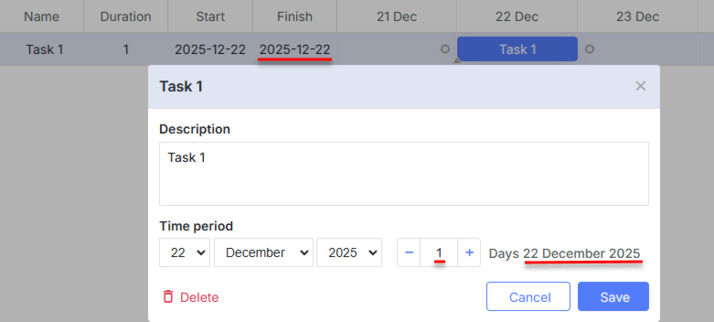
코드는 다음과 같습니다:
// 템플릿 재정의
gantt.templates.task_end_date = (date) => {
    return gantt.templates.task_date(new Date(date.valueOf() - 1));
};

const gridDateToStr = gantt.date.date_to_str("%Y-%m-%d");

gantt.templates.grid_date_format = (date, column) =>  {
    if (column === "end_date") {
        return gridDateToStr(new Date(date.valueOf() - 1));
    } else {
        return gridDateToStr(date);
    }
};

gantt.init("gantt_here");
이 방식은 그리드, 라이트박스의 헤더 및 종료 날짜를 표시해야 하는 모든 위치에서 작업 종료 날짜를 변경하는 데 사용할 수 있습니다.
format for inclusive end dates을 사용하는 경우 그리드에서의 포함 종료 날짜 표기와 그리드에서의 인라인 편집이 올바르게 작동하도록 하려면 포함 종료 날짜를 편집하는 특수 편집기를 만들어야 합니다. 예:
// Inclusive editor for end dates
// 기본 편집기를 사용하되 set_value/get_value 메서드를 재정의
const dateEditor = gantt.config.editor_types.date;

gantt.config.editor_types.end_date = gantt.mixin(
    {
        set_value: (value, id, column, node) => {
            const correctedValue = gantt.date.add(value, -1, "day");
            return dateEditor.set_value.apply(this, [correctedValue, id, column, node]);
        },
        get_value: (id, column, node) => {
            const selectedValue = dateEditor.get_value.apply(this, [id, column, node]);
            return gantt.date.add(selectedValue, 1, "day");
        },
    },
    dateEditor
);

const textEditor = { type: "text", map_to: "text" };
const startDateEditor = { type: "date", map_to: "start_date" };
const endDateEditor = { type: "end_date", map_to: "end_date" };
const durationEditor = { type: "number", map_to: "duration", min: 0, max: 100 };

gantt.config.columns = [
    { name: "text", label: "Name", tree: true, width: 200, editor: textEditor, resize: true },
    { name: "duration", label: "Duration", width: 80, align: "center", editor: durationEditor, resize: true },
    { name: "start_date", label: "Start", width: 140, align: "center", editor: startDateEditor, resize: true },
    { name: "end_date", label: "Finish", width: 140, align: "center", editor: endDateEditor, resize: true }
];

// Inclusive 형식으로 작업 종료 날짜를 표시하도록 템플릿 변경
gantt.templates.task_end_date = (date) => {
    return gantt.templates.task_date(new Date(date.valueOf() - 1));
};

const gridDateToStr = gantt.date.date_to_str("%Y-%m-%d");

gantt.templates.grid_date_format = (date, column) => {
    if (column === "end_date") {
        return gridDateToStr(new Date(date.valueOf() - 1));
    } else {
        return gridDateToStr(date);
    }
};
관련 샘플: Inclusive end date editor
2b) 애플리케이션의 다른 부분에서 종료 날짜를 "inclusive" 형식으로 저장해야 하는 경우 - 예를 들어 2025년 12월 22일에 시작하고 1일 동안 지속되는 작업은 시작 날짜: "22-12-2025", end_date: "22-12-2025"로 저장되어야 하는 경우 - 종료 날짜를 데이터 저장소로 저장하기 전에 종료 날짜를 추가로 처리해야 합니다:
- 로딩 전에 종료 날짜에 하루를 더하기
- Gantt에서 받은 변경 사항을 저장소로 다시 저장하기 전에 종료 날짜에서 하루를 빼기
데이터 속성
Gantt 차트의 데이터 원천은 2가지 정보를 저장하는 객체입니다:
- tasks - 작업 항목들
- links - 의존성 링크 항목들
작업 객체의 속성
작업 객체의 전체 속성 목록은 Task properties 글에 나와 있습니다.
JSON 및 XML 데이터의 기본 날짜 형식은 "%d-%m-%Y %H:%i" 입니다(참조: 날짜 형식 규격).
그 형식을 변경하려면 date_format 구성 옵션을 사용하십시오.
gantt.config.date_format="%Y-%m-%d";
gantt.init("gantt_here");
Gantt에 로드된 후, start_date와 end_date 속성은 Date 타입으로 구문 분석됩니다.
date_format 설정에서 지원되지 않는 날짜 형식은 parse_date 템플릿을 통해 수동으로 구문 분석될 수 있습니다.
링크 객체의 속성
링크 객체의 전체 속성 목록은 Link properties 글에 나와 있습니다.
커스텀 속성
필수 속성에 국한되지 않고 데이터 항목에 임의의 커스텀 속성을 추가할 수 있습니다. 추가 데이터 속성은 문자열로 파싱되어 클라이언트 측으로 로드되며 필요에 따라 사용할 수 있습니다.
커스텀 속성이 포함된 데이터의 예시는 여기에서 확인할 수 있습니다 here.
데이터베이스 구조
데이터베이스를 사용하는 경우 데이터 저장을 위해 작업용 테이블과 링크용 테이블의 2개를 따로 두는 것이 좋습니다.
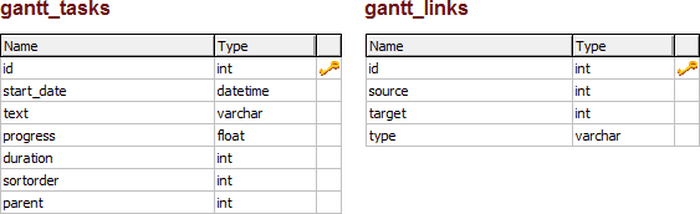
Gantt 차트에 작업과 링크를 로드하는 표준 데이터베이스 구조는 다음과 같습니다:
- gantt_tasks 테이블 - Gantt 작업을 지정합니다
- id - (string,number) 이벤트 아이디.
- start_date - (Date) 작업이 시작될 예정인 날짜.
- text - (string) 작업의 설명.
- progress - (number) 작업이 완료된 비율을 나타내는 0~1 사이의 숫자.
- duration - (number) 현재 시간 축 단위로 작업의 기간.
- parent - (number) 상위 작업의 아이디.
- type - (string) 선택적, 작업의 유형.
- readonly - (boolean) 선택적, 작업을 읽기 전용으로 표시할 수 있습니다.
- editable - (boolean) 선택적, 작업을 편집 가능으로 표시할 수 있습니다.
- gantt_links 테이블 - Gantt 의존성 링크를 지정합니다
- id - (string,number) 이벤트 아이디.
- source - (number) 출발 작업의 아이디.
- target - (number) 도착 작업의 아이디.
- type - (string) 의존성 유형:
- 0 - 'finish_to_start'
- 1 - 'start_to_start'
- 2 - 'finish_to_finish'
- 3 - 'start_to_finish'
- lag - (number) 선택적, 작업 지연.
- readonly - (boolean) 선택적, 링크를 읽기 전용으로 표시할 수 있습니다.
- editable - (boolean) 선택적, 링크를 편집 가능으로 표시할 수 있습니다.
다음 SQL 문을 사용해 위의 2개 테이블이 포함된 데이터베이스를 생성합니다:
CREATE TABLE `gantt_links` (
  `id` int(11) NOT NULL AUTO_INCREMENT,
  `source` int(11) NOT NULL,
  `target` int(11) NOT NULL,
  `type` varchar(1) NOT NULL,
  PRIMARY KEY (`id`)
)
CREATE TABLE `gantt_tasks` (
  `id` int(11) NOT NULL AUTO_INCREMENT,
  `text` varchar(255) NOT NULL,
  `start_date` datetime NOT NULL,
  `duration` int(11) NOT NULL,
  `progress` float NOT NULL,
  `sortorder` int(11) NOT NULL,
  `parent` int(11) NOT NULL,
  PRIMARY KEY (`id`)
)
이벤트 흐름
로딩과 관련된 메서드는 다음과 같은 이벤트 흐름을 가집니다: