工作时间计算
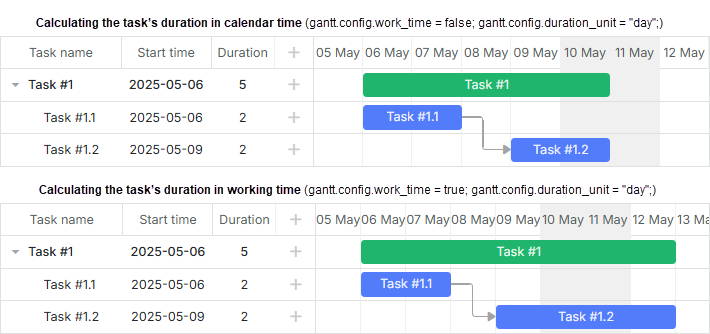
默认情况下,dhtmlxGantt 按日历时间计算任务的持续时间。它假设任务的最终持续时间可以包含周末和节假日。
请查阅 Task end date display & Inclusive end dates 文章,了解任务结束日期的格式。
启用工作时间计算
若要提供按工作时间计算任务持续时间的功能,请使用 work_time 选项:
启用在工作时间内计算任务持续时间的模式
gantt.config.work_time = true;     // 从计算中移除非工作时间 /*!*/
gantt.config.skip_off_time = true; /*!*/   // 在图表中隐藏非工作时间

gantt.init("gantt_here");
请注意,skip_off_time 配置选项仅在 PRO 版本中可用。
Duration includes only working days
根据 duration_unit 的取值,dhtmlxGantt 会以不同的时间单位来计算任务的持续时间(例如,若 duration_unit = "hour",则持续时间在工作时段内计算)。
小数格式的任务持续时间
此功能仅在 PRO 版本中可用。
从 v6.3 开始,dhtmlxGantt 允许通过 Duration Formatter 模块,将任务的持续时间以小数格式(如 "2.5 days"、 "0.5 hours"、"3.75 hours")进行表示。
需要记住的要点是,内部 Gantt 总是以整数值存储任务的持续时间。
而提供的模块允许将用户输入的持续时间从一种格式解析为 Gantt 存储的格式(例如,输入 "1.5 hours" 时,Gantt 将存储分钟数 - 90)。此外,存储的值可以转换回可读格式(将 12 小时转换为 "0.5 days")。
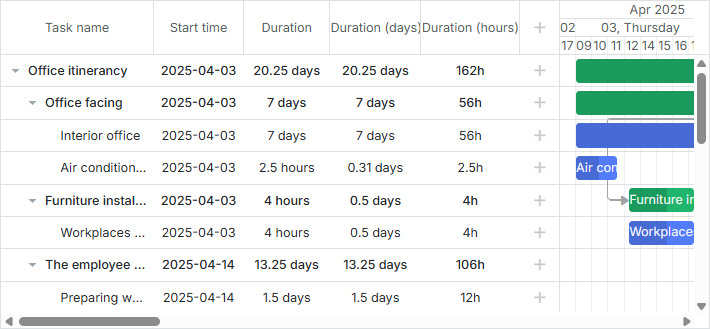
持续时间可以表示为小时、天或其他 duration_unit 配置单位的分数,唯独不能表示为分钟。
实现小数格式
若要实现以小数格式显示任务持续时间,请按下列逻辑操作:
- 将 duration_unit 设置为 minute
gantt.config.work_time = true;
gantt.config.duration_unit = "minute"; /*!*/
请注意,您需要将任务持续时间存储为小于在小数格式中显示的单位的单位。简而言之:
-
如果您希望用户能够将持续时间指定为一个小时的分数(例如 "0.5 hours"),需要将 duration_unit 设置为 minute
-
如果您希望用户能够将持续时间指定为一天的分数,需要将 duration_unit 设置为 hour。在这种情况下,用户将能够把任务持续时间输入为 "0.5 day",但由于持续时间以整数小时存储,"0.5 hour" 将被向上取整为 1 小时。
默认情况下,任务日期会对齐到时间刻度。如果您的时间刻度以天为单位,您可能希望在同一天内拖放任务到不同的小时段时禁用它。
要启用此拖放功能,您需要禁用 round_dnd_dates 并为 time_step 设置合适的值。 :: 例如:
// 全局时间步长为 15 分钟,需将持续时间单位设为 "minute"
gantt.config.time_step = 15;
gantt.config.round_dnd_dates = false;
或
// 全局时间步长为 1 小时
// 当持续时间单位设为 "hour" 时,可以使用该值
gantt.config.time_step = 60;
gantt.config.round_dnd_dates = false;
- 为格式化任务持续时间创建 formatter 对象:
// 格式化持续时间
const formatter = gantt.ext.formatters.durationFormatter({
    enter: "day",
    store: "minute", // duration_unit
    format: "day",
    hoursPerDay: 8,
    hoursPerWeek: 40,
    daysPerMonth: 30
});
- 通过在列参数的 template 属性中定义模板函数,将 formatter.format(task.duration) 作为返回值,向 “Duration” 列添加 formatter 对象:
gantt.config.columns = [
    { name: "text", tree: true, width: 170, resize: true, editor: textEditor },
    { name: "start_date", align: "center", resize: true, editor: dateEditor },
    { name: "duration", label: "Duration", resize: true, align: "center",
        template: task => formatter.format(task.duration), width: 100 },
    { name: "add", width: 44 }
];
- 通过在列参数的 time 控件中设置 formatter 属性,将 formatter 对象添加到轻量对话框中:
gantt.config.lightbox.sections = [
    { name: "description", map_to: "text", type: "textarea", height: 70, focus: true },
    { name: "time", map_to: "auto", type: "duration", formatter: formatter }
];
- 如果在网格中启用了内联编辑,您还需要通过在 durationEditor 对象的 formatter 属性中添加 formatter 对象:
const durationEditor = {
    type: "duration",
    map_to: "duration",
    formatter: formatter, /*!*/
    min: 0,
    max: 1000
};

gantt.config.columns = [
    { name: "text", tree: true, width: 170, resize: true },
    { name: "start_date", align: "center", resize: true },
    { name: "duration", label: "Duration", resize: true, align: "center",
        template: (task) => formatter.format(task.duration),
        editor: durationEditor, width: 100 },
    { name: "add", width: 44 }
];
如果您已经有 Gantt 的任务持续时间以分钟、小时或其他单位存储,也可以使用 Duration Formatter 模块将持续时间以小数格式呈现。
全局设置
设置工作时间
默认工作时间如下:
- 工作日:周一至周五。
- 工作时间:8:00-12:00,13:00-17:00。
要更改默认工作时间,请使用 setWorkTime 方法:
// 更改工作日的工作时间
gantt.setWorkTime({ hours: ["9:00-18:00"] });

// 将所有周五设为休息日
gantt.setWorkTime({ day: 5, hours: false });

// 更改周五和周六的工作时间
gantt.setWorkTime({ day: 5, hours: ["8:00-12:00"] });
gantt.setWorkTime({ day: 6, hours: ["8:00-12:00"] });

// 将特定日期设为工作日
gantt.setWorkTime({ date: new Date(2025, 2, 31) });

// 将特定日期设为休息日
gantt.setWorkTime({ date: new Date(2025, 0, 1), hours: false });
相关示例: Custom working days and time
为夜班设置工作时间
对方法 setWorkTime 的配置对象中 hours 属性的工作时间设置应从较小区间到较大区间,按升序排列。若以降序提供时间设置,部分内容将被忽略。在下面的示例中,18:00 之后的时间段将被忽略:
// 下面的设置不正确
gantt.setWorkTime({ day: 5, hours: ["16:00-18:00", "14:00-15:00", "08:00-10:00"] });
gantt.setWorkTime({ day: 5, hours: ["16:00-18:00", "00:00-04:00", "05:00-06:00"] });
如果需要为夜班指定工作时间,请按以下方式设置:
- 第一天内为 24 小时
- 次日内为 24 小时
例如:
gantt.setWorkTime({ day: 5, hours: ["16:00-18:00"] });
gantt.setWorkTime({ day: 6, hours: ["00:00-04:00", "05:00-06:00"] });
配置工作时间规则
可以通过使用 setWorkTime 方法的 customWeeks 属性,为不同时间段配置不同的工作时间规则。例如,您可以在冬季月份为默认工作时间应用单独的计划:
//为冬季月份更改工作时间
gantt.setWorkTime({
    customWeeks: {
        winter: {
            from: new Date(2025, 11, 1), // 2025 年 12 月 1 日
            to: new Date(2026, 2, 1), // 2026 年 3 月 1 日 00:00
            hours: ["9:00-13:00", "14:00-16:00"],
            days: [1, 1, 1, 1, 0, 0, 0]
        }
    }
});
要不仅从小时到小时(如 "8:00-12:00")指定工作时间,还要包括分钟(如 "8:15-12:45"),请将 duration_unit 配置设置为 "minute"。
gantt.config.duration_unit = "minute";

// 将工作时间设置到分钟
gantt.setWorkTime({ hours: ["8:15-12:45"] });
到版本 7.0 之前使用的工作时间格式将继续按原样工作:
gantt.setWorkTime({ hours: [9, 18] });
重写工作时间规则
注意,同一天的下一次调用该方法将覆盖之前的工作时间规则。因此,如果您需要取消某条规则,请使用其他配置再次调用 setWorkTime 方法:
gantt.setWorkTime({ hours: ["8:00-12:00"] });
gantt.setWorkTime({ hours: ["13:00-17:00"] });
// 上述命令的结果为工作时间 13:00-17:00
// 而不是两者的混合
设置自定义工作日/休息日
请注意,不可能应用不包含任何工作日/工作时段的工作时间设置。例如,以下用法将不可行:
gantt.setWorkTime({ day: 0, hours: [] });
gantt.setWorkTime({ day: 1, hours: [] });
gantt.setWorkTime({ day: 2, hours: [] });
gantt.setWorkTime({ day: 3, hours: [] });
gantt.setWorkTime({ day: 4, hours: [] });
gantt.setWorkTime({ day: 5, hours: [] });
gantt.setWorkTime({ day: 6, hours: [] });
因此,Gantt 将忽略对某个工作日的应用,但仍会包含工作小时。
如果您尝试在某日期附近计算最近的工作时间或持续时间,将不存在该日期或持续时间。这意味着设置这样的日历没有意义。即使您为某些日期设定了工作小时,亦无法正确工作,因为 Gantt 只能在包含工作日/工作小时的日期范围内计算日期。若尝试在此范围之外计算日期,将导致缺少日期及各种错误。
如果您希望创建一个日历,使某些月份甚至某些年份只有非工作日,请使用 setWorkTime() 方法的 customWeeks 设置。为在所需范围内指定工作日/工作小时,您需要:
- 将其分段为没有工作小时的区段
- 为必要日期设置工作小时
gantt.setWorkTime({ date: new Date(2025, 3, 10), hours: ["8:00-12:00"] })
gantt.setWorkTime({ date: new Date(2025, 3, 11), hours: ["13:00-17:00"] })

gantt.setWorkTime({
    customWeeks: {
        period1: {
            from: new Date(2025, 3, 1),
            to: new Date(2025, 3, 10),
            hours: false,
        },

        period2: {
            from: new Date(2025, 3, 12),
            to: new Date(2025, 5, 1),
            hours: false,
        },

    }
});
相关示例 Using customWeeks to make all days in the calendar days-off
将休息日时段着色
要在图表区域对休息日时段进行着色,请使用 timeline_cell_class 模板:
gantt.templates.timeline_cell_class = (task, date) =>
    !gantt.isWorkTime({ task, date }) ? "week_end" : "";
相关示例: Custom working days and time
在 Highlighting Time Slots 文章中了解更多信息。
要隐藏休息日时间,请使用本文中的方法——Hiding Time Units in the Scale。
多个工作时间日历
除了全局工作时间设置外,Gantt 还允许创建多个工作时间日历。您可以将它们分配给单独任务或一组任务。
创建工作日历
可以使用 createCalendar 方法创建一个新的日历实例。该方法有两种可能的选项:
- 无参数调用时,创建一个全职日历:每天 24 小时工作、一周 7 天
const calendar = gantt.createCalendar();
- 如果您已有一个日历并希望在不同选项下复用它来创建一个新的日历,可以将现有日历作为参数传递给 createCalendar 方法
const newCalendar = gantt.createCalendar(calendar);
日历对象最初与 Gantt 分离,直到将其加入 Gantt 之后才会生效。
将工作日历添加到 Gantt
创建日历后,您需要通过 addCalendar 方法将其添加到 Gantt 中。这次同样有两种可能:
- 添加一个已有日历配置
const calendarId = gantt.addCalendar(calendar);
- 设置一个新的日历配置,其中包含日历 id 和带有工作日与工作时间的 worktime 对象:
const calendarId = gantt.addCalendar({
    id: "custom", // 可选
    worktime: {
        hours: ["8:00-17:00"],
        days: [1, 1, 1, 1, 1, 1, 1]
    }
});
您也可以使用此选项来创建日历。
为不同时间段配置不同的工作时间规则
从 v7.1 开始,您可以在一个日历中为不同时间段设置不同的工作时间规则。例如,在将日历加入 Gantt 时为冬季月份应用单独的日程。为此,您需要使用 addCalendar 方法的 customWeeks 属性:
const calendarId = gantt.addCalendar({
    id: "global", // 可选
    worktime: {
        hours: ["8:00-17:00"],
        days: [1, 1, 1, 1, 1, 1, 1],
        customWeeks: {
            winter: {
                from: new Date(2025, 11, 1), // 2025年12月1日
                to: new Date(2026, 2, 1), // 2026年3月1日 00:00
                hours: ["9:00-13:00", "14:00-16:00"],
                days: [1, 1, 1, 1, 0, 0, 0]
            }
        }
    }
});
相关示例: Different worktimes for different time periods
变更工作时间
您可以通过 setWorkTime() 方法为日历的特定日期设置工作时间:
const calendar = gantt.getCalendar("custom");
calendar.setWorkTime({ day: 6, hours: ["8:00-12:00"] });
calendar.setWorkTime({ date: new Date(2025, 0, 1), hours: ["8:00-12:00"] });
获取日历
您可以获取工作日历对象以便稍后使用。下面描述了几种可用的选项。
获取全局 Gantt 日历
使用 getCalendar 方法获取全局 Gantt 日历对象:
const calendar = gantt.getCalendar(id);
calendar 对象是 calendar 接口的一个实例。
默认日历实例(全局设置)可通过预定义的 "global" id 访问:
const globalSettings = gantt.getCalendar("global");
当没有指定其他日历时,该日历被 工作时间方法 使用,并默认分配给任务。
获取某个任务的当前日历
要获取分配给特定任务的工作日历对象,请应用 getTaskCalendar 方法。需要将任务对象传递给该方法:
const task = gantt.getTask(taskId);
const calendar = gantt.getTaskCalendar(task);

if (calendar.isWorkTime(date)) {
    alert("TaskWorkTime");
}
相关示例: Task level calendars
如果在 gantt 配置中禁用了工作时间,该方法将返回一个 24/7 的工作时间日历。
使用全局方法访问日历
Gantt 对象的 工作时间方法 可用于在不手动访问日历的情况下计算特定任务的时间持续量。
在这种情况下,方法接收一个对象参数,其中相关的 "task" 对象作为其中一个属性传递。
if (gantt.isWorkTime({ date: date, task: task })) {
    alert(`TaskWorkTime`);
}
等价于:
const calendar = gantt.getTaskCalendar(task);

if (calendar.isWorkTime({ date: date })) {
    alert(`TaskWorkTime`);
}
const endDate = gantt.calculateEndDate({
    start_date: date, duration: duration, task: task
});
// 或
const endDate = gantt.calculateEndDate(task);
const duration = gantt.calculateDuration({
    start_date: start, end_date: end, task: task
});
// 或
const duration = gantt.calculateDuration(task);
const closestTime = gantt.getClosestWorkTime({ date: date, task: task });
获取所有 Gantt 日历
要获取 Gantt 中添加的所有日历(全球日历和分配给各任务的日历),请使用 getCalendars 方法:
const calendars = gantt.getCalendars();
该方法返回一个 Calendar interface 对象数组。
删除日历
如果不再需要某个日历,可以通过 deleteCalendar 方法将其移除。传递日历 id 给此方法:
// 添加一个日历
gantt.addCalendar({
    id: "custom",
    worktime: {
        hours: ["8:00-17:00"],
        days: [1, 1, 1, 1, 1, 1, 1]
    }
});

// 删除一个日历
gantt.deleteCalendar("custom");
将日历分配给任务
要为任务分配工作日历,您需要设置日历 id 和带有工作日和工作时间的 worktime 对象:
gantt.addCalendar({
    id: "custom", // 可选
    worktime: {
        hours: ["8:00-17:00"],
        days: [1, 1, 1, 1, 1, 1, 1]
    }
});
然后在任务对象中将日历的 id 设置为 "calendar_id" 属性的值:
{
    id: 2, text: "Task #1", start_date: "02-04-2025", duration: 8,
    calendar_id: "custom" /*!*/
}
您可以通过配置项 calendar_property 修改用于将日历绑定到任务的任务属性名称:
gantt.config.calendar_property = "property_name";
相关示例: Task level calendars
将日历分配给资源
此功能仅在 PRO 版本中可用。
同样可以将特定工作日历分配给需要特定资源(人员、设备等)的任务。例如,您可以基于任务分配的用户来设置单独的日历,将日历分配给用户,并将各用户的日历整合到一个对象中。操作顺序如下:
- 通过配置属性 resource_property 指定将存储资源 id 的任务对象属性。在下例中,将名为 user 的属性存储用户 ids:
gantt.config.resource_property = "user";
- 使用 resource_calendars 配置选项,为每个用户添加所需的日历,并将各日历分组到一个对象中。
gantt.config.resource_calendars = {
    1 : gantt.addCalendar({
        worktime: {
            days: [0, 1, 1, 1, 1, 1, 0]
        }
    }),
    2 : gantt.addCalendar({
        worktime: {
            days: [1, 0, 0, 0, 0, 0, 1]
        }
    }),
    3 : gantt.addCalendar({
        worktime: {
            days: [0, 1, 1, 1, 0, 1, 1]
        }
    })
};
对象包含一组 key:value 对,其中 key 是资源的 id,value 对应 addCalendar 方法返回的日历的 id。
- 在任务配置对象中指定 user 属性。将该属性作为值使用对象中定义的日历的键(来自配置项 resource_calendars 的日历 id)
{ id: 1, user: 1, text: "Project #2", start_date: "01-04-2025", duration: 5 },
{ id: 2, user: 0, text: "Task #1", start_date: "02-04-2025", duration: 2 },
{ id: 3, user: 2, text: "Task #2", start_date: "11-04-2025", duration: 4 },
{ id: 4, user: 3, text: "Task #3", start_date: "13-04-2025", duration: 3 },
{ id: 5, user: 0, text: "Task #1.1", start_date: "02-04-2025", duration: 7 },
{ id: 6, user: 1, text: "Task #1.2", start_date: "03-04-2025", duration: 7 }
请注意,当任务同时具有自定义日历和资源日历时,自定义日历具有更高的优先级,会覆盖资源日历设置。
合并多个日历
从 v7.0 起,可以将多个日历合并为一个日历。
例如,您想为同一个任务设置两个或多个具有不同工作日历的资源。第一位资源的工作时间为 9:00-15:00,而另一位的工作时间为 12:00-17:00。合并后,您将得到一个工作时间为 12:00-15:00 的日历。
将 dynamic_resource_calendars 配置设为 true 将自动启用此特性:
gantt.config.dynamic_resource_calendars = true;
相关示例: Merge work Calendars of different resources
但您也可以使用 mergeCalendars 方法手动合并日历:
const johnCalendarId = gantt.addCalendar({
    worktime: {
        hours: ["0:00-24:00"],
        days: [0, 1, 1, 1, 1, 1, 0]
    }
});

const mikeCalendarId = gantt.addCalendar({
    worktime: {
        hours: ["8:00-12:00", "13:00-17:00"],
        days: [0, 1, 1, 1, 1, 1, 0]
    }
});

const joinedCalendar = gantt.mergeCalendars(
    gantt.getCalendar(mikeCalendarId),
    gantt.getCalendar(johnCalendarId)
);
在 mergeCalendars() 文章中学习关于工作时间合并的逻辑。
将日历分配给项目
此功能仅在 PRO 版本中可用。
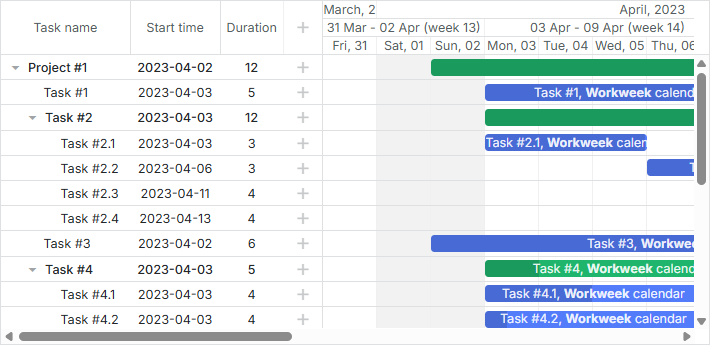
除了为特定任务或资源分配工作日历,您还可以为整个项目指定工作日历,以便任务可以继承其父项目所分配的同一日历。
任务继承日历的逻辑如下:
- 如果用户向带有任务的子项目分配了日历,则该子项目的所有任务都将使用此日历。
- 如果某个任务被分配了个人日历,则它将使用自己的日历,而不是父项目的日历。
要启用此功能,需要将 inherit_calendar 配置选项设置为 true。默认此选项为禁用状态。
gantt.config.inherit_calendar = true;
- 若为 true,未分配日历的任务将使用分配给其摘要父项的日历(该父项也可能从其父项继承日历)。
- 若为 false,未分配日历的任务将使用全局日历。
下列示例中,任务默认继承自其父项目的日历。在某些任务具有不同日历时,将使用该任务的日历而非父项目的日历,例如,“Task #2.2”和“Task #3”使用“Full week”日历,而不是它们的父项目:
相关示例: Project level calendars
动态更改日历
自 v7.0 起,Gantt 会检测任务日历的变化并自动重新计算任务时间。
当然,当日历变化时,您也可以手动更新任务时间表。比如,可以在 lightbox 中修改日历:
const updateTaskTiming = (task) => {
    task.start_date = gantt.getClosestWorkTime({
        dir: "future",
        date: task.start_date,
        unit: gantt.config.duration_unit,
        task: task
    });
    task.end_date = gantt.calculateEndDate(task);
};

gantt.attachEvent("onLightboxSave", (id, task, is_new) => {
    updateTaskTiming(task);
    return true;
});
或者,您也可以在需要时重新计算所有任务:
gantt.batchUpdate(() => {
    gantt.eachTask((task) => {
        task.start_date = gantt.getClosestWorkTime({
            dir: "future",
            date: task.start_date,
            unit: gantt.config.duration_unit,
            task: task
        });
        task.end_date = gantt.calculateEndDate(task);
        gantt.updateTask(task.id);
    });
});
相关示例: Toggle working time settings and move the task to the working date
相关示例: Toggle working time settings and recalculate the task's end dates
基于工作时间的 Day/Week 量表中任务条显示
自 v9.1 起,Gantt 允许在任务对象配置中指定 projection 设置。通过该属性,您可以在 Day 与 Week 的量表中基于 工作时间 来设置任务条的位置与大小,而不是 00:00-24:00 的区间。
请在相关指南中查看对时间刻度显示投影的详细描述:scale projection 的可能性.