Work with Calendar
Changing calendar mode
Use the showDate() method to show a particular date in the calendar or open Calendar in a specific mode. It takes two parameters:
date- (Date) the date that should be shown in the calendarmode- (string) optional, the mode in which the calendar will be opened
There are the following calendar modes available:
"calendar"- allows you to select a day of the month (default)
calendar.showDate(new Date(2020,11,12),"calendar");
"month"- allows you to select a month
calendar.showDate(new Date(2020,11,12),"month");

// shows the current month
calendar.showDate(null,"month");
Related sample: Calendar. Showing particular calendar date and mode
"year"- allows you to select a year
calendar.showDate(new Date(2020,11,12),"year");

// shows the current year
calendar.showDate(null,"year");
For example, you can attach Calendar to an input so that a click on the input shows Calendar in one of the modes:
<input type="text" onclick="showCalendar()" />
const calendar = new dhx.Calendar("calendar_container");
function showCalendar(){
    calendar.showDate(new Date(11,11,11),"month");
};
Getting current mode
To get the current Calendar mode, call the getCurrentMode() method. It returns one of the available calendar modes:
"month""year""calendar""timepicker"
const mode = calendar.getCurrentMode(); // -> "calendar"
Related sample: Calendar. Get current mode
Getting selected date
To get the selected date, call the getValue() method. The method returns the selected date either as a string (default) or as a Date object. To get a date as an object, pass the true parameter to the method.
const date1 = calendar.getValue(); // -> "20/08/19"

const date2 = calendar.getValue(true); // -> Tue Aug 20 2019 00:00:00 GMT+0300
Related sample: Calendar. Getting selected date
If you work with a calendar in the range mode, the getValue() method returns either an array of Date values or an array of string values with the start and end dates of the range.
// for a range calendar as an array of Date values
const date = calendar.getValue(true);
// -> [Mon Jun 03 2019 00:00:00 GMT+0300, Wed Jun 19 2019 00:00:00 GMT+0300]

// for a range calendar as an array of string values
const date = calendar.getValue(); // ->  ["03/06/19", "19/06/19"]
Linking two calendars
You can create two calendars and link them to select a date range. The first calendar sets the start date, the second sets the end date.
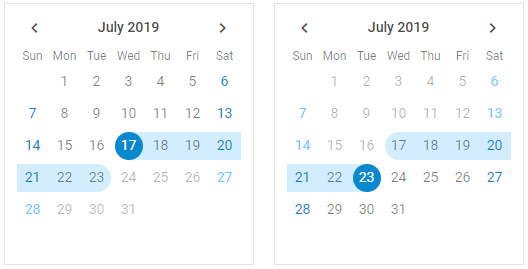
Call the link() method on the first calendar and pass the second calendar object as a parameter. In the example below, the Change event outputs the start and end dates of the selected range:
const calendar = new dhx.Calendar("calendar1", { css: "dhx_calendar--bordered" });
const calendar2 = new dhx.Calendar("calendar2", { css: "dhx_calendar--bordered" });

calendar.link(calendar2);

calendar.events.on("change", function (date) {
    document.querySelector("#resultFrom").innerHTML =
        "Date from: " + calendar.getValue() + "</br>";
});

calendar2.events.on("change", function (date) {
    document.querySelector("#resultTo").innerHTML =
        "Date to: " + calendar2.getValue() + "</br>";
});
Related sample: Calendar. Date range
Selecting date
To select a date in a calendar, call the setValue() method. The method has one mandatory parameter - a date that should be selected, which can be passed in several formats:
- as a Date object
- as a string
- as an array of Date values for the range mode
- as an array of string values for the range mode
// selects the current date
calendar.setValue(new Date());

// sets the current date as an array of Date value
calendar.setValue([new Date()]);

// sets a date as a string
calendar.setValue("30/05/19");

// sets a date as an array of string value
calendar.setValue(["30/05/19"]);

//sets dates as an array of Date values(for the range mode)
calendar.setValue([new Date(2019,05,03), new Date(2019,05,19)]);

//sets dates as an array of string values(for the range mode)
calendar.setValue(["03/06/19", "15/06/19"]);
If the method adds the date to the calendar successfully, it returns true.
Related sample: Calendar. Preset selected date
The dateFormat option defines the date format in Calendar. Set the format you want both in the setValue() method and in the dateFormat property. Otherwise, Calendar uses the default format, "%d/%m/%y".
Showing tooltips
You can add tooltips for dates and show them on the dateMouseOver event. For example, you can add tooltips to mark some special days:
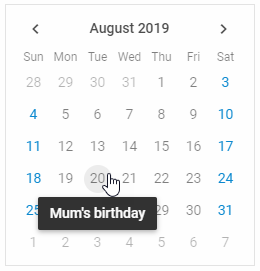
const special_days = {
    "20__8": "Mum's birthday",
    "28__8": "Trip to Canada"
}

calendar.events.on("DateMouseOver", function(date, e) {
    const key = date.getDate() + "__" + (date.getMonth() + 1);
    if (key in special_days) {
        dhx.tooltip(special_days[key], {node: e.target, position: "bottom"});
    }
});