Configuration
This chapter describes the Chart configuration options. It covers both the properties that apply to all chart types and the options specific to particular types.
Set the properties you need in the configuration object that you pass to the chart constructor.
Main properties
DHTMLX Chart includes several configuration options that apply to most chart types:
type
- type - (
string) defines the type of a chart to initialize: "bar", "x-bar" (for horizontal Bar chart), "line", "spline", "scatter", "area", "splineArea", "donut", "pie", "pie3D", "radar", "treeMap", and "calendarHeatMap"
const chart = new dhx.Chart("chart_container", {
    type: "bar"
});
scales
- scales - (
object) defines the configuration of chart scales
const chart = new dhx.Chart("chart_container", {
    scales: {}
});
Configure scales for the Line, Spline, Bar, X-Bar, Area, SplineArea, Radar, or Scatter chart.
Scales support five types: "left", "right", "top", "bottom", and "radial" (for the Radar chart).
const chart = new dhx.Chart("chart_container", {
    type: "area",
    scales: {
        "bottom": {
            text: 'month'
        },
        "left": {
            padding: 10,
            max: 90
        }
    },
    series: [
        {
           value: 'company A',
           strokeWidth: 2
           // more options
        }
    ]
});
Related sample: Chart. Scale title
Scales support both common and type-specific options. See the full list of scale options in the API reference.
series
- series - (
array) defines the configuration of chart series
const chart = new dhx.Chart("chart_container", {
    series: []
});
The series configuration option is required for all chart types.
Series is an array of objects. Each object defines how one data set appears on the chart.
const chart = new dhx.Chart("chart_container", {
    type: "bar",
    scales: {
        "bottom": {
            text: "month"
        },
        "left": {}
    },
    series: [
        {
            id: "A",
            value: "company A",
            fill: "#394E79",
            stacked: stacked,
            color: "none"
        },
        {
            id: "B",
            value: "company B",
            fill: "#5E83BA",
            stacked: stacked,
            color: "none"
        }
    ]
});
Related sample: Chart. Point types
See all chart series options in the API reference.
legend
- legend - (
object) defines the configuration of a chart legend
const chart = new dhx.Chart("chart_container", {
    legend: {}
});
The legend configuration option is required for Treemap charts and optional for other chart types.
The legend object can contain several options.
const chart = new dhx.Chart("chart_container", {
    scales: {
        // scales config
    },
    series: [
        // list of series
    ],
    legend: {
        series: ["A", "B", "C"],
        valign: "top",
        halign: "right"
    }
});
Related Samples:
See all chart legend options in the API reference.
maxPoints
- maxPoints - (
number) sets the maximum number of data points; if the data set is larger, the chart displays averaged values
const chart = new dhx.Chart("chart_container", {
    type: "line",
    maxPoints: 100
});
Related sample: Chart. Max points
Line and Spline chart
The configuration object of Line and Spline chart must include the following properties:
- type: "line" (or type: "spline")
- scales:
- series: []
- and, optionally, legend:
For example:
const config = {
    type: "line", // or "spline"
    scales: {
        "bottom": {
            text: "month"
        },
        "left": {
            maxTicks: 10,
            max: 100,
            min: 0
        }
    },
    series: [
        {
            id: "A",
            value: "company A",
            color: "#81C4E8",
            strokeWidth: 3
        },
        {
            id: "B",
            value: "company B",
            color: "#74A2E7",
            strokeWidth: 3
        },
        {
            id: "C",
            value: "company C",
            color: "#5E83BA",
            strokeWidth: 3
        }
    ],
    legend: {
        series: ["A", "B", "C"],
        halign: "right",
        valign: "top"
    }
};

const chart = new dhx.Chart("chart_container", config);
chart.data.parse(dataset);
Related sample: Chart. Line chart initialization
Bar and X-Bar chart
The configuration object of Bar and X-Bar chart must include the following properties:
- type: "bar" (or type: "xbar")
- scales:
- series: []
- and, optionally, legend:
For example:
const config = {
    type: "bar", // or type: "xbar"
    scales: {
        "bottom": {
            text: "month"
        },
        "left": {
            maxTicks: 10,
            max: 100,
            min: 0
        }
    },
    series: [
        {
            id: "A",
            value: "company A",
            color: "#81C4E8",
            fill: "#81C4E8"
        },
        {
            id: "B",
            value: "company B",
            color: "#74A2E7",
            fill: "#74A2E7"
        },
        {
            id: "C",
            value: "company C",
            color: "#5E83BA",
            fill: "#5E83BA"
        }
    ],
    legend: {
        series: ["A", "B", "C"],
        halign: "right",
        valign: "top"
    }
};

const chart = new dhx.Chart("chart_container", config);
chart.data.parse(dataset);
Related sample: Chart. Bar chart initialization
Total values of stacked bars
To display the sum of the values of the visible stacked series at the end of each bar (above the bar in a Bar chart and to the right of the bar in an X-Bar chart), use the total property in the root configuration of the chart.
The property takes effect only when the stacked property is enabled in at least one of the series.
Set total to true to show the sums in the default format:
const chart = new dhx.Chart("chart_container", {
    type: "bar",
    total: true,
    scales: {
        bottom: { text: "month" },
        left: { max: 170 }
    },
    series: [
        { id: "A", value: "company A", fill: "#394E79", stacked: true },
        { id: "B", value: "company B", fill: "#5E83BA", stacked: true },
        { id: "C", value: "company C", fill: "#C2D2E9", stacked: true },
    ],
});
chart.data.parse(dataset);
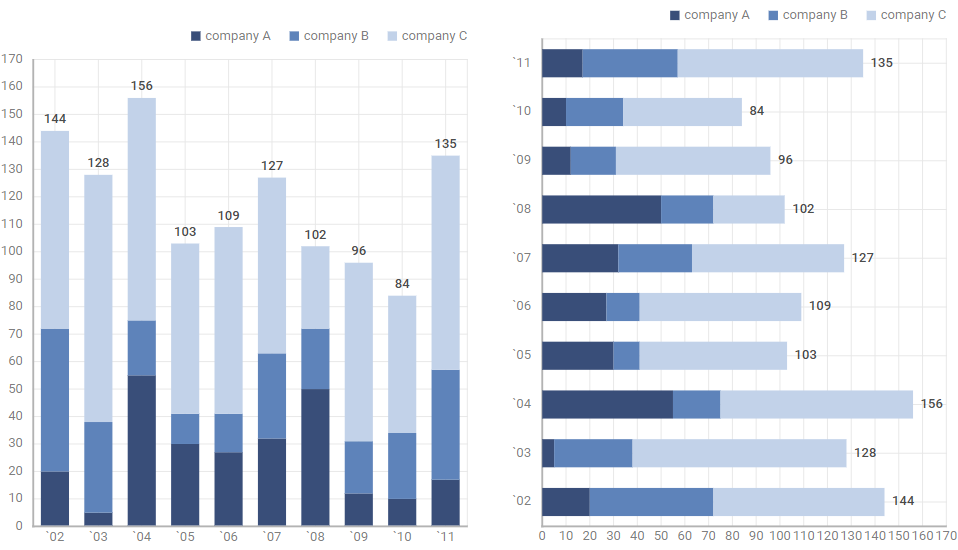
The series hidden via the legend are not counted, so the total values change when you hide or show a series.
To format the total values, set the total property as a callback function. The chart calls the function with the sum of the values of the visible series of the current bar as a parameter and displays the returned string or number at the end of the bar:
const chart = new dhx.Chart("chart_container", {
    type: "bar",
    total: (total) => `${total}$`,
    scales: {
        bottom: { text: "month" },
        left: { max: 170 }
    },
    series: [
        { id: "A", value: "company A", fill: "#394E79", stacked: true },
        { id: "B", value: "company B", fill: "#5E83BA", stacked: true },
        { id: "C", value: "company C", fill: "#C2D2E9", stacked: true },
    ],
});
chart.data.parse(dataset);
Related sample: Chart. Stacked bar chart. Show total
Area and SplineArea chart
The configuration object of Area and SplineArea chart must include the following properties:
- type: "area" (or type: "splineArea")
- scales:
- series: []
- and, optionally, legend:
For example:
const config = {
    type: "area", // or "splineArea"
    scales: {
        "bottom": {
            text: "month"
        },
        "left": {
            maxTicks: 10,
            max: 100,
            min: 0
        }
    },
    series: [
        {
            id: "A",
            value: "company A",
            color: "#81C4E8",
            strokeWidth: 3
        },
        {
            id: "B",
            value: "company B",
            color: "#74A2E7",
            strokeWidth: 3
        },
        {
            id: "C",
            value: "company C",
            color: "#5E83BA",
            strokeWidth: 3
        }
    ],
    legend: {
        series: ["A", "B", "C"],
        halign: "right",
        valign: "top"
    }
};

const chart = new dhx.Chart("chart_container", config);
chart.data.parse(dataset);
Related sample: Chart. Area chart initialization
Pie, Pie 3D and Donut chart
The configuration object of Pie, Pie 3D and Donut chart must include the following properties:
- type: "pie" (or type: "pie3D", type: "donut")
- series: []
- and, optionally, legend:
For example:
const config = {
    type: "pie", // or type: "pie3D", or type: "donut"
    series: [
        {
            value: "value",
            color: "color",
            text: "month",
            stroke: "#FFFFFF",
            strokeWidth: 2
        }
    ],
    legend: {
        values: {
            text: "id",
            color: "color"
        },
        halign: "right",
        valign: "top"
    }
};

const chart = new dhx.Chart("chart_container", config);
chart.data.parse(pie_dataset);
Related sample: Chart. Pie chart initialization
Total value of Donut chart
To display the aggregated value of a series in the center of a Donut chart, use the total property. Set it to true to show the sum of the series values in the default format:
const chart = new dhx.Chart("chart_container", {
    type: "donut",
    total: true,
    series: [
        {
            value: "value",
            color: "color",
            text: "month",
        }
    ],
});
chart.data.parse(dataset);
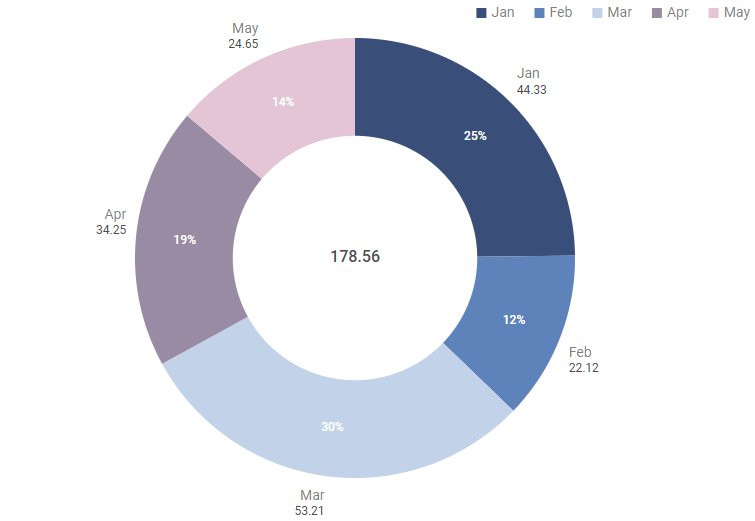
The sectors hidden via the legend are not counted, so the total value changes when you hide or show a sector.
To format the total value, set the total property as a callback function. The chart calls the function with the sum of the values of the visible sectors as a parameter and displays the returned string or number in its center:
const chart = new dhx.Chart("chart_container", {
    type: "donut",
    total: (total) => `${total}$`,
    series: [
        {
            value: "value",
            color: "color",
            text: "month",
        }
    ],
});
chart.data.parse(dataset);
Related sample: Chart. Donut chart. Show total
Radar chart
The configuration object of Radar chart must include the following properties:
- type: "radar"
- scales:
- series: []
- and, optionally, legend:
For example:
const config = {
    type: "radar",
    scales: {
        "radial": {
            value: "month",
            maxTicks: 10
        }
    },
    series: [
        {
            id: "A",
            value: "company A",
            color: "#81C4E8",
            pointColor: "#81C4E8"
        },
        {
            id: "B",
            value: "company B",
            color: "#74A2E7",
            pointColor: "#74A2E7"
        },
        {
            id: "C",
            value: "company C",
            color: "#5E83BA",
            pointColor: "#5E83BA"
        }
    ],
    legend: {
        series: ["A", "B", "C"],
        halign: "right",
        valign: "top"
    }
};

const chart = new dhx.Chart("chart_container", config);
chart.data.parse(dataset);
Related sample: Chart. Radar chart initialization
Scatter chart
The configuration object of Scatter chart must include the following properties:
- type: "scatter"
- scales:
- series: []
- and, optionally, legend:
For example:
const config = {
    type: "scatter",
    scales: {
        bottom: {
            title: "value B",
            min: 0,
            max: 100,
            scalePadding: 25
        },
        left: {
            maxTicks: 10,
            title: "value A",
            max: 100
        }
    },
    series: [
        {
            id: "A_B",
            type: "scatter",
            value: "value A",
            valueY: "value B",
            color: "#81C4E8",
            pointType: "circle"
        },
        {
            id: "B_A",
            type: "scatter",
            value: "value B",
            valueY: "value A",
            color: "#74A2E7",
            pointType: "circle"
        }
    ],

};

const chart = new dhx.Chart("chart_container", config);
chart.data.parse(dataset);
Related sample: Chart. Scatter chart initialization
Treemap chart
The configuration object of Treemap chart must include the following properties:
With groups
const treeMapData = [
    { id: "2021", name: "2021" },
    { id: "100", value: 50, name: "Outsourcing team", parent: "2021" },
    { id: "101", value: 100, name: "Product team", parent: "2021" },
    { id: "102", value: 10, name: "QA team", parent: "2021" },

    { id: "2020", name: "2020" },
    { id: "200", value: 32, name: "Outsourcing team", parent: "2020" },
    { id: "201", value: 4, name: "QA team", parent: "2020" },
    { id: "202", value: 35, name: "Product team", parent: "2020" },
];

const config = {
    type: "treeMap",
    series: [
        {
            value: "value",
            text: "name",
            stroke: "#eeeeee",
            strokeWidth: 1,
            tooltipTemplate: item => `${item[1]}: ${item[0]} employees`,
            direction: "desc",
        }
    ],
    legend: {
        type: "groupName",
        treeSeries: [
            { id: "2021", color: "#2A9D8F" },
            { id: "2020", color: "#78586F" },
            { id: "2019", color: "#E76F51" },
            { id: "2018", color: "#E5A910" },
            { id: "2017", color: "#11A3D0" },
        ],
        halign: "right",
        valign: "bottom",
    },
    data: treeMapData
};

const chart = new dhx.Chart("chart_container", config);
Related sample: Chart. Treemap chart with groups initialization
Without groups
const treeMapData = [
       {
          "planet": "Mercury",
          "radius": "2440"
       },
       {
          "planet": "Venus",
          "radius": "6052"
       },
    ...
]

const config = {
    type: "treeMap",
    series: [
        {
            value: "radius",
            text: "planet",
            stroke: "#eeeeee",
            strokeWidth: 1,
            tooltipTemplate: item => `${item[1]} - ${item[0]}`,
        }
    ],
    legend: {
        type: "range",
        treeSeries: [
            { greater: 60000, color: "#237396" },
            { from: 50000, to: 60000, color: "#2780A8" },
            { from: 20000, to: 50000, color: "#3892A3" },
            { from: 6000, to: 20000, color: "#4DA3A0" },
            { less: 20000, color: "#67BF99" },
        ],
        halign: "right",
        valign: "top",
        direction: "row",
        size: 50,
    },
    data: treeMapData
};

const chart = new dhx.Chart("chart_container", config);
Related sample: Chart. Treemap chart initialization
Calendar heatmap chart
The configuration object of Calendar heatmap chart must include the following properties:
- type: "calendarHeatMap"
- series: []
- and, optionally, legend:
For example:
const heatMapData = [
    { id: "100", value: 50, date: new Date(2022, 2, 2) },
    { id: "201", value: 4, date: new Date(2022, 6, 15) },
    { id: "400", value: -14, date: new Date(2022, 9, 15) },
    { id: "500", value: 9, date: new Date(2022, 9, 20) },
    { id: "501", value: 100, date: new Date(2023, 1, 1) },
];

const config = {
    type: "calendarHeatMap",
    css: "dhx_widget--bordered",
    series: [
        {
            value: "value",
            date: "date",
            positiveColor: "#04deb6",
            negativeColor: "#ff457a",
            color: "#e5e5e5",
            weekStart: "monday",
            dateFormat: "%d %M %Y",
            tooltipTemplate: point => `${point[1]} contributions on ${point[0]}`,
            maxValue: 90,
            minValue: 0,
        }
    ],
    legend: {
        values: {
            text: "Calendar heatmap chart",
            tick: 5,
            majorTick: 2,
            step: 1,
            tickTemplate: value => `${value}c`,
        },
        halign: "right",
        valign: "top",
        margin: 0,
        size: 60,
    }
};

const chart = new dhx.Chart("chart_container", config);
chart.data.parse(heatMapData);
Default range of dates
The default period for the Calendar heatmap chart runs from January 1 of the earliest year in the data set to December 31 of the latest year.
Custom range of dates
If your data set is large and you do not need the whole period, you can narrow the range of dates that the chart displays.
Set the startDate and endDate properties in the series configuration.
1. startDate & endDate
Consider the following data set:
const heatMapData = [
    { id: "100", value: 50, date: new Date(2022, 2, 2) },
    { id: "101", value: 100, date: new Date(2022, 4, 1) },
    { id: "200", value: 32, date: new Date(2022, 6, 1) },
    { id: "202", value: 35, date: new Date(2022, 7, 21) },
    { id: "400", value: -14, date: new Date(2022, 9, 15) },
    { id: "500", value: 9, date: new Date(2022, 9, 20) },
    { id: "501", value: 100, date: new Date(2023, 3, 1) },
    { id: "502", value: 40, date: new Date(2023, 4, 11) },
    { id: "503", value: 23, date: new Date(2023, 5, 6) },
];
The examples below show how the start and end dates affect the period that the chart covers.
- One year
const config = {
    type: "calendarHeatMap",
    series: [
        {
            value: "value",
            date: "date",
            startDate: "15/03/22",
            endDate: "15/03/23",
        }
    ],
};

const chart = new dhx.Chart("chart_container", config);
chart.data.parse(heatMapData);
The chart then covers the period from "15/03/22" to "15/03/23" inclusive.
- One month
const config = {
    type: "calendarHeatMap",
    series: [
        {
            value: "value",
            date: "date",
            startDate: "01/03/22",
            endDate: "31/03/22",
        }
    ],
};

const chart = new dhx.Chart("chart_container", config);
chart.data.parse(heatMapData);
The chart then covers the period from "01/03/22" to "31/03/22" inclusive.
- Any other period
const config = {
    type: "calendarHeatMap",
    series: [
        {
            value: "value",
            date: "date",
            startDate: "01/03/22",
            endDate: "01/07/24",
        }
    ],
};

const chart = new dhx.Chart("chart_container", config);
chart.data.parse(heatMapData);
The chart then covers the period from "01/03/22" to "01/07/24" inclusive.
2. startDate
If you specify the start date but not the end date, the period that the chart covers depends on both the data set and the start date.
const heatMapData = [
    { id: "100", value: 50, date: new Date(2022, 2, 2) },
    { id: "101", value: 100, date: new Date(2022, 4, 1) },
    { id: "200", value: 32, date: new Date(2022, 6, 1) },
    { id: "202", value: 35, date: new Date(2022, 7, 21) },
    { id: "500", value: 9, date: new Date(2022, 9, 20) },
    { id: "501", value: 100, date: new Date(2023, 1, 1) },
];

const config = {
    type: "calendarHeatMap",
    series: [
        {
            value: "value",
            date: "date",
            startDate: "15/03/22",
        }
    ],
};

const chart = new dhx.Chart("chart_container", config);
chart.data.parse(heatMapData);
The chart then covers the period from "15/03/22" to "14/03/23" inclusive (that is, one year).
const heatMapData = [
    { id: "100", value: 50, date: new Date(2022, 2, 2) },
    { id: "101", value: 100, date: new Date(2022, 4, 1) },
    { id: "200", value: 32, date: new Date(2022, 6, 1) },
    { id: "202", value: 35, date: new Date(2022, 7, 21) },
    { id: "500", value: 9, date: new Date(2022, 9, 20) },
    { id: "501", value: 100, date: new Date(2023, 3, 1) },
    { id: "502", value: 40, date: new Date(2023, 4, 11) },
    { id: "503", value: 23, date: new Date(2023, 5, 6) },
];

const config = {
    type: "calendarHeatMap",
    series: [
        {
            value: "value",
            date: "date",
            startDate: "15/03/22",
        }
    ],
};

const chart = new dhx.Chart("chart_container", config);
chart.data.parse(heatMapData);
The chart then covers the period from "15/03/22" to "14/03/24" inclusive (that is, two years).
3. endDate
If you specify the end date but not the start date, the period that the chart covers depends on both the data set and the end date. Note that the chart starts from January 1 of the earliest year in the data set.
const heatMapData = [
    { id: "100", value: 50, date: new Date(2022, 2, 2) },
    { id: "101", value: 100, date: new Date(2022, 4, 1) },
    { id: "200", value: 32, date: new Date(2022, 6, 1) },
    { id: "202", value: 35, date: new Date(2022, 7, 21) },
    { id: "300", value: 22, date: new Date(2022, 9, 6) },
    { id: "501", value: 100, date: new Date(2023, 3, 1) },
    { id: "502", value: 40, date: new Date(2023, 4, 11) },
    { id: "503", value: 23, date: new Date(2023, 5, 6) },
];

const config = {
    type: "calendarHeatMap",
    series: [
        {
            value: "value",
            date: "date",
            endDate: "15/05/23",
        }
    ],
};

const chart = new dhx.Chart("chart_container", config);
chart.data.parse(heatMapData);
The chart then covers the period from "01/01/22" to "15/05/23" inclusive.
Mixed graphs in one chart
You can create a chart that combines graphs of different types. Define each graph as an object in the series array and set its type in the type property. For example:
const chart = new dhx.Chart("chart_container", {
    series: [
        {
            id: "A",
            type: "line",
            value: "company A",
            color: "red",
            fill: "#FDBBBB"
        },
        {
            id: "B",
            type: "bar",
            value: "company B",
            color: "blue",
            fill: "lightblue"
        },
        {
            id: "C",
            type: "area",
            value: "company C",
            fill: "lightgreen",
            color: "green"
        }
    ],
    // other configuration properties
});
Related sample: Chart. Line, Spline and Area charts together
The Bar and the X-Bar types can not be mixed in one chart, as one of them is drawn vertically and the other one horizontally.
If the mixed graphs have different dimensions, each of them can be measured against its own value scale. Check the Dual axis chart section for the details.
Dual axis chart
A chart can render two value scales at once, which allows showing series of different dimensions (for example, a volume in tons and a share in percent) against the same argument scale. The second of the value scales is also called a secondary axis.
The value scale is a characteristic of a separate series rather than of the whole chart, so each series names the scale that measures its values via the scale property:
const chart = new dhx.Chart("chart_container", {
    scales: {
        bottom: { text: "month" },
        left:   { title: "Sales, $" },
        right:  { title: "Profit ratio", min: 1.2, max: 1.45 }
    },
    series: [
        { id: "S", type: "line", value: "sales",  color: "#2A9D8F" },
        { id: "M", type: "line", value: "margin", color: "#E76F51", scale: "right" }
    ]
});
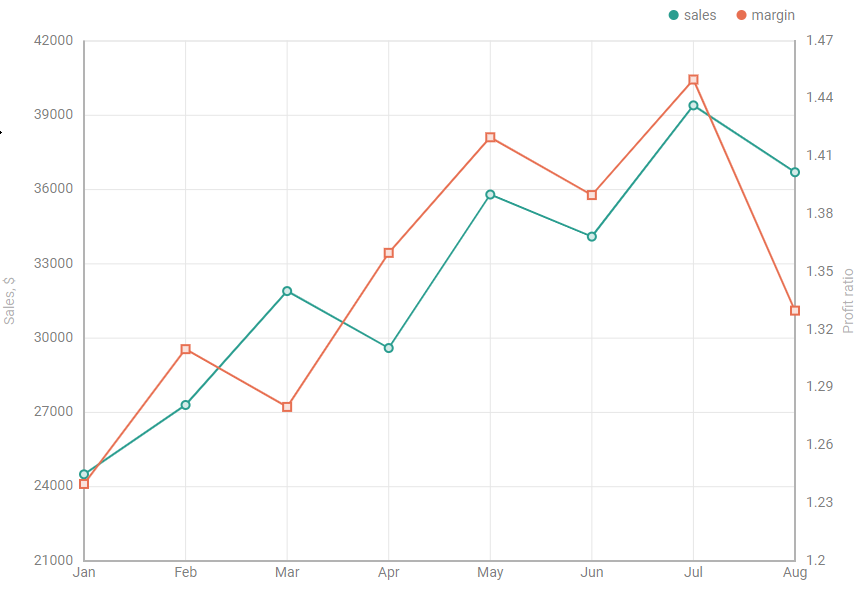
Each scale calculates its minimal and maximal values and its ticks by the series bound to it only, which keeps values of different magnitude readable in one chart.
Related sample: Chart. Dual axis. Two line series
Value scale of a series
The scale property names the value scale only. The chart applies the argument scale automatically, which makes the property direction-agnostic: the direction of the value scale follows the type of the series.
- the value scale of the Line, Spline, Bar, Area, SplineArea and Scatter series is vertical, so the property takes
"left"or"right" - the value scale of the X-Bar series is horizontal, so the property takes
"bottom"or"top"
The "left" and the "right" scales share the vertical direction, the "bottom" and the "top" ones the horizontal direction. A chart becomes a dual axis one when it declares both scales of a direction.
The argument scale is the scale of the remaining direction: the series are laid out along the "bottom" scale ("left" for X-Bar), or along the opposite one if a chart does not declare it. Thus, the second value scale of a horizontal chart is the "top" one:
const chart = new dhx.Chart("chart_container", {
    type: "xbar",
    scales: {
        left:   { text: "month" },
        bottom: { title: "Volume, t" },
        top:    { title: "Share, %", min: 0, max: 100 }
    },
    series: [
        { id: "A", value: "a", fill: "#394E79" },
        { id: "R", value: "ratio", fill: "#E76F51", scale: "top" }
    ]
});
Related sample: Chart. Dual axis. Horizontal bars (X-Bar)
Default and incorrect scale positions
A series without the scale property takes the "left" scale ("bottom" for X-Bar). If a chart does not have it, the series falls back to the opposite scale. Thus, a chart with the "right" scale alone is configured the same way as a chart with the "left" one.
If the scale property names the perpendicular scale, for example "top" for a Bar series, the chart throws a TypeError that specifies the type of the series and the positions it can be bound to:
series: [
    {
        id: "margin",
        type: "bar",
        value: "margin",
        scale: "top" // TypeError: The "top" scale can not hold
                     // the values of the "bar" series, use "left" or "right"
    }
]
Naming both scales of a series
The scales property is the full form of the binding. It is needed when a series specifies not only its value scale, but also its argument scale. It takes the pair of positions as an array:
series: [
    { type: "line", value: "ratio", scales: ["top", "right"] } // the categories on top, the values on the right
]
The order of the positions in the array does not matter, as the direction of each position defines its role. The array has to name exactly one value scale of the series, and the remaining position becomes the argument scale.
As the argument scale is resolved automatically, the scale property is enough in most cases. If a series has both properties, scales takes priority and the chart ignores scale.
Grid of the second scale
Two sets of grid lines placed at different heights are difficult to read, so the grid of a direction belongs to the first scale of this direction ("bottom" for the horizontal direction and "left" for the vertical one).
The grid property redistributes the grid between the two scales. Set grid: true for the second scale to render both grids:
scales: {
    bottom: { text: "month" },
    left:   { title: "Volume, t" },
    right:  { title: "Share, %", grid: true }
}
To leave the grid to the second scale instead of rendering both, set grid: false for the first one.
Matching the ticks of the two scales
As each scale builds its own range, the ticks of one scale rarely land at the height of the ticks of the other one. The alignTicks property of a scale makes the grids match: the scale takes the number of ticks from the reference scale and spreads its own range over them. The accepted values of the property are:
false/undefined- the scale chooses the number of its ticks on its own. Only the first scale of the direction renders the grid, while the second one renders its labels, its own scale line and itstargetLineandtargetValue, if they are specifiedtrue- the scale takes the number of ticks from the main scale of the same direction ("left"for the vertical direction and"bottom"for the horizontal one), so the grid lines of both scales coincidestring- the position of the scale to take the number of ticks from ("left"|"right"|"bottom"|"top"), which has to be of the same direction
scales: {
    bottom: { text: "month" },
    left:   { title: "Volume, t" },
    right:  { title: "Share, %", alignTicks: true }
}
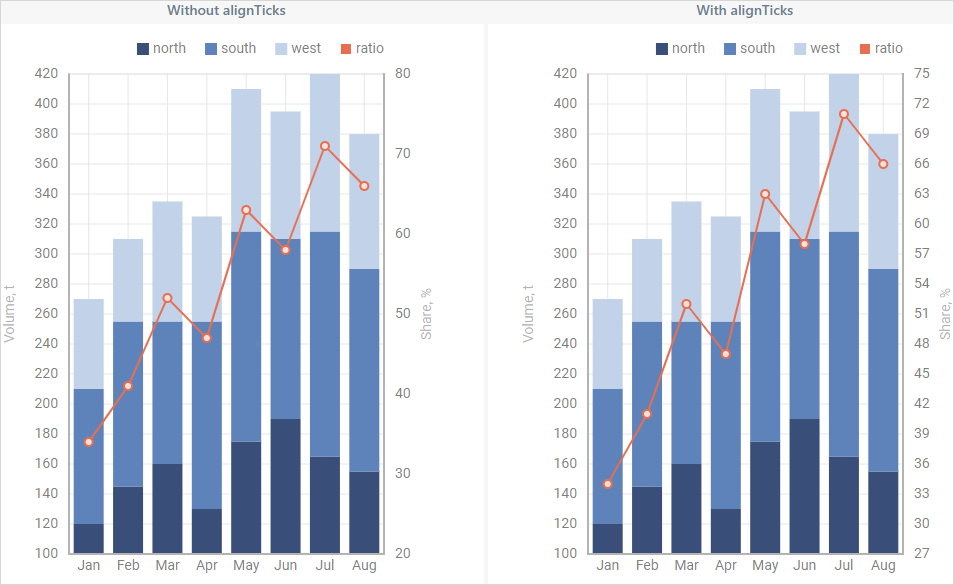
Without alignTicks the right scale builds 7 ticks of its own against the 17 of the left one, so its labels land between the grid lines.
Stack groups
A chart can hold several stacks at once: one per value scale, or several named groups on one scale. In the example below the bars bound to the "left" scale form one stack, while the "right" scale measures the line:
const chart = new dhx.Chart("chart_container", {
    scales: {
        bottom: { text: "month" },
        left:   { title: "Volume, t" },
        right:  { title: "Share, %", min: 0, max: 100 }
    },
    series: [
        { id: "A", type: "bar",  value: "a", fill: "#394E79", stacked: true },
        { id: "B", type: "bar",  value: "b", fill: "#5E83BA", stacked: true },
        { id: "C", type: "bar",  value: "c", fill: "#C2D2E9", stacked: true },
        { id: "R", type: "line", value: "ratio", color: "#E76F51", scale: "right" }
    ],
    legend: { series: ["A", "B", "C", "R"] }
});
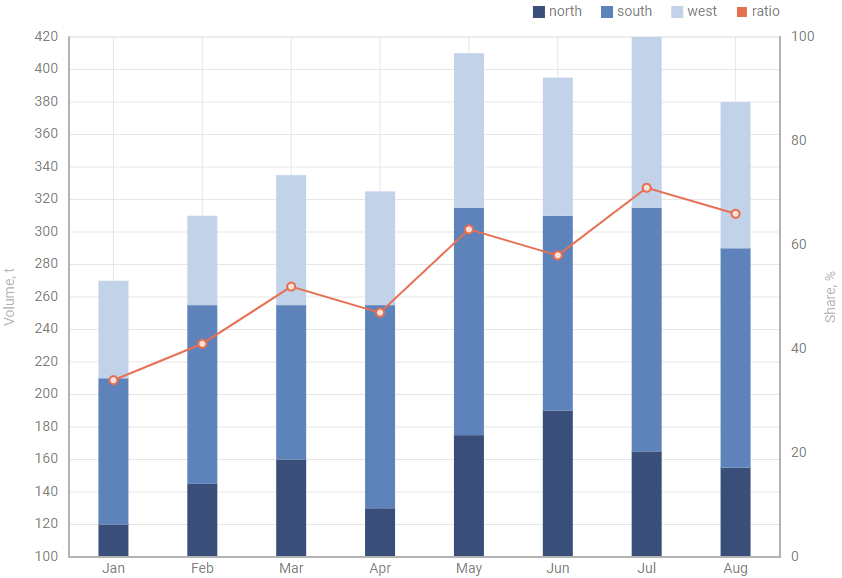
Related sample: Chart. Dual axis. Stacked bars and a spline
The stacked property of a series defines the stack it belongs to. The accepted values of the property are:
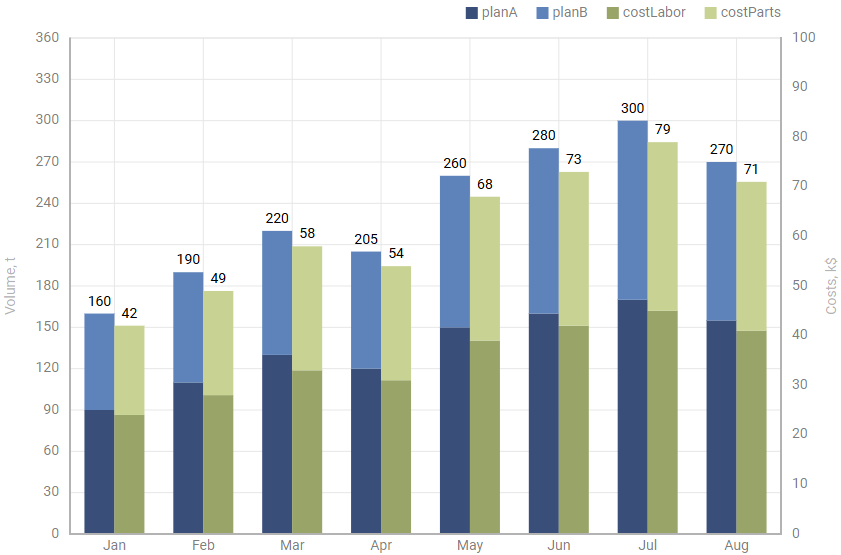
false/undefined- the chart renders the series as a separate layertrue- the value scale defines the stack, so all the series withstacked: truebound to the same scale form one stack. For a chart with a single value scale, this is a plain stacked chartstring- the explicit name of the group, which allows building two or more independent stacks, including on one scale
The chart places the stacks of one direction side by side, as usual bar series, and calculates the total property separately for each group.
series: [
    { type: "bar", value: "a", stacked: true },                  // the stack of the left scale
    { type: "bar", value: "b", stacked: true },
    { type: "bar", value: "x", stacked: true, scale: "right" },  // the independent stack of the right scale
    { type: "bar", value: "y", stacked: true, scale: "right" },

    { type: "bar", value: "plan", stacked: "plan" },             // two stacks on one scale,
    { type: "bar", value: "fact", stacked: "fact" }              // drawn side by side
]
The chart below stacks two series on the "left" scale and two more on the "right" one. The groups stand side by side, and the total over a stack counts that group only.
Related samples:
Supported series types
Which positions the scale and scales properties accept depends on the type of a series. The types rendered without scales ignore both of them:
| Series type | Value scale | Argument scale |
|---|---|---|
bar | "left" / "right" | "bottom" / "top" |
xbar | "bottom" / "top" | "left" / "right" |
line, spline | "left" / "right" | "bottom" / "top" |
area, splineArea | "left" / "right" | "bottom" / "top" |
scatter | "left" / "right" | "bottom" / "top" |
pie, pie3D, donut | no scales, the properties are ignored | - |
treeMap, calendarHeatMap | no scales, the properties are ignored | - |
radar | the "radial" scale, the properties are ignored | - |
You can mix the types listed above in one chart (which is the main purpose of the second value scale): a bar and a line, a stack and a line, an area and a line, a bar and a spline. Check the Mixed graphs in one chart section for the details and the limitations.
Related samples: