DHTMLX Spreadsheet overview
DHTMLX Spreadsheet is a client-side JavaScript component for editing and formatting spreadsheet data online. It includes a configurable toolbar, handy menu and context menu, and an adjustable grid, supports hotkey navigation, loads data from external and local sources, and can localize the interface into the desired language.
The User Guide makes working with Spreadsheet easy for your users.
Spreadsheet structure
Toolbar
The Toolbar section is rather flexible. It contains several default blocks of controls: "undo", "colors", "decoration", "align", "cell", "format", "actions". You can change the toolbar structure and add more blocks, or set your own order of the blocks.
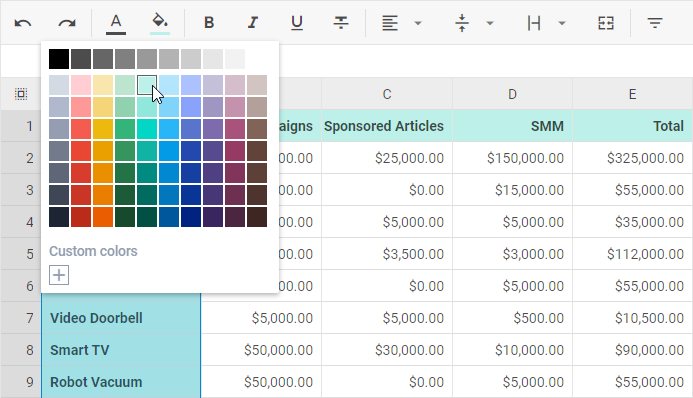
You can also customize the toolbar by adding your own controls and updating the controls' configuration.
Editing line
The editing line serves two purposes:
- to edit the content of the selected cell
- to control changes made in the currently edited cell
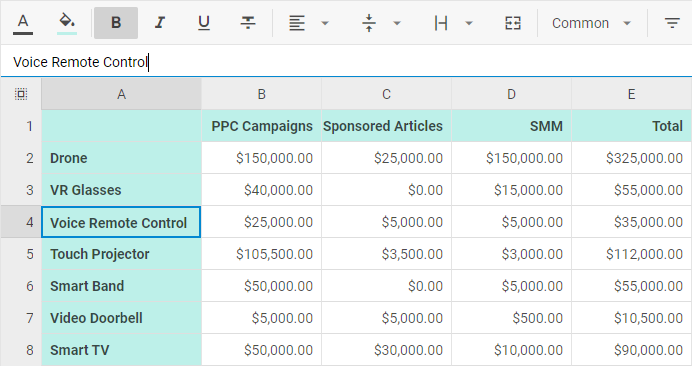
If necessary, you can switch the editing line off via the corresponding configuration option.
Grid
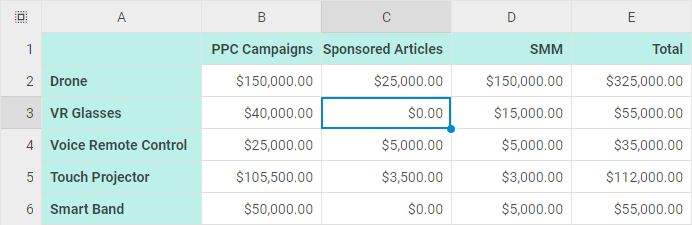
The Grid is a table with columns defined by letters and rows defined by numbers. Thus, a cell of the grid is defined by the column's letter and the row's number, for example, C3.
Context menu
The Context menu section includes 6 items with sub-items: Lock, Clear, Columns, Rows, Sort, and Insert link.
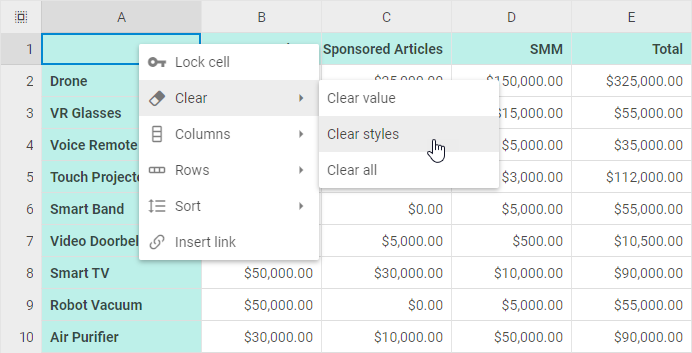
The structure of Context menu is customizable as well. You can add custom controls, update the controls' configuration and remove unnecessary controls.
Menu
The Menu section contains several blocks that combine the most frequently used options from the Toolbar and Context menu for quick access.
By default the Menu section is hidden, but you can switch it on via the related configuration option.
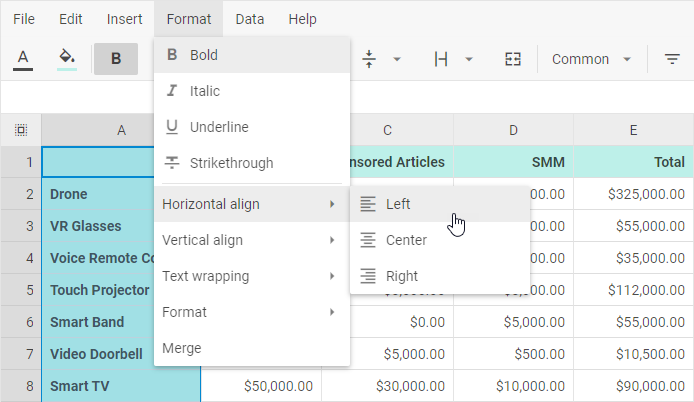
You can modify the structure of the menu by using custom controls, updating the controls' configuration and removing unnecessary controls.
What's next
Now you can get down to using DHTMLX Spreadsheet in your application. Follow the directions of the How to Start tutorial for guidance.
To learn more about DHTMLX Spreadsheet, see these guides:
- API overview
- Guides
- MCP server for AI coding assistants