DatePicker
Put DHTMLX Calendar inside a popup to create a date picker.
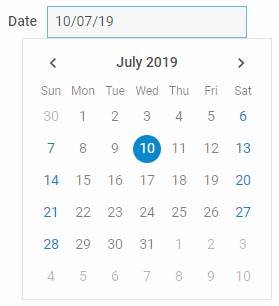
Follow the steps below:
1. Create an input field for the date and give it the id date-input:
<input type="text" id="date-input" style="width: 200px;" readonly/>
2. Use the Calendar and Popup constructors to create the two objects. Note that Calendar takes null instead of a container:
const calendar = new dhx.Calendar(null, {dateFormat: "%d/%m/%y"});
const popup = new dhx.Popup();
3. Call the attach() method of Popup to attach the calendar:
popup.attach(calendar);
4. Add a click handler to the date-input field. Inside the handler, call the show() method of Popup to open the popup:
const dateInput = document.getElementById("date-input");
dateInput.addEventListener("click", function() {
    popup.show(dateInput);
});
5. Close the popup with the hide() method of Popup. For example, close it when the user selects a new date:
calendar.events.on("change", function() {
    dateInput.value = calendar.getValue();
    popup.hide();
});
Related sample: Calendar. Date picker