buttons_left
Description
Stores a collection of buttons resided in the left bottom corner of the lightbox
buttons_left: string[]
Example
<style>
    .complete_button{
        margin-top: 2px;
        background-image:url("common/v_complete.png");
        width: 20px;
    }
</style>
<script>
    gantt.locale.labels["complete_button"] = "Complete";
    gantt.attachEvent("onGanttReady", function(){                               /*!*/
          gantt.config.buttons_left = ["gantt_save_btn","gantt_cancel_btn",        /*!*/
            "complete_button"];                                                /*!*/
    });                                                                           /*!*/
    gantt.init("gantt_here");

    gantt.attachEvent("onLightboxButton", function(button_id, node, e){
        if(button_id == "complete_button"){
            var id = gantt.getState().lightbox;
            gantt.getTask(id).progress = 1;
            gantt.updateTask(id);
            gantt.hideLightbox();
        }
    });
</script>
Default value: ["gantt_save_btn", "gantt_cancel_btn"]
Related samples
Details
note
Please note that if you use the Material skin, it will redefine the buttons configuration. To prevent this, you need to specify the configuration of buttons inside the onGanttReady event handler.
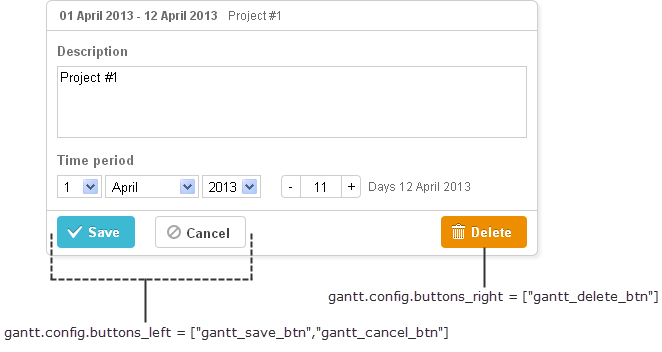
You can redefine labels of the left buttons by using the following syntax before initialization of Gantt:
gantt.locale.labels.icon_save = "New Label";
gantt.locale.labels.icon_cancel = "New Label";

gantt.init("gantt_here");
You can also change the labels using another syntax after initialization of Gantt, as follows:
gantt.attachEvent("onGanttReady", function(){
  gantt.locale.labels.gantt_save_btn = "New Label";
  gantt.locale.labels.gantt_cancel_btn = "New Label";
});
From version 7.0, the labels also can be changed by using the i18n object:
gantt.i18n.setLocale({
   labels: {
      gantt_save_btn: "New Label",
      gantt_cancel_btn: "New Label"
   }
});
Related API
Related Guides
Need help?
Got a question about the documentation? Reach out to our technical support team for help and guidance. For custom component solutions, visit the Services page.