buttons_right
Description
保存位于 lightbox 右下角的一组按钮
buttons_right: string[]
Example
<style>
    .complete_button{
        margin-top: 2px;
        background-image:url("common/v_complete.png");
        width: 20px;
    }
</style>
<script>
    gantt.locale.labels["complete_button"] = "完成";
    gantt.attachEvent("onGanttReady", function(){                               /*!*/
        gantt.config.buttons_right = ["gantt_delete_btn","complete_button"];   /*!*/
    });                                                                           /*!*/
    gantt.init("gantt_here");

    gantt.attachEvent("onLightboxButton", function(button_id, node, e){
        if(button_id == "complete_button"){
            var id = gantt.getState().lightbox;
            gantt.getTask(id).progress = 1;
            gantt.updateTask(id);
            gantt.hideLightbox();
        }
    });
</script>
Default value: ["gantt_delete_btn"];
Related samples
Details
注释
请注意,如果应用了Material skin,它将覆盖按钮配置。 为了避免这种情况,请在 onGanttReady 事件处理器内定义按钮配置。
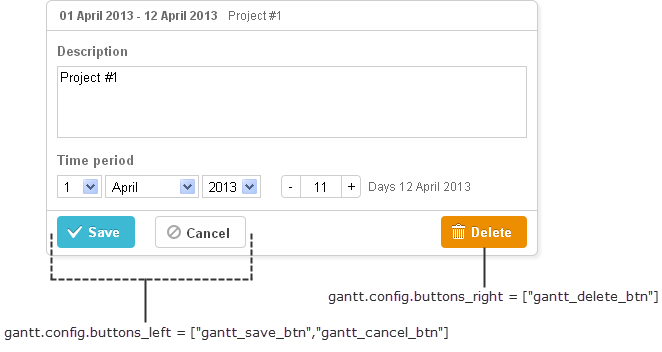
你可以在初始化 Gantt 之前,用以下语法更新右侧按钮的标签:
gantt.locale.labels.icon_delete= "新标签";

gantt.init("gantt_here");
或者,你也可以在 Gantt 初始化后这样修改标签:
gantt.attachEvent("onGanttReady", function(){
  gantt.locale.labels.gantt_delete_btn = "新标签";
});
从版本 7.0 开始,也可以通过 i18n 对象来更改标签:
gantt.i18n.setLocale({
   labels: {
      gantt_delete_btn: "新标签"
   }
});
Related API
Related Guides
Need help?
Got a question about the documentation? Reach out to our technical support team for help and guidance. For custom component solutions, visit the Services page.