dhtmlxGantt 与 Vue.js
在使用本教程前,您应熟悉 [Vue] 的基本概念和模式。如果您还不熟悉,请参考 Vue 3 文档 获取入门教程。
DHTMLX Gantt 与 Vue 兼容。您可以在 GitHub 上查看对应的示例:DHTMLX Gantt with Vue Demo。
创建一个项目
在开始创建新项目之前,请先安装 Node.js。
要创建一个 Vue 项目,请运行以下命令:
npm create vue@latest
此命令将安装并执行 create-vue,官方的 Vue 项目脚手架工具。有关详细信息,请查看 Vue.js Quick Start。
安装依赖项
接下来应进入应用目录。我们将项目命名为 gantt-vue,并执行:
cd gantt-vue
之后,您应安装依赖并启动开发服务器。为此,需要使用包管理器:
- 如果使用 yarn,请执行以下命令:
yarn install
yarn dev
- 如果使用 npm,请执行以下命令:
npm install
npm run dev
你的 Vue 项目现在应当运行在 http://localhost:5173。
创建 Gantt
现在我们需要获取 DHTMLX Gantt 的代码。首先,通过在命令行中按下 Ctrl+C 停止应用程序。随后我们可以开始安装 Gantt 包。
步骤 1. 包安装
Gantt 库的 PRO 版本可通过私有仓库进行 npm/yarn 安装,请按以下说明获取访问权限:
this instruction 以获取访问权限。
获得 Gantt 的评估版本后,您可以使用以下命令进行安装:
- 对于 npm:
npm install @dhx/trial-gantt
- 对于 yarn:
yarn add @dhx/trial-gantt
另外,由于该库的 zip 包被构造成一个 npm 模块,您也可以 从本地文件夹安装。
步骤 2. 组件创建
现在我们应该创建一个 Vue 组件,将 Gantt 添加到应用中。让我们在 src/components/ 目录下创建一个新文件,命名为 Gantt.vue。
导入源文件
打开新创建的 Gantt.vue 文件并导入 Gantt 的源文件。请注意:
- 如果您是从本地文件夹安装的 Gantt 包,那么导入路径将类似于:
import { Gantt} from "dhtmlx-gantt";
import "dhtmlx-gantt/codebase/dhtmlxgantt.css";
- 如果您选择安装试用版本,导入路径应为:
import { Gantt} from "@dhx/trial-gantt";
import "@dhx/trial-gantt/codebase/dhtmlxgantt.css";
在本教程中,我们将使用 Gantt 的 trial 版本。
设置容器并添加 Gantt
要在页面上显示 Gantt,我们需要将容器设置为在其中渲染组件。请看下面的代码:
<script>
import { Gantt } from "@dhx/trial-gantt";
import "@dhx/trial-gantt/codebase/dhtmlxgantt.css";

export default {
  mounted() {
    let gantt = Gantt.getGanttInstance();
    gantt.init(this.$refs.cont);

    this.gantt = gantt;
  },
  unmounted() {
    this.gantt.destructor();
    this.$refs.cont.innerHTML = "";
  },
};
</script>

<template>
  <div ref="cont" style={{width: '100%', height: '100%'}}></div>
</template>
要使 Gantt 容器占据 body 的整个空间,您需要移除位于 src/assets 文件夹中的 main.css 的默认样式,并添加以下样式:
body, #app {
  margin: 0;
  padding: 0;
  height: 100vh;
  width: 100%;
}
步骤 3. 将 Gantt 添加到应用中
现在是将组件添加到应用中的时刻。打开 src/App.vue,使用 Gantt 组件替换默认内容,并插入以下代码:
<script>
import Gantt from "./components/Gantt.vue";

export default {
  components: { Gantt }
};
</script>

<template>
  <Gantt/>
</template>
之后,当我们启动应用时,页面上应会看到一个空的 Gantt:

步骤 4. 提供数据
要向 Gantt 添加数据,我们需要提供一个数据集。让我们在 src/ 目录中创建 data.js 文件并添加一些数据:
export function getData() {
  const tasks = {
    data: [
      {
        id: "10",
        text: "Project #1",
        start_date: "01-04-2025",
        duration: 3,
        order: 10,
        progress: 0.4,
        open: true,
      },
      {
        id: "1",
        text: "Task #1",
        start_date: "01-04-2025",
        duration: 1,
        order: 10,
        progress: 0.6,
        parent: "10",
      },
      {
        id: "2",
        text: "Task #2",
        start_date: "02-04-2025",
        duration: 2,
        order: 20,
        progress: 0.6,
        parent: "10",
      },
    ],
    links: [{ id: 1, source: 1, target: 2, type: "0" }],
  };
  return tasks;
}
我们应该向 Gantt 组件传递 props(我们的数据),在 App.vue 文件中:
<script>
import Gantt from "./components/Gantt.vue";
import { getData } from "./data";

export default {
  components: { Gantt },
  data() {
    return {
      tasks: getData(),
    };
  },
};
</script>

<template>
  <Gantt :tasks="tasks" />
</template>
并在 Gantt 组件中在 gantt.parse() 方法中使用这些 props:
<script>
import { Gantt } from "@dhx/trial-gantt";
import "@dhx/trial-gantt/codebase/dhtmlxgantt.css";

export default {
  props: ["tasks"],

  mounted() {
    let gantt = Gantt.getGanttInstance();
    gantt.init(this.$refs.cont);
    gantt.parse(this.tasks);

    this.gantt = gantt;
  },
  unmounted() {
    this.gantt.destructor();
    this.$refs.cont.innerHTML = "";
  },
};
</script>

<template>
  <div ref="cont" style="width: 100%; height: 100%"></div>
</template>
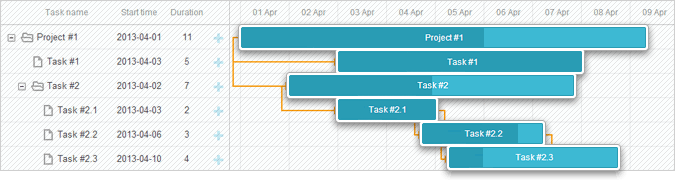
现在,如果你重新打开应用页面,您应能看到带有任务的 Gantt:
步骤 5. 保存数据
要捕捉 Gantt 中所做的更改,您可以使用一个 dataProcessor 处理程序,让您能够与服务器端后端进行“通信”。处理程序既可以作为函数,也可以作为路由对象进行声明。dhtmlxGantt 接受来自处理程序的 Promise 响应,因此您的 Gantt 将正确处理操作的完成。
您可以通过 createDataProcessor() API 方法创建 DataProcessor,并像这样捕获更改:
gantt.createDataProcessor(function(entity, action, data, id) {
gantt.message(`${entity} ${action}`);
});
如果你的后端在创建新记录后会更改任务 ID(许多系统都这样),请确保你的 Promise 返回包含 (id: databaseId) 或 (tid: databaseId) 的对象。这样 Gantt 就能用新的数据库 ID 更新记录。更多详情请参阅 服务端集成。
好吧,Vue Gantt 已经就绪,欢迎查看 GitHub 上的完整演示。
XSS、CSRF 与 SQL 注入攻击
请注意,Gantt 并不提供任何防止应用程序受到各种威胁(例如 SQL 注入、XSS 和 CSRF 攻击)的机制。确保应用程序安全的责任在于实现后端的开发人员。
请查看 [Application Security] 文章,了解组件最脆弱的点以及可以采取的措施来提升应用程序的安全性。