지속 시간 제어
작업의 시작 날짜와 일 수를 지정하여 작업 지속 시간을 설정하는 선택기 모음입니다.
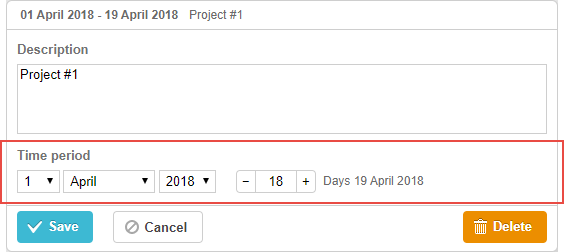
gantt.config.lightbox.sections="["
    {name:"description", height:70, map_to:"text", type:"textarea", focus:true},
    {name:"time",        height:72, map_to:"auto", type:"duration"} /*!*/
];
초기화
기본적으로 라이트박스에 하나의 duration 컨트롤이 추가됩니다. 다른 컨트롤을 추가하려면 아래 단계를 따르세요:
- 라이트박스 구성에 섹션을 추가합니다:
gantt.config.lightbox.sections="["
    {name:"description", height:70, map_to:"text", type:"textarea",focus:true},
    {name:"time2",       height:72, map_to:"auto", type:"duration"}, /*!*/
    {name:"time",        height:72, map_to:"auto", type:"duration"}
];
- 섹션의 레이블을 설정합니다:
gantt.locale.labels.section_time2 = "Actual duration";
속성
다음 속성은 주로 time 컨트롤에 대해 중요하고 일반적으로 설정됩니다(전체 목록은 여기에서 확인 가능):
- name - (string) 섹션 이름
- height - (number) 섹션 높이
- map_to - (string,object) "auto" 또는 객체, 섹션에 매핑될 데이터 속성(-들)을 정의
- formatter - (object) durationFormatter 객체의 인스턴스
- type - (string) 섹션 컨트롤의 유형
- focus - (boolean) true로 설정되면 라이트박스를 열 때 해당 섹션에 포커스가 주어짐
- readonly - (boolean) "true" 값을 설정하면 섹션이 읽기 전용이 됨
- year_range - (array,number) 연도 선택기의 범위를 설정. 범위는 두 가지 방식으로 설정할 수 있습니다:
- year_range: [2005, 2025] - 2005년부터 2025년까지의 기간
- year_range: 10 - [현재 연도 - 10년; 현재 연도 + 10년]의 기간
- single_date - (boolean) true로 설정하면 섹션에 시작 날짜 선택기만 표시됩니다. 편집된 작업은 시작 날짜로만 표시되며 지속 시간은 0이 됩니다. milestones에만 해당되는 경우에만 타당합니다.
- time_format - (string) 날짜-시간 선택기의 순서를 설정
날짜-시간 선택자 구성
"Time period" 섹션의 선택기를 구성하려면 time_format 속성을 사용하십시오(참고로 Date Format Specification을 확인하십시오):
Time period 섹션에 시간 선택기를 추가하기
gantt.config.lightbox.sections = [
    {name:"description", height:38, map_to:"text", type:"textarea", focus:true},
    {name:"time",type:"duration",map_to:"auto",time_format:["%d","%m","%Y","%H:%i"]}/*!*/
];
time_format 배열의 허용 멤버는 다음과 같습니다:
- "%d" - 일 선택기
- "%m" - 월 선택기
- "%Y" - 연도 선택기
- "%H:%i" - 시간 선택기(형식은 time_picker 템플릿으로 설정)
배열의 이 멤버들의 순서와 숫자만 변경할 수 있고 데이터 표시 형식은 변경할 수 없습니다.
예를 들어 형식을 아래와 같이 변경할 수 있습니다:
// time goes first
time_format:["%H:%i", "%m", "%d", "%Y"]
// month goes first
time_format:["%m","%d", "%Y", "%H:%i"]
// the year selector is removed
time_format:["%H:%i", "%m", "%d"]
// incorrect
time_format:["%H:%i", "%M", "%d", "%Y"] //"%m" was changed to "%M"
Custom start/end date-time 속성에 매핑
Default 매핑
일반적으로 시간 및 지속 시간 컨트롤은 필수 데이터 속성인 'start_date', 'end_date'에 매핑되며 map_to 값을 "auto"로 설정합니다 (map_to:"auto").
Custom 매핑
컨트롤을 특정 날짜 속성에 매핑하려면 map_to 속성의 객체 표기법을 사용합니다:
gantt.config.lightbox.sections = [
    {name: "description", height: 72, type: "textarea", map_to:"text", focus: true},
    {name: "time",           height: 72, type: "duration", map_to:"auto"},
    {name: "baseline",    height: 72, type: "duration", /*!*/
     map_to:{start_date:"planned_start",end_date:"planned_end"}} /*!*/
];
객체로서 map_to에는 3개의 속성이 있습니다:
- start_date - 시작 날짜를 저장할 데이터 속성의 이름
- end_date - 선택적으로 입력으로 설정된 끝 날짜를 저장할 데이터 속성의 이름
- duration - 선택적으로 입력으로 정의된 지속 시간을 저장할 데이터 속성의 이름
일부 속성이 지정되지 않으면 컨트롤은 관련 필수 날짜 속성의 값을 사용합니다.
섹션 가시성 전환
다음 구성에서 type:"duration_optional" 및 button: true를 지정하면 지속 시간 섹션의 가시성을 조작할 수 있습니다:
gantt.config.lightbox.sections = [
  {name: "description", height: 70, map_to: "text", type: "textarea", focus: true},
  {name: "time", map_to: "auto", button: true, type: "duration_optional"} /*!*/
];
다음 두 상태의 버튼에 대한 레이블을 설정합니다:
gantt.locale.labels.time_enable_button = '일정 설정';
gantt.locale.labels.time_disable_button = '일정 취소';
섹션의 가시성을 전환하는 토글 버튼은 섹션 근처에 표시됩니다. 섹션이 보이면, **type:"duration"**이 지정된 것처럼 동작합니다.
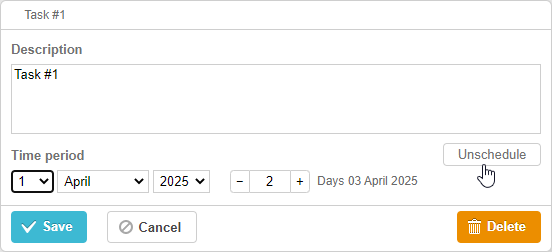
버튼을 끄면 섹션은 보이지 않게 되지만 아무 일도 일어나지 않습니다. "저장" 버튼을 클릭하면, 섹션의 map_to 속성으로 매핑된 작업 속성 값이 null로 바뀝니다.
gantt.getTask(1);

// return value
{
    id: '1', text: 'Task #1', unscheduled: true,
    duration: 0, parent: '10',
    end_date: null, start_date: null,
    ...
}
이 기능은 작업을 미지정 상태로 만들거나 UI에서 바로 기준선을 표시하지 않아야 하는 작업을 정의해야 할 때 도움이 됩니다. 관련 샘플을 확인하십시오:
Related sample Unscheduled tasks
Related sample Baselines