사용자 정의 요소 만들기
라이트박스를 위한 커스텀 컨트롤을 만들려면, 아래와 같은 방식으로 새로운 객체를 정의합니다:
gantt.form_blocks["my_editor"]={
    render:function(sns){ //sns - the section's configuration object
        return "html code of the editor here";
    },
    set_value:function(node,value,task,section){
        //node - an html object related to the html defined above
        //value - a value defined by the map_to property
        //task - the task object
        //section- the section's configuration object
        ... code to set value to the element ...
    },
    get_value:function(node,task,section){
        //node - an html object related to the html defined above
        //task - the task object
        //section - the section's configuration object
        return "current value from editor";
    },
    focus:function(node){
        //node - an html object related to the html defined above
        ...code to set focus to the element...
    }
}
렌더링 함수에서 반환하는 HTML 코드 안에 닫는 태그의 짧은 구문을 사용하지 마세요. 이로 인해 브라우저의 구문 분석에 문제가 발생할 수 있습니다:
//this is WRONG
render:function(){
    return "<div id='box'/>";
}

//instead use opening and closing tags syntax:
render:function(){
    return "<div id='box'></div>";// recommended
}
Custom control in the lightbox
라이트박스 컨트롤은 아래와 같은 타입을 가집니다:
- render (sns): string - 섹션의 HTML 요소를 문자열로 반환하는 함수
- sns - (LightboxSection) - 섹션의 구성 객체
- set_value (node, value, task, section): any - Task 객체에서 값을 얻어 섹션에 설정하는 함수
- node - (HTMLElement) - 위에서 정의된 HTML과 연관된 HTML 객체
- value - (any) - map_to 속성에 의해 정의된 값
- task - (Task) - 작업 객체
- section - (LightboxSection) - 섹션의 구성 객체
- get_value (node, task, section): any - 섹션에서 값을 얻고 이를 Task 객체에 저장하는 함수
- node - (HTMLElement) - 위에서 정의된 HTML과 연관된 HTML 객체
- task - (Task) - 작업 객체
- section - (LightboxSection) - 섹션의 구성 객체
- focus (node): void - 섹션에 포커스를 설정하는 함수
- node - (HTMLElement) - 위에서 정의된 HTML과 연관된 HTML 객체
두 입력이 있는 커스텀 에디터
다음과 같은 커스텀 에디터를 만드는 방법을 살펴봅시다:
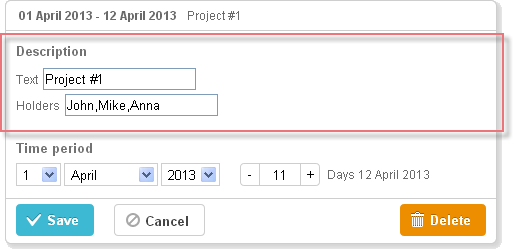
gantt.form_blocks["my_editor"] = {
render: function (sns) {
return "<div className='dhx_cal_ltext' style='height:60px;'>"+
"Text <input className='editor_description' type='text'/>"+
"
Holders <input className='editor_holders' type='text'/>"+
"</div>";
},
set_value: function (node, value, task) {
node.querySelector(".editor_description").value = value || "";
node.querySelector(".editor_holders").value = task.users || "";
},
get_value: function (node, task) {
task.users = node.querySelector(".editor_holders").value;
return node.querySelector(".editor_description").value;
},
focus: function (node) {
var a = node.querySelector(".editor_description");
a.select();
a.focus();
}
};
gantt.config.lightbox.sections = [
{ name:"description", height:200, map_to:"text", type:"my_editor", focus:true},
{ name:"time", height:72, type:"duration", map_to:"auto"}
];
Custom control in the lightbox
Custom third-party editor
다중 값을 선택하기 위한 커스텀 멀티셀렉트 컨트롤을 만들 수 있습니다.
예를 들어, 작업에 여러 리소스를 할당하기 위해 jQuery Chosen 플러그인을 기반으로 한 컨트롤을 만들 수 있습니다. 기본 Gantt의 리소스 컨트롤과 달리, 수량을 설정하지 않고 리소스만 할당할 수 있습니다. 다만 비교적 단순한 컨트롤을 원할 때 유용할 수 있습니다.
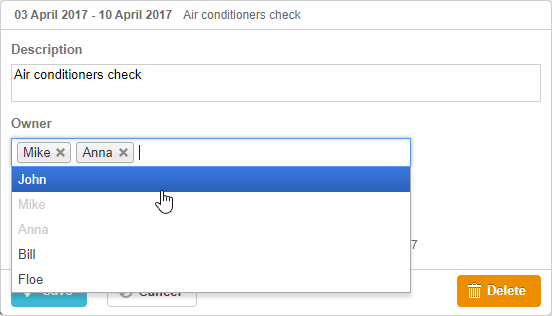
Gantt 차트에서 jQuery Chosen 기반 컨트롤을 사용하려면:
- 페이지에 컨트롤의 소스 파일을 포함합니다
<script
    src="https://code.jquery.com/jquery-3.3.1.min.js?v="5.2.4""
    integrity="sha256-FgpCb/KJQlLNfOu91ta32o/NMZxltwRo8QtmkMRdAu8="
    crossOrigin="anonymous"></script>

<script src="https://cdnjs.cloudflare.com/ajax/libs/chosen/1.8.7/chosen.jquery.js?v="5.2.4""></script>
<link rel="stylesheet" type="text/css"
    href="https://cdnjs.cloudflare.com/ajax/libs/chosen/1.8.7/chosen.css?v="5.2.4"">
- 컨트롤의 동작 로직 설명
gantt.form_blocks["multiselect"] = {
 render: function (sns) {
  var height = (sns.height || "23") + "px";
  var html = "<div className='gantt_cal_ltext gantt_cal_chosen gantt_cal_multiselect'"+
     "style='height:"+ height + ";'><select data-placeholder='...'"+
        "class='chosen-select' multiple>";
  if (sns.options) {
   for (var i = 0; i < sns.options.length; i++) {
    if(sns.unassigned_value !== undefined && sns.options[i].key==sns.unassigned_value){
        continue;
    }
    html+="<option value='" +sns.options[i].key+ "'>"+sns.options[i].label+"</option>";
  }
}
  html += "</select></div>";
  return html;
},

set_value: function (node, value, ev, sns) {
    node.style.overflow = "visible";
    node.parentNode.style.overflow = "visible";
    node.style.display = "inline-block";
    var select = $(node.firstChild);

    if (value) {
        value = (value + "").split(",");
        select.val(value);
    }
    else {
        select.val([]);
    }

    select.chosen();
    if(sns.onchange){
        select.change(function(){
            sns.onchange.call(this);
        })
    }
    select.trigger('chosen:updated');
    select.trigger("change");
},

get_value: function (node, ev) {
    var value = $(node.firstChild).val();
    //value = value ? value.join(",") : null
    return value;
},

focus: function (node) {
    $(node.firstChild).focus();
 }
};
- type:"multiselect" 로 컨트롤을 라이트박스 섹션으로 사용하기
gantt.config.lightbox.sections = [
    {name:"description",height:38,map_to:"text",type:"textarea",focus: true},
    {name:"owner",height:60, type:"multiselect", options:gantt.serverList("people"),
        map_to:"owner_id", unassigned_value:5 },
    {name: "time", type: "duration", map_to: "auto"}
];
컨트롤 객체의 unassigned_value 속성은 컨트롤에서 선택할 수 없어야 하는 리소스를 숨기는 데 사용됩니다. 이 속성의 값으로 해당 리소스의 id를 설정해야 합니다. 위 예제에서 id가 "5"인 리소스는 컨트롤의 옵션으로 표시되지 않습니다.
Custom third-party datepicker
라이트박스에 커스텀 Datepicker 컨트롤을 추가하여 작업 기간을 시작일과 종료일로 설정할 수 있습니다.
라이트박스의 jQuery Datepicker
예를 들어 jQuery UI Datepicker를 기반으로 Datepicker 컨트롤을 만들 수 있습니다.
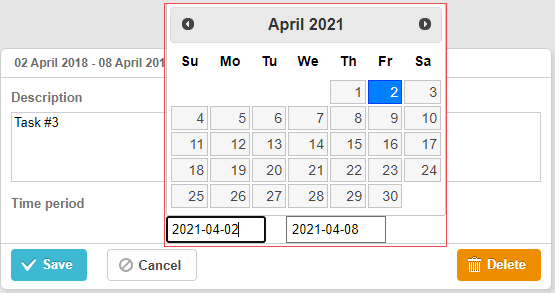
관련 샘플 3rd party Datepicker control
Gantt 차트에서 jQuery Datepicker 컨트롤을 사용하려면:
- 페이지에 jQuery 라이브러리의 소스 파일을 포함합니다:
<script src="https://code.jquery.com/jquery-3.5.1.min.js"></script>
<script src="https://code.jquery.com/ui/1.12.1/jquery-ui.min.js"></script>
<link  rel="stylesheet" type="text/css"
    href="https://code.jquery.com/ui/1.12.1/themes/base/jquery-ui.css">
- 컨트롤의 동작 로직 설명:
(function () {
    function startDatepicker(node){
        return $(node).find("input[name='start']");
    }
    function endDateInput(node){
        return $(node).find("input[name='end']");
    }

    gantt.form_blocks["datepicker"] = {
        render: function (sns) { //sns - the section's configuration object
            return "<div className='gantt-lb-datepicker'>"+
                "<input type='text' name='start'/>"+
                "<input type='text' name='end'/>"+
                "</div>";;
        },
        set_value: function (node, value, task, section) {
            //node - an html object related to the html defined above
            //value - a value defined by the map_to property
            //task - the task object
            //section- the section's configuration object

            startDatepicker(node).datepicker({
                dateFormat: "yy-mm-dd",
                onSelect: function (dateStr) {
                    var endValue = endDateInput(node).datepicker('getDate');
                    var startValue = startDatepicker(node).datepicker('getDate');

                    if(startValue && endValue){
                        if(endValue.valueOf() <= startValue.valueOf()){
                            endDateInput(node).datepicker("setDate",
                                gantt.calculateEndDate({
                                    start_date: startValue, duration: 1, task:task
                                  })
                            );
                           }
                    }
                }
            });

            startDatepicker(node).datepicker("setDate", task.start_date);

            endDateInput(node).datepicker({
                dateFormat: "yy-mm-dd",
                onSelect: function (dateStr) {
                    //    gantt.ext.inlineEditors.save()
                }
            });
            endDateInput(node).datepicker("setDate", task.end_date);
        },
        get_value: function (node, task, section) {

            if(task.start_date && task.end_date) {
                var start = startDatepicker(node).datepicker('getDate');
                var end =  endDateInput(node).datepicker('getDate');

                   if(end.valueOf() <= start.valueOf()){
                       end = gantt.calculateEndDate({
                        start_date: start, duration: 1, task:task
                    });
                  }
                  task.start_date = start;
                  task.end_date = end;
            }

            task.duration = gantt.calculateDuration(task);
        },
        focus: function (node) {

        }
    }
})();
- 이 컨트롤을 타입:"datepicker"인 라이트박스 섹션으로 사용하기:
gantt.config.lightbox.sections = [
  { name: "description", height: 70, map_to: "text", type: "textarea", focus: true },
  { name: "time", height: 72, map_to: "auto", type: "datepicker" }
];
Bootstrap Datepicker in the lightbox
Bootstrap Datepicker는 jQuery Datepicker와 비슷한 방식으로 라이트박스에 추가할 수 있습니다.
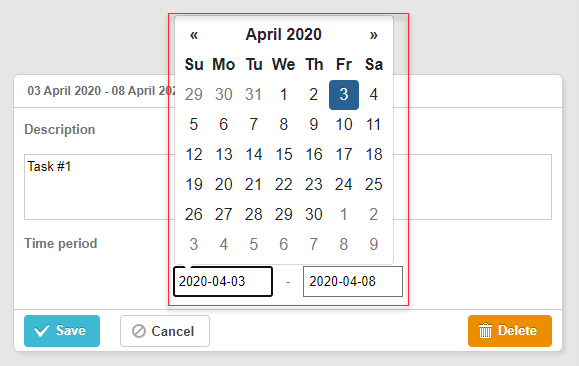
관련 샘플 Bootstrap Datepicker control
Gantt 차트에서 Bootstrap Datepicker 컨트롤을 사용하려면:
-
페이지에 Bootstrap 라이브러리의 소스 파일을 포함합니다;
-
컨트롤의 동작 로직 설명:
(function () {
    const startDatepicker = (node) => $(node).find("input[name='start']");
    const endDateInput = (node) => $(node).find("input[name='end']");

    gantt.form_blocks["datepicker"] = {
        render: (sns) => {
          const height = sns.height || 45;
            return "<div className='gantt-lb-datepicker' style='height:" + height + "px;'>"+
                        "<input type='text' name='start'/> - "+
                        "<input type='text' name='end'/>"+
                    "</div>";;
        },
        set_value: (node, value, task, section) => {
              const datepickerConfig = {
                  format: 'yyyy-mm-dd',
                  autoclose: true,
                   container: gantt.$container
            };
            startDatepicker(node).datepicker(datepickerConfig);
              startDatepicker(node).datepicker('setDate',
                  value ? value.start_date : task.start_date
            );

            endDateInput(node).datepicker(datepickerConfig);
              endDateInput(node).datepicker('setDate',
                  value ? value.end_date : task.end_date
            );

            startDatepicker(node).datepicker().on('changeDate', function(e) {
                const endValue = endDateInput(node).datepicker('getDate');
                const startValue = startDatepicker(node).datepicker('getDate');

                if (startValue && endValue) {
                    if (endValue.valueOf() <= startValue.valueOf()) {
                        endDateInput(node).datepicker('setDate',
                            gantt.calculateEndDate({
                                start_date: startValue, duration: 1, task:task
                            })
                        );
                    }
                }
            });
        },
        get_value: (node, task, section) => {
            const start = startDatepicker(node).datepicker('getDate');
            let end =  endDateInput(node).datepicker('getDate');

            if (end.valueOf() <= start.valueOf()) {
                end = gantt.calculateEndDate({
                    start_date: start,
                    duration: 1,
                    task:task
                });
            }
            if (task.start_date && task.end_date) {
                  task.start_date = start;
                  task.end_date = end;
            }

            task.duration = gantt.calculateDuration(task);

              return {
                start_date: start,
                  end_date: end,
                  duration: task.duration
            };
        },
        focus: (node) => {
        }
    }
})();
- 이 컨트롤을 타입:"datepicker"인 라이트박스 섹션으로 사용하기:
gantt.config.lightbox.sections = [
  { name: "description", height: 70, map_to: "text", type: "textarea", focus: true },
  { name: "time", height: 45, map_to: "auto", type: "datepicker" }
];
Custom third-party Duration 컨트롤
작업의 시작일과 기간(일)을 지정하기 위해 라이트박스에 커스텀 Duration 컨트롤이 필요할 수도 있습니다.
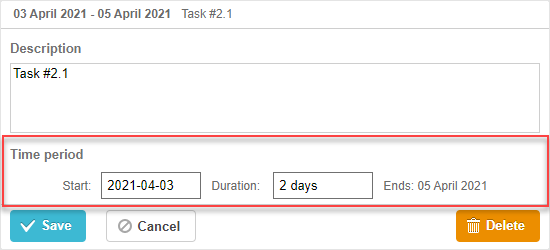
관련 샘플 3rd party Duration control
다음과 같이 jQuery를 기반으로 커스텀 Duration 컨트롤을 추가하는 방법을 살펴봅시다:
- 페이지에 jQuery 라이브러리의 소스 파일을 포함합니다:
<script src="https://code.jquery.com/jquery-3.5.1.min.js"></script>
<script src="https://code.jquery.com/ui/1.12.1/jquery-ui.min.js"></script>
<link  rel="stylesheet" type="text/css"
    href="https://code.jquery.com/ui/1.12.1/themes/base/jquery-ui.css">
- 컨트롤의 동작 로직 설명:
(function () {
    function startDatepicker(node){
        return $(node).find("input[name='start']");
    }
    function durationInput(node){
        return $(node).find("input[name='duration']");
    }
    function endDateLabel(node){
        return $(node).find("span.gantt-lb-datepicker-label");
    }

    var formatter = gantt.ext.formatters.durationFormatter({
        enter: "day",
        store: "day",
        format: "auto"
    });

    gantt.form_blocks["datepicker_duration"] = {
        render: function (sns) { //sns - the section's configuration object
            return "<div className='gantt-lb-datepicker'>"+
                "<label>Start:<input type='text' name='start'/></label>"+
                "<label>Duration: <input type='text' name='duration'/></label>"+
                "<span className='gantt-lb-datepicker-label'></span>"
                "</div>";
        },
        set_value: function (node, value, task, section) {
            //node - an html object related to the html defined above
            //value - a value defined by the map_to property
            //task - the task object
            //section- the section's configuration object

            startDatepicker(node).datepicker({
                dateFormat: "yy-mm-dd",
                onSelect: function (dateStr) {
                    var endValue = durationInput(node).datepicker('getDate');
                    var startValue = startDatepicker(node).datepicker('getDate');

                    if(startValue && endValue){
                        if(endValue.valueOf() <= startValue.valueOf()){
                            durationInput(node).datepicker("setDate",
                                gantt.calculateEndDate({
                                    start_date: startValue, duration: 1, task:task
                                })
                            );
                        }
                    }
                }
            });

            startDatepicker(node).datepicker("setDate", task.start_date);

            durationInput(node).val(formatter.format(task.duration));
            endDateLabel(node).text(
                "Ends: " + gantt.templates.task_date(task.end_date)
            );
        },
        get_value: function (node, task, section) {

            if(task.start_date && task.end_date) {
                var start = startDatepicker(node).datepicker('getDate');
                var end = task.end_date;
                var duration = formatter.parse(durationInput(node).val());

                if(duration && !isNaN(Number(duration))){
                    end = gantt.calculateEndDate({
                        start_date: start, duration: duration, task:task
                    });
                }
                task.start_date = start;
                task.duration = duration;
                task.end_date = end;
            }

            task.duration = gantt.calculateDuration(task);
            return {
                start_date: task.start_date,
                end_date: task.end_date,
                duration: task.duration
            }
        },
        focus: function (node) {

        }
    }
})();
- 이 컨트롤을 타입:"datepicker_duration"인 라이트박스 섹션으로 사용하기:
gantt.config.lightbox.sections = [
  { name: "description", height: 70, map_to: "text", type: "textarea", focus: true },
  { name: "time", height: 72, map_to: "auto", type: "datepicker_duration" }
];