Полный исходник демо доступен на GitHub: https://github.com/DHTMLX/gantt-migrating-from-bryntum.
Миграция с Bryntum Gantt на DHTMLX Gantt
Введение
Bryntum Gantt — это компонент диаграммы Gantt для инструментов управления проектами на JavaScript.
Данное руководство проведёт вас через процесс миграции существующего приложения с Bryntum Gantt на DHTMLX Gantt. Мы охватим все необходимые шаги, включая изменения схемы базы данных, модификации серверных API и обновления клиентского кода.
Предварительные требования
Перед началом миграции убедитесь, что у вас есть:
- существующее рабочее приложение с Bryntum Gantt
- установлен Node.js (≥ 20.0.0)
- база данных MySQL со структурой Bryntum
- базовые знания Express.js и JavaScript
Шаг 1: Миграция БД
Понимание текущей схемы
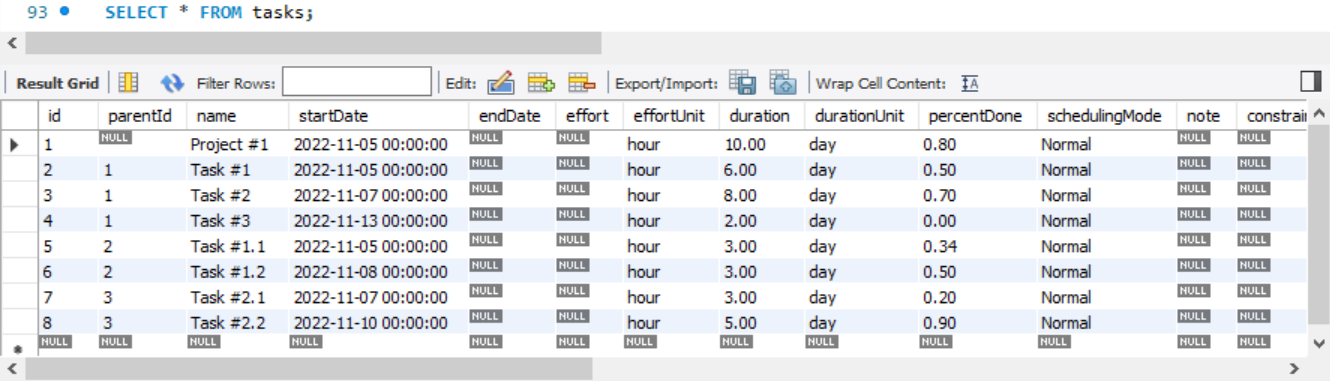
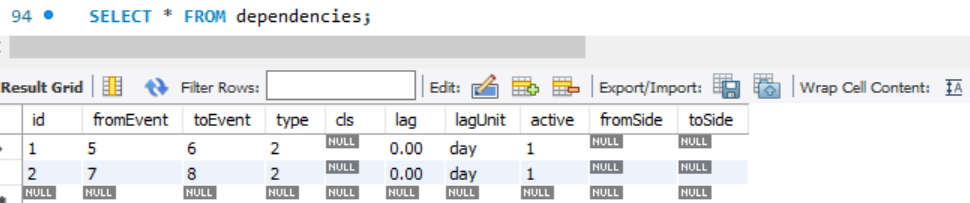
Если вы следовали настройке демо Bryntum, у вас должно быть две таблицы: tasks и dependencies.
Структура таблицы tasks:
Структура таблицы dependencies:
Создание таблиц DHTMLX
DHTMLX Gantt использует более простую структуру базы данных. Создайте две новые таблицы, совместимые с DHTMLX Gantt:
CREATE TABLE `gantt_tasks`
(
    `id`              int(11)      NOT NULL AUTO_INCREMENT,
    `text`            varchar(255) NOT NULL,
    `start_date`      datetime     NOT NULL,
    `end_date`        datetime     NOT NULL,
    `duration`        int(11)      NOT NULL,
    `progress`        float        NOT NULL,
    `parent`          int(11)      NOT NULL,
    `constraint_type` varchar(20)  DEFAULT 'asap',
    `constraint_date` datetime     DEFAULT NULL,
    PRIMARY KEY (`id`)
);

CREATE TABLE `gantt_links`
(
    `id`     int(11)    NOT NULL AUTO_INCREMENT,
    `source` int(11)    NOT NULL,
    `target` int(11)    NOT NULL,
    `type`   varchar(1) NOT NULL,
    PRIMARY KEY (`id`)
);
Примечание:
- Мы добавили поля
constraint_typeиconstraint_dateдля поддержки авто-расписания с ограничениями, что является фичей как в Bryntum, так и в DHTMLX Gantt. - Мы добавили поле
end_dateдля сохранения точной даты окончания, рассчитанной Gantt. Без сохраненияend_dateона могла бы пересчитываться на основанииstart_dateиduration, что зависит от включённых функций (авто-расписание, рабочее время, ограничения). Сохранениеend_dateпредотвращает потерю этой фундаментальной информации.
Миграция существующих данных
Теперь мигрируйте ваши существующие данные Bryntum в новые таблицы DHTMLX.
Миграция задач:
INSERT INTO gantt_tasks (
    `id`,
    `text`,
    `start_date`,
    `end_date`,
    `duration`,
    `progress`,
    `parent`,
    `constraint_type`,
    `constraint_date`
)
SELECT
    `id`,
    `name`,                              -- 'name' */} 'text'
    `startDate`,
    DATE_ADD(`startDate`, INTERVAL `duration` DAY), -- Расчёт end_date из start_date + duration
    `duration`,
    `percentDone`,                       -- 'percentDone' */} 'progress'
    IFNULL(`parentId`, 0),               -- 'parentId' */} 'parent' (0 для корневых задач)
    CASE `constraintType`                -- Отображение типов ограничений
        WHEN 'assoonaspossible' THEN 'asap'
        WHEN 'aslateaspossible' THEN 'alap'
        WHEN 'startnoearlierthan' THEN 'snet'
        WHEN 'startnolaterthan' THEN 'snlt'
        WHEN 'finishnoearlierthan' THEN 'fnet'
        WHEN 'finishnolaterthan' THEN 'fnlt'
        WHEN 'muststarton' THEN 'mso'
        WHEN 'mustfinishon' THEN 'mfo'
        ELSE 'asap'
    END,
    `constraintDate`
FROM tasks;
Миграция зависимостей (links):
INSERT INTO gantt_links (`id`, `source`, `target`, `type`)
SELECT
    `id`,
    `fromEvent`,               -- 'fromEvent' */} 'source'
    `toEvent`,                 -- 'toEvent' */} 'target'
    CASE `type`                -- Конвертация типов Bryntum в формат DHTMLX
        WHEN 0 THEN '1'        -- Start-to-Start
        WHEN 1 THEN '3'        -- Start-to-Finish
        WHEN 2 THEN '0'        -- Finish-to-Start (наиболее часто встречается)
        WHEN 3 THEN '2'        -- Finish-to-Finish
        ELSE '0'               -- По умолчанию Finish-to-Start
    END
FROM dependencies;
Вы можете проверить корректность миграции, выполнив команды:
SELECT * FROM gantt_tasks;
SELECT * FROM gantt_links;
Вы должны увидеть, что все задачи и связи корректно перенесены с правильными сопоставлениями полей.
Отображение полей Bryntum Task в DHTMLX Gantt
У Bryntum Gantt есть TaskModel, который содержит ряд полей, реализованных по-разному в DHTMLX Gantt или требующих особой обработки во время миграции. Ниже приведена таблица с отображением наиболее распространённых полей задач Bryntum на DHTMLX Gantt:
| Bryntum Field | Description | Recommended Approach |
|---|---|---|
effort / effortUnit | Объем работы, необходимый для выполнения задачи (например, 16 ч), используется для планирования с учётом усилий и ресурсов | DHTMLX Gantt не поддерживает планирование с учётом усилий на уровне задачи. Как альтернативу можно использовать модуль Resource Management для назначения ресурсов и визуализации загрузки. Назначения ресурсов могут представлять усилия (например, часы в день), но продолжительность задачи не пересчитывается автоматически и должна управляться вручную или через собственную логику. |
durationUnit | Единица времени для интерпретации продолжительности задачи (часы, дни, недели и т. д.) | DHTMLX Gantt использует глобальную единицу продолжительности, настраиваемую через gantt.config.duration_unit. Во время миграции рекомендуется нормализовать все продолжительности до одной единицы. Если хотите, чтобы разные задачи имели разные единицы продолжительности, например, задачи в часах и в днях, используйте модуль formatter. |
schedulingMode | Определяет поведение планирования задачи (Normal, FixedDuration, FixedEffort и т. д.) | Нет прямого аналога. DHTMLX Gantt не поддерживает режимы планирования на уровне задачи. Можно сохранить значение как пользовательское поле и, при необходимости, реализовать кастомное поведение через события Gantt (например, onBeforeTaskUpdate). |
note | Свободный текст заметок или описание задачи | Можно мигрировать как пользовательское текстовое поле (например, note или description) и показывать в lightbox, тултипе или в пользовательском столбце гриды. |
manuallyScheduled | Указывает, исключена ли задача из автоматического планирования | Можно использовать свойство задачи task.auto_scheduling, которое позволяет исключать отдельные задачи из авто-планирования при сохранении глобальной функции включенной. См. Disabling auto scheduling for specific tasks. |
calendar | Календарь, назначенный задаче | DHTMLX Gantt поддерживает несколько рабочих календарей. Календарь можно назначить задаче через свойство calendar_id (или пользовательное свойство, определённое gantt.config.calendar_property). См. Assigning Calendar to Task. |
deadline | Целевая дата, которой задача не должна превышать | Полностью поддерживается через свойство task.deadline. При указании DHTMLX Gantt отображает визуальный индикатор срока на временной шкале. Значение использует такой же формат даты, как и start_date. |
Шаг 2: Миграция бэкенда (server.js)
Удаление кода, специфичного для Bryntum
Сначала удалите промежуточное ПО, обслуживающее Bryntum, из вашего server.js:
// УДАЛИТЕ эту строку:
app.use(express.static(path.join(__dirname, '/node_modules/@bryntum/gantt')));
Важно: с Vite, который будет использоваться в этом демо, больше не требуется напрямую обслуживать node_modules. Удалите любое промежуточное ПО, открывающее весь каталог node_modules:
// УДАЛИТЕ эту строку, если она присутствует:
app.use('/node_modules', express.static(path.join(__dirname, 'node_modules')));
Удаление Bryntum Endpoints
Удалите следующие Bryntum-специфические endpoints и вспомогательные функции:
app.get('/load', ...)- эндпоинт загрузки данных Bryntumapp.post('/sync', ...)- эндпоинт синхронизации Bryntum- функции
applyTableChanges(),createOperation(),updateOperation(),deleteOperation()
Установка пакета DHTMLX Gantt и Vite
Удалите зависимость Bryntum. Если вы использовали Bryntum через npm, удалите его:
npm uninstall @bryntum/gantt
Установите DHTMLX Gantt согласно руководству по установке [guides/installation.md].
Для данного урока мы будем использовать пробную версию DHTMLX Gantt:
npm install @dhx/trial-gantt
Также установим Vite как средства сборки:
npm install --save-dev vite
Добавление Endpoint загрузки данных
Добавьте GET-эндпоинт для загрузки данных в формате DHTMLX:
import dateFormat from 'date-format-lite';

// GET /data - Load tasks and links
app.get('/data', async (req, res) => {
  try {
    const [[tasks], [links]] = await Promise.all([
      db.query('SELECT * FROM gantt_tasks'),
      db.query('SELECT * FROM gantt_links'),
    ]);

    // Форматируем даты для DHTMLX Gantt
    for (let i = 0; i < tasks.length; i++) {
      tasks[i].start_date = tasks[i].start_date.format("YYYY-MM-DD hh:mm:ss");
      tasks[i].end_date = tasks[i].end_date.format("YYYY-MM-DD hh:mm:ss");
      // Форматируем constraint_date, если он существует
      if (tasks[i].constraint_date) {
        tasks[i].constraint_date = tasks[i].constraint_date.format("YYYY-MM-DD hh:mm:ss");
      }
    }

    res.json({
      tasks,
      links
    });
  } catch (error) {
    res.status(500).json({
      success: false,
      message: error.message,
    });
  }
});
Примечание: формат ответа отличается от Bryntum. DHTMLX требует { tasks: [], links: [] } вместо вложенной структуры Bryntum.
Добавление CRUD-эндпоинтов для задач и связей
DHTMLX Gantt DataProcessor использует RESTful endpoints. Добавьте обработчики операций над задачами:
// Create a new task
app.post("/data/task", async (req, res) => {
    const task = getTask(req.body);
    const { text, start_date, end_date, duration, progress, parent, constraint_type, constraint_date } = task;

    try {
        const [result] = await db.query(
            "INSERT INTO gantt_tasks(text, start_date, end_date, duration, progress, parent, constraint_type, constraint_date) VALUES (?,?,?,?,?,?,?,?)",
            [text, start_date, end_date, duration, progress, parent, constraint_type, constraint_date]
        );
        sendResponse(res, "inserted", result.insertId);
    } catch (error) {
        sendResponse(res, "error", null, error);
    }
});

// Update an existing task
app.put("/data/task/:id", async (req, res) => {
    const sid = req.params.id;
    const task = getTask(req.body);
    const { text, start_date, end_date, duration, progress, parent, constraint_type, constraint_date } = task;

    try {
        await db.query(
            "UPDATE gantt_tasks SET text = ?, start_date = ?, end_date = ?, duration = ?, progress = ?, parent = ?, constraint_type = ?, constraint_date = ? WHERE id = ?",
            [text, start_date, end_date, duration, progress, parent, constraint_type, constraint_date, sid]
        );
        sendResponse(res, "updated");
    } catch (error) {
        sendResponse(res, "error", null, error);
    }
});

// Delete a task
app.delete("/data/task/:id", async (req, res) => {
    const sid = req.params.id;

    try {
        await db.query("DELETE FROM gantt_tasks WHERE id = ?", [sid]);
        sendResponse(res, "deleted");
    } catch (error) {
        sendResponse(res, "error", null, error);
    }
});
Добавьте обработчики операций над связями (dependency):
// Create a new link
app.post("/data/link", async (req, res) => {
    const link = getLink(req.body);
    const { source, target, type } = link;

    try {
        const [result] = await db.query(
            "INSERT INTO gantt_links(source, target, type) VALUES (?,?,?)",
            [source, target, type]
        );
        sendResponse(res, "inserted", result.insertId);
    } catch (error) {
        sendResponse(res, "error", null, error);
    }
});

// Update an existing link
app.put("/data/link/:id", async (req, res) => {
    const sid = req.params.id;
    const link = getLink(req.body);
    const { source, target, type } = link;

    try {
        await db.query(
            "UPDATE gantt_links SET source = ?, target = ?, type = ? WHERE id = ?",
            [source, target, type, sid]
        );
        sendResponse(res, "updated");
    } catch (error) {
        sendResponse(res, "error", null, error);
    }
});

// Delete a link
app.delete("/data/link/:id", async (req, res) => {
    const sid = req.params.id;

    try {
        await db.query("DELETE FROM gantt_links WHERE id = ?", [sid]);
        sendResponse(res, "deleted");
    } catch (error) {
        sendResponse(res, "error", null, error);
    }
});
Добавление вспомогательных функций
Также добавим утилитные функции для обработки данных и отправки ответов:
function getTask(data) {
    return {
        text: data.text,
        start_date: data.start_date.date("YYYY-MM-DD hh:mm:ss"),
        end_date: data.end_date.date("YYYY-MM-DD hh:mm:ss"),
        duration: data.duration,
        progress: data.progress || 0,
        parent: data.parent,
        constraint_type: data.constraint_type || 'asap',
        constraint_date: data.constraint_date || null
    };
}

function getLink(data) {
    return {
        source: data.source,
        target: data.target,
        type: data.type
    };
}

function sendResponse(res, action, tid, error) {
    if (action === "error") {
        console.log(error);
    }

    const result = { action: action };

    if (tid !== undefined && tid !== null) {
        result.tid = tid;
    }

    res.send(result);
}
Очистка данных задачи (защита от XSS)
DHTMLX Gantt рендерит поля задачи, такие как текст (text), как HTML и не экранирует их по умолчанию, поэтому любой разметки во migrated данных (или введённой позже пользователем) будет отображаться как есть — потенциальный вектор XSS. Bryntum и большинство других библиотек ведут себя аналогично, поэтому стоит обрабатывать это явно во время миграции.
Очистка на бэкенде (рекомендовано). Очистите поля свободного текста перед тем, как они попадут в базу данных:
npm install isomorphic-dompurify
import DOMPurify from 'isomorphic-dompurify';

function getTask(data) {
    return {
        text: DOMPurify.sanitize(data.text),
        // ...остальные поля без изменений
    };
}
Экранирование на фронтенде (многоуровневая защита). Переопределите шаблоны, которые рендерят текст задачи в src/main.js:
const escapeHTML = (value) =>
String(value ?? "").replace(/[&<>"']/g, (ch) =>
({ "&": "&", "<": "<", ">": ">", '"': """, "'": "'" }[ch]));
gantt.templates.task_text = (start, end, task) => escapeHTML(task.text);
gantt.templates.tooltip_text = (start, end, task) => escapeHTML(task.text);
// также экранируйте столбец "text" в гриде: template: (task) => escapeHTML(task.text)
Для полного набора рекомендаций — политика контента (Content Security Policy), очистка lightbox и советы по защите от SQL-инъекций — смотрите руководство Application Security.
Шаг 3: Миграция фронтенда с использованием Vite
Настройка конфигурации Vite
Создайте файл vite.config.js в корне проекта:
import { defineConfig } from 'vite';
import path from 'path';

export default defineConfig({
  root: '.',

  server: {
    port: 5173,
    proxy: {
      // Прокси API-запросов к Express-бэкенду
      '/data': {
        target: 'http://localhost:1337',
        changeOrigin: true,
      }
    }
  },

  build: {
    outDir: 'dist',
    emptyOutDir: true,
    sourcemap: true,
  },

  resolve: {
    alias: {
      '@': path.resolve(__dirname, './src')
    }
  }
});
Реструктуризация файлов проекта
Организуйте проект по следующей структуре:
dhtmlx-demo/
├── index.html         # Перемещён из public/ в корень
├── src/
│   └── main.js        # Создайте этот файл для логики приложения
├── dist/              # Генерируется сборщиком Vite
├── server.js          # Бэкэнд
├── vite.config.js     # Конфигурация Vite
└── package.json
Обновление index.html
Перенесите index.html в корень проекта и обновите его. С Vite не нужно вручную подключать CSS и JS-файлы — Vite соберёт их автоматически.
<!DOCTYPE html>
<html lang="en">
  <head>
    <meta charSet="UTF-8" />
    <meta name="viewport" content="width=device-width, initial-scale=1.0" />
    <title>DHTMLX Gantt Demo</title>

    <style>
      html, body {
        margin: 0;
        padding: 0;
        height: 100%;
        width: 100%;
      }
      #gantt_here {
        width: 100%;
        height: 100%;
      }
    </style>
  </head>
  <body>
    <div id="gantt_here"></div>
        <script type="module" src="/src/main.js"></script>
  </body>
</html>
Примечание: идентификатор контейнера изменён на gantt_here — это обычный идентификатор контейнера для DHTMLX Gantt.
Создание src/main.js
Создайте новый файл src/main.js с кодом инициализации DHTMLX Gantt:
Удалите код Bryntum:
// УДАЛИТЕ все импорты Bryntum и инициализацию
import { Gantt, ProjectModel } from './gantt.module.js';

const project = new ProjectModel({
  taskStore: { transformFlatData: true },
  loadUrl: '/load',
  syncUrl: '/sync',
  autoLoad: true,
  autoSync: true,
});

const gantt = new Gantt({
  appendTo: document.body,
  project,
  columns: [...]
});
Добавьте код DHTMLX Gantt в src/main.js:
// Подключение CSS и библиотеки DHTMLX Gantt
import '@dhx/trial-gantt/codebase/dhtmlxgantt.css';
import gantt from '@dhx/trial-gantt';

// Включение плагинов
gantt.plugins({
  auto_scheduling: true,
  marker: true,
  tooltip: true
});

// Настройка автоматического планирования с ограничениями
gantt.config.auto_scheduling = {
  enabled: true,
  show_constraints: true,
  apply_constraints: true,
  project_constraint: true,
};

// Настройки проекта
gantt.config.project_start = new Date(2026, 10, 5);

// Включение рабочего времени
gantt.config.work_time = true;

// Включение дополнительных функций
gantt.config.drag_project = true;   // Перетаскивание проектов
gantt.config.order_branch = true;   // Вертикальное ре-распределение задач на одном уровне дерева

// Формат дат
gantt.config.date_format = "%Y-%m-%d %H:%i:%s";
gantt.config.open_tree_initially = true;

// Настройка колонок для отображения информации об ограничениях
gantt.config.columns = [
    { name: "text", tree: true, width: '*', resize: true, width: 150 },
    { name: "start_date", align: "center", resize: true, width: 150 },
    { name: "duration", align: "center", width: 80, resize: true, },
    {
        name: "constraint_type", align: "center", width: 100, template: function (task) {
            return gantt.locale.labels[gantt.getConstraintType(task)];
        }, resize: true,
    },
    {
        name: "constraint_date", align: "center", width: 120, template: function (task) {
            const constraintTypes = gantt.config.constraint_types;

            if (task.constraint_date && task.constraint_type != constraintTypes.ASAP && task.constraint_type != constraintTypes.ALAP) {
                return task.constraint_date;
            }
            return "";
        }, resize: true,
    },
    { name: "add", width: 44 }
];

// Настройка секций lightbox
gantt.config.lightbox.sections = [
    { name:"description", height:38, map_to:"text", type:"textarea", focus:true},
    { name:"constraint", type:"constraint" },
    { name:"time", type:"duration", map_to:"auto" }
];

// Настройка зума колесом мыши
const hourToStr = gantt.date.date_to_str("%H:%i");
const hourRangeFormat = function(step){
	return function(date) {
		const intervalEnd = new Date(gantt.date.add(date, step, "hour") - 1)
		return hourToStr(date) + " - " + hourToStr(intervalEnd);
	};
};

const zoomConfig = {
    minColumnWidth: 80,
    maxColumnWidth: 150,
    levels: [
        [
            { unit: "month", format: "%M %Y", step: 1},
            { unit: "week", step: 1, format: function (date) {
                    const dateToStr = gantt.date.date_to_str("%d %M");
                    const endDate = gantt.date.add(date, 7 - date.getDay(), "day");
                    const weekNum = gantt.date.date_to_str("%W")(date);
                    return "Week #" + weekNum + ", " + dateToStr(date) + " - " + dateToStr(endDate);
                }}
        ],
        [
            { unit: "month", format: "%M %Y", step: 1},
            { unit: "day", format: "%d %M", step: 1}
        ],
        [
            { unit: "day", format: "%d %M", step: 1},
            { unit: "hour", format: hourRangeFormat(12), step: 12}
        ],
        [
            {unit: "day", format: "%d %M",step: 1},
            {unit: "hour",format: hourRangeFormat(6),step: 6}
        ],
        [
            { unit: "day", format: "%d %M", step: 1 },
            { unit: "hour", format: "%H:%i", step: 1}
        ]
    ],
    startDate: new Date(2026, 10, 5),
    endDate: new Date(2026, 10, 20),
    useKey: "ctrlKey",
    trigger: "wheel",
    element: function(){
        return gantt.$root.querySelector(".gantt_task");
    }
}

gantt.ext.zoom.init(zoomConfig);

// Добавить маркер для начала проекта
gantt.addMarker({
    start_date: gantt.config.project_start,
    text: "project start"
});

// Подсветка выходных на временной шкале
gantt.templates.scale_cell_class = function (date) {
    if (date.getDay() == 0 || date.getDay() == 6) {
        return "weekend";
    }
};
gantt.templates.timeline_cell_class = function (item, date) {
    if (date.getDay() == 0 || date.getDay() == 6) {
        return "weekend";
    }
};

// Инициализация Gantt
gantt.init("gantt_here");

// Загрузка данных с сервера
gantt.load("/data");

const dp = gantt.createDataProcessor({
  url: '/data',
  mode: 'REST'
});
DataProcessor автоматически:
- отправляет POST-запросы к
/data/taskпри создании задач - отправляет PUT-запросы к
/data/task/:idпри обновлении задач - отправляет DELETE-запросы к
/data/task/:idпри удалении задач - обрабатывает связи аналогично через эндпоинты
/data/link
Включение стандартных функций Bryntum
Важно: для использования некоторых функций, включённых в Bryntum Gantt по умолчанию, их нужно явно включить в DHTMLX Gantt. Конфигурация выше включает несколько функций, которые являются стандартными в Bryntum:
Автоматическое планирование с ограничениями
В DHTMLX Gantt нужно:
- Включить плагин
auto_scheduling - Настроить
gantt.config.auto_scheduling
Time constraints for tasks
Auto Scheduling
Рабочее время и подсветка выходных
Чтобы подсветить нерабочие дни на временной шкале:
- Включите конфигурацию
work_time - Используйте шаблоны
scale_cell_classиtimeline_cell_classдля подсветки выходных
Тултипы
Включите плагин тултипов, чтобы показывать информацию о задаче при наведении курсора.
gantt.plugins({
  tooltip: true
});
Масштабирование колесом мыши
Настройте gantt.ext.zoom, чтобы разрешить масштабирование колесом мыши и переключение между дневными, недельными, месячными и другими представлениями.
Функции перетаскивания
drag_project: включает перетаскивание элементов типа проектorder_branch: позволяет вертикальное упорядочивание задач на одном уровне
Примечание об упорядочивании задач: когда включён order_branch, пользователи могут изменять порядок задач в UI. Однако эти изменения не сохраняются автоматически в базе данных. Чтобы сохранять порядок задач, нужно реализовать дополнительную серверную логику. Подробности смотрите в этой инструкции.
Маркеры проекта
Добавляйте визуальные маркеры, чтобы выделить важные даты (например, начало проекта) на временной шкале.
Добавление стилей выходных
Добавьте CSS-стили в ваш index.html:
<style>
  html, body {
    margin: 0;
    padding: 0;
    height: 100%;
    width: 100%;
  }
  #gantt_here {
    width: 100%;
    height: 100%;
  }

  /* Стили для выходных */
  .weekend {
     background: var(--dhx-gantt-base-colors-background-alt);
  }

  [data-column-name='constraint_type'] .gantt_tree_content {
		padding: 1px;
		line-height: 17px;
		white-space: normal;
		text-align: right;
		box-sizing: border-box;
	}

	.gantt_grid_editor_placeholder[data-column-name='constraint_type'] select {
		line-height: 20px;
		white-space: normal;
	}
</style>
Обновление скриптов package.json
Обновите скрипты в вашем package.json для использования Vite:
{
  "scripts": {
    "dev": "vite",
    "build": "vite build",
    "preview": "vite preview",
    "server": "nodemon server.js"
  }
}
Шаг 4: Тестирование миграции
Режим разработки
Для разработки нужно запустить два процесса:
Терминал 1 — Бэкенд (Express):
npm run server
Это запускает API-сервер на http://localhost:1337
Терминал 2 — Фронтенд (Vite):
npm run dev
Это запускает Vite dev-сервер на http://localhost:5173
Откройте браузер и перейдите по адресу http://localhost:5173. Vite будет автоматически проксировать API-запросы к Express-бэкенду.
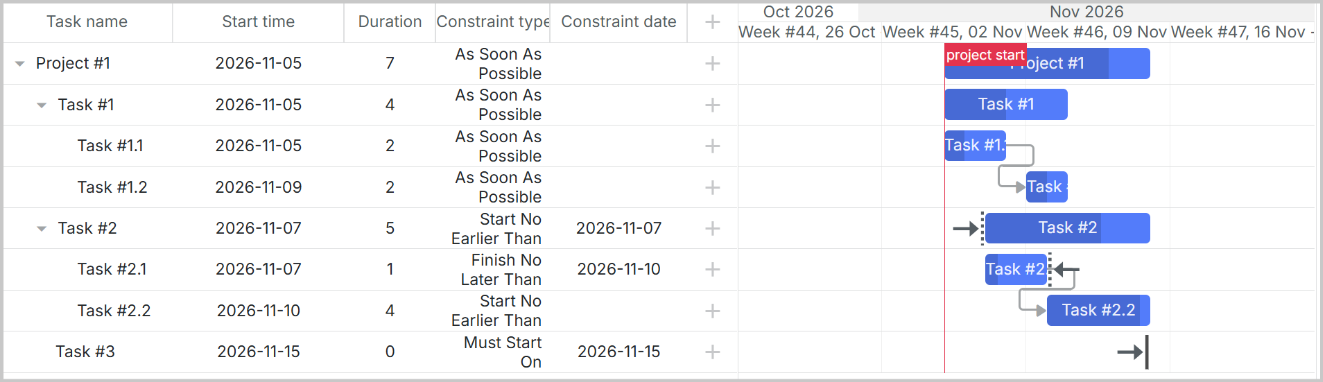
Вы должны увидеть диаграмму Gantt с данными, загруженными из базы данных:
Режим продакшн
Для продакшна сначала соберите фронтенд:
npm run build
Это создаёт оптимизированный бандл в папке dist/. Затем обновите ваш server.js, чтобы обслуживать собранные файлы:
import path from 'path';

// В server.js добавьте это для продакшна
const __dirname = import.meta.dirname;

if (process.env.NODE_ENV === 'production') {
  app.use(express.static(path.join(__dirname, 'dist')));
}
Теперь можно запустить только бэкенд:
npm run server
И доступ к приложению по адресу http://localhost:1337
Следующие шаги
- Ознакомьтесь с документацией по DHTMLX Gantt для расширенных возможностей: DHTMLX Gantt documentation
- Просмотрите API reference для вариантов кастомизации
- Посмотрите примеры DHTMLX Gantt samples для примеров реализации