时间控制
一对选择器,用于通过指定任务的开始日期和结束日期来设置任务的持续时间。
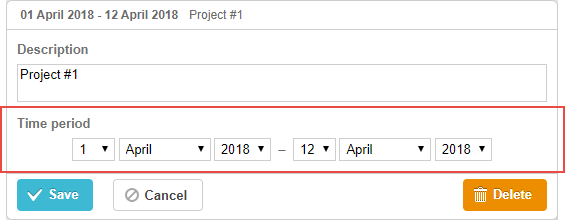
gantt.config.lightbox.sections="["
    {name:"description", height:70, map_to:"text", type:"textarea", focus:true},
    {name:"time",        height:72, map_to:"auto", type:"time"} /*!*/
];
初始化
要向 lightbox 添加 time 控件,请按下列步骤操作:
- 在 lightbox 配置中添加一个节:
gantt.config.lightbox.sections="["
    {name:"description", height:70, map_to:"text", type:"textarea",focus:true},
    {name:"period",      height:72, map_to:"auto", type:"time"}, /*!*/
];
- 为该节设置标签:
gantt.locale.labels.section_period = "Time period";
(注:此处的字符串如 Time period 保留为原文,若需要,可以改为中文。)
属性
以下属性对 'time' 控件最为重要且常被设置(参见完整列表 此处):
- name - (string) 该节的名称
- height - (number) 该节的高度
- map_to - (string,object) "auto" 或对象,定义将映射到该节的数据属性
- type - (string) [section control] 的类型(参见 guides/default-edit-form.md#lightboxcontrols)
- focus - (boolean) 如果设置为 true,打开 lightbox 时该节将获得焦点
- readonly - (boolean) 如果设置为 "true",该节将只读
- year_range - (array,number) 为年份选择器设置范围。范围可以通过两种方式设置:
- year_range: [2005, 2025] - 从 2005 年到 2025 年的一个区间
- year_range: 10 - [当前年份 - 10 年;当前年份 + 10 年] 的区间
- single_date - (boolean) 如果设置为 "true",此节将仅显示 start Date 选择器。被修改的任务将仅以开始日期指定,持续时间为 0。仅对 milestones 有意义
- time_format - (string) 设置日期时间选择器的顺序
- autofix_end - (boolean) 定义若所选开始日期大于结束日期时,是否自动修正结束日期,默认为 true。禁用模式允许校验日期,但若开启模式后不进行校验,可能会得到持续时间为 0 的任务(当 start_date 大于 end_date 时)。
配置日期时间选择器
要配置 "duration" 或 "time" 节的选择器,请使用 time_format 属性(参见 Date Format Specification):
将时间选择器添加到 'Time period' 部分
gantt.config.lightbox.sections = [
    {name:"description", height:38, map_to:"text", type:"textarea", focus:true},
    {name:"time",type:"time", map_to:"auto", time_format:["%d","%m","%Y","%H:%i"]}/*!*/
];
注意,time_format 的数组成员允许值为:
- "%d" - 日选择器
- "%m" - 月份选择器
- "%Y" - 年选择器
- "%H:%i" - 时间选择器(格式由 time_picker 模板设置)
你可以仅改变这些成员在数组中的顺序和数量,但不能改变数据呈现格式。
例如,可以将格式改为:
// time goes first
time_format:["%H:%i", "%m", "%d", "%Y"]
// month goes first
time_format:["%m","%d", "%Y", "%H:%i"]
// the year selector is removed
time_format:["%H:%i", "%m", "%d"]
// incorrect
time_format:["%H:%i", "%M", "%d", "%Y"] // "%m" 被改为 "%M"
映射到自定义开始/结束日期时间属性
默认映射
通常,time 和 duration 控件通过将 map_to 属性设为 "auto" 值来映射到强制的数据属性 'start_date', 'end_date'。
自定义映射
要将控件映射到自定义日期属性(而不是 'start_date', 'end_date'),请使用 map_to 属性的对象表示法:
gantt.config.lightbox.sections = [
    {name: "description", height: 72, type: "textarea", map_to:"text", focus: true},
    {name: "time",           height: 72, type: "duration", map_to:"auto"},
    {name: "deadline",    height: 72, type: "time", /*!*/
     map_to:{start_date:"planned_start",end_date:"planned_end"}} /*!*/
];
作为对象,map_to 具有 3 个属性:
- start_date - 将存储在输入中设定的开始日期的数据属性的名称
- end_date - 可选,输入中设定的结束日期将存储到的数据属性的名称
- duration - 可选,存储由输入定义的持续时间的数据属性的名称
如果未指定某个属性,控件将采用相关的强制日期属性的值。
切换节的可见性
在为 lightbox 配置该节时,指定 type:"time_optional" 和 button: true 即可切换该节的可见性:
gantt.config.lightbox.sections = [
  {name: "description", height: 70, map_to: "text", type: "textarea", focus: true},
  {name: "time", map_to: "auto", button: true, type: "time_optional"} /*!*/
];
并为两种状态的按钮设置标签:
gantt.locale.labels.time_enable_button = 'Schedule';
gantt.locale.labels.time_disable_button = 'Unschedule';
用于切换该节可见性的切换按钮将出现在该节附近。如果该节可见,则行为就像指定了 type:"time"。
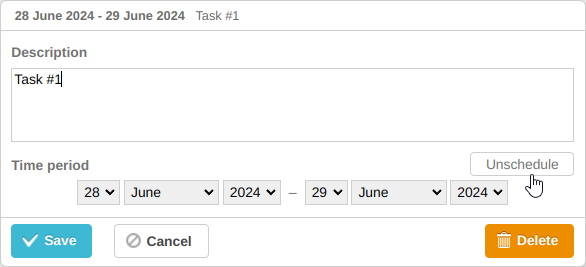
如果你把按钮关掉,该节将变得不可见,但不会发生其他变化。在你点击“保存”按钮后,通过该节的 map_to 属性映射到时间控件的任务属性的值将变为 null。
gantt.getTask(1);

// 返回值
{
    id: '1', text: 'Task #1', unscheduled: true,
    duration: 0, parent: '10',
    end_date: null, start_date: null,
    ...
}
如果你需要让任务处于未排程状态,这一功能会很有帮助。请查看相关示例:
相关示例 未排程的任务