dhtmlxGantt와 ASP.NET Core 사용하기
이 가이드는 서버 측에서 ASP.NET Core를 사용하여 Gantt 차트를 설정하는 과정을 안내합니다.
다른 서버사이드 플랫폼에 대한 튜토리얼도 제공됩니다:
- dhtmlxGantt와 ASP.NET MVC
- dhtmlxGantt와 Node.js 연동하기
- dhtmlxGantt와 Python
- dhtmlxGantt와 PHP: Laravel 연동
- dhtmlxGantt와 PHP:Slim 연동하기
- dhtmlxGantt와 Salesforce LWC 연동하기
- dhtmlxGantt와 Ruby on Rails 연동하기
데이터베이스 관리를 위해 Entity Framework Core를 사용합니다. 본 프로젝트는 Visual Studio 2022를 사용하여 개발되었습니다.
전체 소스 코드는 GitHub에서 확인할 수 있습니다.
1단계. 프로젝트 생성
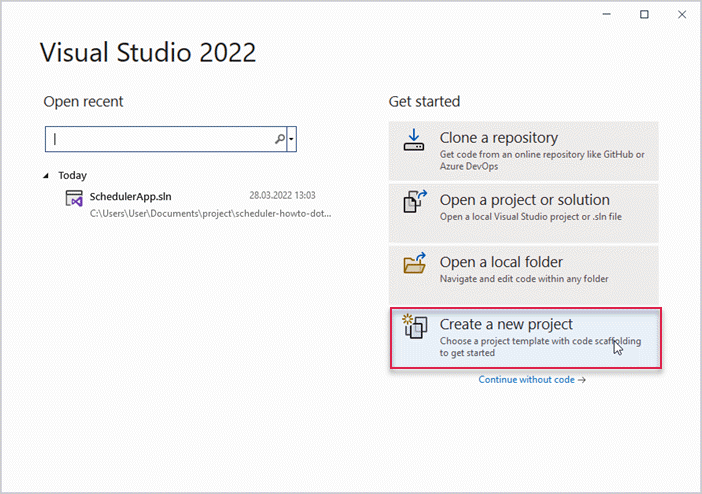
Visual Studio 2022를 시작한 후 Create a new project를 선택하여 새 프로젝트를 만듭니다.
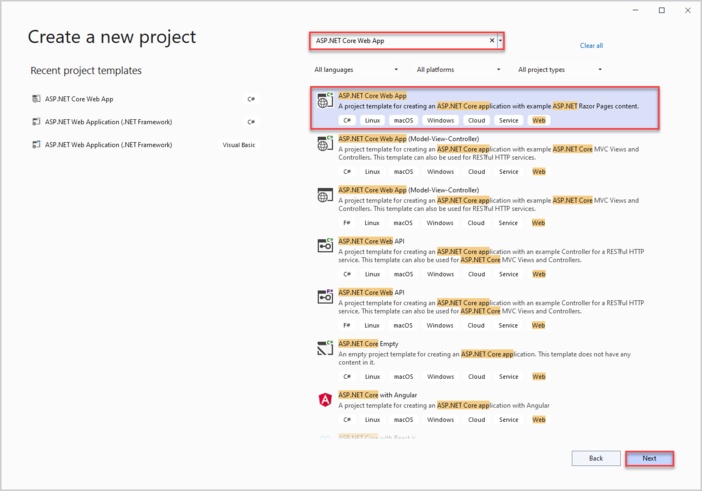
이후 "ASP.NET Core Web App"을 선택하고 프로젝트 이름을 DHX.Gantt로 지정합니다.
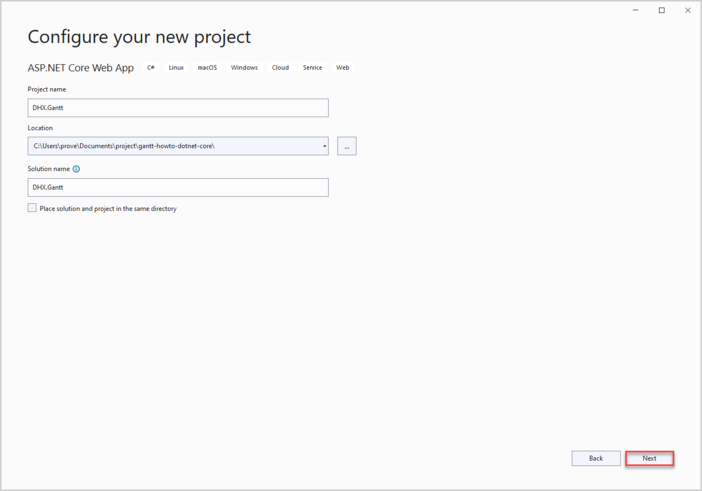
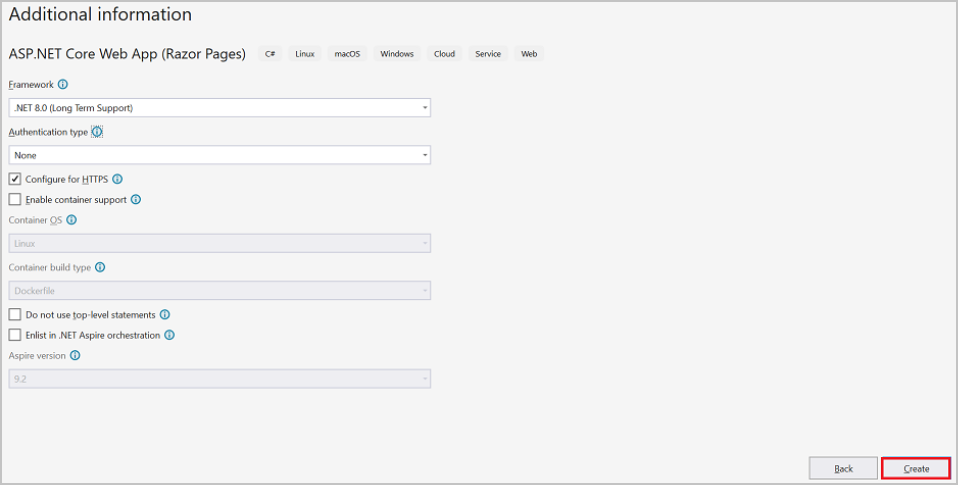
프로젝트가 생성되면 Gantt에 필요한 마크업과 스크립트를 추가할 수 있습니다.
2단계. Gantt 마크업 및 JS 추가
wwwroot로 이동하여 index.html이라는 새 파일을 생성합니다.
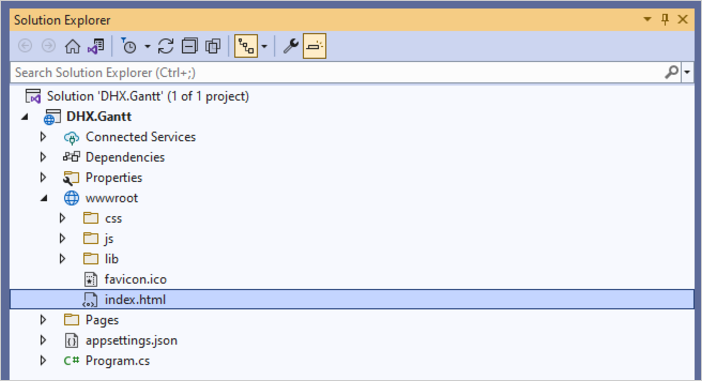
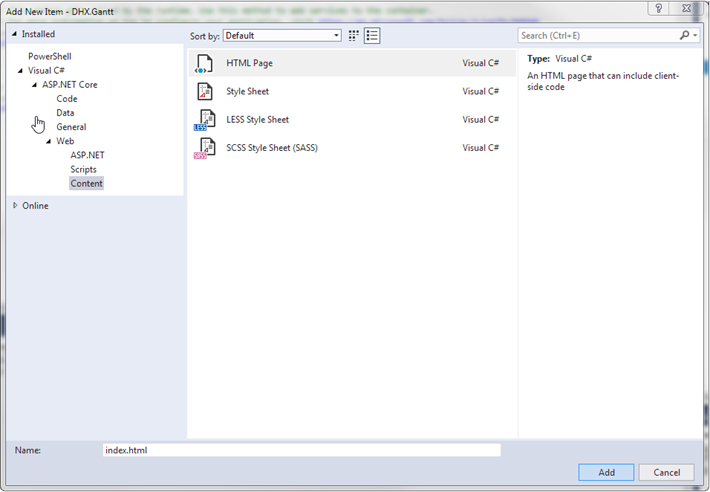
이 파일에서 간단한 페이지를 작성하여 gantt 차트를 표시합니다.
이 예제에서는 gantt 파일이 CDN에서 로드됩니다. Professional 버전을 사용하는 경우, 직접 gantt 파일을 프로젝트에 추가해야 합니다.
index.html
<!DOCTYPE html>
<html>
<head>
    <meta name="viewport" content="width="device-width"" />
    <title>Index</title>
    <link href="https://cdn.dhtmlx.com/gantt/edge/dhtmlxgantt.css"
          rel="stylesheet" type="text/css" />
    <script src="https://cdn.dhtmlx.com/gantt/edge/dhtmlxgantt.js"></script>
    <script>
        document.addEventListener("DOMContentLoaded", function(event) {
            // specifying the date format
            gantt.config.date_format = "%Y-%m-%d %H:%i";
            // initializing gantt
            gantt.init("gantt_here");

            // initiating data loading
            gantt.load("/api/data");
            // initializing dataProcessor
            var dp = new gantt.dataProcessor("/api/");
            // and attaching it to gantt
            dp.init(gantt);
            // setting the REST mode for dataProcessor
            dp.setTransactionMode("REST");
        });
    </script>
</head>
<body>
    <div id="gantt_here" style={{width: '100%', height: '100vh'}}></div>
</body>
</html>
페이지가 로드되면 gantt 차트가 초기화되고 gantt.load()를 통해 바로 데이터 로딩이 시작됩니다. dataProcessor도 설정되어 있어, 차트에서 사용자가 변경한 내용이 서버에 저장됩니다. 아직 백엔드가 준비되지 않았기 때문에 전체 기능은 구현 후 확인할 수 있습니다.
다음으로 Program.cs 파일을 열고 index.html 페이지를 서비스하도록 앱을 구성합니다. 이를 위해 wwwroot 폴더에서 정적 파일 제공을 활성화하려면 app.UseDefaultFiles()를 추가해야 합니다.
자세한 내용은 여기를 참고하세요.
Program.cs
var builder = WebApplication.CreateBuilder(args);

// Add services to the container.
builder.Services.AddRazorPages();

var app = builder.Build();

// Configure the HTTP request pipeline.
if (!app.Environment.IsDevelopment())
{
    app.UseExceptionHandler("/Error");
    // The default HSTS value is 30 days.
    // You may want to change this for production scenarios,
    // see https://aka.ms/aspnetcore-hsts.
    app.UseHsts();
}

app.UseHttpsRedirection();

app.UseDefaultFiles(); /*!*/

app.UseStaticFiles();

app.UseRouting();

app.UseAuthorization();

app.MapRazorPages();

app.Run();
app.UseDefaultFiles() 메서드는 wwwroot 폴더에서 아래와 같은 기본 파일을 찾아 서비스할 수 있도록 합니다:
- index.html
- index.htm
- default.html
- default.htm
이 튜토리얼에서는 "index.html"을 사용하지만, 위 파일명 중 아무거나 사용할 수 있습니다.
UseDefaultFiles()는 URL만 재작성하며 파일 자체를 서비스하지 않습니다. 실제로 정적 파일을 서비스하려면 UseStaticFiles()도 반드시 추가해야 합니다.
이 단계를 완료하면, 애플리케이션 실행 시 빈 gantt 차트가 표시됩니다. 오른쪽 상단의 "Invalid data" 메시지는 아직 백엔드가 구현되지 않아 gantt.load() 호출에 대한 데이터를 제공하지 못하기 때문입니다. 컨트롤러가 구현되면 gantt 차트에 작업과 링크가 정상적으로 표시됩니다.
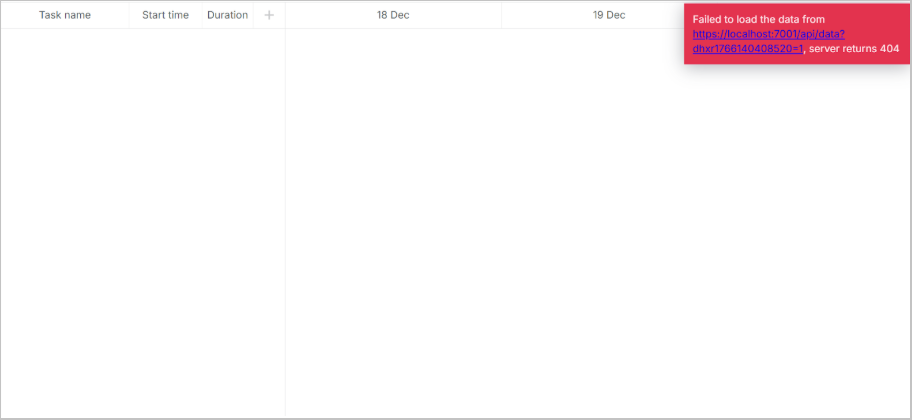
기본 구성이 완료되었으므로, 다음 단계는 백엔드 구축입니다. 모델 클래스를 정의한 후 WebAPI 컨트롤러를 생성합니다.
3단계. 모델 및 데이터베이스 생성
먼저 데이터 모델을 정의합니다. 일반적인 Gantt 데이터 모델은 links와 tasks를 포함합니다. dhtmlxGantt는 .NET과 다른 속성명을 사용합니다. 또한 일부 속성은 클라이언트 측이나 백엔드 로직에만 사용되며, 데이터베이스에 저장하지 않아야 합니다.
이를 위해 Data Transfer Object (DTO) 패턴을 적용합니다. 두 가지 모델 타입을 생성합니다:
- EF Core 및 내부 앱에서 사용할 도메인 모델 클래스
- Web API와 통신할 DTO 클래스
이 모델들 간의 매핑도 구현합니다.
모델
프로젝트 디렉터리에 Models라는 새 폴더를 추가합니다. 이 폴더에 모델 클래스와 EF 컨텍스트를 포함시킵니다.
Task 모델
Tasks를 나타내는 클래스를 생성합니다. Models 폴더에서 Task.cs라는 새 파일을 추가합니다.
클래스는 다음과 같습니다:
DHX.Gantt/Models/Task.cs
namespace DHX.Gantt.Models
{
    public class Task
    {
        public int Id { get; set; }
        public string? Text { get; set; }
        public DateTime StartDate { get; set; }
        public int Duration { get; set; }
        public decimal Progress { get; set; }
        public int? ParentId { get; set; }
        public string? Type { get; set; }
    }
}
Task 객체의 전체 속성 목록은 여기에서 확인할 수 있습니다.
Link 모델
Links를 위한 파일을 추가합니다:
DHX.Gantt/Models/Link.cs
namespace DHX.Gantt.Models
{
    public class Link
    {
        public int Id { get; set; }
        public string? Type { get; set; }
        public int SourceTaskId { get; set; }
        public int TargetTaskId { get; set; }
    }
}
모델이 준비되면, 다음 단계는 데이터베이스 연결을 구성하는 것입니다.
데이터베이스 연결 구성
데이터베이스 연결을 설정하려면 아래 단계를 따르세요:
Entity Framework Core 설치
Entity Framework Core는 데이터베이스 통신을 담당합니다. 설치 방법:
- 프로젝트 트리에서 DHTMLX.Gantt 아래의 Dependencies 찾기
- 마우스 오른쪽 클릭 후 Manage NuGet packages 선택
- Browse 탭에서 Microsoft.EntityFrameworkCore.SqlServer, Microsoft.EntityFrameworkCore, Microsoft.EntityFrameworkCore.Design 설치
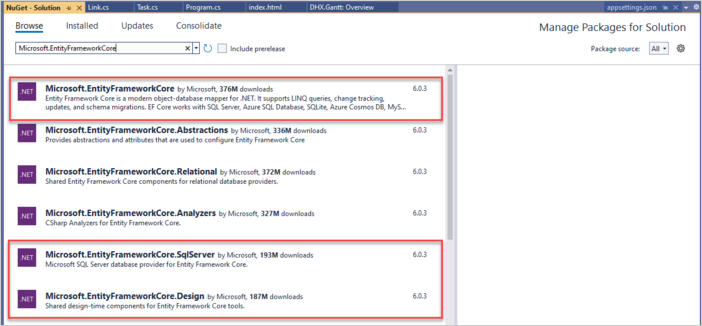
또는 패키지 관리자 콘솔을 사용할 수 있습니다:
PM> Install-Package Microsoft.EntityFrameworkCore.SqlServer
PM> Install-Package Microsoft.EntityFrameworkCore
PM> Install-Package Microsoft.EntityFrameworkCore.Design
이 패키지들은 데이터베이스 상호작용에 필요한 도구를 제공합니다.
Entity Context 생성
다음으로, 데이터 로딩 및 저장을 위한 데이터베이스 세션을 정의하는 컨텍스트 클래스를 생성합니다:
- Models 폴더에 GanttContext.cs라는 새 파일 추가
- GanttContext 클래스를 정의
DHX.Gantt/Models/GanttContext.cs
using Microsoft.EntityFrameworkCore;

namespace DHX.Gantt.Models
{
    public class GanttContext : DbContext
    {
        public GanttContext(DbContextOptions<GanttContext> options)
           : base(options)
        {
        }
        public DbSet<Task> Tasks { get; set; } = null;
        public DbSet<Link> Links { get; set; } = null;

    }
}
데이터베이스에 첫 레코드 추가
이제 데이터베이스에 초기 레코드를 추가할 차례입니다. 이를 위해 tasks와 links를 삽입하는 데이터베이스 이니셜라이저를 생성합니다.
Models 폴더 내에 GanttSeeder라는 클래스를 정의하고, Seed() 메서드로 tasks와 links를 데이터베이스에 추가합니다.
DHX.Gantt/Models/GanttSeeder.cs
using Microsoft.EntityFrameworkCore;

namespace DHX.Gantt.Models
{
    public static class GanttSeeder
    {
        public static void Seed(GanttContext context)
        {
            if (context.Tasks.Any())
            {
                return;   // DB has been seeded
            }

            using (var transaction = context.Database.BeginTransaction())
            {
               List<Task> tasks = new List<Task>()
               {
                  new Task()
                    {
                       Id = 1,
                       Text = "Project #2",
                       StartDate = DateTime.Today.AddDays(-3),
                       Duration = 18,
                       Progress = 0.4m,
                       ParentId = null
                    },
                    new Task()
                    {
                       Id = 2,
                       Text = "Task #1",
                       StartDate = DateTime.Today.AddDays(-2),
                       Duration = 8,
                       Progress = 0.6m,
                       ParentId = 1
                    },
                    new Task()
                    {
                       Id = 3,
                       Text = "Task #2",
                       StartDate = DateTime.Today.AddDays(-1),
                       Duration = 8,
                       Progress = 0.6m,
                       ParentId = 1
                    }
               };

               tasks.ForEach(s => context.Tasks.Add(s));
               context.Database.ExecuteSqlRaw("SET IDENTITY_INSERT Tasks ON;");
               context.SaveChanges();

               context.Database.ExecuteSqlRaw("SET IDENTITY_INSERT Tasks OFF;");
               List<Link> links = new List<Link>()
               {
                   new Link() {Id = 1, SourceTaskId = 1, TargetTaskId = 2, Type = "1"},
                   new Link() {Id = 2, SourceTaskId = 2, TargetTaskId = 3, Type = "0"}
               };

               links.ForEach(s => context.Links.Add(s));
               context.Database.ExecuteSqlRaw("SET IDENTITY_INSERT Links ON;");
               context.SaveChanges();
               context.Database.ExecuteSqlRaw("SET IDENTITY_INSERT Links OFF;");
               transaction.Commit();
            }
        }
    }
}
데이터베이스 등록
다음으로, Program.cs 파일에서 데이터베이스를 등록해야 합니다. 그 전에 연결 문자열이 필요합니다.
이 연결 문자열은 애플리케이션 설정의 JSON 파일에 저장됩니다.
appsettings.json 파일을 생성하거나(이미 있다면 열어서) 데이터베이스 연결 문자열을 추가하세요:
appsettings.json
{
  "ConnectionStrings": {
    "DefaultConnection": "Server="(localdb)mssqllocaldb;"
        Database=GanttDatabase;Trusted_Connection=True;"
  }
}
데이터베이스 컨텍스트는
의존성 주입을" 통해 등록됩니다.
Program.cs 파일에 다음 네임스페이스를 추가하세요:
Program.cs
using Microsoft.EntityFrameworkCore;
using DHX.Gantt.Models;
등록 코드는 다음과 같습니다:
Program.cs
var connectionString = builder.Configuration.GetConnectionString("DefaultConnection");
builder.Services.AddDbContext<GanttContext>(
    options => options.UseSqlServer(connectionString));
컨트롤러를 활성화하려면 services.AddControllers() 메서드를 추가합니다:
Program.cs
builder.Services.AddControllers();
그리고 컨트롤러 라우트를 등록하기 위해 app.MapControllers() 를 호출합니다:
Program.cs
app.MapControllers();
아래는 Program.cs의 전체 내용입니다:
Program.cs
using Microsoft.EntityFrameworkCore;
using DHX.Gantt.Models;

var builder = WebApplication.CreateBuilder(args);

// Add services to the container.
builder.Services.AddRazorPages();

var connectionString = builder.Configuration.GetConnectionString("DefaultConnection");
builder.Services.AddDbContext<GanttContext>(
    options => options.UseSqlServer(connectionString));

builder.Services.AddControllers();

var app = builder.Build();

// Configure the HTTP request pipeline.
if (!app.Environment.IsDevelopment())
{
    app.UseExceptionHandler("/Error");
    // The default HSTS value is 30 days.
    // You may want to change this for production scenarios,
    // see https://aka.ms/aspnetcore-hsts.
    app.UseHsts();
}

app.UseHttpsRedirection();

app.UseDefaultFiles();

app.UseStaticFiles();

app.UseRouting();

app.UseAuthorization();

app.MapRazorPages();

app.MapControllers();

app.Run();
마지막으로, 앱이 시작될 때 데이터베이스를 초기화하고 시드해야 합니다. 일반적으로 마이그레이션을 사용하지만, 이 예제에서는 단순화를 위해 마이그레이션 없이 진행합니다.
초기화가 이루어질 클래스를 생성하세요. Models 폴더에 GanttInitializerExtension.cs 파일을 추가합니다:
Models/GanttInitializerExtension.cs
namespace DHX.Gantt.Models
{
  public static class GanttInitializerExtension
  {
    public static IHost InitializeDatabase(this IHost webHost)
    {
      var serviceScopeFactory =
       (IServiceScopeFactory?)webHost.Services.GetService(typeof(IServiceScopeFactory));

      using (var scope = serviceScopeFactory!.CreateScope())
       {
          var services = scope.ServiceProvider;
          var dbContext = services.GetRequiredService<GanttContext>();
          dbContext.Database.EnsureDeleted();
          dbContext.Database.EnsureCreated();
          GanttSeeder.Seed(dbContext);
       }

       return webHost;
     }
   }
}
그 다음 InitializeDatabase() 를 다음과 같이 호출합니다:
Program.cs
app.InitializeDatabase();
앞서 언급했듯이, 이 튜토리얼에서는 마이그레이션을 사용하지 않고 EnsureCreated와 시딩을 사용합니다.
이로써 현재 단계가 완료되었습니다. 이제 다시 Gantt 차트 작업으로 돌아갑니다.
DTO 및 매핑 정의
이제 Web API에서 사용할 DTO 클래스를 생성할 차례입니다.
Task용 DTO 클래스로 시작합니다. Models 폴더에 파일을 만들고 WebApiTask.cs 클래스를 정의하세요:
Models/WebApiTask.cs
namespace DHX.Gantt.Models
{
    public class WebApiTask
    {
        public int id { get; set; }
        public string? text { get; set; }
        public string? start_date { get; set; }
        public int duration { get; set; }
        public decimal progress { get; set; }
        public int? parent { get; set; }
        public string? type { get; set; }
        public bool open
        {
            get { return true; }
            set { }
        }

        public static explicit operator WebApiTask(Task task)
        {
            return new WebApiTask
            {
                id = task.Id,
                text = task.Text,
                start_date = task.StartDate.ToString("yyyy-MM-dd HH:mm"),
                duration = task.Duration,
                parent = task.ParentId,
                type = task.Type,
                progress = task.Progress
            };
        }

        public static explicit operator Task(WebApiTask task)
        {
            return new Task
            {
                Id = task.id,
                Text = task.text,
                  StartDate = task.start_date != null ? DateTime.Parse(task.start_date,
                  System.Globalization.CultureInfo.InvariantCulture) : new DateTime(),
                Duration = task.duration,
                ParentId = task.parent,
                Type = task.type,
                Progress = task.progress
            };
        }
    }
}
다음은 Link용 DTO 클래스입니다. Models 폴더 내 WebApiLink.cs 에 정의합니다:
Models/WebApiLink.cs
namespace DHX.Gantt.Models
{
    public class WebApiLink
    {
        public int id { get; set; }
        public string? type { get; set; }
        public int source { get; set; }
        public int target { get; set; }

        public static explicit operator WebApiLink(Link link)
        {
            return new WebApiLink
            {
                id = link.Id,
                type = link.Type,
                source = link.SourceTaskId,
                target = link.TargetTaskId
            };
        }

        public static explicit operator Link(WebApiLink link)
        {
            return new Link
            {
                Id = link.id,
                Type = link.type,
                SourceTaskId = link.source,
                TargetTaskId = link.target
            };
        }
    }
}
이 단계까지 완료하면 폴더 구조는 다음과 같아야 합니다:
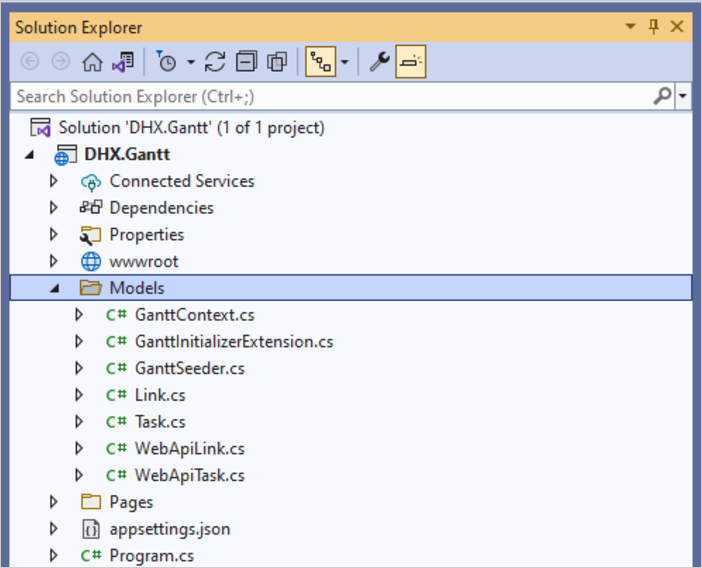
이 시점에서 앱을 실행하여 모든 구성이 올바른지 확인하는 것이 좋습니다. 런타임 오류가 없다면 설정이 잘 완료된 것입니다.
Step 4. Web API 구현
이제 REST API를 구현할 차례입니다.
컨트롤러 추가
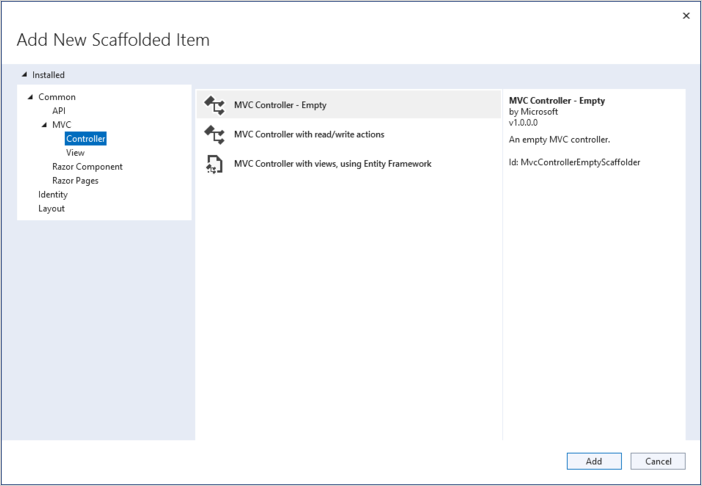
Controllers 폴더를 만들고 세 개의 빈 API 컨트롤러를 추가하세요: 하나는 Tasks용, 하나는 Links용, 하나는 전체 데이터셋용입니다.
Task 컨트롤러
아래는 Gantt 작업의 기본 CRUD 작업을 처리하는 Task 관리 컨트롤러입니다.
동작 방식:
- GET 요청의 경우, 데이터베이스에서 작업을 가져와 DTO로 반환합니다.
- PUT/POST 요청의 경우, 클라이언트에서 WebApiTask 인스턴스 형태로 작업이 전달됩니다. 이는 dhtmlxGantt에서 사용하는 형식입니다. 저장하기 전에 이를 EntityFramework에서 사용하는 데이터 모델(Task 클래스)로 변환해야 합니다.
Controllers/TaskController.cs
using Microsoft.AspNetCore.Mvc;
using DHX.Gantt.Models;

namespace DHX.Gantt.Controllers
{
    [Produces("application/json")]
    [Route("api/task")]
    public class TaskController : Controller
    {
        private readonly GanttContext _context;
        public TaskController(GanttContext context)
        {
            _context = context;
        }

        // GET api/task
        [HttpGet]
        public IEnumerable<WebApiTask> Get()
        {
            return _context.Tasks
                .ToList()
                .Select(t => (WebApiTask)t);
        }

        // GET api/task/5
        [HttpGet("{id}")]
        public Models.Task? Get(int id)
        {
            return _context
                .Tasks
                .Find(id);
        }

        // POST api/task
        [HttpPost]
        public ObjectResult Post(WebApiTask apiTask)
        {
            var newTask = (Models.Task)apiTask;

            _context.Tasks.Add(newTask);
            _context.SaveChanges();

            return Ok(new
            {
                tid = newTask.Id,
                action = "inserted"
            });
        }

        // PUT api/task/5
        [HttpPut("{id}")]
        public ObjectResult? Put(int id, WebApiTask apiTask)
        {
            var updatedTask = (Models.Task)apiTask;
            var dbTask = _context.Tasks.Find(id);
            if (dbTask == null)
            {
                return null;
            }
            dbTask.Text = updatedTask.Text;
            dbTask.StartDate = updatedTask.StartDate;
            dbTask.Duration = updatedTask.Duration;
            dbTask.ParentId = updatedTask.ParentId;
            dbTask.Progress = updatedTask.Progress;
            dbTask.Type = updatedTask.Type;

            _context.SaveChanges();

            return Ok(new
            {
                action = "updated"
            });
        }

        // DELETE api/task/5
        [HttpDelete("{id}")]
        public ObjectResult DeleteTask(int id)
        {
            var task = _context.Tasks.Find(id);
            if (task != null)
            {
                _context.Tasks.Remove(task);
                _context.SaveChanges();
            }

            return Ok(new
            {
                action = "deleted"
            });
        }
    }
}
링크 컨트롤러
다음은 Links를 위한 컨트롤러입니다:
Controllers/LinkController.cs
using Microsoft.EntityFrameworkCore;
using Microsoft.AspNetCore.Mvc;
using DHX.Gantt.Models;

namespace DHX.Gantt.Controllers
{
    [Produces("application/json")]
    [Route("api/link")]
    public class LinkController : Controller
    {
        private readonly GanttContext _context;
        public LinkController(GanttContext context)
        {
            _context = context;
        }

        // GET api/Link
        [HttpGet]
        public IEnumerable<WebApiLink> Get()
        {
            return _context.Links
                .ToList()
                .Select(t => (WebApiLink)t);
        }

        // GET api/Link/5
        [HttpGet("{id}")]
        public Link? Get(int id)
        {
            return _context
                .Links
                .Find(id);
        }

        // POST api/Link
        [HttpPost]
        public ObjectResult Post(WebApiLink apiLink)
        {
            var newLink = (Link)apiLink;

            _context.Links.Add(newLink);
            _context.SaveChanges();

            return Ok(new
            {
                tid = newLink.Id,
                action = "inserted"
            });
        }

        // PUT api/Link/5
        [HttpPut("{id}")]
        public ObjectResult Put(int id, WebApiLink apiLink)
        {
            var updatedLink = (Link)apiLink;
            updatedLink.Id = id;
             _context.Entry(updatedLink).State = EntityState.Modified;


            _context.SaveChanges();

            return Ok(new
            {
                action = "updated"
            });
        }

        // DELETE api/Link/5
        [HttpDelete("{id}")]
        public ObjectResult DeleteLink(int id)
        {
            var Link = _context.Links.Find(id);
            if (Link != null)
            {
                _context.Links.Remove(Link);
                _context.SaveChanges();
            }

            return Ok(new
            {
                action = "deleted"
            });
        }
    }
}
데이터 컨트롤러
마지막으로, 데이터 액션을 위한 컨트롤러입니다:
Controllers/DataController.cs
using Microsoft.AspNetCore.Mvc;
using DHX.Gantt.Models;

namespace DHX.Gantt.Controllers
{
    [Produces("application/json")]
    [Route("api/data")]
    public class DataController : Controller
    {
        private readonly GanttContext _context;
        public DataController(GanttContext context)
        {
            _context = context;
        }

        // GET api/data
        [HttpGet]
        public object Get()
        {
            return new
            {
                data = _context.Tasks.ToList().Select(t => (WebApiTask)t),
                links = _context.Links.ToList().Select(l => (WebApiLink)l)

            };
        }

    }
}
이제 모든 준비가 끝났으므로, 애플리케이션을 실행하면 완전히 동작하는 간트 차트를 볼 수 있습니다.
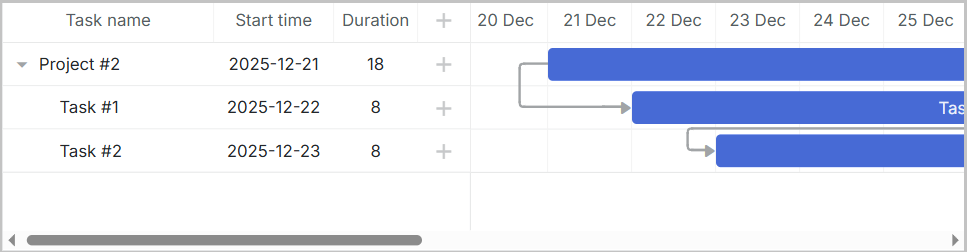
전체 소스 코드는 GitHub에서 확인할 수 있습니다.
오류 처리
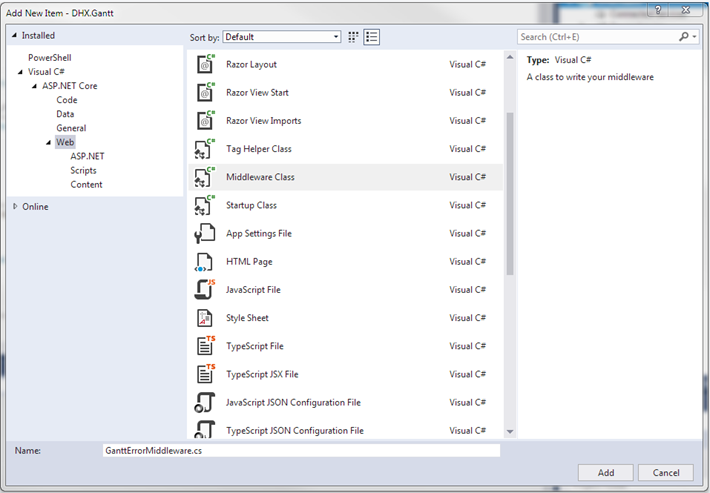
오류를 효과적으로 관리하려면, 런타임 예외를 포착해 적절한 응답을 보내는 미들웨어 클래스를" 생성해야 합니다. 이 미들웨어는 앱의 요청 파이프라인에 추가됩니다. 다음과 같이 진행하세요:
- 템플릿을 사용하여 프로젝트에 미들웨어 클래스를 추가합니다.
- ASP.NET Core용 JSON 프레임워크를 설치합니다. NuGet 패키지 관리자를 통해 설치할 수 있습니다:
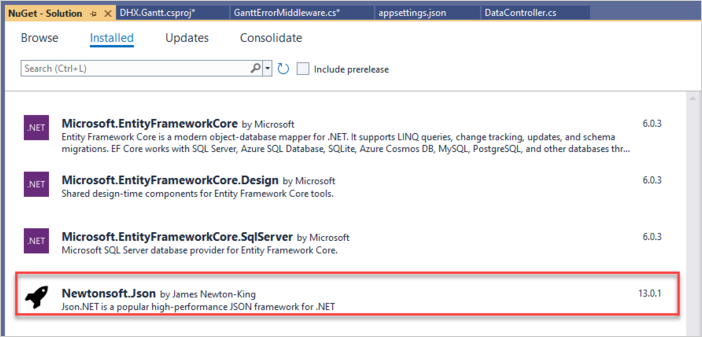
또는 패키지 관리자 콘솔을 사용할 수도 있습니다:
PM> Install-Package NewtonSoft.JSON
- 미들웨어에서 Invoke 메서드를 찾습니다. 일부 핸들러가 예외를 발생시킬 수 있으므로,
_next호출을try-catch블록으로 감싸고, 오류가 발생했을 때 처리합니다.
GanttErrorMiddleware.cs
public async Task Invoke(HttpContext httpContext)
{
    try
    {
        await _next(httpContext);
    }catch(Exception e)
    {
        await HandleExceptionAsync(httpContext, e);
    }
}
private static Task HandleExceptionAsync(HttpContext context, Exception exception)
{
    var result = JsonConvert.SerializeObject(new {
        action = "error"
    });
    context.Response.ContentType = "application/json";
    context.Response.StatusCode = StatusCodes.Status500InternalServerError;
    return context.Response.WriteAsync(result);
}
- GanttErrorMiddleware.cs 파일에 다음 네임스페이스를 추가하세요:
using Newtonsoft.Json;
- 이제 미들웨어가 준비되었습니다. 다음으로 Program.cs를 열고 다음을 추가하여 미들웨어를 등록하세요:
Program.cs
using DHX.Gantt;
그리고 파이프라인에 미들웨어를 포함하세요:
Program.cs
app.UseGanttErrorMiddleware();
작업 순서 저장
클라이언트에서 드래그 앤 드롭으로 작업 순서를 변경한 경우, 새로운 순서를 데이터베이스에 저장해야 합니다. 자세한 내용은 이 섹션을 참고하세요.
다음은 간트에서 작업 순서 저장을 활성화하는 방법입니다.
클라이언트에서 순서 변경 활성화
먼저, index.html에 아래 설정을 추가하여 클라이언트에서 작업 순서 변경을 활성화하세요:
wwwroot/index.html
gantt.config.order_branch = true;
gantt.config.order_branch_free = true;

// specifying the date format
gantt.config.date_format = "%Y-%m-%d %H:%i";
// initializing gantt
gantt.init("gantt_here");
모델에 작업 순서 추가
그 다음, 백엔드에서 작업의 현재 순서를 반영할 수 있도록 Task 모델에 새로운 속성을 추가하세요:
Models/Task.cs
namespace DHX.Gantt.Models
{
    public class Task
    {
        public int Id { get; set; }
        public string? Text { get; set; }
        public DateTime StartDate { get; set; }
        public int Duration { get; set; }
        public decimal Progress { get; set; }
        public int? ParentId { get; set; }
        public string? Type { get; set; }
        public int SortOrder { get; set; } /*!*/
    }
}
컨트롤러 업데이트
컨트롤러도 일부 수정이 필요합니다.
- 클라이언트는 SortOrder 순서대로 정렬된 작업을 받아야 합니다. DataController에 표시된 라인을 추가하세요:
Controllers/DataController.cs
[HttpGet]
public object Get()
{
    return new
        {
            data = _context.Tasks
                .OrderBy(t => t.SortOrder) /*!*/
                .ToList()
                .Select(t => (WebApiTask)t),
               links = _context.Links
                .ToList()
                .Select(l => (WebApiLink)l)
        };
}
- 새 작업을 생성할 때, SortOrder에 기본값을 할당해야 합니다:
controllers/TaskController.cs
// POST api/task
[HttpPost]
public IActionResult Post(WebApiTask apiTask)
{
    var newTask = (Models.Task)apiTask;

    newTask.SortOrder = _context.Tasks.Max(t => t.SortOrder) + 1; /*!*/
    _context.Tasks.Add(newTask);
    _context.SaveChanges();

    return Ok(new
    {
        tid = newTask.Id,
        action = "inserted"
    });
}
- 클라이언트에서 작업이 재정렬될 때 sortOrder가 업데이트되어야 합니다. 작업이 재배열되면, gantt는 새로운 위치 정보가 담긴 PUT 요청을 'target' 속성과 함께 보냅니다.
WebApiTask.cs 클래스에 target 속성을 추가하세요:
Models/WebApiTask.cs
public class WebApiTask
{
    public int id { get; set; }
    public string? text { get; set; }
    public string? start_date { get; set; }
    public int duration { get; set; }
    public decimal progress { get; set; }
    public int? parent { get; set; }
    public string? type { get; set; }
    public string? target { get; set; } /*!*/
    public bool open
    {
        get { return true; }
        set { }
    }
}
이제 Task 컨트롤러의 PUT (EditTask) 액션에 재정렬 로직을 구현하세요:
Controllers/TaskController.cs
// PUT api/task/5
[HttpPut("{id}")]
public IActionResult? Put(int id, WebApiTask apiTask)
{
    var updatedTask = (Models.Task)apiTask;
    updatedTask.Id = id;

    var dbTask = _context.Tasks.Find(id);
    if (dbTask == null)
    {
        return null;
    }
    dbTask.Text = updatedTask.Text;
    dbTask.StartDate = updatedTask.StartDate;
    dbTask.Duration = updatedTask.Duration;
    dbTask.ParentId = updatedTask.ParentId;
    dbTask.Progress = updatedTask.Progress;
    dbTask.Type = updatedTask.Type;

    if (!string.IsNullOrEmpty(apiTask.target))            /*!*/
    {                                                    /*!*/
         // reordering happened                            /*!*/
         this._UpdateOrders(dbTask, apiTask.target);    /*!*/
    }                                                    /*!*/

    _context.SaveChanges();

    return Ok(new
    {
         action = "updated"
    });
}
작업 순서를 조정하는 헬퍼 메서드를 추가하세요:
Controllers/TaskController.cs
private void _UpdateOrders(Models.Task updatedTask, string orderTarget)
{
    int adjacentTaskId;
    var nextSibling = false;

    var targetId = orderTarget;

    // adjacent task id may come as '{id}' or 'next:{id}' indicating
    // whether it's the next or previous sibling
    if (targetId.StartsWith("next:"))
    {
        targetId = targetId.Replace("next:", "");
        nextSibling = true;
    }

    if (!int.TryParse(targetId, out adjacentTaskId))
    {
        return;
    }

    var adjacentTask = _context.Tasks.Find(adjacentTaskId);
    var startOrder = adjacentTask!.SortOrder;

    if (nextSibling)
         startOrder++;

    updatedTask.SortOrder = startOrder;

    var updateOrders = _context.Tasks
        .Where(t => t.Id != updatedTask.Id)
        .Where(t => t.SortOrder >= startOrder)
        .OrderBy(t => t.SortOrder);

    var taskList = updateOrders.ToList();

    taskList.ForEach(t => t.SortOrder++);
}
애플리케이션 보안
Gantt 자체는 SQL 인젝션, XSS, CSRF와 같은 위협으로부터의 보호를 처리하지 않습니다. 백엔드를 관리하는 개발자가 애플리케이션의 보안을 책임져야 합니다. 자세한 내용은 관련 문서를 참고하세요.
XSS 보호
간단한 방법 중 하나는 클라이언트로 전송하기 전에 텍스트 필드를 인코딩하는 것입니다.
예를 들어, 아래 예시에서는 내장된 HtmlEncoder를 사용하여 task의 텍스트에서 HTML을 이스케이프 처리합니다. 이렇게 하면 데이터베이스에는 원본 데이터가 그대로 저장되지만, 클라이언트에는 안전한 값이 전달됩니다.
Models/WebApiTask.cs
using System.Text.Encodings.Web;

public static explicit operator WebApiTask(Task task)
{
    return new WebApiTask
    {
        id = task.Id,
        text = HtmlEncoder.Default.Encode(task.Text != null ? task.Text : ""), /*!*/
        start_date = task.StartDate.ToString("yyyy-MM-dd HH:mm"),
        duration = task.Duration,
        parent = task.ParentId,
        type = task.Type,
        progress = task.Progress
    };
}
또는 HtmlAgilityPack과 같은 라이브러리를 사용하여 작업을 저장하거나 불러올 때 HTML을 완전히 제거할 수도 있습니다.
문제 해결
Gantt를 ASP.NET Core와 통합하는 모든 단계를 따라 했지만 작업과 링크가 페이지에 표시되지 않는 경우, 백엔드 통합 문제 해결 문서를 확인하세요. 일반적인 문제와 해결 방법이 안내되어 있습니다.
다음 단계는?
이제 동작하는 간트 구현을 완성했습니다. 전체 소스 코드는 GitHub에서 복제하거나 다운로드하여 프로젝트에 사용할 수 있습니다.
또한 여러 간트 기능을 다루는 가이드나 다른 백엔드 프레임워크와의 통합 튜토리얼도 참고해 보세요.