Milestones
이 기능은 PRO 에디션에서만 사용할 수 있습니다
마일스톤은 프로젝트의 중요한 날짜, 주요 이벤트 또는 목표를 표시하기 위해 설계된 기간이 0인 작업입니다. 예를 들어, 검토 회의 날짜나 프로젝트 단계의 예상 완료 날짜를 강조하는 데 사용할 수 있습니다.
프로그래밍 관점에서 마일스톤은 미리 정의된 작업 유형 중 하나입니다. 하지만 일반 작업처럼 동작하며, 동일한 이벤트와 템플릿이 트리거됩니다.
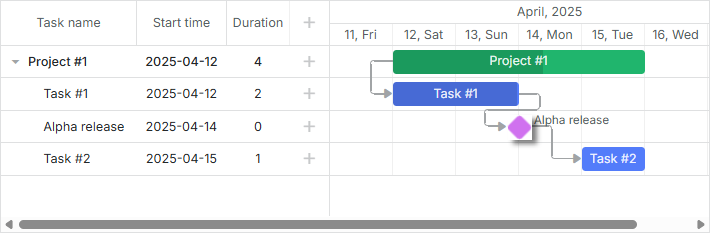
차트에 마일스톤 추가를 활성화하려면 일반적으로 다음 단계를 따르세요:
- 라이트박스에 추가 섹션을 추가하세요 - Typeselect 컨트롤 - 사용자가 작업 유형을 변경하고 마일스톤을 선택할 수 있도록 합니다.
gantt.config.lightbox.sections = [
    {name: "description", height: 70, map_to: "text", type: "textarea"},
    {name: "type", type: "typeselect", map_to: "type"},
    {name: "time", height: 72, type: "duration", map_to: "auto"}
];
- 마일스톤에 텍스트 라벨을 설정하려면 rightside_text 또는 leftside_text 템플릿을 정의하세요. task_text 템플릿으로 설정된 라벨은 마일스톤의 기간이 0이기 때문에 표시되지 않습니다.
gantt.templates.rightside_text = function(start, end, task){
    if(task.type == gantt.config.types.milestone){
        return task.text;
    }
    return "";
};
- 사용자 편의를 위해 order_branch 속성을 활성화하세요. 이 옵션을 사용하면 상위 브랜치 내에서 작업을 드래그할 수 있어, 사용자가 마일스톤을 어디서든 생성한 뒤 올바른 위치로 옮길 수 있습니다.
gantt.config.order_branch = true;
이 단계를 완료하면 Gantt 차트가 마일스톤과 함께 완전히 동작하게 됩니다.
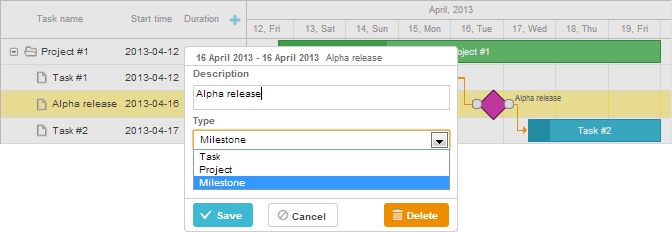
데이터 세트에서 마일스톤 지정하기
초기 데이터에서 마일스톤을 지정하려면 항목의 type 속성을 'milestone' 으로 설정하세요(값은 types 객체에 저장됨):
var data = {
    tasks:[
        {id:1, text:"Project #1",    type:gantt.config.types.project,    open:true},
        {id:2, text:"Task #1",       start_date:"12-04-2020", duration:3, parent:1},
        {id:3, text:"Alpha release", type:gantt.config.types.milestone,   parent:1, /*!*/
            start_date:"14-04-2020"}],                                              /*!*/
    links:[]
};
롤업 작업 및 마일스톤
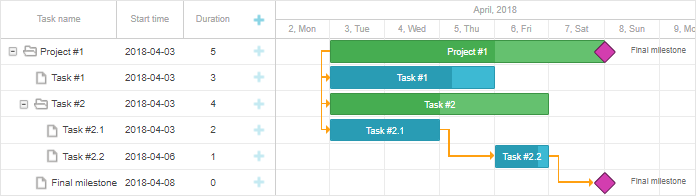
v7.1부터 작업 및 마일스톤을 상위 프로젝트에 표시할 수 있습니다. 이를 위해 데이터 항목의 rollup 속성을 true로 설정하세요:
var data = {
    tasks:[
        {id:11, text:"Project #1", type:"project", progress: 0.6, open: true},
        {id:12, text:"Task #1", start_date:"03-04-2018", duration:"3",
            parent:"11", progress: 1, open: true},
        {id:13, text:"Task #2", start_date:"03-04-2018", type:"project",
            parent:"11", progress: 0.5, open: true},
        {id:16, text:"Final milestone", start_date:"08-04-2018", type:"milestone",  /*!*/
            rollup: true, parent:"11", progress: 0, open: true},  /*!*/
        {id:17, text:"Task #2.1", start_date:"03-04-2018", duration:"2",
            parent:"13", progress: 1, open: true},
        {id:18, text:"Task #2.2", start_date:"06-04-2018", duration:"1",
            parent:"13", progress: 0.8, open: true}],
    links:[]
};
이렇게 하면 다음과 같이 표시됩니다:
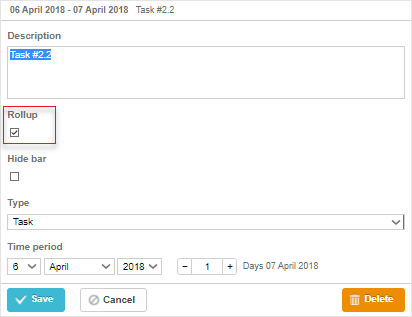
라이트박스의 Rollup 체크박스를 사용하여 롤업 기능을 토글할 수도 있습니다:
gantt.config.lightbox.milestone_sections = [
    {name: "description", height: 70, map_to: "text", type: "textarea", focus: true},
    {name: "rollup", type: "checkbox", map_to: "rollup"},/*!*/
    {name: "hide_bar", type: "checkbox", map_to: "hide_bar"},
    {name: "type", type: "typeselect", map_to: "type"},
    {name: "time", type: "duration", map_to: "auto"}
];
작업 및 마일스톤 숨기기
v7.1부터 작업 바 및 마일스톤을 타임라인에서 숨길 수 있습니다. 데이터 항목에 hide_bar: true 속성을 설정하세요:
var data = {
    tasks:[
        {id:11, text:"Project #1", type:"project", progress: 0.6, open: true},
        {id:12, text:"Task #1", start_date:"03-04-2018", duration:"3",
            parent:"11", progress: 1},
        {id:13, text:"Task #2", start_date:"03-04-2018", type:"project",
            parent:"11", progress: 0.5, open: true},
        {id:16, text:"Final milestone", start_date:"08-04-2018", type:"milestone",  /*!*/
            rollup: true, hide_bar: true, parent:"11", progress: 0},  /*!*/
        {id:17, text:"Task #2.1", start_date:"03-04-2018", duration:"2",
            parent:"13", progress: 1},
        {id:18, text:"Task #2.2", start_date:"06-04-2018", duration:"1",
            parent:"13", progress: 0.8}],
    links:[]
};
결과는 다음과 같습니다:
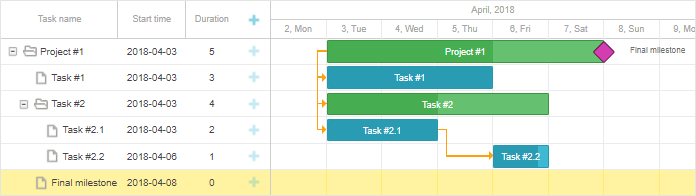
참고: hide_bar:true와 rollup:true가 둘 다 설정되어 있으면, 해당 항목은 타임라인에서는 숨겨지지만 상위 프로젝트에는 계속 표시됩니다.
상위 프로젝트에서 모든 롤업 항목을 숨기려면, project 객체에서 rollup:false를 설정하세요(v8.0부터 사용 가능):
{ id:11, text:"Project #1", type:"project", rollup:false, open: true }
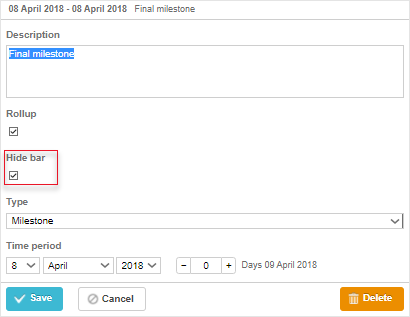
라이트박스에서 Hide bar 체크박스를 토글하여 타임라인에서 작업이나 마일스톤을 숨길 수도 있습니다:
gantt.config.lightbox.sections = [
    {name: "description", height: 70, map_to: "text", type: "textarea", focus: true},
    {name: "rollup", type: "checkbox", map_to: "rollup"},
    {name: "hide_bar", type: "checkbox", map_to: "hide_bar"},  /*!*/
    {name: "type", type: "typeselect", map_to: "type"},
    {name: "time", type: "duration", map_to: "auto"}
];

gantt.config.lightbox.milestone_sections = [
    {name: "description", height: 70, map_to: "text", type: "textarea", focus: true},
    {name: "rollup", type: "checkbox", map_to: "rollup"},
    {name: "hide_bar", type: "checkbox", map_to: "hide_bar"},  /*!*/
    {name: "type", type: "typeselect", map_to: "type"},
    {name: "time", type: "duration", map_to: "auto"}
];

gantt.config.lightbox.project_sections = [
    {name: "description", height: 70, map_to: "text", type: "textarea", focus: true},
    {name: "hide_bar", type: "checkbox", map_to: "hide_bar"},  /*!*/
    {name: "type", type: "typeselect", map_to: "type"},
    {name: "time", type: "duration", map_to: "auto"}
];
API 개요
상위 프로젝트에 롤업 작업의 표시 여부를 제어하는 이벤트가 있습니다:
// 롤업 작업이 상위 프로젝트에 표시되기 전에
gantt.attachEvent("onBeforeRollupTaskDisplay", function(taskId, task, parentId){
    // 여기에 사용자 정의 로직 추가
    return false;
});
개별 롤업 항목 스타일링
v8.0부터 롤업 항목에는 task.$rendered_at 속성이 포함되어 있으며, 롤업 항목이 렌더링되는 행의 id를 저장합니다. 이를 통해 task_class 템플릿을 사용하여 표시 행에 따라 특정 롤업 항목의 스타일을 지정할 수 있습니다:
gantt.templates.task_class = function(start, end, task) {
    if(task.$rendered_at) {
        if(gantt.calculateTaskLevel(gantt.getTask(task.$rendered_at)) === 1) {
            return "phase-level-rollup";
        }
    }
    return "";
};