网格中的内联编辑
dhtmlxGantt 提供两种编辑内容的选项:
- 通过使用 Lightbox 编辑表单
- 通过在 Grid 区域中使用内联编辑器
内联编辑让你直接在网格中进行任何修改:创建与更新任务,设置它们之间的连接,定义开始和结束日期,或修改持续时间——全部通过内置编辑器完成。
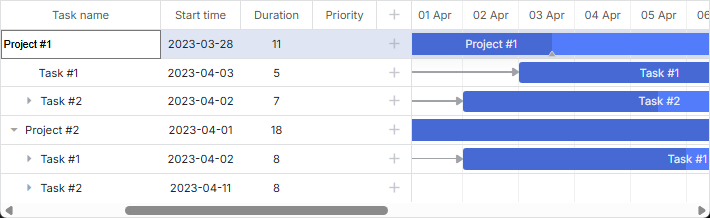
要启用内联编辑,你需要:
- 指定编辑器配置列表,并使用编辑器对象的 map_to 属性将所需的编辑器映射到网格列
const textEditor = { type: "text", map_to: "text" };
const dateEditor = { type: "date", map_to: "start_date", min: new Date(2025, 0, 1),
    max: new Date(2026, 0, 1) };
const durationEditor = { type: "number", map_to: "duration", min: 0, max: 100 };
- 在列配置中使用 editor 属性来定义该列应使用的编辑器
gantt.config.columns = [
    { name: "text", tree: true, width: "*", editor: textEditor, resize: true },
    { name: "start_date", align: "center", editor: dateEditor, resize: true },
    { name: "duration", align: "center", editor: durationEditor },
    { name: "add", width: 44 }
];
请在 Inline Editors Extension 文章中查看 inlineEditors 对象 API 的详细信息。
你也可以查看视频指南,了解如何在网格中实现内联编辑。
编辑器的类型
内联编辑器存储在 editor_types 配置对象中。
有几种预定义的内联编辑器:
- text 编辑器 - 用于编辑文本列,例如任务名称
- number 编辑器 - 用于编辑数字列,例如任务持续时间、顺序等
- duration 编辑器 - 用于编辑持续时间列,即任务持续时间。仅当使用 map_to: "duration" 配置且编辑器类型设为 "duration" 时才起作用:
{ type: "duration", map_to: "duration", formatter: formatter }
如果你需要指定包含数字和 duration unit 的持续时间,这种内联编辑器很有用。
例如:5 days。
默认使用 Duration Formatter。
除了使用默认的持续时间格式化器,你也可以修改其配置或设置一个 自定义格式化器。
- date 编辑器 - 用于编辑日期列,例如任务的开始和结束日期
- select 编辑器 - 用于从列表中选择一个选项
- predecessor 编辑器 - 用于为当前正在编辑的任务设置前置任务连接。该编辑器会获取任务的 WBS 编码 来与前置任务建立连接。
const editors = {
    text: { type: "text", map_to: "text" },
    start_date: { type: "date", map_to: "start_date", min: new Date(2025, 0, 1),
        max: new Date(2026, 0, 1) },
    end_date: { type: "date", map_to: "end_date", min: new Date(2025, 0, 1),
        max: new Date(2026, 0, 1) },
    duration: { type: "number", map_to: "duration", min: 0, max: 100 },
    priority: { type: "select", map_to: "priority",
        options: gantt.serverList("priority") },
    predecessors: { type: "predecessor", map_to: "auto" }
};
Dates limits in the Date editor
从 v6.3 开始,date 内联编辑器的最小值和最大值没有默认限制。
如果你想让在时间刻度上可见的日期限制date 内联编辑器的最小值和最大值(除非提供了自定义的 min/max 值),你可以指定动态的 min/max 值:
const dateEditor = {
    type: "date",
    map_to: "start_date",
    min: taskId => gantt.getState().min_date,
    max: taskId => gantt.getState().max_date
};
Editor for inclusive end dates
如果你使用任务的 包含结束日期的格式 并希望使其在网格中的内联编辑工作正常,你需要为编辑包含结束日期的特殊编辑器,如下所示:
// 包含性结束日期编辑器
// 使用默认编辑器,但重写 set_value/get_value 方法
const dateEditor = gantt.config.editor_types.date;

gantt.config.editor_types.end_date = gantt.mixin({
    set_value: function(value, id, column, node) {
        const correctedValue = gantt.date.add(value, -1, "day");
        return dateEditor.set_value.apply(this, [correctedValue, id, column, node]);
    },
    get_value: function(id, column, node) {
        const selectedValue = dateEditor.get_value.apply(this, [id, column, node]);
        return gantt.date.add(selectedValue, 1, "day");
    }
}, dateEditor);

const textEditor = { type: "text", map_to: "text" };
const startDateEditor = { type: "date", map_to: "start_date" };
const endDateEditor = { type: "end_date", map_to: "end_date" };
const durationEditor = { type: "number", map_to: "duration", min: 0, max: 100 };

gantt.config.columns = [
    { name: "text", label: "Name", tree: true, width: 200, editor: textEditor,
        resize: true },
    { name: "duration", label: "Duration", width: 80, align: "center",
        editor: durationEditor, resize: true },
    { name: "start_date", label: "Start", width: 140, align: "center",
        editor: startDateEditor, resize: true },
    { name: "end_date", label: "Finish", width: 140, align: "center",
        editor: endDateEditor, resize: true }
];

// 更新 lightbox 和 grid 模板以显示包含性结束日期
gantt.templates.task_end_date = date =>
    gantt.templates.task_date(new Date(date.valueOf() - 1));

const gridDateToStr = gantt.date.date_to_str("%Y-%m-%d");
gantt.templates.grid_date_format = (date, column) =>
    column === "end_date"
        ? gridDateToStr(new Date(date.valueOf() - 1))
        : gridDateToStr(date);
相关示例 Inclusive end date editor
有关结束日期格式化的更多细节,请参阅 Task end date display & Inclusive end dates 文章。
Formatting values of the Predecessor editor
此功能仅在 PRO 版中可用。
从 v6.3 开始,Gantt 允许直接在内联编辑器中指定链接类型以及延迟/提前值。
要实现这一点,你需要使用 Link Formatter 模块,并将一个 LinksFormatter 实例提供给 predecessor 编辑器:
const formatter = gantt.ext.formatters.durationFormatter({
    enter: "day",
    store: "day",
    format: "auto"
});

const linksFormatter = gantt.ext.formatters.linkFormatter({
    durationFormatter: formatter
});

const editors = {
    text: { type: "text", map_to: "text" },
    start_date: { type: "date", map_to: "start_date", min: new Date(2025, 0, 1),
        max: new Date(2026, 0, 1) },
    end_date: { type: "date", map_to: "end_date", min: new Date(2025, 0, 1),
        max: new Date(2026, 0, 1) },
    duration: { type: "duration", map_to: "duration", min: 0,
        max: 100, formatter: formatter },
    priority: { type: "select", map_to: "priority",
        options: gantt.serverList("priority") },
    predecessors: { type: "predecessor", map_to: "auto", formatter: linksFormatter }
};

gantt.config.columns = [
    { name: "wbs", label: "#", width: 60, align: "center", template: gantt.getWBSCode },
    { name: "text", label: "Name", tree: true, width: 200,
        editor: editors.text, resize: true },
    { name: "start_date", label: "Start", width: 80, align: "center",
        editor: editors.start_date, resize: true },
    { name: "predecessors", label: "Predecessors", width: 80, align: "left",
        editor: editors.predecessors, resize: true, template: task => {
            const links = task.$target || [];
            const labels = links.map(id => {
                const link = gantt.getLink(id);
                return linksFormatter.format(link);
            });
            return labels.join(", ");
        }
    },
    { name: "add" }
];
Inline editing - keyboard navigation mode
下面的章节为以下自定义编辑器提供代码示例:
自定义内联编辑器
你也可以指定一个自定义内联编辑器。为此,你需要按以下方式创建一个新的编辑器对象:
gantt.config.editor_types.custom_editor = {
    show: (id, column, config, placeholder) => {
        // 在输入显示时被调用,将编辑器的 HTML 标记放入
        // placeholder,并在需要时初始化你的编辑器:
        const html = "<div><input type='text' name='" + column.name + "'/></div>";
        placeholder.innerHTML = html;
    },
    hide: () => {
        // 输入隐藏时被调用
        // 在此处销毁任何复杂编辑器或分离事件监听器
    },
    set_value: (value, id, column, node) => {
        // 设置输入值
    },
    get_value: (id, column, node) => {
        // 返回输入值
    },
    is_changed: (value, id, column, node) => {
        // 在保存/关闭前被调用
        // 如果新值与初始状态不同,则返回 true
        // 返回 true 将触发保存更改,返回 false 将跳过保存
    },
    is_valid: (value, id, column, node) => {
        // 验证,若返回 false,修改将被放弃
        return true/false;
    },
    save: (id, column, node) => {
        // 仅对 map_to:auto 的输入适用。复杂的保存行为在这里处理
    },
    focus: (node) => {
        //
    }
};
下面是更详细的类型说明:
- show (id, column, config, placeholder): void - 当你打开内联编辑器时调用。在这里,你可以为 DOM 元素添加容器并初始化第三方库。参数包括:
- id - (string | number) - 任务 ID
- column - (GridColumn) - 列配置对象
- config - (any) - 自定义内联编辑器的配置对象
- placeholder - (HTMLElement) - 内联编辑器的 DOM 元素
- hide? (): void - 可选,在隐藏内联编辑器时调用
- set_value (value, id, column, node): void - 在show 函数之后调用。在这里,你需要从任务对象中将值设置到内联编辑器元素中。参数包括:
- value - (any) - 任务属性的值
- id - (string | number) - 任务 ID
- column - (GridColumn) - 列配置对象
- node - (HTMLElement) - 内联编辑器的 DOM 元素
- get_value (id, column, node): any - 在隐藏内联编辑器之前调用。你需要从内联编辑器中获取值并将其添加到任务对象中。参数包括:
- id - (string | number) - 任务 ID
- column - (GridColumn) - 列配置对象
- node - (HTMLElement) - 内联编辑器的 DOM 元素
- is_changed? (value, id, column, node): boolean - 可选,在隐藏内联编辑器之前调用。如果返回 true,改动将被保存;否则将被取消。参数包括:
- value - (any) - 任务属性的值
- id - (string | number) - 任务 ID
- column - (GridColumn) - 列配置对象
- node - (HTMLElement) - 内联编辑器的 DOM 元素
- is_valid? (value, id, column, node): boolean - 可选的,你可以在此处添加校验。如果返回 false,修改将被取消。参数包括:
- value - (any) - 任务属性的值
- id - (string | number) - 任务 ID
- column - (GridColumn) - 列配置对象
- node - (HTMLElement) - 内联编辑器的 DOM 元素
- save? (id, column, node): void - 可选,在编辑器具有
map_to:auto时,用于实现复杂的保存行为。参数包括:- id - (string | number) - 任务 ID
- column - (GridColumn) - 列配置对象
- node - (HTMLElement) - 任务对象
- focus? (node): void - 可选,当内联编辑器获得焦点时调用。
- node - (HTMLElement) - 内联编辑器的 DOM 元素
实现一个可复用编辑器时,需要记住的一些要点:
- 通常,
get_value不会修改任务对象。该方法仅返回内联编辑器的当前值。如果该值被认为有效,Gantt 将自动用该值更新相关的任务。 - 使用编辑器的
map_to配置选项来指定编辑器应更新任务的哪个属性,但不要将其硬编码在编辑器中。这样可以使你在不同列之间重用编辑器。 - 除非你使用的是复杂的 JavaScript 小部件,否则无需在
hide函数中编写任何逻辑,可以将其留空。否则,可以在此方法中调用析构函数或清理在显示编辑器时附加的事件处理程序。 - 确保实现
is_changed和is_valid函数:- 如果
is_changed始终返回 true,编辑器将在每次编辑结束时触发更新(可能会发送给后端)。该方法应仅在输入值确实与初始状态不同的情况下返回 true; is_valid用于阻止无效值的输入。
- 如果
- 如果你实现的编辑器比简单地将值写入任务属性更复杂——例如内置的 predecessor editor——你需要在
save函数中实现所需逻辑,并将输入的map_to选项设为"auto"。在这种情况下,Gantt 不会直接修改任务对象,而是在适用编辑器更改时调用save函数。
下面是一个简单数字输入实现的示例。
注意,hide 方法可以是空函数,save 方法也可以完全省略。
const getInput = node => node.querySelector("input");

gantt.config.editor_types.simpleNumber = {
    show: (id, column, config, placeholder) => {
        const min = config.min ?? 0,
            max = config.max ?? 100;
        const html = "<div><input type='number' min='" + min +
            "' max='" + max +
            "' name='" + column.name + "'/></div>";
        placeholder.innerHTML = html;
    },
    hide: () => {
        // 可以为空,因为在编辑器分离后没有需要清理的东西
    },
    set_value: (value, id, column, node) => {
        getInput(node).value = value;
    },
    get_value: (id, column, node) => {
        return getInput(node).value || 0;
    },
    is_changed: function(value, id, column, node) {
        const currentValue = this.get_value(id, column, node);
        return Number(value) !== Number(currentValue);
    },
    is_valid: (value, id, column, node) => {
        return !isNaN(parseInt(value, 10));
    },
    focus: node => {
        const input = getInput(node);
        if (!input) return;
        if (input.focus) input.focus();
        if (input.select) input.select();
    }
};
之后,你就可以像内置编辑器那样使用该编辑器:
const numberEditor = { type: "simpleNumber", map_to: "quantity", min: 0, max: 50 };

gantt.config.columns = [
    ...
    { name: "quantity", label: "Quantity", width: 80, editor: numberEditor,
        resize: true },
    ...
];
注意,在这种情况下,你无需实现 hide 方法,因为 Gantt 会自动分离编辑器的 DOM 元素,并且在编辑器关闭后不再需要清理任何其他内容。
editor.hide
如果在内联编辑器中使用了复杂的小部件,你可能需要添加一个 hide 逻辑。
例如,下面给出使用 jQuery 实现的 DatePicker 输入的示例。在从 DOM 分离后,我们需要销毁日期选择器小部件。
前提条件:
<link rel="stylesheet" href="//code.jquery.com/ui/1.12.1/themes/base/jquery-ui.css">
<script src="https://code.jquery.com/jquery-1.12.4.js"></script>
<script src="https://code.jquery.com/ui/1.12.1/jquery-ui.js"></script>
编辑器:
gantt.config.editor_types.custom_datepicker_editor = {
    show: (id, column, config, placeholder) => {
        placeholder.innerHTML =
            `<div><input type="text" id="datepicker" name="${column.name}"/></div>`;
        $("#datepicker").datepicker({
            dateFormat: "yy-mm-dd",
            onSelect: () => gantt.ext.inlineEditors.save()
        });
    },
    hide: (node) => {
        $("#datepicker").datepicker("destroy");
    },
    set_value: (value, id, column, node) => {
        $("#datepicker").datepicker("setDate", value);
    },
    get_value: (id, column, node) => {
        return $("#datepicker").datepicker("getDate");
    },
    is_changed: (value, id, column, node) => {
        return +$("#datepicker").datepicker("getDate") !== +value;
    },
    is_valid: (value, id, column, node) => {
        return !isNaN(+$("#datepicker").datepicker("getDate"));
    },
    save: (id, column, node) => {
    },
    focus: (node) => {
    }
};

const dateEditor = { type: "custom_datepicker_editor", map_to: "start_date" };

gantt.config.columns = [
    { name: "text", tree: true, width: '*', resize: true },
    { name: "start_date", align: "center", resize: true, editor: dateEditor },
    { name: "duration", align: "center" },
    { name: "add", width: 44 }
];
相关示例 在编辑器中使用 jQuery Datepicker
editor.save
仅在你的编辑器需要同时修改任务的多个属性,或想要修改的对象不是任务对象时,才需要使用 save 函数。
在这种情况下,你可以保留对内置校验的正确实现的 get_value,但 Gantt 不会尝试将编辑器的值应用到任务上,而是改为调用 save 函数。
在调用了 save 之后,你需要对输入值进行解释并通过自定义代码应用更改给 Gantt。
Gantt 将在完成 save 方法后触发 onSave 事件,但不会为修改的行调用 gantt.updateTask。
注意! 只有在配置编辑器时指定了 map_to:"auto" 时,才会调用 save 方法:
const editors = {
    ...
    predecessors: { type: "predecessor", map_to: "auto" }
};
这样的控件一个很好的例子就是内置的前置编辑器。你可以在相关示例中找到它的简化实现:
Related sample Built-in predecessor editor
内联编辑模式
基本内联编辑
本模式假设使用鼠标来设置单元格焦点,以及通过快捷键来导航单元格:
- Tab - 将焦点移动到下一个编辑器
- Shift+Tab - 返回到上一个编辑器
键盘导航模式
在此模式下,键盘用于在网格单元之间导航和编辑,借助预定义的键或组合键。
- Enter - 打开/关闭编辑器
- Space - 打开编辑器
- 方向键 - 导航网格单元
- Shift+Right Arrow Key - 将任务向右移动,即将其嵌套为一个子任务,而上一个任务变成一个项目
- Shift+Left Arrow Key - 将一个项目变为简单任务
- Shift+Up Arrow Key - 将包含任务的分支折叠
- Shift+Down Arrow Key - 将包含任务的分支展开
要启用用于编辑的键盘导航,你需要:
- 使用 gantt.plugins 方法启用 keyboard_navigation 插件。
gantt.plugins({
    keyboard_navigation: true
});
- 启用 键盘导航 并启用按单元格导航:
gantt.config.keyboard_navigation = true;
gantt.config.keyboard_navigation_cells = true;
此外,你还可以启用一个 占位行,在任务列表末尾显示的空行。最终用户可以编辑它以向 Gantt 添加新任务。
gantt.config.placeholder_task = true;
另外,如果你想在添加新任务后将焦点移到占位任务,请使用以下配置:
gantt.config.placeholder_task = {
    focusOnCreate: true
};
如有需要,你还可以添加对任务类型的 自动检测:
gantt.config.auto_types = true;
Inline editing - keyboard navigation mode
自定义内联编辑
你也可以提供自定义的键盘映射,即描述用户打开编辑器的逻辑,指定编辑相关事件(编辑器打开、关闭、编辑开始与结束等)的处理程序, 并将该对象传递给将应用你的映射方案的特殊方法:
const mapping = {
    init: (inlineEditors) => {
        // inlineEditor 模块初始化完成
        // 添加全局监听以启动/结束编辑
    },

    onShow: (inlineEditors, node) => {
        // 编辑器显示时调用
    },

    onHide: (inlineEditors, node) => {
        // 编辑器隐藏时调用
        // 如有需要,清理 onShow 的修改
    }
};

gantt.ext.inlineEditors.setMapping(mapping);
Inline editing - Custom keyboard mapping
自定义占位任务的映射
设想你使用键盘导航、内联编辑和一个占位任务在你的甘特图中,并考虑以下两种现实场景。
场景1。当你为一个新的占位任务输入名称后按 Tab,你希望 Gantt 打开该任务的下一个单元格。但实际上 Gantt 将焦点移动到下面的新的占位任务,而不会打开内联编辑器。
场景2。如果你为一个新的占位任务输入名称后再点击下一个单元格,Gantt 会将焦点移动到下一个占位任务,而不是移到你点击的单元格。
自定义映射将帮助你处理上述问题。你只需指定内联编辑器在处理鼠标和键盘点击时应如何工作。请查看示例:
Related sample Gantt. Custom mapping for placeholder task
输入值的校验
在网格中编辑单元格时,你可能会出错。
为了避免保存错误的值,你需要在关闭编辑器前对输入值进行校验。你可以通过两种方式实现:
- 通过 自定义编辑器对象 的 is_valid 方法
- 通过 inlineEditors 对象 的 onBeforeSave 事件
下面考虑在启用校验时编辑器的行为。
例如,你已经通过鼠标在网格单元格中打开了编辑器。接下来的操作将如下应用:
- 在编辑单元格后按 Escape 将关闭编辑器但不保存任何修改。
- 按 Enter 将在值有效时确认并关闭编辑器;否则输入值将被丢弃。
- 按 Tab 或使用鼠标在编辑单元格时,若输入有效,将保存该值并将焦点移到其他单元格;若输入无效,值将被重置并关闭编辑器。
有关在客户端或服务器端执行校验的信息,请参阅 Validation 文章。
防止编辑器自动关闭
当对编辑器进行校验时,Gantt 不会保存不正确的输入值,而是重置它们并关闭编辑器。因此你需要重新打开单元格并再次修改。
一种防止编辑器关闭的好方法是在弹出对用户提供修改错误机会的提示框。这需要使用自定义键盘映射,如下所示:
function customValidation() {
    const state = gantt.ext.inlineEditors.getState()
    if (!state.id){
        return
    }
    const value = gantt.ext.inlineEditors.getValue()
    if (state.columnName == "start_date" || state.columnName == "end_date") {
        if (value.getFullYear() != 2025) {
            gantt.message({ text: "Validation failed", type: "error" })
            return false
        }
    }
    if (state.columnName == "duration") {
        if (value > 4) {
            gantt.message({ text: "Validation failed", type: "error" })
            return false
        }
    }

    return true
}

const mapping = {
    init: function (inlineEditors) {
        keyNav.attachEvent("onBeforeFocus", function (e) {
            if (gantt.ext.inlineEditors.isVisible()) {
                return false;
            }
        });

        gantt.attachEvent("onTaskClick", function (id, e) {
            const cell = inlineEditors.locateCell(e.target);
            if (!gantt.ext.inlineEditors.isVisible()) {
                if (cell && inlineEditors.getEditorConfig(cell.columnName)) {
                    inlineEditors.startEdit(cell.id, cell.columnName);
                    return false;
                }
            }
            return true;

        });

        keyNav.attachEvent("onKeyDown", function (id, e) {

            const editorOpened = gantt.ext.inlineEditors.isVisible();
            if (editorOpened && e.keyCode >= 37 && e.keyCode <= 40) return false;
            return true;
        });

        gantt.attachEvent("onEmptyClick", function () {

            if (customValidation()) {
                inlineEditors.hide();
            }
            return true;
        });
    },

    onShow: function (inlineEditors, node) {

        node.onkeydown = function (e) {
            e = e || window.event;
            if (e.defaultPrevented) {
                return;
            }

            const keyboard = gantt.constants.KEY_CODES;

            let shouldPrevent = true;
            switch (e.keyCode) {
                case gantt.keys.edit_save:
                    if (customValidation()) {
                        inlineEditors.save();
                    }

                    break;
                case gantt.keys.edit_cancel:
                    inlineEditors.hide();

                    break;
                case keyboard.TAB:
                    if (e.shiftKey) {
                        inlineEditors.editPrevCell(true);
                    } else {
                        inlineEditors.editNextCell(true);
                    }
                    break;
                default:
                    shouldPrevent = false;
                    break;
            }


            if (shouldPrevent) {
                e.preventDefault();
            }
        };
    },

    onHide: function (inlineEditors, node) { }
};

gantt.ext.inlineEditors.setMapping(mapping);
gantt.init("gantt_here");
Related sample Validation for inline editors via custom mapping
通过一次单击打开编辑器
在单选模式下,Gantt 在你单击任务后会打开内联编辑器。
在 多选模式 下,单击一个未被选中的任务后,Gantt 会选中它,并且只有在第二次单击后才会打开内联编辑器。若你希望在第一次单击后就打开内联编辑器,请启用 inline_editors_multiselect_open 配置。
gantt.plugins({
  multiselect: true;
});

...

gantt.config.inline_editors_multiselect_open = true;