Multiselect(多选控件)
一组复选框。
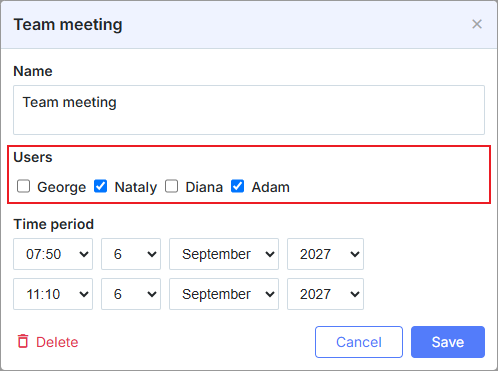
注释
激活 multiselect 扩展后即可在灯箱中使用该控件
scheduler.plugins({
    multiselect: true /*!*/
});

scheduler.locale.labels.section_userselect = "Participants";

scheduler.config.lightbox.sections = [
    { name:"description", height:50, map_to:"text", type:"textarea", focus:true },
    { name:"userselect", height:22, map_to:"user_id", type:"multiselect",
    options: scheduler.serverList("users"), vertical:"false" },
    { name:"time", height:72, type:"time", map_to:"auto"}
];
初始化
要将 Multiselect 控件添加到灯箱,请按以下步骤操作:
- 在页面上激活 'multiselect' 扩展:
scheduler.plugins({
    multiselect: true
});
- 在灯箱配置中添加该 section:
scheduler.config.lightbox.sections = [
    { name:"description", ... },
    { name:"userselect", height:22, map_to:"user_id", type:"multiselect",
    options: scheduler.serverList("user_id"), vertical:false },
    { name:"time", ...}
];
- 为该 section 设置标签:
scheduler.locale.labels.section_userselect = "Participants";
属性
以下属性对 'multiselect' 控件来说最为重要且常被设置(完整列表请参见 这里):
| name | (string) section 的名称 |
| height | (number) 该 section 的高度 |
| map_to | (string) 将映射到该 section 的数据属性的名称 |
| type | (textarea,time,select,template,multiselect,radio,checkbox,combo) 该 section 控件的类型 |
| options | (array of objects) 定义控件的选项(仅对 'select', 'multiselect', 'radio', 'combo' 控件生效)。数组中的每个对象指定一个选项,并包含以下属性:
|
| script_url | (string) 提供加载多选项的服务器端脚本的路径。仅在动态模式下使用。可选 |
| vertical | (boolean) 指定多选按钮应纵向放置(true)还是横向放置(对于 'multiselect' 和 'radio' 控件) |
| delimiter | (string) 指定用于分隔多选值的分隔符。如果未设置此属性,将应用 section_delimiter 配置 |
使用数据填充控件
通常,要为多选按钮设置值,您应使用 options 参数:
scheduler.config.lightbox.sections = [
    {   name:"userselect", type:"multiselect",
        ...
        options:[
            { key: 1, label: 'George' },
            { key: 2, label: 'Nataly' },
            { key: 3, label: 'Diana' },
            { key: 4, label: 'Adam' }
    ]},
    ...
];
在 options 参数中的项必须具备两个必填属性:
- key - 该选项的 id
- label - 该选项的标签
从服务器填充复选框
要从服务器获取复选框的值,您需要使用 serverList 方法:
scheduler.config.lightbox.sections = [
    {name:"description", ...},
    { name:"userselect", height:22, map_to:"user_id", type:"multiselect",
    options: scheduler.serverList("users"), vertical:"false" },
    {name:"time", ...}
];

scheduler.load("api/data");
其中 api/data 是一个 服务器端脚本,用于检索加载到调度程序的事件,以及一组多选按钮值,如下所示 Examples of Data Formats:
//response
{
   "data":[
      {
          "id":"1",
          "start_date":"2019-03-02 00:00:00",
          "end_date":"2019-03-04 00:00:00",
          "text":"dblclick me!",
          "user_id":"1,2"
      },
      {
          "id":"2",
          "start_date":"2019-03-09 00:00:00",
          "end_date":"2019-03-11 00:00:00",
          "text":"and me!",
          "user_id":"2,3"
      }
   ],
   "collections": {
      "users":[
         {"value":"1","label":"Lisa"},
         {"value":"2","label":"Bob"},
         {"value":"3","label":"Mike"}
      ]
   }
}
注释
注意,您可以使用 updateCollection 方法来更新检索选项列表
const oldOptions = scheduler.serverList("users").slice();
scheduler.updateCollection("users", [
         {"value":"4","label":"John"},
         {"value":"5","label":"Paul"},
         {"value":"6","label":"Ringo"},
         {"value":"7","label":"George"}
]);
动态加载
在静态模式下,所有事件参数选项都作为数据库中的单独字段存储,之后可以使用该字段来构建自己的逻辑。 它提供了更多的可能性,但需要为加载所有选项进行更多查询。
在动态模式下,不会存储额外的内容。选项按需加载。这减少了查询数量,但禁止构建任何逻辑。
在服务器端,代码应与以下类似
要启用动态模式,除了 options 外,还应使用 script_url 属性:
scheduler.config.lightbox.sections = [
    {name:"userselect", height:22, map_to:"user_id", type:"multiselect",
    options: scheduler.serverList("user_id"),
    script_url:'api/options'},
    ...
];
其中 api/options 返回以下 JSON:
[
    {"value":"1","label":"Lisa"},
    {"value":"2","label":"Bob"},
    {"value":"3","label":"Mike"}
]
Need help?
Got a question about the documentation? Reach out to our technical support team for help and guidance. For custom component solutions, visit the Services page.