작업 색상 채색
작업에 색상을 지정하면 사용자의 주의를 끌기 위해 특정 작업을 강조할 수 있습니다.
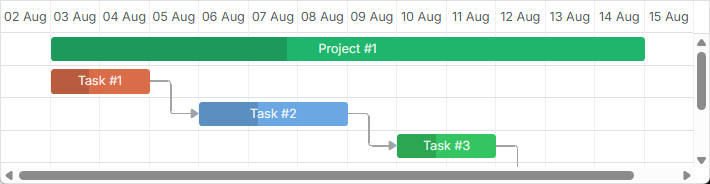
작업에 대한 사용자 정의 스타일을 설정하려면 다음 중 하나의 방법을 사용할 수 있습니다:
작업의 템플릿 재정의
템플릿을 통해 작업에 대한 사용자 정의 스타일을 설정하려면 task_class 템플릿을 사용합니다. 예를 들어 우선순위에 따라 작업의 색상을 지정하려면 다음과 같이 코드를 사용합니다:
우선순위에 따른 작업 색상 지정
<style>

    /* high */
    .gantt_task_line.high {
        --dhx-gantt-task-background: #d96c49;
        --dhx-gantt-task-color: #fff;
    }

    /* medium */
    .gantt_task_line.medium {
        --dhx-gantt-task-background: #f57730;
        --dhx-gantt-task-color: #fff;
    }

    /* low */
    .gantt_task_line.low {
        --dhx-gantt-task-background: #fff;
        --dhx-gantt-task-color: #fff;
    }

</style>
gantt.templates.task_class = (start, end, task) => {
    switch (task.priority) {
        case "1":
            return "high";
        case "2":
            return "medium";
        case "3":
            return "low";
        default:
            return "";
    }
};
관련 샘플: Task styles
작업의 다른 측면을 스타일링하려면 Templates of the Timeline Area 문서에 나열된 템플릿을 사용하세요.
링크에도 유사한 방법을 적용할 수 있습니다. 자세한 내용은 여기를 참조하세요.
작업 객체의 속성에서 스타일 지정
작업에 대한 사용자 정의 스타일을 지정하려면 데이터 객체에 3개의 추가 속성을 추가할 수 있습니다(또는 그 일부만 추가해도 됩니다):
- color - 작업 바의 배경색
- textColor - 작업 바 내부의 텍스트 색상(타임머스트Milestone 유형의 작업에는 영향 없음)
- progressColor - 진행 바의 색상(기본적으로 작업의 색상보다 약간 더 어둡게 표시되도록 아래와 같은 스타일 사용:
background-color: rgb(54, 54, 54); opacity: 0.2)

참고로 이들 속성은 특별한 속성입니다. 기본적으로 Gantt는 작업에 이 속성들이 있는지 확인하고, 있으면 작업 바와 텍스트에 해당 값을 적용합니다. 그렇지 않으면 미리 정의된 색상이 적용됩니다.
작업 객체에서 작업의 색상 설정하기
const data = {
    tasks: [
        { id: 1, text: "Project #1", start_date: "01-04-2013", duration: 18, color: "red" },
        { id: 2, text: "Task #1", start_date: "02-04-2013", duration: 8, color: "blue", parent: 1 },
        { id: 3, text: "Task #2", start_date: "11-04-2013", duration: 8, color: "blue", parent: 1 }
    ]
};

gantt.init("gantt_here");
gantt.parse(data);

gantt.getTask(1).color = "red";
관련 샘플: Specify inline colors for Tasks and Links
color 속성을 사용해 색상을 추가하면 인라인 스타일이 추가되며, 이는 다른 스타일들보다 우선순위가 큽니다. 그 결과 중요한 경로가 강조되지 않으며, 작업의 배경색이나 색상을 바꾸려 추가한 사용자 정의 스타일이 적용되지 않을 수 있습니다.
작업을 중요하게 보이게 만들려면 다음 코드를 사용할 수 있습니다:
.gantt_critical_task {
    --dhx-gantt-task-background: #e63030 !important;
}
관련 샘플: Coloring critical tasks and links
조금이라도 작업 객체의 속성이 하나 이상 할당되면, 작업은 추가 클래스 "gantt_task_inline_color" 를 받게 됩니다.
이 클래스를 사용해 작업에 대한 다른 스타일을 재정의할 수 있습니다(클래스에 대한 선택자는 .gantt_task_line.gantt_task_inline_color 을 사용합니다):
.gantt_task_line.gantt_task_inline_color .gantt_task_progress {
    background-color: rgb(54, 54, 54);
    opacity: 0.2;
}
속성은 모두 유효한 CSS 색상 값이 될 수 있습니다. 예를 들면 아래의 모든 표기가 유효합니다:
task.color = "#FF0000";
task.color = "red";
task.color = "rgb(255,0,0)";
데이터에 대한 것과 같이 링크에도 유사한 방법을 적용할 수 있습니다. 색상 속성 설정에 관한 자세한 내용은 여기를 참조하세요.
데이터로 색상 로딩
색상이 백엔드에서 가져온 데이터의 일부인 경우, 예를 들어 작업 색상이 단계나 작업에 할당된 리소스와 연결되어 페이지에서 하드코딩할 수 없을 때, 데이터를 기반으로 스타일을 수동으로 생성하는 것이 좋은 해결책일 수 있습니다.
다음과 같이 작업에 할당될 수 있는 사용자들로 이루어진 컬렉션이 있다고 가정해 봅시다. 작업 스타일은 사용자 레코드의 속성으로 정의되어야 합니다:
[
    { "key": 1, "label": "John", "backgroundColor": "#03A9F4", "textColor": "#FFF" },
    { "key": 2, "label": "Mike", "backgroundColor": "#f57730", "textColor": "#FFF" },
    { "key": 3, "label": "Anna", "backgroundColor": "#e157de", "textColor": "#FFF" },
    { "key": 4, "label": "Bill", "backgroundColor": "#78909C", "textColor": "#FFF" },
    { "key": 7, "label": "Floe", "backgroundColor": "#8D6E63", "textColor": "#FFF" }
]
이 사용 사례에서 사용자와 그 색상은 애플리케이션의 서로 다른 부분에서 생성되고 관리되며, gantt는 일반적으로 미리 사용자 id와 색상을 알지 못합니다.
이 경우 할 수 있는 일은 다음과 같습니다:
- 이 컬렉션에 대해 이름이 있는 serverList를 정의합니다
gantt.serverList("people");
-
페이지에 옵션을 로드합니다. gantt 데이터 형식 사용하기를 사용하거나 커스텀 xhr를 통해 수동으로 로드합니다.
-
옵션이 로드되면 데이터를 기반으로 CSS 스타일을 생성할 수 있습니다:
gantt.attachEvent("onLoadEnd", () => {
    // 스타일 요소의 임의의 ID 사용
    const styleElementId = "dynamicGanttStyles";

    // 색상으로 옵션을 다시 로드하는 경우에도
    // 이미 생성된 스타일 요소를 재사용합니다

    let styleElement = document.getElementById(styleElementId);
    if (!styleElement) {
        styleElement = document.createElement("style");
        styleElement.id = styleElementId;
        document.head.appendChild(styleElement);
    }
    const cssRules = [];
    const peopleOptions = gantt.serverList("people");

    // 각 옵션에 대한 CSS 스타일을 생성하고 스타일 요소에 CSS를 작성합니다

    peopleOptions.forEach((personOption) => {
        if (personOption.backgroundColor && personOption.textColor) {
            cssRules.push(
                `.gantt_task_line.gantt_resource_${personOption.key}{` +
                `--dhx-gantt-task-background: ${personOption.backgroundColor}; ` +
                `--dhx-gantt-task-color: ${personOption.textColor}; ` +
                `}`
            );
        }
    });
    styleElement.innerHTML = cssRules.join("");
});
리소스를 resource datastore에서 얻는 경우, 리소스 id에 대해 personOption.key 대신 personOption.id를 사용해야 합니다.
- 그 후 작업 템플릿에서 생성한 관련 클래스들을 할당할 수 있습니다:
gantt.templates.task_class = (start, end, task) => {
    const taskCssClasses = [];

    if (task.owner_id) {
        taskCssClasses.push(`gantt_resource_${task.owner_id}`);
    }

    return taskCssClasses.join(" ");
};
관련 샘플: Assigning owners to tasks