Searching for data
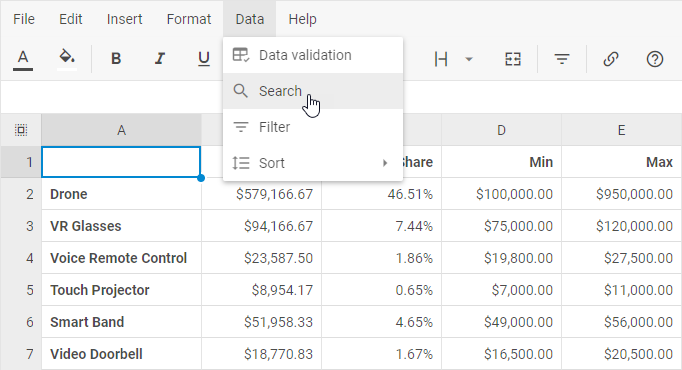
To open a search bar, use one of two options:
- Set focus on any cell and press Ctrl (Cmd) + F
- Or go to: Data -> Search
Type the text to find in the search bar. The first cell that contains the text is highlighted and scrolled into view, and the counter shows the number of matches. To move between the matches, click the arrow buttons in the search bar.
The search results are updated after the cells are edited and after another sheet is opened. Screen readers announce the number of matches and the address of the first match after you stop typing, for example, "Results: 5. 1 of 5, B2", or "No results". When you move to another match, they announce its position and address, for example, "2 of 5, B7".
To close the search bar, press Esc or click the close button. The focus returns to the active cell.
To search for data with the API, use the search() method.