创建自定义元素
要向 lightbox 添加自定义控件,你可以如下定义一个新对象:
gantt.form_blocks["my_editor"]={
    render:function(sns){ //sns - 区块的配置对象
        return "html code of the editor here";
    },
    set_value:function(node,value,task,section){
        //node - 上述定义的 html 元素
        //value - 由 map_to 属性定义的值
        //task - 任务对象
        //section- 区块的配置对象
        ... code to set value to the element ...
    },
    get_value:function(node,task,section){
        //node - 上述定义的 html 元素
        //task - 任务对象
        //section - 区块的配置对象
        return "current value from editor";
    },
    focus:function(node){
        //node - 上述定义的 html 元素
        ...code to set focus to the element...
    }
}
请注意,在 "render" 函数返回的 HTML 代码中不要使用自闭合标签,否则可能会在部分浏览器中导致解析问题:
//这是错误的写法
render:function(){
    return "<div id='box'/>";
}

//正确做法,请使用成对的开始和结束标签:
render:function(){
    return "<div id='box'></div>"; // 推荐
}
Custom control in the lightbox
lightbox 控件包含以下方法:
- render (sns): string - 返回包含该区块 HTML 元素的字符串
- sns - (LightboxSection) - 区块的配置对象
- set_value (node, value, task, section): any - 从 Task 对象获取值并应用到区块
- node - (HTMLElement) - 与区块 HTML 相关的元素
- value - (any) - 由 map_to 属性定义的值
- task - (Task) - 任务对象
- section - (LightboxSection) - 区块的配置对象
- get_value (node, task, section): any - 从区块获取值并保存回 Task 对象
- node - (HTMLElement) - 与区块 HTML 相关的元素
- task - (Task) - 任务对象
- section - (LightboxSection) - 区块的配置对象
- focus (node): void - 设置区块的焦点
- node - (HTMLElement) - 与区块 HTML 相关的元素
自定义含有两个输入框的编辑器
以下是创建一个含有两个输入框的自定义编辑器的示例:
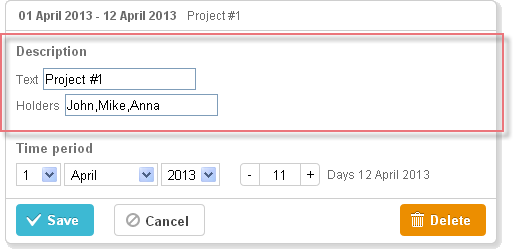
gantt.form_blocks["my_editor"] = {
render: function (sns) {
return "<div className='dhx_cal_ltext' style='height:60px;'>"+
"Text <input className='editor_description' type='text'/>"+
"
Holders <input className='editor_holders' type='text'/>"+
"</div>";
},
set_value: function (node, value, task) {
node.querySelector(".editor_description").value = value || "";
node.querySelector(".editor_holders").value = task.users || "";
},
get_value: function (node, task) {
task.users = node.querySelector(".editor_holders").value;
return node.querySelector(".editor_description").value;
},
focus: function (node) {
var a = node.querySelector(".editor_description");
a.select();
a.focus();
}
};
gantt.config.lightbox.sections = [
{ name:"description", height:200, map_to:"text", type:"my_editor", focus:true},
{ name:"time", height:72, type:"duration", map_to:"auto"}
];
Custom control in the lightbox
自定义第三方编辑器
你也可以创建一个自定义多选控件,用于选择多个值。
例如,可以基于 jQuery Chosen 插件 的控件,用于为任务分配多个资源。与默认的 Gantt resource control 不同,这个控件仅用于分配资源,不涉及数量。当你只需简单功能时,这是一个直接的选择。
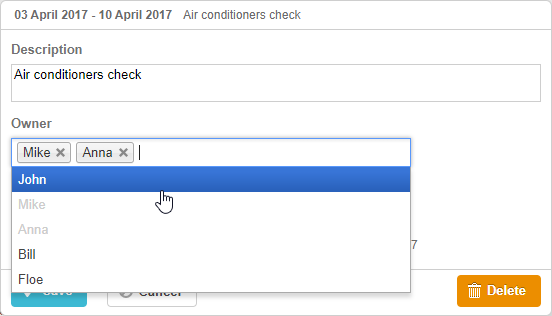
要在 Gantt 图中集成基于 jQuery Chosen 的控件:
- 在页面中引入所需的源文件
<script
    src="https://code.jquery.com/jquery-3.3.1.min.js?v="5.2.4""
    integrity="sha256-FgpCb/KJQlLNfOu91ta32o/NMZxltwRo8QtmkMRdAu8="
    crossOrigin="anonymous"></script>

<script src="https://cdnjs.cloudflare.com/ajax/libs/chosen/1.8.7/chosen.jquery.js?v="5.2.4""></script>
<link rel="stylesheet" type="text/css"
    href="https://cdnjs.cloudflare.com/ajax/libs/chosen/1.8.7/chosen.css?v="5.2.4"">
- 定义控件逻辑
gantt.form_blocks["multiselect"] = {
 render: function (sns) {
  var height = (sns.height || "23") + "px";
  var html = "<div className='gantt_cal_ltext gantt_cal_chosen gantt_cal_multiselect'"+
     "style='height:"+ height + ";'><select data-placeholder='...'"+
        "class='chosen-select' multiple>";
  if (sns.options) {
   for (var i = 0; i < sns.options.length; i++) {
    if(sns.unassigned_value !== undefined && sns.options[i].key==sns.unassigned_value){
        continue;
    }
    html+="<option value='" +sns.options[i].key+ "'>"+sns.options[i].label+"</option>";
  }
}
  html += "</select></div>";
  return html;
},

set_value: function (node, value, ev, sns) {
    node.style.overflow = "visible";
    node.parentNode.style.overflow = "visible";
    node.style.display = "inline-block";
    var select = $(node.firstChild);

    if (value) {
        value = (value + "").split(",");
        select.val(value);
    }
    else {
        select.val([]);
    }

    select.chosen();
    if(sns.onchange){
        select.change(function(){
            sns.onchange.call(this);
        })
    }
    select.trigger('chosen:updated');
    select.trigger("change");
},

get_value: function (node, ev) {
    var value = $(node.firstChild).val();
    //value = value ? value.join(",") : null
    return value;
},

focus: function (node) {
    $(node.firstChild).focus();
 }
};
- 以 type:"multiselect" 的方式将控件添加为 lightbox 区块
gantt.config.lightbox.sections = [
    {name:"description",height:38,map_to:"text",type:"textarea",focus: true},
    {name:"owner",height:60, type:"multiselect", options:gantt.serverList("people"),
        map_to:"owner_id", unassigned_value:5 },
    {name: "time", type: "duration", map_to: "auto"}
];
unassigned_value 属性可以隐藏不应被选择的资源。将其设置为你希望排除的资源 ID。在上述示例中,id="5" 的资源不会出现在控件中。
自定义第三方日期选择器
你也可以向 lightbox 添加自定义日期选择器控件,通过指定开始和结束日期来设置任务时长。
在 lightbox 中使用 jQuery Datepicker
例如,可以使用 jQuery UI Datepicker 构建一个日期选择控件。
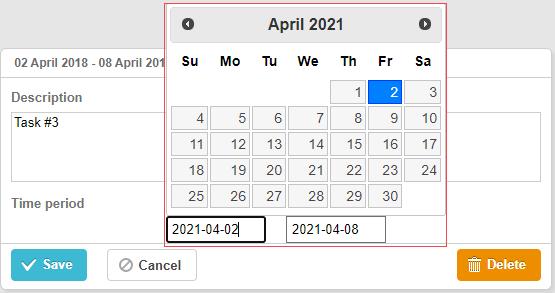
Related example: 3rd party Datepicker control
在 Gantt 图中使用 jQuery Datepicker 控件:
- 在页面中引入 jQuery 库文件:
<script src="https://code.jquery.com/jquery-3.5.1.min.js"></script>
<script src="https://code.jquery.com/ui/1.12.1/jquery-ui.min.js"></script>
<link  rel="stylesheet" type="text/css"
    href="https://code.jquery.com/ui/1.12.1/themes/base/jquery-ui.css">
- 实现控件逻辑:
(function () {
    function startDatepicker(node){
        return $(node).find("input[name='start']");
    }
    function endDateInput(node){
        return $(node).find("input[name='end']");
    }

    gantt.form_blocks["datepicker"] = {
        render: function (sns) { //sns - 区块的配置对象
            return "<div className='gantt-lb-datepicker'>"+
                "<input type='text' name='start'/>"+
                "<input type='text' name='end'/>"+
                "</div>";;
        },
        set_value: function (node, value, task, section) {
            //node - 上述定义的 html 元素
            //value - 由 map_to 属性定义的值
            //task - 任务对象
            //section- 区块的配置对象

            startDatepicker(node).datepicker({
                dateFormat: "yy-mm-dd",
                onSelect: function (dateStr) {
                    var endValue = endDateInput(node).datepicker('getDate');
                    var startValue = startDatepicker(node).datepicker('getDate');

                    if(startValue && endValue){
                        if(endValue.valueOf() <= startValue.valueOf()){
                            endDateInput(node).datepicker("setDate",
                                gantt.calculateEndDate({
                                    start_date: startValue, duration: 1, task:task
                                  })
                            );
                           }
                    }
                }
            });

            startDatepicker(node).datepicker("setDate", task.start_date);

            endDateInput(node).datepicker({
                dateFormat: "yy-mm-dd",
                onSelect: function (dateStr) {
                    //    gantt.ext.inlineEditors.save()
                }
            });
            endDateInput(node).datepicker("setDate", task.end_date);
        },
        get_value: function (node, task, section) {

            if(task.start_date && task.end_date) {
                var start = startDatepicker(node).datepicker('getDate');
                var end =  endDateInput(node).datepicker('getDate');

                   if(end.valueOf() <= start.valueOf()){
                       end = gantt.calculateEndDate({
                        start_date: start, duration: 1, task:task
                    });
                  }
                  task.start_date = start;
                  task.end_date = end;
            }

            task.duration = gantt.calculateDuration(task);
        },
        focus: function (node) {

        }
    }
})();
- 然后以 type:"datepicker" 的方式将控件作为 lightbox 区块使用:
gantt.config.lightbox.sections = [
  { name: "description", height: 70, map_to: "text", type: "textarea", focus: true },
  { name: "time", height: 72, map_to: "auto", type: "datepicker" }
];
在灯箱中使用 Bootstrap Datepicker
在灯箱中添加 Bootstrap Datepicker 与集成 jQuery Datepicker 的方式类似。

Related example: Bootstrap Datepicker control
要在 Gantt 图中集成 Bootstrap Datepicker 控件:
-
在页面中引入 Bootstrap 库的源文件;
-
定义控件逻辑:
(function () {
    const startDatepicker = (node) => $(node).find("input[name='start']");
    const endDateInput = (node) => $(node).find("input[name='end']");

    gantt.form_blocks["datepicker"] = {
        render: (sns) => {
          const height = sns.height || 45;
            return "<div className='gantt-lb-datepicker' style='height:" + height + "px;'>"+
                        "<input type='text' name='start'/> - "+
                        "<input type='text' name='end'/>"+
                    "</div>";;
        },
        set_value: (node, value, task, section) => {
              const datepickerConfig = {
                  format: 'yyyy-mm-dd',
                  autoclose: true,
                   container: gantt.$container
            };
            startDatepicker(node).datepicker(datepickerConfig);
              startDatepicker(node).datepicker('setDate',
                  value ? value.start_date : task.start_date
            );

            endDateInput(node).datepicker(datepickerConfig);
              endDateInput(node).datepicker('setDate',
                  value ? value.end_date : task.end_date
            );

            startDatepicker(node).datepicker().on('changeDate', function(e) {
                const endValue = endDateInput(node).datepicker('getDate');
                const startValue = startDatepicker(node).datepicker('getDate');

                if (startValue && endValue) {
                    if (endValue.valueOf() <= startValue.valueOf()) {
                        endDateInput(node).datepicker('setDate',
                            gantt.calculateEndDate({
                                start_date: startValue, duration: 1, task:task
                            })
                        );
                    }
                }
            });
        },
        get_value: (node, task, section) => {
            const start = startDatepicker(node).datepicker('getDate');
            let end =  endDateInput(node).datepicker('getDate');

            if (end.valueOf() <= start.valueOf()) {
                end = gantt.calculateEndDate({
                    start_date: start,
                    duration: 1,
                    task:task
                });
            }
            if (task.start_date && task.end_date) {
                  task.start_date = start;
                  task.end_date = end;
            }

            task.duration = gantt.calculateDuration(task);

              return {
                start_date: start,
                  end_date: end,
                  duration: task.duration
            };
        },
        focus: (node) => {
        }
    }
})();
- 然后,通过指定 type:"datepicker" 将此控件作为灯箱的一个 section 使用:
gantt.config.lightbox.sections = [
  { name: "description", height: 70, map_to: "text", type: "textarea", focus: true },
  { name: "time", height: 45, map_to: "auto", type: "datepicker" }
];
自定义第三方 Duration 控件
你也可以在灯箱中添加自定义的 Duration 控件,用于设置任务的开始日期以及持续天数。
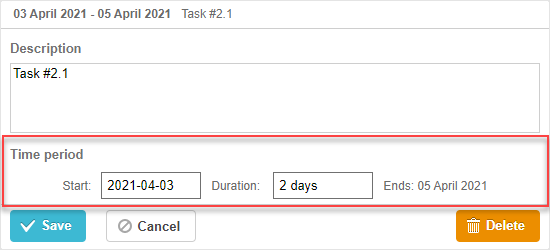
Related example: 3rd party Duration control
以下是基于 jQuery 添加自定义 Duration 控件的方法:
- 首先,在页面中引入 jQuery 库的源文件:
<script src="https://code.jquery.com/jquery-3.5.1.min.js"></script>
<script src="https://code.jquery.com/ui/1.12.1/jquery-ui.min.js"></script>
<link  rel="stylesheet" type="text/css"
    href="https://code.jquery.com/ui/1.12.1/themes/base/jquery-ui.css">
- 然后,定义控件的逻辑:
(function () {
    function startDatepicker(node){
        return $(node).find("input[name='start']");
    }
    function durationInput(node){
        return $(node).find("input[name='duration']");
    }
    function endDateLabel(node){
        return $(node).find("span.gantt-lb-datepicker-label");
    }

    var formatter = gantt.ext.formatters.durationFormatter({
        enter: "day",
        store: "day",
        format: "auto"
    });

    gantt.form_blocks["datepicker_duration"] = {
        render: function (sns) { //sns - section 的配置对象
            return "<div className='gantt-lb-datepicker'>"+
                "<label>Start:<input type='text' name='start'/></label>"+
                "<label>Duration: <input type='text' name='duration'/></label>"+
                "<span className='gantt-lb-datepicker-label'></span>"
                "</div>";
        },
        set_value: function (node, value, task, section) {
            //node - 与上面定义的 html 相关的 html 对象
            //value - 由 map_to 属性定义的值
            //task - 任务对象
            //section- section 的配置对象

            startDatepicker(node).datepicker({
                dateFormat: "yy-mm-dd",
                onSelect: function (dateStr) {
                    var endValue = durationInput(node).datepicker('getDate');
                    var startValue = startDatepicker(node).datepicker('getDate');

                    if(startValue && endValue){
                        if(endValue.valueOf() <= startValue.valueOf()){
                            durationInput(node).datepicker("setDate",
                                gantt.calculateEndDate({
                                    start_date: startValue, duration: 1, task:task
                                })
                            );
                        }
                    }
                }
            });

            startDatepicker(node).datepicker("setDate", task.start_date);

            durationInput(node).val(formatter.format(task.duration));
            endDateLabel(node).text(
                "Ends: " + gantt.templates.task_date(task.end_date)
            );
        },
        get_value: function (node, task, section) {

            if(task.start_date && task.end_date) {
                var start = startDatepicker(node).datepicker('getDate');
                var end = task.end_date;
                var duration = formatter.parse(durationInput(node).val());

                if(duration && !isNaN(Number(duration))){
                    end = gantt.calculateEndDate({
                        start_date: start, duration: duration, task:task
                    });
                }
                task.start_date = start;
                task.duration = duration;
                task.end_date = end;
            }

            task.duration = gantt.calculateDuration(task);
            return {
                start_date: task.start_date,
                end_date: task.end_date,
                duration: task.duration
            }
        },
        focus: function (node) {

        }
    }
})();
- 最后,通过 type:"datepicker_duration" 将此控件作为灯箱的一个 section 使用:
gantt.config.lightbox.sections = [
  { name: "description", height: 70, map_to: "text", type: "textarea", focus: true },
  { name: "time", height: 72, map_to: "auto", type: "datepicker_duration" }
];