Export Module for PDF, PNG, Excel, and iCal
This export module can export data to PDF, PNG, Excel, and iCal files. It can be installed on any platform as a Node.js application or as a Docker image.
It doesn't include the import/export functionality for the MS Project and Primavera files. If you need such a functionality, you should use the corresponding export module or our online server.
By default, this module forwards MS Project and Primavera P6 requests to the online export service at https://export.dhtmlx.com/msproject. To send them to your own MS Project export module, set the MSP_SERVICE_ENDPOINT environment variable. See How the two modules work together.
Installation guide
First, you need to download and install Node.js. You can find the installation instructions on their website.
You can download the export module in the Client's Area on the Downloads tab. Check the image below:
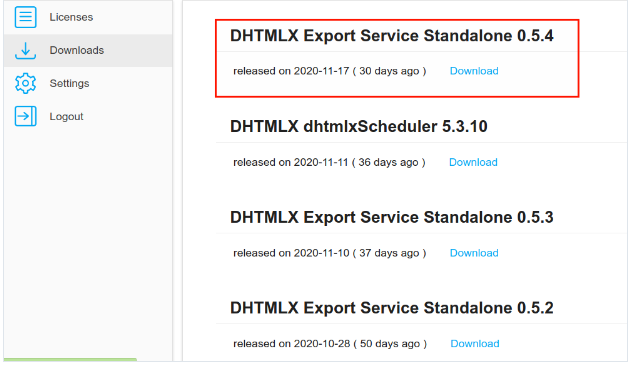
After downloading that file, unpack it somewhere, then open the command line and navigate to the folder with the export module. For example:
cd C:\export_module
Then you need to install the modules for the application:
npm install
In version 0.7.7 and older, you need to install additional components to the computer without graphical interface.
To start the export module, use the following command:
npm start
To test how it works, you can open the following URL: http://localhost:3200/test.
Or open the main page and click the Test link: http://localhost:3200.
Using server without graphical interface
This section applies to version 0.7.7 and older, which renders the chart with Electron. Version 0.8.0 and newer renders the chart with Puppeteer in headless Chrome and doesn't need Xvfb.
If you plan to use the export module on a headless server, you need to install additional components. Here is the command for the Deb-based distros:
apt-get install -y xvfb libgtk2.0-0 libgtk-3-0 libgbm-dev
libnotify-dev libnss3 libxss1 libasound2 libxtst6 xauth
Here is the command for the RPM-based distros:
yum install -y xorg-x11-server-Xvfb gtk2-devel gtk3-devel
libnotify-devel GConf2 nss libXScrnSaver alsa-lib
Then you need to run it with another command:
npm run start:docker
or
xvfb-run node index.js
Problem solving
Old Node.js version
The export module is compatible with Node.js v22.12 and newer. If you have an older version, update Node.js.
Export to PDF never ends
If you use Windows with the custom DPI settings or fonts, there is a bug in the Electron component of version 0.6.7 and older. To make it work, you need to install an earlier version:
npm install electron@6.1
Export to PDF/PNG doesn't work on Mac M1
This problem occurs in version 0.6.7 and older. To solve it, update the export module.
The Electron version that these versions use doesn't have builds for the Darwin-ARM64 architecture. If you can't update the module, you can try installing Electron 11 as a workaround:
npm install electron@11
The basic export functionality should work, but we didn't check whether all features work correctly with that version.
Export to PDF doesn't work
There can be different reasons for that. You need to check the error messages.
If you get one of the following errors:
-
Failed to get crash dump id
-
Electron crashed!
-
Chrome launch failed
most likely, it means that the browser that renders the chart can't start on your server:
- Version 0.8.0 and newer renders the chart with Puppeteer and writes
Chrome launch failedto its console output. Check that the server has the system libraries that Chrome needs, see Chrome doesn't launch on Linux in the Puppeteer documentation. - Version 0.7.7 and older renders the chart with Electron. If the export module is working on a headless server, you will need to install the necessary components to use PDF and PNG export.
Or you can build a Docker image: it includes all the components that the export module needs.
Using a Docker image
Build the Docker image with the following command:
docker build -t dhtmlx/scheduler-gantt-export ./
Run the Docker image using the command below:
docker run -d -p 3200:3200 dhtmlx/scheduler-gantt-export
3200 is the port on which the docker service will work.