Export Module for MS Project
This export module can import/export MS Project and Primavera files. It is a .NET Core application that you can run inside the dotnet environment or inside the docker image.
It doesn't include the import/export functionality for the PDF, PNG, Excel, and iCal files. If you need such a functionality, you should use the corresponding export module or our online server.
Installation guide
You will need to install the .NET Core 7 environment before you run the application. Once you're ready, you can download the MSP export module in the Client's Area on the Downloads tab. Check the image below:
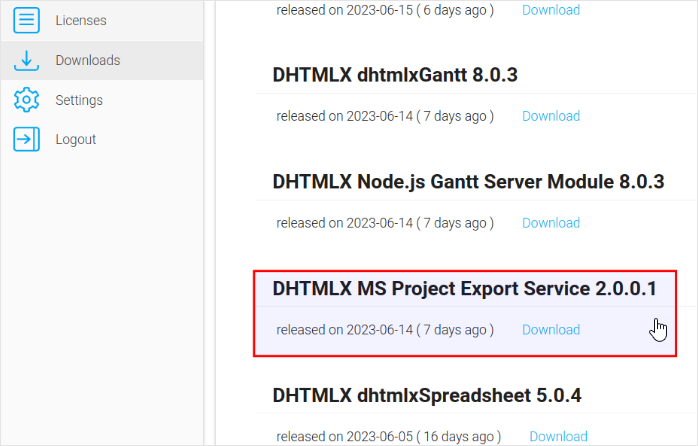
There are 2 ways of running the source code:
- Run it from Visual Studio (Windows Only)
For this approach, you will need Visual Studio 2022, as earlier versions don't support .NET Core 7.
On opening the application, you will need to right-click on the Solution in the right panel, and click on the Restore NuGet packages button.
After that you can run the http or https versions.
- Run it from the command line
This approach works the same way both for Windows and Linux. You will need to navigate to the root folder of the application and run the following command to install the packages:
dotnet restore
After that you will need to navigate to the "GanttToMSProject" folder and run the following command to run the application:
dotnet run
You can run the following command to publish the application:
dotnet publish -c Release -o published
Testing the export module
There are 2 ways to test how the export module works.
- Using the test page:
- Open the following URL: https://export.dhtmlx.com/test
- Find the URL of the export module in the command line output. For example:
Now listening on: http://localhost:5128
- Click on the first dropdown with the URL and choose custom.
- Paste the URL of the export module.
Now you can export data with the buttons.
- Using the snippet:
-
Open the following URL: https://snippet.dhtmlx.com/kf16k0if
-
Find the URL of the export module in the command line output. For example:
Now listening on: http://localhost:5128
- Add the URL to the server parameter of the export function, for example:
gantt.exportToMSProject({
    server: "http://localhost:5128",
});
Now you can export data with the button.
Problem solving
Export to PDF/PNG/Excel doesn't work
The MSP export module doesn't work for methods other than gantt.exportToMSProject/exportToPrimaveraP6, i.e. it won't work if you call
gantt.exportToPDF({server:"gantt-to-msproject-url"});
Also, please note, that if you call gantt.exportToMSProject() without parameters, it will call our online service at export.dhtmlx.com by default.
Export of MPP files
The MSP export module and export server use the MPXJ library to import and export MSP and Primavera files. Unfortunately, there is no way to export MPP files, but you can import both XML and MPP files.
Even though a direct export to MPP isn't supported, you can still get the changes made in Gantt back into MS Project. A typical round-trip workflow looks like this:
-
A user creates or edits a project in MS Project and saves the file (as MPP or XML).
-
The file is imported into Gantt, where the data can be viewed or modified.
-
The Gantt data is exported into an XML Project file.
-
The resulting XML file is imported back into the original file in MS Project:
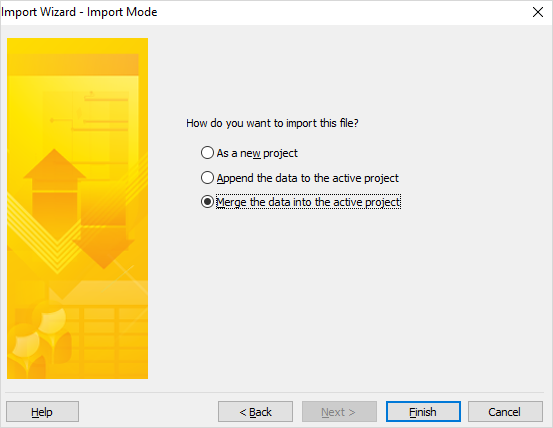
- If no tasks were deleted in Gantt, import the XML file using the Merge option (see the screenshot below). The existing tasks will be updated, and the new ones will be added.
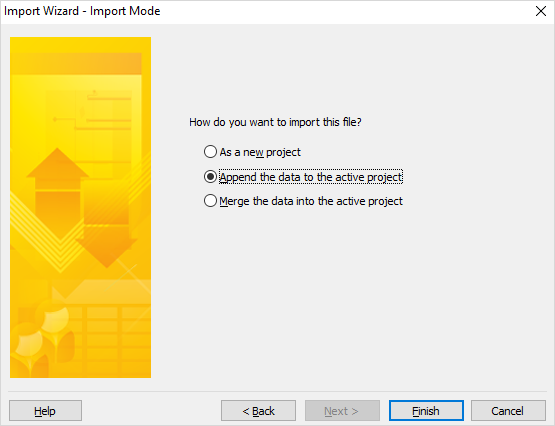
- If some tasks were deleted in Gantt, they won't be removed automatically during the import, since MS Project only updates and adds tasks when merging. In this case, first select and delete the corresponding tasks in MS Project manually, then import the XML file using either the Append or the Merge option (the Append option is shown below).
By default, Gantt imports and exports only the default set of task/project properties. To carry additional properties through the round trip, see Getting tasks properties for import, and the tasks object described in Export settings for export.
Import of large files
If you want to import large files, you will need to remove the limits on the request size. To do that, you need to open the
GanttToMSProject/Controllers/MspConversionController.cs file. There, you need to uncomment the DisableRequestSizeLimit and the line that follows it.
After saving the changes and restarting the server, you should be able to import large files. It was tested that importing a 244Mb file requires up to 4Gb RAM.
Using a Docker image
To build a docker image, run the following command:
docker build -t msp_export_module
To run the docker image for testing purposes, you can use the following command:
docker run -p 8080:8080 msp_export_module
You will be able to stop the container with the Ctrl+C hotkey combination.
If you run the docker image in the "detached" mode, it will run in the background:
docker run -d -p 8080:8080 msp_export_module