工具提示
如果你使用 dhtmlxScheduler 6.0 及更早版本,请在此处查看详细信息 此处。
要为事件显示工具提示,您应在页面上仅激活一次 Tooltip 扩展。
scheduler.plugins({
    tooltip: true
});
之后,工具提示将使用默认设置显示。
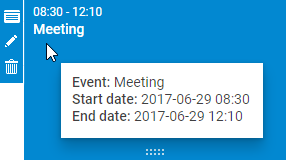
一旦扩展被激活,工具提示将自动使用默认设置显示。
自定义文本
默认情况下,工具提示显示事件的 3 个属性:
- 事件的开始日期。
- 事件的结束日期。
- 事件文本。
要为工具提示设置自定义文本,请使用 tooltip_text 模板:
scheduler.templates.tooltip_text = function(start,end,event) {
    return "<b>Event:</b> "+event.text+"

<b>Start date:</b> "+
    scheduler.templates.tooltip_date_format(start)+"

"+
    "<b>End date:</b> "+scheduler.templates.tooltip_date_format(end);
};
Tooltip API
Tooltip 对象
您可以通过 scheduler.ext.tooltips.tooltip 访问 tooltip 对象。该对象允许通过一组方法来操作 tooltip 的位置、内容和可见性:
- getNode() - 返回 tooltip 的 HTML 元素
- setViewport() - 将 tooltip 的位置锁定在指定 HTML 元素的边界内
- node - (HTMLElement) 相关的 HTML 元素
- show() - 在特定坐标处显示 tooltip(相对于 document.body)。该方法可以根据要显示 tooltip 的位置传入不同的参数:
- 若要在特定坐标处显示 tooltip(相对于 document.body),传入:
- left - (number) X 坐标
- top - (number) Y 坐标
- 若要在鼠标事件坐标处显示 tooltip(会考虑 tooltip_offset_x/y 以及视口),传入:
- event - (Event) 鼠标事件对象
- 若要在特定坐标处显示 tooltip(相对于 document.body),传入:
- hide() - 隐藏 tooltip 元素
- setContent()- 将 HTML 内容放入 tooltip。参数为:
- html - (string) Tooltip 的 HTML 内容字符串
方法
有若干方法可以在将鼠标悬停在 DOM 元素上时控制 tooltip 的行为。
scheduler.ext.tooltips.attach()
在此方法中添加一个具有扩展配置的 tooltip。该方法接收一个包含 tooltip 设置的对象作为参数。可以通过该方法调整的设置如下:
- selector - (string) 定义要监听鼠标事件的元素的 CSS 选择器
- onmouseenter - (function) 当鼠标指针进入元素时调用的处理程序。参数为:
- event - (Event) 原生鼠标事件
- node - (HTMLElement) HTML 节点
- onmousemove - (function) 当鼠标指针在元素内移动时调用的处理程序。参数为:
- event - (Event) 原生鼠标事件
- node - (HTMLElement) HTML 节点
- onmouseleave - (function) 当鼠标指针离开元素时调用的处理程序。参数为:
- event - (Event) 原生鼠标事件
- node - (HTMLElement) HTML 节点
- global - (boolean) 定义模块是监听整页的鼠标事件 (true) 还是仅在 Scheduler 元素内监听 (false)。默认值为 false。
scheduler.ext.tooltips.tooltipFor()
为指定的 Scheduler 元素添加 tooltip。它是 attach() 方法的简化版本。该方法的参数是一个包含 tooltip 详细信息的对象。该对象具有以下属性:
- selector - (string) 要在其上添加 tooltip 的 Scheduler 元素的 CSS 选择器
- html - (function) tooltip 的模板。模板函数依次接收两个参数:
- event - (Event) 原生鼠标事件
- node - (HTMLElement) HTML 节点 并返回一个包含模板的字符串。
- global - (boolean) 可选,定义模块是在整页监听鼠标事件 (true) 还是仅在 Scheduler 元素内部监听 (false)。默认值为 false。
scheduler.ext.tooltips.detach()
移除 tooltip。作为参数,该方法接收:
- selector - (string) Scheduler 元素的 CSS 选择器
针对不同元素的工具提示
默认情况下,工具提示仅添加到 Scheduler 的事件上,但你也可以为任何其他 Scheduler 元素设置工具提示。
在 tooltip API 中有两种相应的方法用于此目的:
注意,scheduler.ext.tooltips.tooltipFor() 方法必须在 Scheduler 初始化完成后调用。例如,你可以在 onSchedulerReady 事件处理程序中像下面这样指定该方法:
scheduler.attachEvent("onSchedulerReady", function(){
    scheduler.ext.tooltips.tooltipFor({
        selector: ".dhx_matrix_scell",
        html: function (event, node) {
            const sectionId = scheduler.getActionData(event).section;
            const timeline = scheduler.getView("timeline");
            const section = timeline.y_unit[timeline.order[sectionId]];
            return `Tooltip for <b>${section.label}</b>`;
        }
    });
});
或者你也可以使用以下方式:
scheduler.init("scheduler_here");

scheduler.ext.tooltips.tooltipFor({
    selector: ".dhx_matrix_scell",
    html: function (event, node) {
        const sectionId = scheduler.getActionData(event).section;
        const timeline = scheduler.getView("timeline");
        const section = timeline.y_unit[timeline.order[sectionId]];
        return `Tooltip for <b>${section.label}</b>`;
    }
});
以这种方式添加的 tooltip 将跟随鼠标指针并使用 tooltip_offset_x、 tooltip_offset_y、 tooltip_timeout,以及 tooltip_hide_timeout 设置。
此方法允许通过扩展配置添加 tooltip,以使 tooltip 的行为适应鼠标指针的移动。
自定义 tooltip 行为
有可能修改 tooltip 的默认行为。可以通过移除默认的 tooltip 处理程序并添加自定义的来实现。请按以下步骤操作:
- 使用 scheduler.ext.tooltips.detach 方法从任务中移除内置的 tooltip 处理程序:
// 从任务中移除内置的工具提示处理器
scheduler.ext.tooltips.detach(`[${scheduler.config.event_attribute}]`);
- 通过 scheduler.ext.tooltips.attach() 方法添加所需的 tooltip 行为。在下面的示例中,tooltip 仅显示在表格之上:
scheduler.ext.tooltips.tooltipFor({
  selector: `[${scheduler.config.event_attribute}]`,
  html: (event: MouseEvent) => {
     if (scheduler.config.touch && !scheduler.config.touch_tooltip) {
     return;
   }

   const evNode = event.target.closest(`[${scheduler.config.event_attribute}]`);
   const evId = evNode.getAttribute(scheduler.config.event_attribute);
   if(scheduler.getEvent(evId)){
     const ev = scheduler.getEvent(evId);
     return scheduler.templates.tooltip_text(ev.start_date, ev.end_date, ev);
   }
   return null;
  },
  global: false
});
超时
您可以通过相关设置配置显示和隐藏工具提示的时间。
要指定在工具提示为任务出现前的时间段(以毫秒为单位),请使用 tooltip_timeout 属性:
scheduler.config.tooltip_timeout = 50;
scheduler.init("scheduler_here");
要定义在用户将光标移动到另一个位置后,显示工具提示的时长(以毫秒为单位),请使用 tooltip_hide_timeout 属性:
scheduler.config.tooltip_hide_timeout = 5000;
scheduler.init("scheduler_here");
位置
可以通过修改默认位置的偏移量来配置 tooltip 的位置,使用以下两个配置属性:
- tooltip_offset_x - 设置 tooltip 位置的水平偏移量
- tooltip_offset_y - 设置 tooltip 位置的垂直偏移量
scheduler.config.tooltip_offset_x = 30;
scheduler.config.tooltip_offset_y = 40;

scheduler.init("scheduler_here");
显示区域
默认情况下,工具提示附加到 document.body。如有需要,可以在初始化 Scheduler 之前将工具提示的显示范围限制到一个容器,使用下面的代码:
scheduler.attachEvent("onSchedulerReady", function(){
    const tooltips = scheduler.ext.tooltips;
    tooltips.tooltip.setViewport(container);
});

scheduler.init("scheduler_here");