Tooltips(工具提示)
如果您使用的是 dhtmlxScheduler 6.0 或更早版本,请查看此处的详细信息。
要为事件显示工具提示,需要在页面上启用 Tooltip 扩展。
scheduler.plugins({
    tooltip: true
});
启用后,工具提示会以默认设置显示。
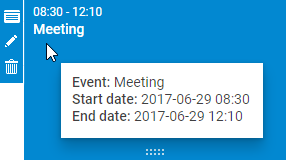
激活扩展后,工具提示会自动以默认配置显示。
自定义文本
默认情况下,工具提示会显示事件的三个属性:
- 事件的开始日期。
- 事件的结束日期。
- 事件的文本内容。
如需自定义工具提示文本,可使用 tooltip_text 模板:
scheduler.templates.tooltip_text = function(start,end,event) {
    return "<b>Event:</b> "+event.text+"

<b>Start date:</b> "+
    scheduler.templates.tooltip_date_format(start)+"

"+
    "<b>End date:</b> "+scheduler.templates.tooltip_date_format(end);
};
Tooltip API
Tooltip 对象
可以通过 scheduler.ext.tooltips.tooltip 访问 tooltip 对象。它提供了用于控制工具提示位置、内容和可见性的方法:
- getNode() - 返回工具提示的 HTML 元素
- setViewport() - 限制工具提示在指定 HTML 元素的边界内显示
- node - (HTMLElement) 容器元素
- show() - 在相对于 document.body 的指定坐标处显示工具提示。根据所需位置可接受不同参数:
- 若需在特定坐标显示,传递:
- left - (number) X 坐标
- top - (number) Y 坐标
- 若需在鼠标事件坐标处显示(考虑 tooltip_offset_x/y 和 viewport),传递:
- event - (Event) 鼠标事件对象
- 若需在特定坐标显示,传递:
- hide() - 隐藏工具提示元素
- setContent()- 设置工具提示中的 HTML 内容。参数为:
- html - (string) 要显示在工具提示中的 HTML 字符串
方法
有几种方法可用于在悬停 DOM 元素时控制工具提示行为。
scheduler.ext.tooltips.attach()
添加带详细配置的工具提示。接受一个包含工具提示设置的对象,包括:
- selector - (string) 监听鼠标事件的元素 CSS 选择器
- onmouseenter - (function) 鼠标进入元素时调用,参数包括:
- event - (Event) 原生鼠标事件
- node - (HTMLElement) 目标 HTML 节点
- onmousemove - (function) 鼠标在元素内移动时调用,参数包括:
- event - (Event) 原生鼠标事件
- node - (HTMLElement) 目标 HTML 节点
- onmouseleave - (function) 鼠标离开元素时调用,参数包括:
- event - (Event) 原生鼠标事件
- node - (HTMLElement) 目标 HTML 节点
- global - (boolean) 是否监听整个页面的鼠标事件(true)或仅在调度器元素内监听(false)。默认为 false。
scheduler.ext.tooltips.tooltipFor()
为特定 Scheduler 元素添加工具提示。这是 attach() 的简化版本。接受一个对象,包括:
- selector - (string) 要添加工具提示的 Scheduler 元素的 CSS 选择器
- html - (function) 工具提示模板函数,接收:
- event - (Event) 原生鼠标事件
- node - (HTMLElement) 目标 HTML 节点 返回工具提示内容字符串。
- global - (boolean) 可选,是否监听整个页面的鼠标事件(true)或仅在调度器元素内监听(false)。默认为 false。
scheduler.ext.tooltips.detach()
移除工具提示。参数为:
- selector - (string) Scheduler 元素的 CSS 选择器
为不同元素添加工具提示
默认情况下,工具提示仅添加到 Scheduler 事件上,但也可以为其他 Scheduler 元素设置工具提示。
相关方法见 tooltip API:
注意,scheduler.ext.tooltips.tooltipFor() 需在 Scheduler 初始化后调用。例如,可放在 onSchedulerReady 事件处理函数中:
scheduler.attachEvent("onSchedulerReady", function(){
    scheduler.ext.tooltips.tooltipFor({
        selector: ".dhx_matrix_scell",
        html: function (event, node) {
            const sectionId = scheduler.getActionData(event).section;
            const timeline = scheduler.getView("timeline");
            var section = timeline.y_unit[timeline.order[sectionId]];
            return `Tooltip for <b>${section.label}</b>`;
        }
    });
});
也可以使用如下方式:
scheduler.init("scheduler_here");

scheduler.ext.tooltips.tooltipFor({
    selector: ".dhx_matrix_scell",
    html: function (event, node) {
        const sectionId = scheduler.getActionData(event).section;
        const timeline = scheduler.getView("timeline");
        var section = timeline.y_unit[timeline.order[sectionId]];
        return `Tooltip for <b>${section.label}</b>`;
    }
});
通过这种方式添加的工具提示会跟随鼠标指针,并遵循 tooltip_offset_x、tooltip_offset_y、tooltip_timeout 和 tooltip_hide_timeout 的设置。
此方法可根据鼠标移动提供更高级的工具提示行为配置。
工具提示行为的自定义
您可以通过移除内置处理器并添加自定义处理器来修改默认的工具提示行为。方法如下:
- 使用 scheduler.ext.tooltips.detach 从任务中移除默认工具提示处理器:
// 从任务中移除内置的工具提示处理器
scheduler.ext.tooltips.detach(`[${scheduler.config.event_attribute}]`);
- 通过 scheduler.ext.tooltips.attach() 添加自定义工具提示行为。如下示例仅在表格上方显示工具提示:
scheduler.ext.tooltips.tooltipFor({
  selector: `[${scheduler.config.event_attribute}]`,
  html: (event: MouseEvent) => {
     if (scheduler.config.touch && !scheduler.config.touch_tooltip) {
     return;
   }

   const evNode = event.target.closest(`[${scheduler.config.event_attribute}]`);
   const evId = evNode.getAttribute(scheduler.config.event_attribute);
   if(scheduler.getEvent(evId)){
     const ev = scheduler.getEvent(evId);
     return scheduler.templates.tooltip_text(ev.start_date, ev.end_date, ev);
   }
   return null;
  },
  global: false
});
超时设置
工具提示的显示和隐藏时间可通过设置进行配置。
要设置任务工具提示显示前的延迟时间(毫秒),请使用 tooltip_timeout 属性:
scheduler.config.tooltip_timeout = 50;
scheduler.init("scheduler_here");
要设置鼠标移开后工具提示保持可见的时间(毫秒),请使用 tooltip_hide_timeout 属性:
scheduler.config.tooltip_hide_timeout = 5000;
scheduler.init("scheduler_here");
位置
可通过以下配置属性调整工具提示的位置偏移:
- tooltip_offset_x - 工具提示的水平偏移量
- tooltip_offset_y - 工具提示的垂直偏移量
scheduler.config.tooltip_offset_x = 30;
scheduler.config.tooltip_offset_y = 40;

scheduler.init("scheduler_here");
显示区域
默认情况下,工具提示会附加到 document.body。如需将工具提示显示限制在特定容器内,可在初始化 Scheduler 前设置:
scheduler.attachEvent("onSchedulerReady", function(){
    var tooltips = scheduler.ext.tooltips;
     tooltips.tooltip.setViewport(container);
});

scheduler.init("scheduler_here");