dhtmlxGantt와 dhtmlxConnector
이 튜토리얼은 페이지에 기본 Gantt 차트를 만들고 데이터베이스(서버)에서 작업을 저장하고 업데이트할 수 있도록 하는 방법을 가르쳐 줄 것입니다.
현재 튜토리얼은 dhtmlxConnector를 사용하여 Gantt를 생성하는 것을 목적으로 합니다. 다른 서버사이드 기술을 사용하고 싶다면 아래에 있는 이용 가능한 통합 변형에 대해 설명된 튜토리얼 목록을 확인하십시오:
- ASP.NET MVC와 함께하는 dhtmlxGantt
- Node.js와 함께하는 dhtmlxGantt
- Python과 함께하는 dhtmlxGantt
- PHP:Slim3와 함께하는 dhtmlxGantt
- PHP: Laravel과 함께하는 dhtmlxGantt
- Salesforce LWC와 함께하는 dhtmlxGantt
- Ruby on Rails와 함께하는 dhtmlxGantt
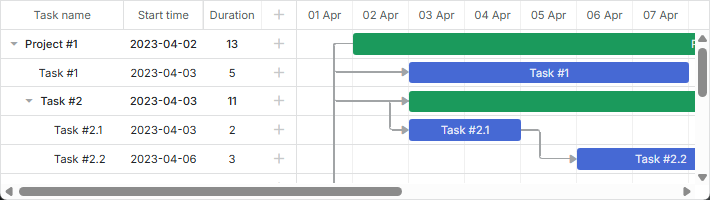
관련 샘플: Basic initialization
Step 1. dhtmlxGantt 패키지 다운로드
튜토리얼을 시작하면서 컴퓨터에 라이브러리 패키지를 받습니다.
다음 내용을 수행하십시오:
- 아직 받지 않았다면 dhtmlxGantt 패키지 여기에서 다운로드하십시오.
- 패키지를 로컬 웹 서버의 루트 디렉터리에 추출합니다. 추출된 파일은 패키지 파일과 같은 이름의 폴더 - dhtmlxGantt에 저장됩니다.
Step 2. dhtmlxGantt 코드 파일 포함
그런 다음 HTML 파일에 dhtmlxGantt 코드 파일을 포함해야 라이브러리의 기능을 사용할 수 있습니다. dhtmlxGantt 코드 파일은:
dhtmlxgantt.jsdhtmlxgantt.css
다음 내용을 수행하십시오:
dhtmlxGantt폴더(해당 파일들이 있는 폴더)에 HTML 파일을 생성하고 예를 들어myGantt.html로 이름을 붙이십시오.- myGantt.html 파일에 dhtmlxGantt 코드 파일을 포함합니다(
codebase폴더에 두 파일이 있습니다). 아래의 myGantt.html을 참조하십시오:
<!DOCTYPE html>
<html>
<head>
  <title>How to Start with dhtmlxGantt</title>
  <script src="codebase/dhtmlxgantt.js"></script> <!-- important -->
  <link href="codebase/dhtmlxgantt.css" rel="stylesheet"> <!-- important -->
</head>
<body>
  <!-- your code will be here -->
</body>
</html>
Step 3. Initializing dhtmlxGantt
그런 다음 DIV 컨테이너를 만들고 그 안에서 dhtmlxGantt를 초기화해야 합니다.
dhtmlxGantt는 정적 객체이며 페이지에서 한 번에만 인스턴스화될 수 있습니다. dhtmlxGantt의 인스턴스를 참조하려면 dhtmlxGantt 또는 간단히 gantt를 사용할 수 있습니다.
- myGantt.html 파일에 DIV 컨테이너를 정의합니다.
gantt.init("gantt_here")명령으로 dhtmlxGantt를 초기화합니다. 매개변수로는 Gantt 차트가 배치될 HTML 컨테이너를 받습니다.
<!DOCTYPE html>
<html>
<head>
   <title>How to Start with dhtmlxGantt</title>
   <script src="codebase/dhtmlxgantt.js"></script>
   <link href="codebase/dhtmlxgantt.css" rel="stylesheet">
</head>
<body>
	<div id="gantt_here" style='width:1000px; height:400px;'></div>
    <script type="text/javascript">
		gantt.init("gantt_here"); /*!*/
	</script>
</body>
</html>
참고로 전체 화면 모드를 사용하는 경우 올바른 동작을 보장하기 위해 현재 스타일을 지정해야 합니다:
<style type="text/css" media="screen">
    html, body{
        margin:0px;
        padding:0px;
        height:100%;
        overflow:hidden;
    }
</style>
Step 4. Gantt 차트에 데이터 로딩
그다음 샘플 데이터 소스의 데이터로 Gantt 차트를 채웁니다. 가장 쉬운 방법으로 inline 객체로 데이터를 지정하는 방식으로 진행합니다. 데이터를 로드하려면 데이터 소스의 이름을 매개변수로 받는 parse 메서드를 사용할 것입니다. 객체의 속성은 다음과 같습니다:
- data - 지정된 gantt 작업
- id - (string, number) 이벤트 ID.
- start_date - (Date) 이벤트가 시작될 예정인 날짜.
- text - (string) 작업 설명.
- progress - (number) 0에서 1 사이의 숫자이며 작업의 완료 비율을 나타냅니다.
- duration - (number) 현재 시간 축의 단위로 표현된 작업 지속 시간.
- parent - (number) 상위 작업의 id.
- links - 지정된 Gantt 의존성 링크
- id-(string, number) 이벤트 ID.
- source-(number) 출발 작업의 id.
- target-(number) 대상 작업의 id.
- type-(string) 의존성의 유형: 0 - 'finish to start', 1 - 'start to start', 2 - 'finish to finish'.
Declare the 'tasks' variable in the myGantt.html file:
var tasks = {
    data:[
        {id:1, text:"Project #1",start_date:"01-04-2013", duration:11,
        progress: 0.6, open: true},
        {id:2, text:"Task #1",     start_date:"03-04-2013", duration:5,
        progress: 1,   open: true, parent:1},
        {id:3, text:"Task #2",   start_date:"02-04-2013", duration:7,
        progress: 0.5, open: true, parent:1},
        {id:4, text:"Task #2.1", start_date:"03-04-2013", duration:2,
        progress: 1,   open: true, parent:3},
        {id:5, text:"Task #2.2", start_date:"04-04-2013", duration:3,
        progress: 0.8, open: true, parent:3},
        {id:6, text:"Task #2.3", start_date:"05-04-2013", duration:4,
        progress: 0.2, open: true, parent:3}
    ],
    links:[
        {id:1, source:1, target:2, type:"1"},
        {id:2, source:1, target:3, type:"1"},
        {id:3, source:3, target:4, type:"1"},
        {id:4, source:4, target:5, type:"0"},
        {id:5, source:5, target:6, type:"0"}
    ]
};
Call the gantt.parse(tasks) command after the gantt.init("gantt_here") line:
gantt.init("gantt_here");
gantt.parse (tasks);/*!*/
관련 샘플: Basic initialization
Step 5. 데이터베이스 생성
데이터베이스 대신 인라인 객체에서 데이터를 로드하고자 한다면 이 내용과 이후 단계를 참고하십시오.
그다음 Gantt 차트의 데이터를 저장하기 위한 데이터베이스를 2개의 테이블로 생성해야 합니다. sortorder은 데이터베이스에서 데이터를 로드하는 동안에만 사용되는 속성입니다. 이 속성은 형제 간의 작업 인덱스를 설정합니다. 다음의 내용을 수행하십시오: 새 데이터베이스의 이름을 - gantt 로 생성합니다. 그 안에 gantt_tasks 와 gantt_links 2개의 테이블을 만들기 위한 코드를 실행합니다.
CREATE TABLE `gantt_links` (
  `id` int(11) NOT NULL AUTO_INCREMENT,
  `source` int(11) NOT NULL,
  `target` int(11) NOT NULL,
  `type` varchar(1) NOT NULL,
  PRIMARY KEY (`id`)
);

CREATE TABLE `gantt_tasks` (
  `id` int(11) NOT NULL AUTO_INCREMENT,
  `text` varchar(255) NOT NULL,
  `start_date` datetime NOT NULL,
  `duration` int(11) NOT NULL DEFAULT 0,
  `progress` float NOT NULL DEFAULT 0,
  `sortorder` int(11) NOT NULL DEFAULT 0,
  `parent` int(11) NOT NULL,
  PRIMARY KEY (`id`)
);
데이터베이스에 값이 비어 있을 때에도 작업을 저장할 수 있도록 하려면 myGantt.html 파일에 다음 코드를 추가하십시오:
gantt.attachEvent("onBeforeTaskAdd", function(id,task){
    task.sortorder = 0;
    return true;
});
Step 6. 데이터베이스에서 데이터 로딩
그다음 차트에 데이터베이스의 데이터를 표시할 수 있도록 해야 합니다. 이를 load 메서드로 수행하며, 데이터 소스로의 URL을 매개변수로 받습니다. 데이터베이스의 경우 서버 측과의 연결을 구현하는 PHP 파일이 됩니다. PHP 플랫폼과 dhtmlxConnector 라이브러리를 사용합니다. 이것이 dhtmlxGantt의 서버 측 로직을 구현하는 가장 쉬운 방법이기 때문입니다. 다음의 내용을 수행하십시오: DhtmlxGantt 폴더에 PHP 파일을 생성하고 예를 들어 data.php로 이름을 지정합니다. data.php 파일을 열고 서버 측 코드를 추가합니다:
<?php

include ('codebase/connector/gantt_connector.php');

$res = new PDO("mysql:host=localhost;dbname=gantt", "root", "");

$gantt = new JSONGanttConnector($res);
$gantt->render_links("gantt_links","id","source,target,type");
$gantt->render_table(
    "gantt_tasks",
    "id",
    "start_date,duration,text,progress,sortorder,parent"
);
?>
myGantt.html 파일로 돌아가서 gantt.config.date_format 속성을 "%Y-%m-%d %H:%i" 로 설정하여 출력 데이터 형식이 dhtmlxGantt의 형식과 호환되도록 합니다.
gantt.config.date_format = "%Y-%m-%d %H:%i";/*!*/
gantt.init("gantt_here");
데이터베이스에서 차트로 데이터를 로드하려면 gantt.load('data.php') 명령을 호출합니다.
gantt.config.date_format = "%Y-%m-%d %H:%i";
gantt.init("gantt_here");
gantt.load('data.php');//loads data to Gantt from the database  /*!*/
데이터베이스 열 매핑
$connector->render_table의 열 순서는 중요합니다. 열 목록의 처음 세 열은 각각 클라이언트 측 작업 객체의 start_date/duration/text 또는 start_date/end_date/text 속성에 매핑됩니다. 어떤 열 이름을 지정하더라도 이 매핑 로직은 변하지 않습니다. 아래에서 매핑 로직을 설명합니다.
두 번째 열은 구성에 'duration'을 지정하면 task.duration에 매핑됩니다:
$gantt->render_table("gantt_tasks","id","Start,duration,Name,progress,parent","");
또는 별칭을 사용하여:
$gantt->render_table("gantt_tasks","id","Start,Length(duration),Name,progress,parent","");
// JS: task.start_date, task.duration, task.text, task.progress, task.parent
다른 열 이름이 설정된 경우 두 번째 열은 end_date 속성에 매핑됩니다:
$gantt->render_table("gantt_tasks","id","Start,End,Name,progress,parent","");
// JS: task.start_date, task.end_date, task.text, task.progress, task.parent
다른 열 매핑
다른 모든 열은 이름 그대로 매핑됩니다:
$gantt->render_table("gantt_tasks","id","start_date,duration,text,custom,parent","");
// JS: task.start_date, task.duration, task.text, task.custom, task.parent
다른 열에도 별칭을 사용할 수 있습니다:
$gantt->render_table("gantt_tasks","id",
    "start_date,duration,text,custom_column(customProperty),parent","");
// JS: task.start_date, task.duration, task.text, task.customProperty, task.parent
Step 7. Updating Data in the Database
그다음 Gantt 차트에서 변경된 내용을 데이터베이스에 저장하는 기능을 제공해야 합니다. 이를 위해서는 데이터 처리 도우미 라이브러리인 을 사용할 것입니다. 필요한 모든 것은 DataProcessor를 초기화하고 이를 dhtmlxGantt 객체에 연결하는 것뿐입니다.
다음의 내용을 수행하십시오:myGantt.html 파일을 열고 dataProcessor("data.php") 명령으로 dhtmlxDataProcessor를 초기화합니다.
dp.init(gantt) 명령으로 dhtmlxDataProcessor 객체를 dhtmlxGantt 객체에 연결합니다.
gantt.init("gantt_here");
gantt.load('data.php');

var dp="new" gantt.dataProcessor("data.php"); /*!*/
dp.init(gantt); /*!*/
오류 로그 남기기
위의 단계를 모두 완료했는데도 작동하지 않는 경우, Gantt의 로깅을 활성화하여 오류를 확인합니다.
먼저, HTML 파일이 위치한 디렉토리에 쓰기 권한이 있는지 확인합니다. 그런 다음 <data.php> 파일에 다음 줄을 추가합니다:
$gantt = new JSONGanttConnector($res);

$gantt->enable_log("log.txt"); /*!*/
그 후에는 log.txt 파일에서 로그를 확인할 수 있습니다.
What's Next?
이로써 기본적이지만 기능적인 Gantt 차트가 데이터베이스에서 데이터를 로드하고 다시 저장할 수 있도록 준비되었습니다. 이제 필요에 맞게 구성하고 맞춤화하십시오.
다음 단계로 읽으시길 권장하는 기사들: