task_end_date
Description
Specifies the format for the end dates of tasks in the lightbox
task_end_date: (date: Date) => string;
Parameters
date- (required) Date - the date which needs formatting
Returns
text- (string) - html text which will be rendered in the gantt
Example
gantt.templates.task_end_date = function(date){
   return gantt.templates.task_date(new Date(date.valueOf() - 1));
};
Details
Setting format for inclusive end dates
The template can be redefined in order to change style of the end dates of tasks in the gantt (i.e. to include the end date in the duration of the tasks).
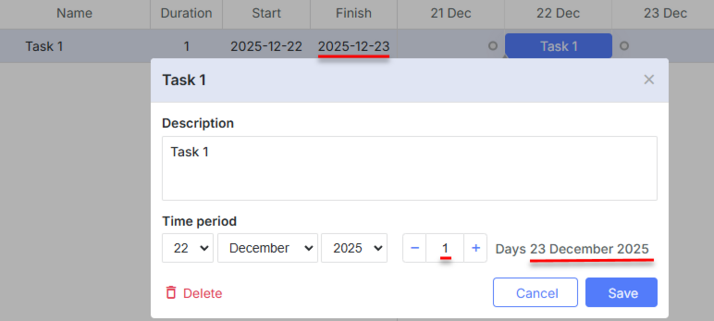
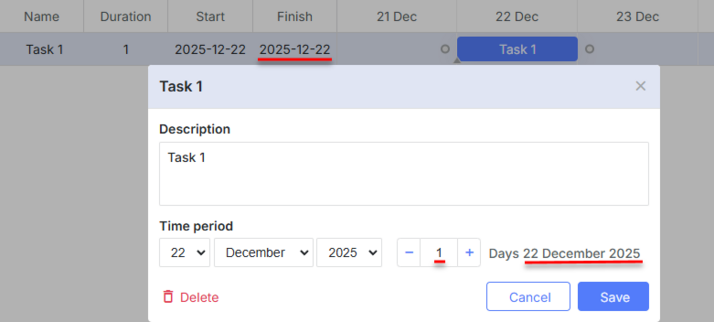
For example, let's consider a task that starts on April 2nd, 2020 and lasts for one day.
By default, the end date of this task will be displayed as April 3rd, 2020 (03-04-2020 00:00:00):
You can change the format of the end date to April 2nd, 2020:
To do this you need to override the columns config, as in:
gantt.config.columns = [
  {name: "wbs", label: "#", width: 60, align: "center", template: gantt.getWBSCode},
  {name: "text", label: "Name", tree: true, width: 200, resize: true},
  {name: "start_date", label: "Start", width:80, align: "center", resize: true},
  {name: "end_date", label: "Finish", width:80, align: "center", resize: true},
  {name:"add"}
];
gantt.templates.task_end_date = function(date){
   return gantt.templates.task_date(new Date(date.valueOf() - 1));
};

var gridDateToStr = gantt.date.date_to_str("%Y-%m-%d");
gantt.templates.grid_date_format = function(date, column){
   if(column === "end_date"){
     return gridDateToStr(new Date(date.valueOf() - 1));
   }else{
     return gridDateToStr(date);
   }
}
gantt.init("gantt_here");
For more details on formatting end dates, see the Task end date display & Inclusive end dates article.
Related API
Related Guides
Need help?
Got a question about the documentation? Reach out to our technical support team for help and guidance. For custom component solutions, visit the Services page.