Work with sheets
Adding a new sheet
To add a new sheet, take the following steps:
-
Choose a sheet tab by clicking on it
-
Click the Add sheet button in the bottom toolbar
Note that a new sheet is added after the currently active sheet.

Removing a sheet
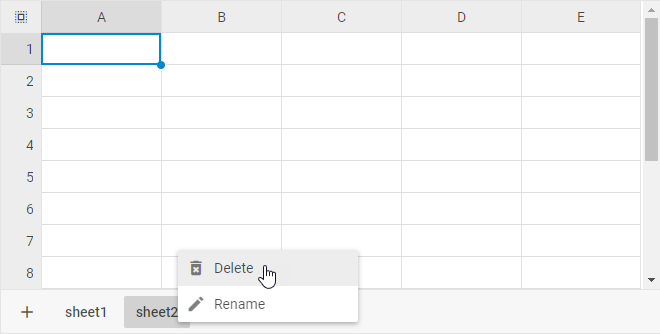
To remove a sheet from the spreadsheet, right-click the sheet tab and choose Delete.
Note that a sheet can't be removed if it is the only sheet in the spreadsheet.
Changing the active sheet
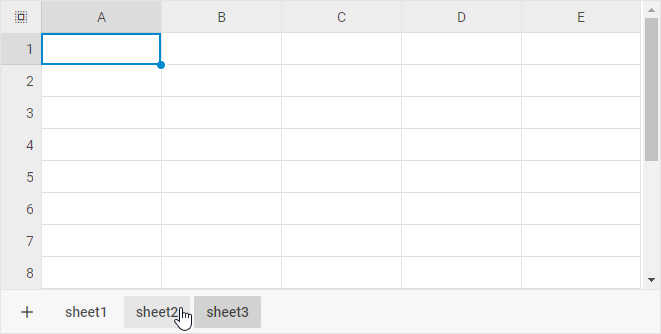
To change the currently active sheet, click a different sheet tab.
Renaming a sheet
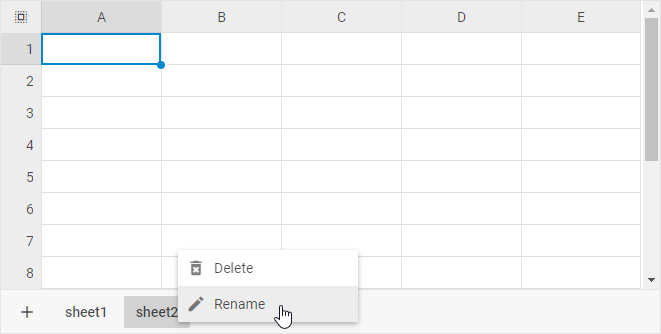
To rename a sheet, right-click the sheet tab, click Rename, and type the new name.
Cross-references between sheets
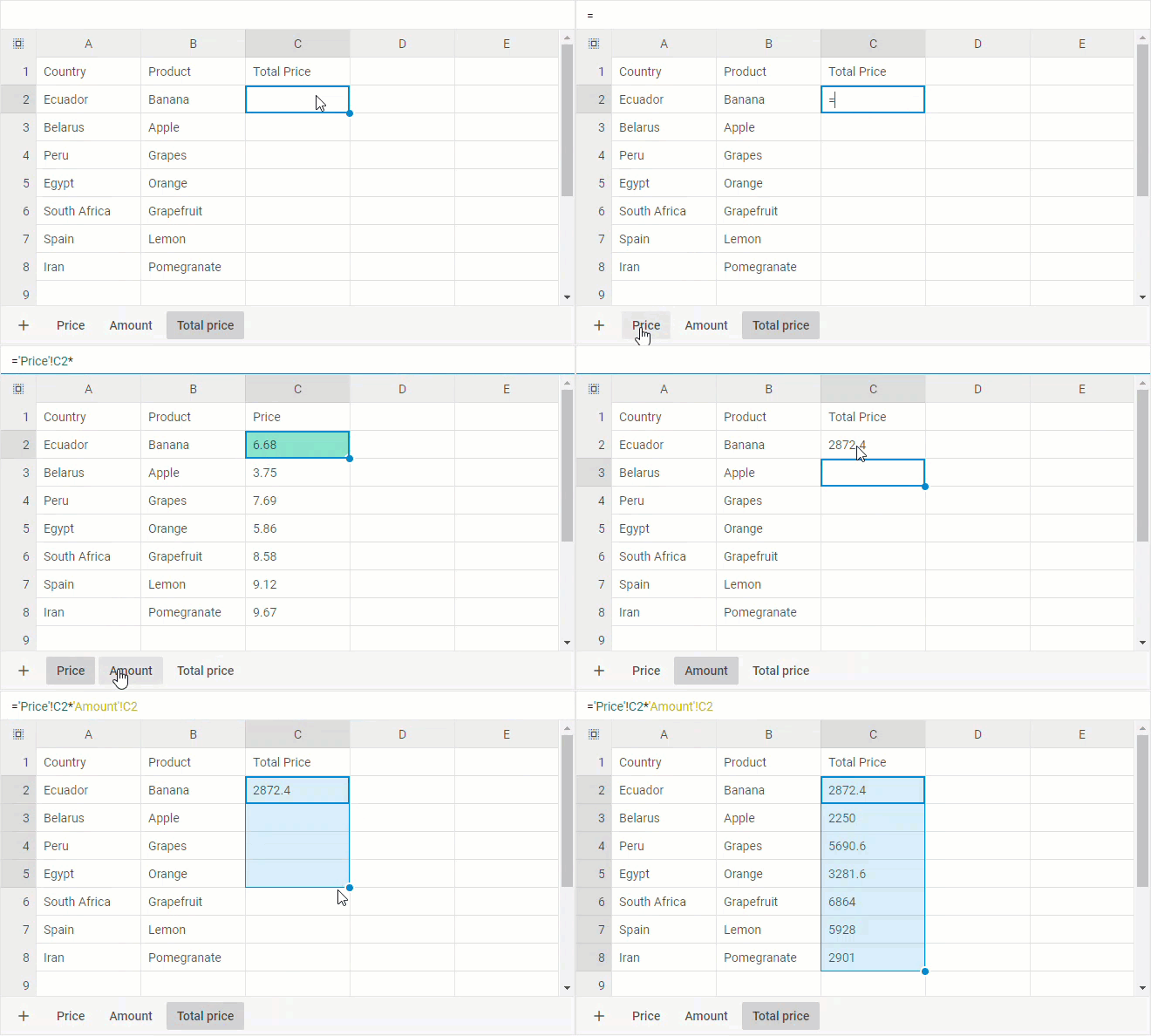
You can consolidate data from multiple sheets into one by using cross-referencing.
For that, take the following steps:
1. Type an equal sign (=) into a cell
2. Click the sheet tab you want to cross-reference and select the cell or range of cells
3. Finish typing the formula and press Enter