Number formatting
DHTMLX Spreadsheet supports number formatting that you can apply to numeric values in cells.
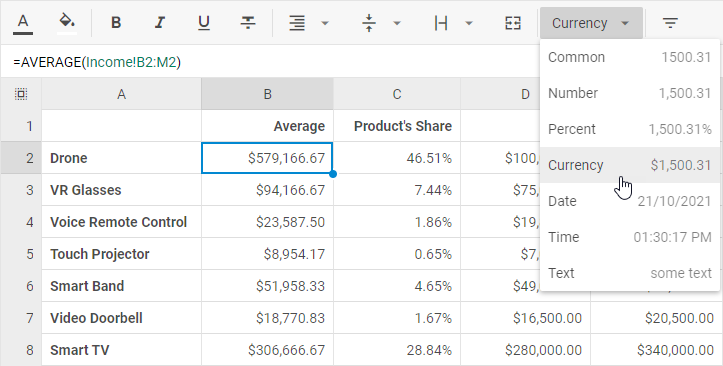
The User Guide makes working with Spreadsheet easy for your users.
Default number formats
A number format is an object that includes a set of properties:
id- the id of a format used to set a format for a cell with thesetFormat()methodmask- a mask for a number format. Check the list of characters available in a mask belowname- the name of a format displayed in the toolbar and menu drop-down listsexample- an example that shows what a formatted number looks like. The number 2702.31 is used as a default value for format examples
The default number formats are the following:
defaultFormats = [
    { name: "Common", id: "common", mask: "", example: "1500.31" },
    { name: "Number", id: "number", mask: "#,##0.00", example: "1,500.31" },
    { name: "Percent", id: "percent", mask: "#,##0.00%", example: "1,500.31%" },
    { name: "Currency", id: "currency", mask: "$#,##0.00", example: "$1,500.31" },
    { name: "Date", id: "date", mask: "mm-dd-yy", example: "28/12/2021" },
    {
        name: "Time",
           id: "time",
           mask: hh:mm:ss am/pm || hh:mm:ss, // depending on the localization.timeFormat config
           example: "13:30:00"
    },
    { name: "Text", id: "text", mask: "@", example: "'1500.31'" },
    { name: "Scientific", id: "scientific", mask: "0.00E+00", example: "1.50E+03" }
];
This is what a spreadsheet with data in various number formats looks like:
Date format
You can define the format for dates displayed in the spreadsheet with the dateFormat option of the localization property. The default format is "%d/%m/%Y".
const spreadsheet = new dhx.Spreadsheet("spreadsheet_container", {
    localization: {
        dateFormat: "%D/%M/%Y",
    }
});

spreadsheet.parse({
    styles: {
        // a set of styles
    },
    data: [
        {cell: "B1", value: "03/10/2022", format: "date"},
        {cell: "B2", value: new Date(), format: "date"},
    ]
});
Check the full list of available characters used to make formats.
Time format
To define the format in which the time should be shown in the spreadsheet cells, use the timeFormat option of the localization property:
const spreadsheet = new dhx.Spreadsheet("spreadsheet_container", {
    localization: {
        timeFormat: 24,
    }
});

spreadsheet.parse({
    styles: {
        // a set of styles
    },
    data: [
        { cell: "A1", value: "18:30", format: "time" },
        { cell: "A2", value: 44550.5625, format: "time" },
        { cell: "A3", value: new Date(), format: "time" },
    ]
});
Number, date, time, currency localization
With Spreadsheet configuration options, you can localize time and date, specify the necessary currency sign and provide the desired decimal and thousands separators. All these settings are available in the localization property. It is an object with the following properties:
decimal- (optional) the symbol used as a decimal separator,"."(a period) by default
Possible values are"." | ","thousands- (optional) the symbol used as a thousands separator,","(a comma) by default
Possible values are"." | "," | " " | ""currency- (optional) the currency sign,"$"by defaultdateFormat- (optional) the format of displaying dates set as a string,"%d/%m/%Y"by default. Check the details at thelocalizationAPI pagetimeFormat- (optional) the format of displaying time set as either12or24,12by default
For example, you can change the default localization settings as shown below:
const spreadsheet = new dhx.Spreadsheet("spreadsheet", {
    localization: {
        decimal: ",",
        thousands: " ",
        currency: "¥",
        dateFormat: "%D/%M/%Y",
        timeFormat: 24
    }
});

spreadsheet.parse(dataset);
Here is the result of configuring the localization object for Spreadsheet:
Scientific number format
Scientific (exponential) notation is available as a default format and is useful for representing very large or very small numbers concisely. The built-in "scientific" format uses the mask 0.00E+00, which displays, for example, 1500.31 as 1.50E+03.
To apply it to a cell, use the setFormat() method:
spreadsheet.setFormat("A1", "scientific");
You can also define a custom scientific format with a different mask via the formats configuration option. For example, 0.###E+0 produces a more compact output:
const spreadsheet = new dhx.Spreadsheet("spreadsheet_container", {
    formats: [
        { id: "scientific_compact", mask: "0.###E+0", name: "Scientific (compact)", example: "1.5E+3" }
    ]
});
Formats customization
You are not limited to the default number formats. You can customize formats in two ways:
- changing the settings of default number formats
- adding custom number formats into spreadsheet
You can make all these modifications with the formats configuration option. It is an array of format objects, each of which contains a set of properties:
id- (string) mandatory, the id of a format used to set a format for a cell with thesetFormat()methodmask- (string) mandatory, a mask for a number format. Check the list of characters available in a mask belowname- (string) optional, the name of a format displayed in the toolbar and menu drop-down listsexample- (string) optional, an example that shows what a formatted number looks like
The structure of a mask
A mask may contain a set of common syntax characters that include digit placeholders, separators, percent and currency signs, valid characters:
- 0 - a digit in the number. Used to display insignificant zeros, if a number has fewer digits than there are zeros in the format. For example, to display 2 as 2.0, use the format 0.0.
- # - a digit in the number. Used to display only significant numbers (insignificant zeros will be omitted, if a number has fewer digits than there are # symbols in the format).
- $ - formats numbers as a dollar value. To use a different currency sign, you need to define it in a mask as [$ your_currency_sign]#,##0.00, for example, [$ €]#,##0.00.
Note that all characters between [$ and ] will be interpreted as a currency sign.
- .(period) - applies a decimal point to numbers.
- ,(comma) - applies a thousands separator to numbers.
- characters for setting a date format - used to create a mask for date and time. For example, to display 27.09.2023 as 27, Sep 2023 use the format "%d, %M %Y".
- E+ / E- - formats numbers in scientific (exponential) notation. The digits after
Edefine the minimum number of exponent digits.E+always shows the exponent sign;E-shows it only for negative exponents. For example, the mask0.00E+00displays 1500.31 as1.50E+03.
Setting format
To apply the necessary format to a numeric value, use the setFormat() method. It takes two parameters:
cell- (string) the id of the cell whose value should be formattedformat- (string) the name of the default number format to apply to the cell value
For example:
// applies the percent format to cell A1
spreadsheet.setFormat("A1","percent");
Getting format
You can retrieve the number format applied to a cell's value with the getFormat() method. The method takes the id of a cell as a parameter.
var format = spreadsheet.getFormat("A1");
// ->"percent"
Events
You can use a pair of events to control cell format changes:
beforeAction- fires before thesetCellFormataction is executedafterAction- fires after thesetCellFormataction is executed