Combo
이 섹션에서는 DHTMLX Combo component에서 제공하는 콤보 박스에 대해 설명합니다.
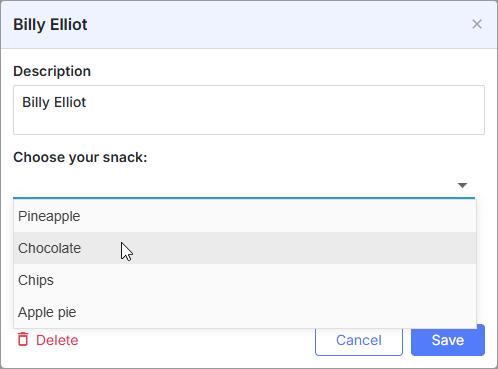
const holders = [
    { key: 1, label: 'James' },
    { key: 2, label: 'Alex' },
    { key: 3, label: 'Antony' },
    { key: 4, label: 'Andrew' }
];

scheduler.locale.labels.section_holder = "Holder";

scheduler.config.lightbox.sections = [
    { name:"description", height:50, map_to:"text", type:"textarea", focus:true },
    { name:"holders", options:holders, map_to:"holders", type:"combo",
    image_path:"../common/dhtmlxCombo/imgs/", height:30, filtering:true},
    { name:"time", height:72, type:"time", map_to:"auto"}
];
초기화
콤보 컨트롤을 라이트박스에 추가하려면 다음 단계를 따르세요:
- dhtmlxCombo 파일 포함:
<script src="../codebase/dhtmlxscheduler.js" ...></script>
<link rel="stylesheet" href="../codebase/dhtmlxscheduler.css" ...>

<link rel="stylesheet" href="common/dhtmlxCombo/dhtmlxcombo.css" ..>
<script src="common/dhtmlxCombo/dhtmlxcombo.js" ...></script>
- 페이지에서 [editors] 확장 활성화:
scheduler.plugins({
    editors: true
});
- 라이트박스 구성에 섹션 추가:
scheduler.config.lightbox.sections = [
    { name:"description", ... },
    { name:"holders", options:holders, map_to:"holders", type:"combo",
    image_path:"../common/dhtmlxCombo/imgs/", height:30, filtering:true},
    { name:"time", ...}
];
- 섹션의 라벨 설정:
scheduler.locale.labels.section_holders = "Holder";
속성
다음 속성은 주로 중요하고 'combo' 컨트롤에 일반적으로 설정됩니다(전체 목록은 여기에서 확인하십시오):
| name | (string) 섹션의 이름 |
| height | (number) 섹션의 높이 |
| map_to | (string) 섹션에 매핑될 데이터 속성의 이름 |
| type | (textarea,time,select,template,multiselect,radio,checkbox,combo) 섹션 컨트롤의 유형 |
| options | (객체 배열) 컨트롤의 선택 옵션을 정의합니다 ('select', 'multiselect', 'radio', 'combo' 컨트롤에 해당). 배열의 각 객체는 단일 옵션을 지정하며 다음 속성을 가집니다:
|
| image_path | (string) dhtmlxCombo 이미지의 경로 |
| filtering | (boolean, string) 자동 필터링 지원을 활성화합니다(타이핑으로 옵션이 필터링됩니다). 선택적 매개변수는 다음 값 중 하나를 가질 수 있습니다:
|
| script_path | (string) 서버 측 스크립트의 경로로, 서버에서 콤보의 옵션을 로드하는 데 사용됩니다. 선택적 |
| cache | (boolean) 스크립트 응답의 캐시를 활성화/비활성화합니다(속성 활성화 권장). 선택적 |
데이터를 사용해 컨트롤 채우기
일반적으로 Combo 컨트롤에 값을 설정하려면 [options] 매개변수를 사용해야 합니다:
scheduler.config.lightbox.sections =
    {
        name:"holders", type:"combo",
        ...
        options:[
            { key: 1, label: 'James' },
            { key: 2, label: 'Alex' },
            { key: 3, label: 'Antony' },
            { key: 4, label: 'Andrew' }
    ]},
    ...
];
options 매개변수의 항목은 2개의 필수 속성을 가져야 합니다:
- key - 옵션의 id
- label - 옵션의 레이블
서버로부터 데이터로 컨트롤 채우기
서버에서 Combo 컨트롤을 채우려면 script_path 속성을 사용하고, 서버 요청을 처리할 서버 측 스크립트의 경로를 지정합니다.
scheduler.config.lightbox.sections = [
    { name: "country", type: "combo", script_path: "data/combo_select", ... },
        ...
];
script_path 속성은 콤보가 옵션을 로드하는 URL을 지정하며, 즉 script_path가 지정되면 콤보는 AJAX를 통해 해당 URL에서 데이터를 로드하려고 합니다.
콤보 선택기는 dhtmlxCombo을 기반으로 하므로, 서버는 해당 형식과 호환되는 데이터를 반환해야 합니다. 콤보에 데이터를 추가하는 방법에 대해서는 [Loading Options] 문서를 참조하십시오.
URL은 두 가지 경우에 요청됩니다:
- 라이트박스가 열리고 콤보에 선택된 값이 있을 때 - 컨트롤은 서버에 요청을 보내 선택된 옵션의 레이블을 로드합니다.
요청에는 id 쿼리 매개변수가 포함됩니다:
GET /url?id="1"
응답은 다음 형식으로 지정된 id를 가진 항목만 포함하는 배열을 반환해야 합니다:
[
   { "value": 1, "text": "Marketing"}
]
- 사용자가 선택 상자 입력에 텍스트를 입력하기 시작하면 컨트롤은 필터링된 값을 로드합니다.
클라이언트는 쿼리의 mask 매개변수에 입력한 텍스트를 포함하여 요청을 보냅니다:
GET /url?mask="al"
서버 응답은 마스크 값과 일치하는 모든 항목을 반환해야 합니다:
[
   { "value": 1, "text": "Albania"},
   { "value": 3, "text": "Algeria"},
]
백엔드 핸들러 예시(Node.js/Express):
app.get("/api/countries", async (req, res) => {
  const { id, mask } = req.query;
  // Query your data source by id or mask
  const items = await countriesService.find({ id, mask });
  res.json(items); // [{ value: 1, text: "Albania" }, ...]
});
Populating a combo box from the server
자동 필터링 모드
자동 필터링 모드는 사용자가 입력할 때 옵션이 자동으로 필터링되는 모드입니다. 모드를 활성화하려면 filtering 속성을 true로 설정합니다:
scheduler.config.lightbox.sections = [
    { name:"holders", type:"combo", filtering:true, ... },
    ...
];
참고: 데이터의 출처(client 또는 server-side)에 관계없이 자동 필터링 모드를 사용할 수 있습니다.
주제에 대한 자세한 내용은 dhtmlxCombo 문서 dhtmlxCombo. Filtering를 참조하십시오.