Task Types
This functionality is available only in the PRO edition.
There are 3 predefined types of tasks that you can present in a Gantt chart (you can also add a custom type):
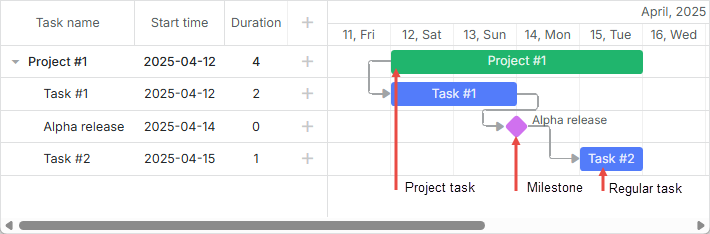
To set the type of a task, use the type property of a data item (values are stored in the types object):
const data = {
    tasks: [
        { id: 1, text: "Project #1", type: "project", open: true },
        { id: 2, text: "Task #1", start_date: "12-04-2025", duration: 3, parent: 1 },
        { id: 3, text: "Alpha release", start_date: "16-04-2025", type: "milestone", parent: 1 },
        { id: 4, text: "Task #2", start_date: "17-04-2025", duration: 3, parent: 1 },
    ],
    links: [
        { id: 1, source: "1", target: "2", type: "1" },
        { id: 2, source: "2", target: "3", type: "0" },
        { id: 3, source: "3", target: "4", type: "0" },
    ],
};
Related sample: Projects and milestones
Regular tasks
By default, dhtmlxGantt provides creating of regular tasks (tasks with type="task").
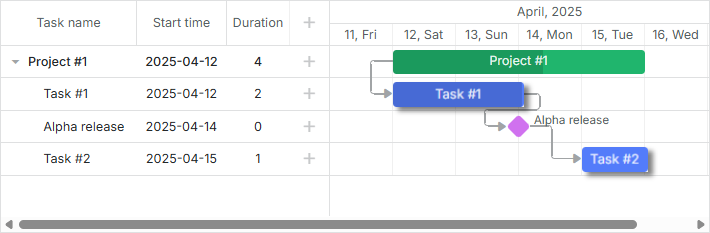
const data = {
    tasks: [
        { id: 2, text: "Task #1", start_date: "12-04-2025", duration: 3, parent: 1 },
    ],
    links: [],
};
//or
const data = {
    tasks: [
        { id: 2, text: "Task #1", start_date: "12-04-2025", duration: 3, parent: 1, type: "task" },
    ],
    links: [],
};
Related sample: Projects and milestones
Tasks with type="task" can be characterized as follows:
- Can have 1 parent and any number of child tasks.
- Can be dragged and resized.
- Doesn't depend on child tasks, i.e. if the user drags a child of a regular task, the task doesn't change its duration or progress respectively.
- Can appear on the parent projects. See details.
- Can be hidden in the timeline. See details.
Project tasks
Project task is a task that starts, when its earliest child task starts, and ends, when its latest child ends.
The difference between project and regular tasks is that the duration of a project task depends on its children and is changed respectively.
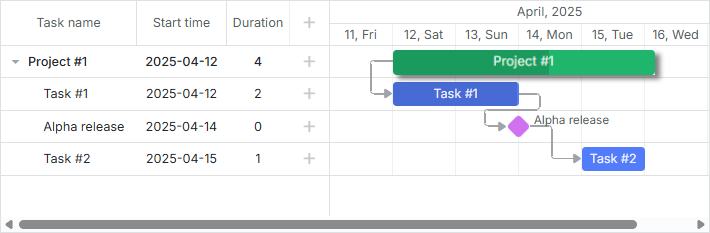
const data = {
    tasks: [
        { id: 1, text: "Project #1", type: "project", open: true },
        { id: 2, text: "Task #1", start_date: "12-04-2025", duration: 3, parent: 1 },
        { id: 3, text: "Alpha release", start_date: "16-04-2025", type: "milestone", parent: 1 },
        { id: 4, text: "Task #2", start_date: "17-04-2025", duration: 3, parent: 1 },
    ],
    links: [],
};
Related sample: Projects and milestones
Tasks with type="project" can be characterized as follows:
- Can have 1 parent and any number of child tasks.
- Cannot be dragged and resized, unless drag and drop is explicitly enabled via the drag_project config.
- Depend on children tasks, i.e. if the user drags a child of a project task, the task changes its duration.
- Ignore the start_date, end_date, duration properties.
- Can't be dragged if have no children tasks.
- Project's progress is specified explicitly and doesn't depend on subtasks by default. If you want it to be calculated automatically you'll have to write code for it. Check the examples.
To provide a possibility of adding project tasks, read article Milestone. A possibility to add milestones guarantees that your end users can add project tasks as well.
Milestones
Milestone is a zero-duration task that is used to mark out important dates of the project (more details).
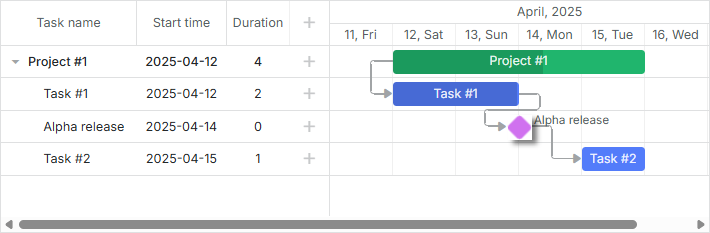
const data = {
    tasks: [
        { id: 3, text: "Alpha release", start_date: "16-04-2025", type: "milestone", parent: 1 },
    ],
    links: [],
};
Related sample: Projects and milestones
Tasks with type="milestone" can be characterized as follows:
- Can have 1 parent and any number of child tasks.
- Cannot be dragged and resized.
- Have zero duration and preserve it all the time.
- Ignore the end_date, duration, progress properties.
- Can appear on the parent projects. See details.
- Can be hidden in the timeline. See details.
To provide a possibility of adding milestones, read article Milestone.
Specific lightbox per task type
Each type of a task has its own set of characteristics. That's why an individual configuration of the details form (lightbox) can be defined for each type. All configurations are stored in the lightbox object.
They are:
- gantt.config.lightbox.sections - for regular tasks.
- gantt.config.lightbox.project_sections - for project tasks.
- gantt.config.lightbox.milestone_sections - for milestones.
The default configuration settings are the following:
gantt.config.lightbox.sections = [
    { name: "description", type: "textarea", map_to: "text", height: 70, focus: true },
    { name: "time", type: "duration", map_to: "auto" }
];

gantt.config.lightbox.project_sections = [
    { name: "description", type: "textarea", map_to: "text", height: 70, focus: true },
    { name: "type", type: "typeselect", map_to: "type" },
    { name: "time", type: "duration", map_to: "auto", readonly: true }
];

gantt.config.lightbox.milestone_sections = [
    { name: "description", type: "textarea", map_to: "text", height: 70, focus: true },
    { name: "type", type: "typeselect", map_to: "type" },
    { name: "time", type: "duration", map_to: "auto", single_date: true }
];
When a user changes the type of a task in the related select, the corresponding configuration is applied to the the lightbox popup and it is updated dynamically.
You can add a custom type and specify an appropriate structure of the lightbox for it as well.
To go into details on a lightbox configuration, you can read the Configuring Edit Form chapter.
Creating a custom type
All tasks' types are defined in the types object.
Generally, to add a custom tasks' type you need to:
- Add a new value to the types object.
- Define individual settings for the new type.
Let's assume, you want to add a new type of tasks - meeting. Meeting will be an ordinary task but colored in different color and with different inputs in the lightbox.
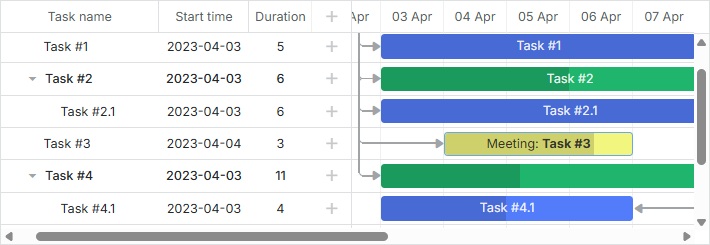
To define a new type with the name meeting and specify an individual lightbox for it, use the following technique:
Add a new type to the types object:
gantt.config.types.meeting = "type_id";
where "meeting" is a programmatic name of the type. It doesn't affect anything. The only purpose of the programmatic type name is to make work with types more readable. "type_id" is the type identifier, that will be stored in the database. The type identifier must be unique within the types object.
Set the label for the new type in the "typeselect" control:
gantt.locale.labels.type_meeting = "Meeting";
Specify a new structure of the lightbox for the newly-created type:
gantt.config.lightbox.meeting_sections = [
    { name: "title", type: "textarea", map_to: "text", height: 20, focus: true },
    { name: "details", type: "textarea", map_to: "details", height: 70 },
    { name: "type", type: "typeselect", map_to: "type" },
    { name: "time", type: "time", map_to: "auto", height: 72 }
];

gantt.locale.labels.section_title = "Subject";
gantt.locale.labels.section_details = "Details";
Specify a style for the new type and apply it using the task_class template:
.meeting_task{
    border:2px solid #BFC518;
    color:#6ba8e3;
    background: #F2F67E;
}

.meeting_task .gantt_task_progress{
    background:#D9DF29;
}
gantt.templates.task_class = (start, end, task) => {
    return task.type === gantt.config.types.meeting
        ? "meeting_task"
        : "";
};
Set the template for text of the "meeting" tasks using the task_text template:
gantt.templates.task_text = (start, end, task) =>
    task.type === gantt.config.types.meeting
        ? `Meeting: <b>${task.text}</b>`
        : task.text;
Related sample: Custom task type
Custom display of task types
To customize the look of existing task types, use the type_renderers option. The options allows you to redefine functions responsible for displaying different tasks types on the page.
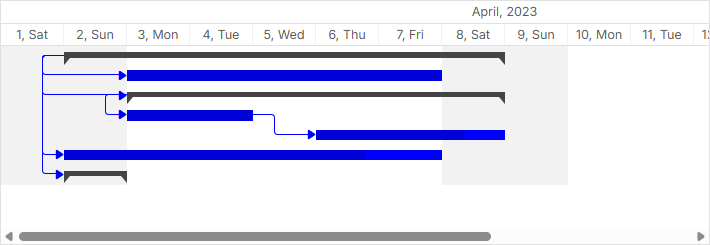
gantt.config.type_renderers["project"] = (task, defaultRender) => {
    const taskBar = document.createElement("div");
    taskBar.setAttribute(gantt.config.task_attribute, task.id);
    taskBar.className = "custom-project";

    const taskSize = gantt.getTaskPosition(task);
    taskBar.innerHTML = [
        "<div className='project-left'></div>",
        "<div className='project-right'></div>"
    ].join('');

    taskBar.style.left = `${taskSize.left}px`;
    taskBar.style.top = `${taskSize.top + 7}px`;
    taskBar.style.width = `${taskSize.width}px`;

    return taskBar;
};
Related sample: Classic Look