autoplacement
Description
Optional. An object with configuration settings for auto-placement of shapes
The autoplacement property works only in the default mode of the editor and only for shapes. It does not work if you use groups or swimlanes.
Usage
autoplacement?: {
    mode?: "direct" | "edges", // "direct" by default
    graphPadding?: number, // 200 by default
    placeMode?: "orthogonal" | "radial", // "orthogonal" by default
    itemPadding?: number, // 20 by default
    levelPadding?: number // 20 by default
};
Parameters
The autoplacement object has the following parameters:
mode- (optional) the mode of connecting shapes,"direct"(by default) or"edges"graphPadding- (optional) sets the distance between unconnected diagrams, 200 by defaultplaceMode- (optional) sets the mode of placement of shapes,"orthogonal"(by default) or"radial"itemPadding- (optional) minimal padding between items (the minimal value is 1), 20 by defaultlevelPadding- (optional) minimal padding between hierarchy levels (the minimal value is 1), 20 by default
Default config
autoplacement: {
    mode: "direct",
    graphPadding: 200,
    placeMode: "orthogonal",
    itemPadding: 20,
    levelPadding: 20
}
Example
const editor = new dhx.DiagramEditor("editor_container", {
    autoplacement: {
        placeMode: "radial",
        mode: "direct",
        itemPadding: 10,
        levelPadding: 10,
        graphPadding: 100
    }
});

editor.parse(data);
Modes of connecting shapes
"direct" mode
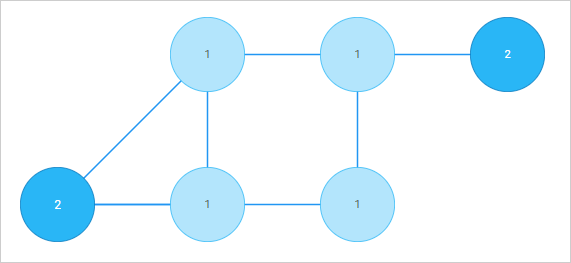
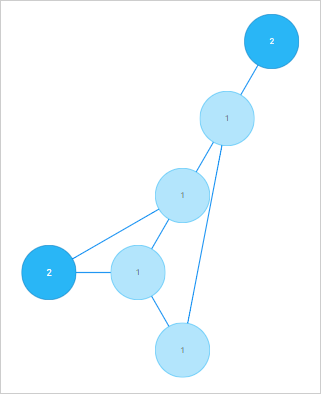
Connector lines with no arrows are aligned "from center to center". They are straight and diagonal.

"edges" mode
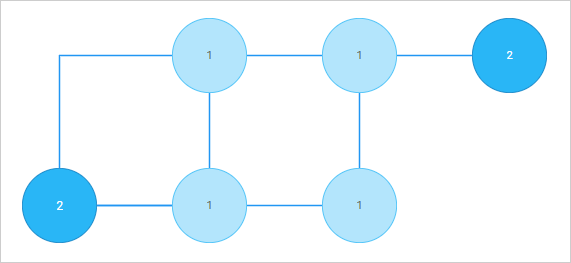
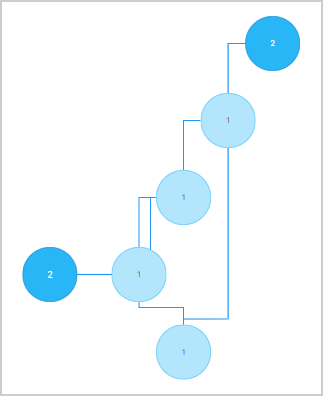
Connector lines are aligned "from side to side".
To add arrows to the lines, specify forwardArrow: "filled" or backArrow: "filled" in the configuration of a line object.
The connector lines in the "edges" mode can be:
- either straight (if you set the
connectType: "straight"property of a line object)

- or 90-degree curved (if you set the
connectType: "elbow"property of a line object)

Modes of placement of shapes
"orthogonal" mode
Shapes are arranged along vertical and horizontal lines
"orthogonal"arrangement with lines in the"direct"mode
"orthogonal"arrangement with lines in the"edges"mode
"radial" mode
Shapes are arranged on imaginary circles relative to the central shape, i.e. the shape with the most connections
"radial"arrangement with lines in the"direct"mode
"radial"arrangement with lines in the"edges"mode
Change log:
- The
itemPaddingandlevelPaddingparameters are added in v6.1.3 - The
placeModeparameter is added in v5.0 - The
autoplacementproperty is added in v3.0
Related sample: Diagram editor. Default mode. Radial auto layout algorithm