Lightbox 操作
获取/设置控件值
要获取或更新某个 section 控件的值,可以像下面这样使用 formSection 对象:
// 获取值
var value = scheduler.formSection('description').getValue();

// 设置值
scheduler.formSection('description').setValue('abc');
Setting/getting values of lightbox's controls
单击打开 Lightbox
你可以配置 Lightbox 通过单击事件打开。可以结合 onClick 事件与 showLightbox 方法实现:
scheduler.attachEvent("onClick", function (id, e){
    scheduler.showLightbox(id);
    return true;
});
Related sample Opening the lightbox on one click
这样配置后,左键单击事件框即可打开 Lightbox。
检查 Lightbox 是否已打开
要判断 Lightbox 当前是打开还是关闭,可以检查 getState 方法返回的 state 对象中的 lightbox_id 属性。 如果 Lightbox 已打开,则返回当前 Lightbox 中事件的 id;否则返回 'null' 或 'undefined':
if (scheduler.getState().lightbox_id){
    // Lightbox 已打开时的处理代码
} else {
    // Lightbox 已关闭时的处理代码
}
映射事件对象属性到 Lightbox section
要将事件对象的属性映射到 Lightbox 的 section,请按以下步骤操作:
- 确保你的数据源以支持的格式提供事件数据
{
   "data":[
      {
          "id":"1",
          "start_date":"2019-03-02 00:00:00",
          "end_date":"2019-03-04 00:00:00",
          "text":"Graduation ceremony",
          "type":"1",
          "location":"London"
      },
      ...
   ]
}
注意,数据源返回的所有属性都会被添加到事件对象中,并可通过客户端 API访问。
- 要将 Lightbox 控件映射到特定属性,请在 section 配置中设置 map_to 属性为事件属性名:
scheduler.config.lightbox.sections="["
    {name:"description", height:70, map_to:"text", type:"textarea" , focus:true},
    {name:"locationInput", height:35, map_to:"location", type:"textarea" },
    {name:"typeSelect", map_to:"type", type:"select", options:scheduler.serverList("types")},
    {name:"time", type:"time", map_to:"auto"}
];
time 和 recurring 控件是例外,它们始终映射到固定属性(分别是 event.start_date/event.end_date 和 event.rec_type/event.event_length/event.event_pid)。
Time 控件的自动结束日期
要设置默认事件时长,并让结束日期自动更新以保持该时长,请配置以下属性:
// 指定 auto_end_time 参数的事件时长(分钟)
scheduler.config.event_duration = 60;
scheduler.config.auto_end_date = true;
这样,当用户在 Lightbox 中更改事件的开始时间或日期时,结束时间和日期会自动调整,以保持事件时长为 60 分钟(由 event_duration 选项指定)。
设置 Lightbox 控件的默认值
要为 Lightbox section 指定默认值,可以使用该 section 的 default_value 属性。
例如,如果你添加了一个自定义的事件地点 section 并命名为 'Location',默认情况下新建事件时它是空的。要让其默认显示某个地址(如格林威治天文台),可以这样配置 Lightbox:
scheduler.config.lightbox.sections = [
    { name:"description", height:50, map_to:"text", type:"textarea", focus:true },
    { name:"location", height:43, map_to:"event_location", type:"textarea",
    default_value:"Blackheath Avenue London,Greenwich,Greater London SE10 8XJ,UK"},
    { name:"time", height:72, type:"time", map_to:"auto"}
];
请注意,default_value 设置的是 Lightbox section 的默认内容,而不是新事件的默认值。也就是说,新事件只有在打开 Lightbox 并保存后才会获得该值。
如果需要在创建新事件时直接赋予默认值,可以使用 onEventCreated 事件:
scheduler.attachEvent("onEventCreated", function(id,e){
    scheduler.getEvent(id).location = 'Blackheath Avenue London, Greenwich...';
    scheduler.updateEvent(id); // 渲染更新后的事件
    return true;
});
更改日期时间控件顺序及移除时间选择器
你可以通过设置 time_format 属性,重新排列或省略"时间区间"section中的日期时间控件:
scheduler.config.lightbox.sections="["
  {name:"description", height:130, map_to:"text", type:"textarea" , focus:true},
  {name:"time", ..., time_format:["%H:%i","%m","%d","%Y"]}
];
注意,这只会更改数组中元素的顺序,不会修改数据的显示格式。
例如,你可以这样调整格式:
// 默认
time_format:["%H:%i", "%m", "%d", "%Y"]
// 月份优先
time_format:["%m","%d", "%Y", "%H:%i"]
// 省略年份选择器
time_format:["%H:%i", "%m", "%d"]
// 错误用法
time_format:["%H:%i", "%M", "%d", "%Y"] // "%m" 错误写成了 "%M"
只读模式
关于只读模式的更多信息,请参见 읽기 전용 모드 章节。
针对某些事件隐藏 section
如果要针对特定事件隐藏某个 section,可以重写其 set_value 方法,例如:
scheduler.form_blocks.textarea.set_value="function(node,value,ev){"
    node.firstChild.value="value||""";
    var style = ev.some_property?"":"none";
    node.style.display="style;" // 编辑区域
    node.previousSibling.style.display="style;" // section 标题
    scheduler.setLightboxSize(); // 相应调整 Lightbox 大小
}
"全天事件"选项
要在 Lightbox 中启用"全天事件"选项,只需将 full_day 选项设置为 true:
scheduler.config.full_day = true;
启用后,Time period section 左侧会出现 Full Day 复选框。勾选后,该 section 内所有输入字段将被禁用,事件时长自动设置为全天--从当前单元格日期的 0:00 AM 到次日 0:00 AM。
Lightbox 类型
Lightbox 提供两种样式:
- 标准(宽)
- 简洁
在默认皮肤下,仅支持标准(宽)Lightbox;而 'glossy' 或 'classic' 皮肤可以选择两种样式。
要选择所需类型,请使用 wide_form 属性:
scheduler.config.wide_form = true;
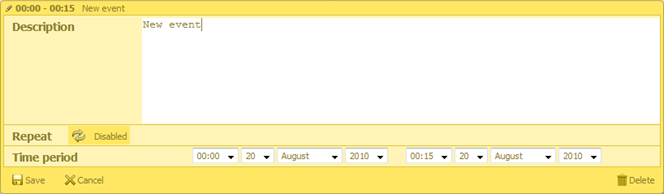
标准(宽)Lightbox:
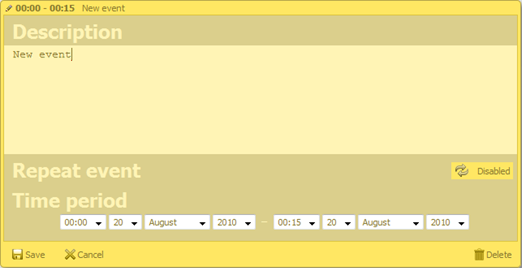
简洁表单:
Section 标题中的按钮
你可以按如下步骤,在 section 标题中添加自定义按钮:
- 在 section 对象中添加 'button' 属性:
{name:"description", height:130, map_to:"text", type:"textarea", button:"help"}
- 定义按钮的标签文本:
// 'help' 对应 'button' 属性的值
scheduler.locale.labels.button_help = "Help label";
- 提供按钮点击的处理函数:
scheduler.form_blocks.textarea.button_click="function(index,button,shead,sbody){"
    // 你的自定义代码
}
其中:
- index - (number) section 的从零开始的索引
- button - (HTMLElement) 按钮元素
- shead - (HTMLElement) section 标题元素
- sbody - (HTMLElement) section 内容元素
你可以通过以下 CSS 类自定义按钮图片:
.dhx_custom_button_help{
    background-image:url(imgs/but_help.gif);
}
关联下拉控件
Lightbox 内的下拉控件可以相互依赖。通过 select 控件的 onchange 属性 实现,如下所示:
var update_select_options = function(select, options) { // 辅助函数
    select.options.length = 0;
    for (var i="0;" i<options.length; i++) {
        var option = options[i];
        select[i] = new Option(option.label, option.key);
    }
};

var parent_onchange = function(event) {
    var new_child_options = child_select_options[this.value];
    update_select_options(scheduler.formSection('child').control, new_child_options);
};
scheduler.attachEvent("onBeforeLightbox", function(id){
    var ev = scheduler.getEvent(id);
    if (!ev.child_id) {
        var parent_id = ev.parent_id||parent_select_options[0].key;
        var new_child_options = child_select_options[parent_id];
        update_select_options(
            scheduler.formSection('child').control, new_child_options
        );
    }
    return true;
});

scheduler.config.lightbox.sections="["
    ...
    {name:"parent", height:23, type:"select", options: parent_select_options,
     map_to:"parent_id", onchange:parent_onchange },
    {name:"child", height:23, type:"select", options: child_select_options,
     map_to:"child_id" }
    ...
];
Linking select controls in the lightbox
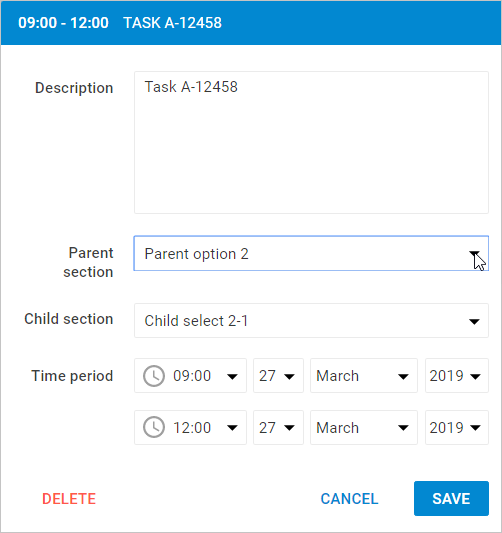
当用户在父 section 选择不同选项时,onchange 事件会触发,从而更新子 section 的选项。
动态更改 Lightbox section
你可以动态修改 Lightbox section,也就是说,可以根据不同配置隐藏、禁用或显示 Lightbox 的不同部分。
可以通过 resetLightbox() 方法实现。具体步骤如下:
- 首先,定义两个数组,分别表示 Lightbox 的不同控件集合。
var full_lightbox = [
    { name: "description", height: 200, map_to: "text", type: "textarea", focus: true},
    { name: "hidden", height: 23, map_to: "hidden", type: "textarea"},
    { name: "time", height: 72, type: "time", map_to: "auto"}
];
var restricted_lightbox = [
    { name: "description", height: 200, map_to: "text", type: "textarea", focus: true},
    { name: "time", height: 72, type: "time", map_to: "auto"}
];
- 然后,实现如下逻辑:
- 在打开新 Lightbox 之前,调用 resetLightbox() 方法,清除当前控件,并创建新的 Lightbox 配置。
- 通过事件 id 获取事件对象,并根据条件决定使用哪种 Lightbox 配置。以下示例以 "restricted" 属性作为判断条件。
scheduler.attachEvent("onBeforeLightbox", function(event_id) {
    scheduler.resetLightbox();
    var ev = scheduler.getEvent(event_id);
    scheduler.config.lightbox.sections = (ev.restricted) ?
        restricted_lightbox : full_lightbox;
    return true;
});
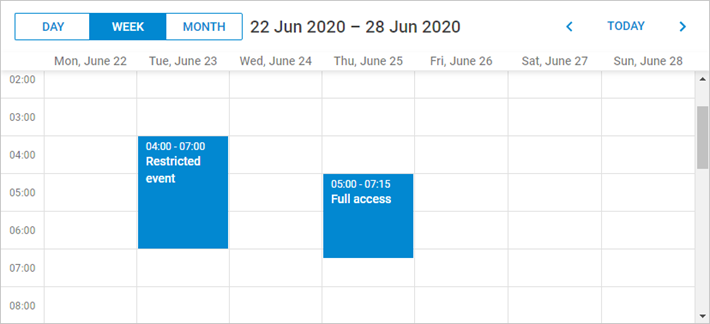
- 事件的 'restricted' 属性决定是否使用 "restricted_lightbox" 配置。如果未设置,则显示完整 Lightbox。
scheduler.init('scheduler_here', new Date(2017, 5, 30), "week");
scheduler.parse([
    { start_date: "2017-06-27 04:00", end_date: "2017-06-27 7:00",
        text: "Restricted event", hidden: "You won't see me", restricted: true },
    { start_date: "2017-06-29 05:00", end_date: "2017-06-29 11:00",
        text: "Full access", hidden: "Hidden text" }
]);