DHTMLX Optimus framework
DHTMLX Optimus is a component-oriented framework for building DHTMLX-based apps. The framework simplifies app development in the following ways:
- It helps you organize application code in a single, structured, intuitive style.
- It provides tools to exchange data and events between application parts and the external environment, such as a server or external services.
- It can automatically manage the life cycle of app components, for example, free up unused memory.
The framework enforces consistent application structure by breaking a monolithic application into a set of reusable classes. As a result, you can develop and test each part of an app independently and use the parts in various combinations.
DHTMLX Optimus is a fully client-side solution with no special server requirements. You can use any REST backend, such as PHP, Node.js, .NET, or Java.
General idea
DHTMLX Optimus uses the following modern approaches to web development:
- ES6 classes and JavaScript modules
- Splitting the application into views
- Data transfer and the view life cycle
Each module describes a part of the UI (a single view). You can use regular DHTMLX code inside the module to initialize a single component. Top-level modules can combine multiple views. You can also use the app itself as a view.
The framework provides a common event bus for communication between views, as well as helpers for common DHTMLX tasks.
How to start
The best way to start working with the DHTMLX Optimus framework is to create a simple application.
Set up the environment
Configure the environment for your project.
You can use a ready-made project with preconfigured settings from GitHub. To run the project on the local server, use the following commands:
npm install
npm start
In other cases, add DHTMLX Optimus to your own project with the npm package manager. Run the following commands in your project directory:
- Install
dhx-optimus:
npm i dhx-optimus
- Install the
dhx-optimus-storestate manager:
npm i dhx-optimus-store
DHTMLX Optimus requires the DHTMLX Suite library files as dependencies. Add the JS and CSS files of DHTMLX Suite to your project so that DHTMLX Optimus works correctly.
Create an application
Run the project on the local server and open http://localhost:8080/ in your browser. You see the following result:
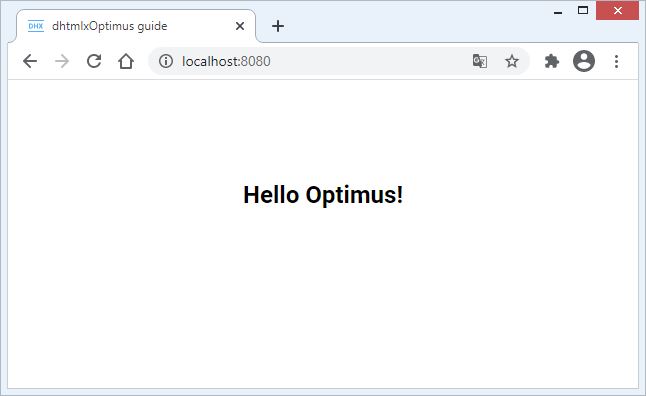
We've created the demo application in the following steps:
1. We've created a new index.html file in the src folder and defined a container to render the app in:
<!DOCTYPE html>
<html lang="en">
    <head>
        <title>dhtmlxOptimus guide</title>
    </head>
    <body>
        <!-- Create a container with the unique id -->
        <section id="app" class="main__container"></section>
    </body>
</html>
2. We've created an index.js file, the entry point of the app:
import "./assets/css/index.css"; // import css styles
import { App } from "dhx-optimus";

export class MyApp extends App {}
The MyApp class extends the App class imported from the dhx-optimus library and renders the application.
3. We've added the first view. For that, we've created the TopLayout.js file in the views folder:
We recommend starting the name of a view file with a capital letter, for example, TopLayout.js. This is common practice.
import { View } from "dhx-optimus";

export class TopLayout extends View {
    init() {
        return `<h1>Hello Optimus!</h1>`;
    }
}
The TopLayout class extends the View class imported from the dhx-optimus library. To create the initial view, the init() method returns an HTML element.
4. To render the new view, we've imported it into the index.js file and rendered it with the show() method:
import "./assets/css/index.css";

import { App } from "dhx-optimus";
import { TopLayout } from "./views/TopLayout";

export class MyApp extends App {
    init() {
        this.show(null, TopLayout);
    }
}
For more details, see the API methods below.
5. We've initialized the application in the index.html file:
<!DOCTYPE html>
<html lang="en">
    <head>
        <title>dhtmlxOptimus guide</title>
        <!-- Suite -->
        <script type="text/javascript" src="https://cdn.dhtmlx.com/suite/edge/suite.js"></script>
        <link rel="stylesheet" href="https://cdn.dhtmlx.com/suite/edge/suite.css" />
        <!-- App -->
        <script type="text/javascript" src="./app.js"></script>
        <link rel="stylesheet" href="./app.css" />
    </head>
    <body>
        <section id="app" class="main__container"></section>
        <script>
            const app = new optimusguide.MyApp();
            app.render("#app");
        </script>
    </body>
</html>
This code does the following:
- We've included a free version of DHTMLX from our CDN. DHTMLX Optimus needs the DHTMLX Suite files as dependencies to work correctly.
- We've included the
app.jsandapp.cssfiles to configure webpack. - We've initialized the app with the
render()method, which takes the ID of the container as a parameter.
To learn the principles of development with DHTMLX Optimus in depth, follow the step-by-step guide. The guide suits both experienced developers and beginners in JavaScript and DHTMLX.
Application structure
To create a structure of your own app, extend the existing classes. DHTMLX Optimus contains three main classes:
App class
The App class is the main class of the application.
Note the following:
- To create a new app class, extend the
Appclass. - The
init()method defines the initial view to show. - The
show()method renders the main view of the app.
import { App } from "dhx-optimus";
import { TopLayout } from "./views/TopLayout";

export class MyApp extends App {
    init() {
        this.show(null, TopLayout);
    }
}
View class
The View class is a base class that lets you create visual components and arrange them hierarchically, add Suite widgets, and pass data to child components.
To build an application with the structure you need, connect different views and set the hierarchy of components on a page.
Note the following:
- A new view class extends the
Viewclass. - The
init()method returns a view either as an HTML element or as a DHTMLX widget. - Optimus calls the
ready()method after it renders the view to the DOM. Use this method to add your own logic. The method gets the HTML container of the rendered view as a parameter. - DHTMLX Optimus destroys views automatically. Use the
destroy()method to clean up your own logic when Optimus destroys a view.
The following examples show different kinds of views:
- A view returned as an HTML element:
import { View } from "dhx-optimus";

export class TopLayout extends View {
    init() {
        return `<h1>Hello Optimus!</h1>`;
    }
    ready(root) {
        console.log(`This root container:`, root);
    }
}
As a result, the console shows the parent container of the view:
<section id="app" class="main__container">
    <h1>Hello Optimus!</h1>
</section>
- A view returned as a DHTMLX widget:
import { View } from "dhx-optimus";

export class DataView extends View {
    init() {
        this.dataView = new dhx.DataView(null, {
            data: this.params.dataCollection,
            itemsInRow: 2,
            gap: 20,
            template: ({ name, post }) => `
                <div className="personal-card">
                    <div className="personal-card__container">
                        <h3>${name}</h3>
                        <p>${post}</p>
                    </div>
                </div>
            `,
        });
        return this.dataView;
    }
}
This example initializes the DHTMLX DataView widget and returns it as a view.
- A view returned as a DHTMLX widget that contains several views:
import { View } from "dhx-optimus";

import { ToolbarView } from "./ToolbarView";
import { DataView } from "./content/DataView";

export class TopLayout extends View {
    init() {
        this.layout = new dhx.Layout(null, {
            rows: [
                {
                    id: "toolbar",
                    height: "content",
                    init: cell => this.show(cell, ToolbarView),
                },
                {
                    id: "content",
                    init: cell => this.show(cell, DataView, {
                        dataCollection: this.params.persons,
                    }),
                },
            ],
        });
        return this.layout;
    }
}
The DHTMLX Layout component has the init property. This property lets you show a view in the specified layout cell with the show() method in a short form.
You can create any number of views for your app and render them in DHTMLX Layout cells. For details on the API and useful properties of DHTMLX widgets, see below.
Component class
The Component class is a service class for additional app logic that does not render anything. A new component class extends the Component class.
A class that extends the Component class can do the following:
- Use the event bus of the app
- Exchange data
- Destroy events automatically
The following example shows a component based on DHTMLX Uploader:
import { Component } from "dhx-optimus";

export default class Uploader extends Component {
    init() {
        this.uploader = new dhx.Uploader({
            target: this.params.target,
        });
        ...
    }
}
In this code:
- The
init()method returns nothing. - The parent component passes the additional
this.params.targetparameter.
The Component class also provides access to app events with the fire() and on() methods. See more details below.
The following example shows how to use a class that extends the Component class. Call it in a class that extends the App class with the use() method:
import { App } from "dhx-optimus";

import TopLayout from "./views/TopLayout";
import Uploader from "./components/Uploader";

export class FileExplorer extends App {
    init() {
        ...

        this.show(null, TopLayout, { folders: this.folders });
        this.use(Uploader, { target: "./backend/upload"});

        ...
    }
}
Subscribe to global events
Subscribe to a global event to track changes made in a component. Register an event handler in the global event bus and define a function that runs when the event fires.
In the following example, the view shows different content depending on the button selected in the toolbar. The example uses the global event bus for that.
To subscribe to the global viewChange event, use the this.on() method:
import { View } from "dhx-optimus";

import { ToolbarView } from "./ToolbarView";
import { EmptyView } from "./EmptyView";

export class TopLayout extends View {
    init() {
        return (this.layout = new dhx.Layout(null, {
            rows: [
                {
                    id: "toolbar",
                    height: "content",
                    init: cell => this.show(cell, ToolbarView),
                },
                {
                    id: "content",
                    init: cell => this.show(cell, EmptyView),
                },
            ],
        }));
    }

    ready() {
        this.on("viewChange", id => {
            this.show(this.layout.getCell("content"), EmptyView, { content: id });
        });
    }
}
The event handler changes the views with the this.show() method.
To call the viewChange event, use the this.fire() method:
import { View } from "dhx-optimus";

export class ToolbarView extends View {
    init() {
        return (this.toolbar = new dhx.Toolbar(null, {
            css: "toolbar",
            data: [
                {
                    type: "spacer",
                },
                {
                    id: "first",
                    value: "First",
                    group: "views",
                },
                {
                    id: "second",
                    value: "Second",
                    group: "views",
                },
                {
                    id: "third",
                    value: "Third",
                    group: "views",
                },
                {
                    type: "spacer",
                },
            ],
        }));
    }

    ready() {
        this.toolbar.events.on("click", id => {
            this.fire("viewChange", [id]);
        });
    }
}
Whenever the user clicks a toolbar button, the code calls the this.fire() method, and the handler runs.
Also pass the changed state to the child component:
import { View } from "dhx-optimus";

export class EmptyView extends View {
    init() {
        return `
            <div className="empty__container">
                This is the ${this.params.content || "empty"} view
            </div>`;
    }
}
Now, when the user clicks a toolbar button, the view displays the related content.
Global events are available from any point of the application. For example, the App class can also handle the viewChange event:
import { App } from "dhx-optimus";
import { TopLayout } from "./views/TopLayout";

export class MyApp extends App {
    init() {
        this.show(null, TopLayout);

        this.on("viewChange", id => {
            console.log("You clicked on:", id);
        });
    }
}
Passing data to child components
You can pass data from parent components to child components. This lets you configure child components in the context of their parents or change the child configuration depending on the parent state.
Consider the code snippet from the previous section:
import { View } from "dhx-optimus";

...

export class TopLayout extends View {
    init() {
        ...
    }

    ready() {
        this.on("viewChange", id => {
            this.show(this.layout.getCell("content"), EmptyView, { content: id });
        });
    }
}
We've added a handler for the viewChange event of the global event bus. When the id changes, the handler calls the show(target, view, params) method. The method takes three parameters. The last one passes an object with the necessary parameters to the child view. For example:
this.show(this.layout.getCell("content"), EmptyView, { content: id });
The child component gets this parameter from this.params:
import { View } from "dhx-optimus";

export class EmptyView extends View {
    init() {
        return `
            <div className="empty__container">
                This is the ${this.params.content} view
            </div>`;
    }
}
Initialize the global app state
You can also use the App class to exchange data between components. For that, initialize Observable Store, which manages the global state of the application. To access the state, create a global store and subscribe to its changes.
The following example shows how to create a global store, retrieve its state, and use it in your app.
The code below is part of the application sample. The full code is available on GitHub.
First, we've initialized the global state of the app in the App class: we've created the global store and subscribed to its changes. To retrieve the current state of the store, we've used the getState() method.
import { App } from "dhx-optimus";
import Store from "dhx-optimus-store";

import { TopLayout } from "./views/TopLayout";

const initialState = {
    active: "first",
};

export class MyApp extends App {
    init() {
        // create a global store
        this.store = new Store(initialState);
        this.params.store = this.store;
        this.state = this.store.getState();

        this.show(null, TopLayout);

        // subscribe to Store changes
        this.on("viewChange", id => {
            this.state.active = id;
        });
    }
}
Then, we've used the toolbar view to change the state. The fire() method calls the handler each time the user clicks a toolbar button:
import { View } from "dhx-optimus";

export class ToolbarView extends View {
    init() {
        return (this.toolbar = new dhx.Toolbar(null, {...}));
    }

    ready() {
        this.observe(
            state => state.active,
            active => {
                this.toolbar.data.update(active, { active: true });
            }
        );

        this.toolbar.events.on("click", id => {
            this.fire("viewChange", [id]);
        });
    }
}
This code works as follows:
- Each time the user clicks a toolbar button, the
fire()method calls theviewChangeevent in theToolbarViewclass. - The
fire()method receives the id of the clicked toolbar button. - The
MyAppclass changes the app state when the globalviewChangeevent fires. - The
activeglobal state gets the id of the toolbar button as the current state of the app.
The observe() method lets you asynchronously observe changes made to the global store from any point of the application:
import { View } from "dhx-optimus";

import { ToolbarView } from "./ToolbarView";
import { EmptyView } from "./EmptyView";

export class TopLayout extends View {
    init() {
        return (this.layout = new dhx.Layout(null, {...}));
    }

    ready() {
        this.observe(
            state => state.active,
            active => {
              this.show(this.layout.getCell("content"), EmptyView, {content: active});
            }
        );
    }
}
Work with Suite widgets
With Optimus, you can build your app based on DHTMLX Suite components.
To create your first app with DHTMLX Optimus, follow the step-by-step guide.
DHTMLX Optimus destroys components and events automatically, so you don't need to manage the component life cycle.
This small and fast microframework makes building DHTMLX-based apps easier and faster. Follow the main principles of working with Optimus described below.
Initialization of the DHTMLX Suite components
In most cases, a view based on a Suite component looks like this:
import { View } from "dhx-optimus";

export class CalendarView extends View {
    init() {
        return new dhx.Calendar(null, {
            value: new Date,
        });
    }
    ready() {
        console.log("Calendar is ready");
    }
    destroy() {
        console.log("Calendar is destroy");
    }
}
In this example, we've initialized a view that returns DHTMLX Calendar.
This code works as follows:
- The
init()method returns the configured DHTMLX Calendar. - Optimus calls the
ready()method after it renders the view in the DOM tree. You can implement your own logic there: the component is already rendered. - Optimus calls the
destroy()method after it removes the view from the DOM tree. At this moment, Optimus destroys both the DHTMLX components and the events related to the view. You can also add your own logic here, if needed.
Initialization of the DHTMLX Window component
A view based on DHTMLX Window is similar to views based on other Suite components. The only difference is how you render the view.
The following example creates a view based on DHTMLX Window and renders it in the TopLayout view.
Initialize the DHTMLX Window component in the same way as other components:
import { View } from "dhx-optimus";

export class WindowView extends View {
    init() {
        return this.window = new dhx.Window({
            title: "DHX Window",
            resizable: true,
            movable: true
        });
    }
    ready() {
        console.log("DHX Window is ready");
    }
    destroy() {
        console.log("DHX Window is destroy");
    }
}
To render the view based on DHTMLX Window, pass null as the first parameter of the show() method:
import { View } from "dhx-optimus";
...
import { WindowView } from "./WindowView";
...
export class TopLayout extends View {
    init() {
        return (this.layout = new dhx.Layout(null, {...}));
    }

    ready() {
        ...
        this.show(null, WindowView);
    }
}
To listen to changes in the global state, update the WindowView code and use the observe() method. As a result, the window appears when the user switches to the second page of the app:
import { View } from "dhx-optimus";

export class WindowView extends View {
    init() {
        return this.window = new dhx.Window({ ... });
    }
    ready() {
        console.log("DHX Window is ready");
        this.observe(
            state => state.active,
            active => {
                if (active === "second") {
                    this.window.show();
                } else {
                    this.window.hide();
                }
            }
        );
    }
    destroy() { ... }
}
This way, you can display a view based on DHTMLX Window in any other view.
Initialization of the DHTMLX Layout component
You can render a view with the show() method in three ways. One of them renders the view directly in the DHTMLX Layout component:
1. Call the show() method for each layout cell:
import { View } from "dhx-optimus";

import { ToolbarView } from "./ToolbarView";
import { EmptyView } from "./EmptyView";

export class TopLayout extends View {
    init() {
        this.layout = new dhx.Layout(null, {
            rows: [
                {
                    id: "toolbar",
                    height: "content",
                },
                {
                    id: "content",
                }
            ]
        });

        this.show(this.layout.getCell("toolbar"), ToolbarView);
        this.show(this.layout.getCell("content"), EmptyView);

        return this.layout;
    }
}
2. Call the show() method right in the layout configuration with the init option. The option gets the current Layout cell as a parameter. Use this way for a static layout where views do not change.
import { View } from "dhx-optimus";

import { ToolbarView } from "./ToolbarView";
import { EmptyView } from "./EmptyView";

export class TopLayout extends View {
    init() {
        return new dhx.Layout(null, {
            rows: [
                {
                    id: "toolbar",
                    height: "content",
                    init: cell => this.show(cell, ToolbarView),
                },
                {
                    id: "content",
                    init: cell = this.show(cell, EmptyView)
                }
            ]
        });
    }
}
3. Combine the two ways above if you need to change views in a Layout cell:
import { View } from "dhx-optimus";

import { ToolbarView } from "./ToolbarView";
import { DataView } from "./content/DataView";
import { ChartView } from "./content/ChartView";
import { GridView } from "./content/GridView";

export class TopLayout extends View {
    init() {
        return (this.layout = new dhx.Layout(null, {
            rows: [
                {
                    id: "toolbar",
                    height: "content",
                    init: cell => this.show(cell, ToolbarView),
                },
                {
                    id: "content",
                }
            ]
        }));
    }

    ready() {
        this.observe(
            state => state.active,
            active => {
                switch (active) {
                    case "first":
                        this.show(this.layout.getCell("content"), DataView);
                        break;
                    case "second":
                        this.show(this.layout.getCell("content"), ChartView);
                        break;
                    case "third":
                        this.show(this.layout.getCell("content"), GridView);
                        break;
                }
            }
        );
    }
}
API
DHTMLX Optimus provides the following API methods, available from any point of the app:
show() | shows the specified view in a cell of the app. It takes three parameters:
|
use() | initializes a component. It takes two parameters:
|
on() | registers an event handler in the global event bus. It takes two parameters:
|
fire() | calls an event handler of the global event bus. It takes two parameters:
|
detach() | unsubscribes an event handler from the global event bus. It takes one parameter:
|
Methods used inside the classes
- The
Appclass provides the following method:
init() | mandatory. Initializes the available views and component logic. For more details, see the App class. |
- The
Componentclass provides the following methods:
init() | mandatory. Initializes the component logic. Optimus calls this method on component initialization. For more details, see the Component class. |
destroy() | Optimus calls this method when it destroys the component |
- The
Viewclass provides the following methods:
init(): string|DHXWidget | mandatory. Initializes and returns the view. For more details, see the View class. |
ready() | implements additional logic after Optimus renders the view to the DOM. It takes one parameter:
|
destroy() | implements additional logic when Optimus destroys the component and unmounts the view from the DOM. In most cases, you don't need this method, because Optimus destroys views based on DHTMLX widgets automatically. |
- The
Appclass also provides a method that you can call outside the application:
render() | renders an application inside the specified container. It takes one parameter:
|
Other materials
- How to start with Optimus step-by-step guide
- DHTMLX Optimus demo on GitHub
- Other demos built with Optimus: