与 React 集成
本指南假定您已熟悉 React 的基本概念和模式。如需了解相关背景知识,请参考 React 官方文档。
DHTMLX Kanban 支持与 React 集成。完整代码示例可在 GitHub 查看。
创建项目
创建一个基础的 React 项目(或 React + Vite)。将项目命名为 my-react-kanban-app:
npx create-react-app my-react-kanban-app
安装依赖
进入新创建的应用目录:
cd my-react-kanban-app
使用以下任一包管理器安装依赖并启动开发服务器:
- 使用 yarn:
yarn
yarn start
- 使用 npm:
npm install
npm run dev
应用会在本地服务器地址上运行(例如 http://localhost:3000)。
创建 Kanban
停止开发服务器并安装 Kanban 包。
步骤 1. 安装包
下载 试用版 Kanban 包,并按照 README 文件中的步骤操作。试用版可使用 30 天。
步骤 2. 创建组件
创建一个将 Kanban 添加到应用中的 React 组件。在 src/ 目录下新建一个文件,命名为 Kanban.jsx。
导入源文件
打开 Kanban.jsx 并导入 Kanban 源文件。导入路径取决于所用的包版本:
- 使用从本地文件夹安装的 PRO 版本:
import { Kanban, Toolbar } from 'dhx-kanban-package';
import 'dhx-kanban-package/dist/kanban.css';
如果包附带压缩版源文件,请将 CSS 文件导入为 kanban.min.css。
- 使用试用版:
import { Kanban, Toolbar } from '@dhx/trial-kanban';
import "@dhx/trial-kanban/dist/kanban.css";
本教程使用 Kanban 的试用版。
设置容器并初始化 Kanban
要在页面上显示带有 Toolbar 的 Kanban,需要创建两个容器并调用相应的构造函数。以下代码片段在 useEffect() 中绑定 ref 并实例化组件:
import { useEffect, useRef } from "react";
import { Kanban, Toolbar } from '@dhx/trial-kanban';
import '@dhx/trial-kanban/dist/kanban.css'; // 引入 Kanban 样式

export default function KanbanComponent(props) {
    let toolbar_container = useRef(); // 初始化 Toolbar 容器
    let kanban_container = useRef(); // 初始化 Kanban 容器

    useEffect(() => {
        // 初始化 Kanban 组件
        const kanban = new Kanban(kanban_container.current, {});

        // 初始化 Toolbar 组件
        const toolbar = new Toolbar(toolbar_container.current, {
            api: kanban.api, // 提供 Kanban 内部 API
            // 其他配置项
        });

        return () => {
            kanban.destructor(); // 销毁 Kanban
            toolbar.destructor(); // 销毁 Toolbar
        };
    }, []);

    return  <div className="component_container">
                <div ref={toolbar_container}></div>
                <div ref={kanban_container} className="widget"></div>
            </div>
}
添加样式
在项目的主 CSS 文件中为 Kanban 及其容器添加样式:
/* specify styles for initial page */
html,
body,
#root {
    height: 100%;
    padding: 0;
    margin: 0;
}

/* specify styles for Kanban and Toolbar container */
.component_container {
    height: 100%;
    margin: 0 auto;
}

/* specify styles for Kanban container */
.widget {
    height: calc(100% - 56px);
}
加载数据
要向 Kanban 填充数据,需要提供一个数据集。在 src/ 目录下新建 data.js 文件:
export function getData() {
    const columns = [
        {
            label: "Backlog",
            id: "backlog"
        },
        {
            label: "In progress",
            id: "inprogress"
        },
        // ...
    ];

    const cards = [
        {
            id: 1,
            label: "Integration with Angular/React",
            priority: 1,
            color: "#65D3B3",
            start_date: new Date("01/07/2021"),
            users: [3, 2],
            column: "backlog",
            type: "feature",
        },
        {
            label: "Archive the cards/boards ",
            priority: 3,
            color: "#58C3FE",
            users: [4],
            progress: 1,
            column: "backlog",
            type: "feature",
        },
        // ...
    ];

    const rows = [
        {
            label: "Feature",
            id: "feature",
        },
        {
            label: "Task",
            id: "task",
        }
    ];

    return { columns, cards, rows };
}
打开 App.js,导入数据集,并将数据作为 props 传递给新创建的 <Kanban/> 组件:
import Kanban from "./Kanban";
import { getData } from "./data";

function App() {
    const { columns, cards, rows } = getData();
    return <Kanban columns={columns} cards={cards} rows={rows} />;
}

export default App;
打开 Kanban.jsx,将 props 应用到 Kanban 配置对象中:
import { useEffect, useRef } from "react";
import { Kanban, Toolbar } from "@dhx/trial-kanban";
import "@dhx/trial-kanban/dist/kanban.css";

export default function KanbanComponent(props) {
    let kanban_container = useRef();
    let toolbar_container = useRef();

    useEffect(() => {
        const kanban = new Kanban(kanban_container.current, {
            columns: props.columns, // 应用列数据
            cards: props.cards, // 应用卡片数据
            rows: props.rows, // 应用行数据
            rowKey: "type",
            // 其他配置项
        });

        const toolbar = new Toolbar(toolbar_container.current, {
            api: kanban.api,
            // 其他配置项
        });

        return () => {
            kanban.destructor();
            toolbar.destructor();
        };
    }, []);

    return  <div className="component_container">
                <div ref={toolbar_container}></div>
                <div ref={kanban_container} className="widget"></div>
            </div>
}
另外,也可以在创建实例后,在 useEffect() 中使用 setConfig() 或 parse() 加载数据:
import { useEffect, useRef } from "react";
import { Kanban, Toolbar } from "@dhx/trial-kanban";
import "@dhx/trial-kanban/dist/kanban.css";

export default function KanbanComponent(props) {
    let kanban_container = useRef();
    let toolbar_container = useRef();

    let columns = props.columns;
    let cards = props.cards;
    let rows = props.rows;

    useEffect(() => {
        const kanban = new Kanban(kanban_container.current, {
            columns: [],
            cards: [],
            rows: [],
            rowKey: "type",
            // 其他配置项
        });

        const toolbar = new Toolbar(toolbar_container.current, {
            api: kanban.api,
            // 其他配置项
        });

        kanban.setConfig({ columns, cards, rows });
        // 或 kanban.parse({ columns, cards, rows });

        return () => {
            kanban.destructor();
            toolbar.destructor();
        };
    }, []);

    return  <div className="component_container">
                <div ref={toolbar_container}></div>
                <div ref={kanban_container} className="widget"></div>
            </div>
}
Kanban 组件现已准备就绪。当元素渲染时,Kanban 会随数据一起初始化。完整的配置属性列表请参见 Kanban API 参考。
事件处理
用户在 Kanban 中的操作会触发事件。通过监听事件可以对特定操作作出响应。完整列表请参见 Kanban 事件参考。
打开 Kanban.jsx,扩展 useEffect() 调用:
// ...
useEffect(() => {
    const kanban = new Kanban(kanban_container.current, {});

    kanban.api.on("add-card", (obj) => {
        console.log(obj.columnId);
    });

    return () => {
        kanban.destructor();
    };
}, []);
// ...
运行应用,即可在页面上查看填充了数据的 Kanban 看板。
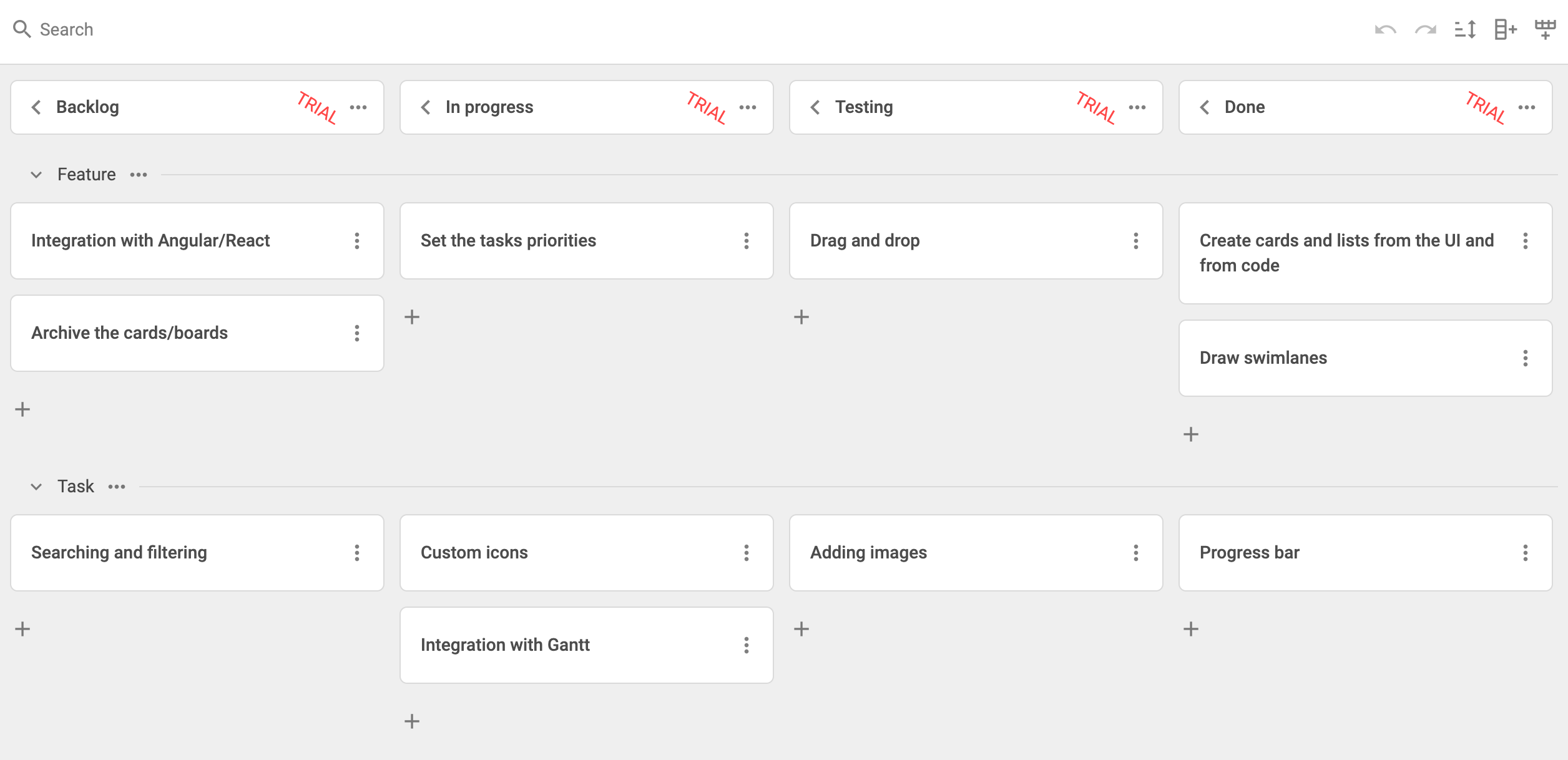
完整项目可在 GitHub 查看。