React와의 통합
DHTMLX Kanban은 React와 호환됩니다. 전체 코드 예제는 GitHub에서 확인할 수 있습니다.
프로젝트 생성
기본 React 프로젝트(또는 Vite와 함께 React)를 생성하세요. 프로젝트 이름은 my-react-kanban-app으로 지정합니다:
npx create-react-app my-react-kanban-app
의존성 설치
새로 생성된 앱 디렉터리로 이동합니다:
cd my-react-kanban-app
패키지 매니저 중 하나를 사용하여 의존성을 설치하고 개발 서버를 시작하세요:
- yarn의 경우:
yarn
yarn start
- npm의 경우:
npm install
npm run dev
앱이 로컬호스트 주소(예: http://localhost:3000)에서 실행됩니다.
Kanban 생성
개발 서버를 중지하고 Kanban 패키지를 설치하세요.
1단계. 패키지 설치
평가판 Kanban 패키지를 다운로드하고 README 파일의 지침을 따르세요. 평가판은 30일 동안 사용할 수 있습니다.
2단계. 컴포넌트 생성
애플리케이션에 Kanban을 추가하는 React 컴포넌트를 생성하세요. src/ 디렉터리에 새 파일을 추가하고 이름을 Kanban.jsx로 지정하세요.
소스 파일 가져오기
Kanban.jsx를 열고 Kanban 소스 파일을 import 하세요. import 경로는 패키지 버전에 따라 다릅니다:
- 로컬 폴더에서 설치한 PRO 버전의 경우:
import { Kanban, Toolbar } from 'dhx-kanban-package';
import 'dhx-kanban-package/dist/kanban.css';
패키지에 minify된 소스 파일이 포함된 경우, CSS 파일을 kanban.min.css로 import하세요.
- 평가판의 경우:
import { Kanban, Toolbar } from '@dhx/trial-kanban';
import "@dhx/trial-kanban/dist/kanban.css";
이 튜토리얼에서는 Kanban 평가판을 사용합니다.
컨테이너 설정 및 Kanban 초기화
Kanban과 Toolbar를 표시하려면 두 개의 컨테이너를 만들고 생성자를 호출하세요. 다음 코드 스니펫은 ref를 연결하고 useEffect() 내에서 컴포넌트를 인스턴스화합니다:
import { useEffect, useRef } from "react";
import { Kanban, Toolbar } from '@dhx/trial-kanban';
import '@dhx/trial-kanban/dist/kanban.css'; // include Kanban styles

export default function KanbanComponent(props) {
    let toolbar_container = useRef(); // initialize container for Toolbar
    let kanban_container = useRef(); // initialize container for Kanban

    useEffect(() => {
        // initialize the Kanban component
        const kanban = new Kanban(kanban_container.current, {});

        // initialize the Toolbar component
        const toolbar = new Toolbar(toolbar_container.current, {
            api: kanban.api, // provide Kanban inner API
            // other configuration properties
        });

        return () => {
            kanban.destructor(); // destroy Kanban
            toolbar.destructor(); // destroy Toolbar
        };
    }, []);

    return  <div className="component_container">
                <div ref={toolbar_container}></div>
                <div ref={kanban_container} className="widget"></div>
            </div>
}
스타일 추가
메인 CSS 파일에 Kanban과 컨테이너에 대한 스타일을 추가하세요:
/* specify styles for initial page */
html,
body,
#root {
    height: 100%;
    padding: 0;
    margin: 0;
}

/* specify styles for Kanban and Toolbar container */
.component_container {
    height: 100%;
    margin: 0 auto;
}

/* specify styles for Kanban container */
.widget {
    height: calc(100% - 56px);
}
데이터 로딩
Kanban에 데이터를 채우려면 데이터 셋을 제공하세요. src/ 디렉터리에 data.js 파일을 생성하세요:
export function getData() {
    const columns = [
        {
            label: "Backlog",
            id: "backlog"
        },
        {
            label: "In progress",
            id: "inprogress"
        },
        // ...
    ];

    const cards = [
        {
            id: 1,
            label: "Integration with Angular/React",
            priority: 1,
            color: "#65D3B3",
            start_date: new Date("01/07/2021"),
            users: [3, 2],
            column: "backlog",
            type: "feature",
        },
        {
            label: "Archive the cards/boards ",
            priority: 3,
            color: "#58C3FE",
            users: [4],
            progress: 1,
            column: "backlog",
            type: "feature",
        },
        // ...
    ];

    const rows = [
        {
            label: "Feature",
            id: "feature",
        },
        {
            label: "Task",
            id: "task",
        }
    ];

    return { columns, cards, rows };
}
App.js를 열고 데이터 셋을 import 한 뒤, 새 <Kanban/> 컴포넌트에 props로 값을 전달하세요:
import Kanban from "./Kanban";
import { getData } from "./data";

function App() {
    const { columns, cards, rows } = getData();
    return <Kanban columns={columns} cards={cards} rows={rows} />;
}

export default App;
Kanban.jsx를 열고 props를 Kanban 설정 객체에 적용하세요:
import { useEffect, useRef } from "react";
import { Kanban, Toolbar } from "@dhx/trial-kanban";
import "@dhx/trial-kanban/dist/kanban.css";

export default function KanbanComponent(props) {
    let kanban_container = useRef();
    let toolbar_container = useRef();

    useEffect(() => {
        const kanban = new Kanban(kanban_container.current, {
            columns: props.columns, // apply column data
            cards: props.cards, // apply card data
            rows: props.rows, // apply row data
            rowKey: "type",
            // other configuration properties
        });

        const toolbar = new Toolbar(toolbar_container.current, {
            api: kanban.api,
            // other configuration properties
        });

        return () => {
            kanban.destructor();
            toolbar.destructor();
        };
    }, []);

    return  <div className="component_container">
                <div ref={toolbar_container}></div>
                <div ref={kanban_container} className="widget"></div>
            </div>
}
또는 인스턴스 생성 후 useEffect() 내에서 setConfig() 또는 parse()로 데이터를 로드할 수 있습니다:
import { useEffect, useRef } from "react";
import { Kanban, Toolbar } from "@dhx/trial-kanban";
import "@dhx/trial-kanban/dist/kanban.css";

export default function KanbanComponent(props) {
    let kanban_container = useRef();
    let toolbar_container = useRef();

    let columns = props.columns;
    let cards = props.cards;
    let rows = props.rows;

    useEffect(() => {
        const kanban = new Kanban(kanban_container.current, {
            columns: [],
            cards: [],
            rows: [],
            rowKey: "type",
            // other configuration properties
        });

        const toolbar = new Toolbar(toolbar_container.current, {
            api: kanban.api,
            // other configuration properties
        });

        kanban.setConfig({ columns, cards, rows });
        // or kanban.parse({ columns, cards, rows });

        return () => {
            kanban.destructor();
            toolbar.destructor();
        };
    }, []);

    return  <div className="component_container">
                <div ref={toolbar_container}></div>
                <div ref={kanban_container} className="widget"></div>
            </div>
}
이제 Kanban 컴포넌트가 준비되었습니다. 요소가 렌더링되면 Kanban이 데이터와 함께 초기화됩니다. 지원되는 설정 속성의 전체 목록은 Kanban API 레퍼런스를 참고하세요.
이벤트 처리
Kanban에서 사용자 동작이 발생하면 이벤트가 트리거됩니다. 이벤트를 수신하여 특정 동작에 반응할 수 있습니다. 전체 목록은 Kanban 이벤트 레퍼런스를 참고하세요.
Kanban.jsx를 열고 useEffect() 호출을 확장하세요:
// ...
useEffect(() => {
    const kanban = new Kanban(kanban_container.current, {});

    kanban.api.on("add-card", (obj) => {
        console.log(obj.columnId);
    });

    return () => {
        kanban.destructor();
    };
}, []);
// ...
앱을 실행하여 페이지에 Kanban 보드가 데이터와 함께 표시되는지 확인하세요.
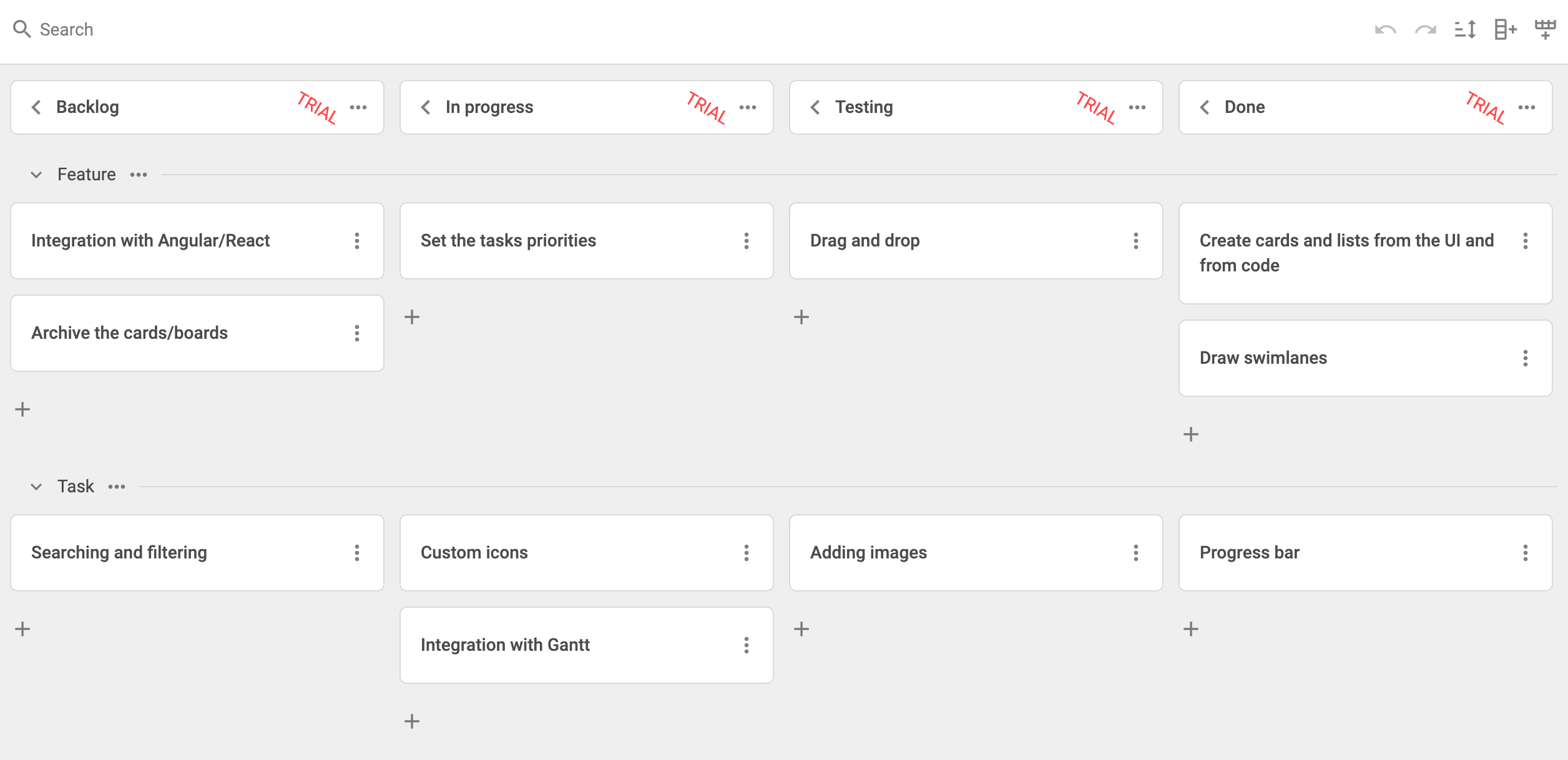
완성된 프로젝트는 GitHub에서 확인하세요.