시간 및 날짜
이 섹션에서는 특정 시간 및 날짜 범위를 설정할 수 있는 두 개의 날짜 선택기가 제공됩니다.

scheduler.locale.labels.section_time = 'Time period';

scheduler.config.lightbox.sections = [
    { name:"text", height:50, map_to:"text", type:"textarea", focus:true },
    { name:"time", height:72, type:"time", map_to:"auto"}
];
속성(Properties)
아래는 'time' 컨트롤과 함께 자주 사용되는 주요 속성들입니다. 전체 목록은 여기에서 확인할 수 있습니다.
| name | (string) 섹션의 이름 |
| height | (number) 섹션의 높이 |
| map_to | (string) 섹션이 매핑되는 데이터 속성 이름 |
| type | (textarea,time,select,template,multiselect,radio,checkbox,combo) 섹션에서 사용되는 컨트롤의 유형이며, "time"은 날짜-시간 컨트롤을 의미합니다. |
| year_range | (array, number) 연도 선택기의 범위를 정의합니다. 두 가지 방식으로 설정할 수 있습니다: year_range: [2005, 2025] - 2005년부터 2025년까지의 연도 year_range: 10 - 현재 연도를 기준으로 이전 10년부터 이후 10년까지의 범위 |
Time 컨트롤에서 자동 종료 날짜 설정
기본 이벤트 지속 시간을 설정하고 종료 날짜가 이 지속 시간을 유지하도록 자동으로 조정되게 하려면 event_duration 및 auto_end_date 설정을 사용하세요:
// 이벤트 지속 시간을 분 단위로 설정하여 종료 시간이 자동 조정되도록 함
scheduler.config.event_duration = 60;
scheduler.config.auto_end_date = true;
이 설정을 사용하면 lightbox에서 이벤트의 시작 시간이나 날짜를 변경할 때마다, 종료 시간과 날짜가 자동으로 업데이트되어 이벤트 지속 시간이 event_duration 옵션에 지정된 60분으로 유지됩니다.
날짜-시간 선택기 순서 변경
'Time period' 섹션 내 날짜-시간 컨트롤의 순서를 변경하거나 일부 선택기를 제거할 수 있습니다. 이는 time_format 속성을 사용하여 설정합니다:
scheduler.config.lightbox.sections="["
  {name:"description", height:130, map_to:"text", type:"textarea", focus:true},
  {name:"time", ..., time_format:["%H:%i","%m","%d","%Y"]}
];
노트
이 설정은 배열 내 항목의 순서만 변경하며, 데이터 표시 형식에는 영향을 주지 않습니다. 시간 부분의 표시 형식을 조정하려면 time_picker 템플릿을 사용하세요.
다양한 형식의 예시:
//기본 순서
time_format:["%H:%i", "%m", "%d", "%Y"]
//월이 먼저 표시됨
time_format:["%m","%d", "%Y", "%H:%i"]
//연도 선택기 제거
time_format:["%H:%i", "%m", "%d"]
//잘못된 예시
time_format:["%H:%i", "%M", "%d", "%Y"] // "%m" 대신 "%M" 사용
라이트박스에 미니 캘린더 추가
라이트박스 내에서 "시작" 및 "종료" 날짜를 선택할 수 있도록 미니 캘린더(날짜 선택기)를 포함할 수 있습니다.
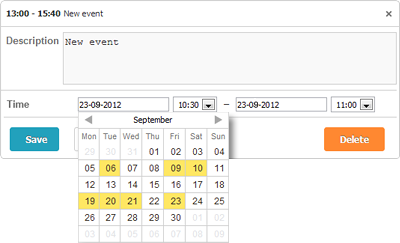
미니 캘린더를 라이트박스에 추가하려면 다음 단계를 따르세요:
- 페이지에 확장 기능을 포함하세요:
scheduler.plugins({
    minical: true
});
- time 섹션의 type을 time에서 calendar_time으로 변경하세요:
//기본 lightbox 설정
scheduler.config.lightbox.sections="["
  {name:"description", height:200, map_to:"text", type:"textarea", focus:true},
  {name:"time", height:72, type:"time", map_to:"auto"}
];
//"type"을 "time"에서 "calendar_time"으로 변경
scheduler.config.lightbox.sections = [
  {name:"description", height:200, map_to:"text", type:"textarea", focus:true},
  {name:"time", height:72, type:"calendar_time", map_to:"auto" }
];
미니 캘린더의 추가 커스터마이징 방법은 Mini Calendar Templates를 참고하세요.
Need help?
Got a question about the documentation? Reach out to our technical support team for help and guidance. For custom component solutions, visit the Services page.