快速入门
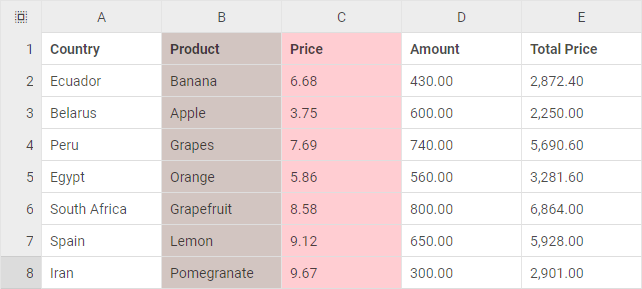
本教程将引导您完成在页面上创建完整功能的 DHTMLX Spreadsheet 的各个步骤。该组件在需要保存计算结果并重现数据时,尤其适合处理大量数据。
第一步:引入源文件
首先创建一个名为 index.html 的 HTML 文件,然后在其中引入 Spreadsheet 的源文件。DHTMLX Spreadsheet 包的详细说明请参见此处。
需要引入两个必要文件:
- DHTMLX Spreadsheet 的 JS 文件
- DHTMLX Spreadsheet 的 CSS 文件
以及
- Google Fonts 源文件的链接,用于正确渲染字体。
<!DOCTYPE html>
<html>
<head>
    <title>How to Start with DHTMLX Spreadsheet</title>
    <script src="codebase/spreadsheet.js"></script>

    <link href="codebase/spreadsheet.css" rel="stylesheet">
    <link href="https://fonts.googleapis.com/css?family=Roboto:400,500" rel="stylesheet">
</head>
<body>
    <script>
    // your code will be here
    </script>
</body>
</html>
通过 npm 或 yarn 安装 Spreadsheet
您可以使用 yarn 或 npm 包管理器将 JavaScript Spreadsheet 导入到项目中。
通过 npm 或 yarn 安装试用版 Spreadsheet
如果您想使用试用版 Spreadsheet,请下载试用版 Spreadsheet 包,并按照 README 文件中的步骤进行操作。请注意,试用版 Spreadsheet 仅可使用 30 天。
通过 npm 或 yarn 安装 PRO 版 Spreadsheet
您可以在客户专区生成 npm 的登录名和密码,从而直接访问 DHTMLX 私有 npm。详细的安装指南也可在那里找到。请注意,只有在您的 Spreadsheet 商业许可证有效期间,才能访问私有 npm。
第二步:创建 Spreadsheet
现在您可以将 Spreadsheet 添加到页面了。首先创建一个 DIV 容器,并将 DHTMLX Spreadsheet 放置其中。操作步骤如下:
- 在 index.html 文件中指定一个 DIV 容器
- 使用
dhx.Spreadsheet构造函数初始化 DHTMLX Spreadsheet
构造函数接受两个参数:放置 Spreadsheet 的 HTML 容器,以及 Spreadsheet 配置对象。
<!DOCTYPE html>
<html>
<head>
    <title>How to Start with DHTMLX Spreadsheet</title>
    <script src="codebase/spreadsheet.js"></script>

    <link href="codebase/spreadsheet.css" rel="stylesheet">
    <link href="https://fonts.googleapis.com/css?family=Roboto:400,500" rel="stylesheet">
</head>
<body>
    <div id="spreadsheet_container"></div>
    <script>
        const spreadsheet = new dhx.Spreadsheet("spreadsheet", {
            //config options
        });
    </script>
</body>
</html>
第三步:设置 Spreadsheet 配置
接下来,您可以指定希望 Spreadsheet 组件在初始化时具有的其他配置选项(除默认选项外)。
您可以使用多个选项来调整 Spreadsheet 的外观与行为,例如:toolbarBlocks、rowsCount 和 colsCount。查看详情。
const spreadsheet = new dhx.Spreadsheet("spreadsheet", {
    toolbarBlocks: ["columns", "rows", "clear"],
    rowsCount: 10,
    colsCount: 10
});
DHTMLX Spreadsheet 的配置非常灵活,您可以随时更改。阅读相关指南,深入了解 Spreadsheet 配置的基础知识。
第四步:向 Spreadsheet 中加载数据
最后一步是将数据填充到 Spreadsheet 中。DHTMLX Spreadsheet 接受 JSON 格式的数据。除数据外,您还可以在数据集中传入所需的样式。加载内联数据时,需要使用 parse() 方法,并向其传入包含数据的对象,如下例所示:
const data = [
    { "cell": "a1", "value": "Country" },
    { "cell": "b1", "value": "Product" },
    { "cell": "c1", "value": "Price" },
    { "cell": "d1", "value": "Amount" },
    { "cell": "e1", "value": "Total Price" },

    { "cell": "a2", "value": "Ecuador" },
    { "cell": "b2", "value": "Banana" },
    { "cell": "c2", "value": 6.68 },
    { "cell": "d2", "value": 430 },
    { "cell": "e2", "value": 2872.4 },

    { "cell": "a3", "value": "Belarus" },
    { "cell": "b3", "value": "Apple" },
    { "cell": "c3", "value": 3.75 },
    { "cell": "d3", "value": 600 },
    { "cell": "e3", "value": 2250 }
]

// initializing spreadsheet
const spreadsheet = new dhx.Spreadsheet("spreadsheet", {
    //config
});
// loading data into spreadsheet
spreadsheet.parse(data);
下一步
完成了。仅需四个步骤,您就拥有了一个便捷的表格数据处理工具。现在您可以开始处理数据,或者继续深入了解 DHTMLX Spreadsheet。