Sizing the Scale and Events Boxes (v6.0)
The article refers to dhtmlxScheduler 6.0 or earlier versions. If you use dhtmlxScheduler 7.0+, see details here.
In this article we would like to consider scale's and event box's sizing through the example of solving 4 problems:
Problem 3: I change the scale unit height and want to change the striped background accordingly.
Problem 4: The default scale spacing is 1 hour. I want to change it and make, for example, 30 minutes.
How to make short events fit the scale
First, let's learn the default behavior of the events boxes:
- the default scale unit height is 44px (or the hour height)
- the minimum height of the event box is 44px
- events that last less than 1 hour take the size of 44px. So, 15-minute and 1-hour events will look the same in the scheduler
- events that last more than 1 hour take their height according to the side scale (assuming that 1 hour is equal to 44px - a 90-minute event will take 63px in height).
Let's assume you want 30-minute events to fit the scale. Then you have 2 solutions:
- To increase the height of the scale's unit
- To customize the event box
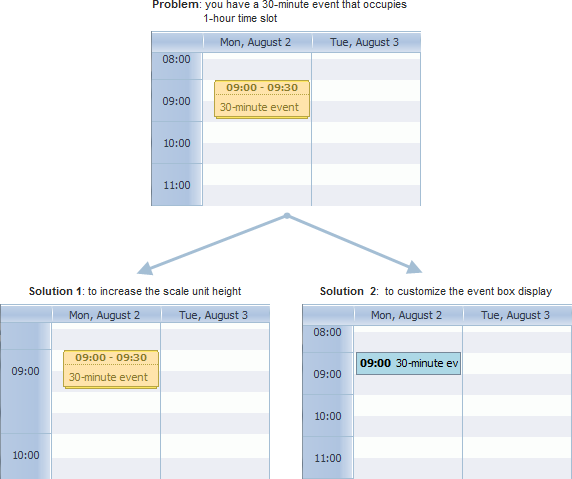
Solution 1. Changing the scale unit's height
To change the height of the scale's unit, you should use the hour_size_px configuration option.
For example, to increase the unit's height twice you should call the option as in:
scheduler.config.hour_size_px = 88;

scheduler.init(...);
Now the scale unit's height is 88 px and the 30-minute event taking 44px will occupy the 30-minute height, as needed.
Solution 2. Customizing the event box
To customize the events boxes display, you should use the renderEvent method that allows you to set your own template for the events.
scheduler.renderEvent = function(container, ev) {
    //your customizing code
}
Read the details in the related chapter - Custom Event's Box.
Preventing short events from overlapping
To display short events separately and eliminate the possibility of their overlapping, you should set the separate_short_events option to true:
scheduler.config.separate_short_events = true;

How to change the background according to the set scale
The scheduler background is set by a mere image. To change the background image, you should redefine the related CSS class which is .dhx_scale_holder:
<style>
.dhx_scale_holder {
     background-image: url("imgs/myNewImage.png");
}
</style>
scheduler.init(...);

How to change the scale spacing
To change the default scale spacing, you need to rewrite the hour_scale template. To make the scale spacing equal to 30 minutes, you can rewrite the template as follows:
const format = scheduler.date.date_to_str("%H:%i");
const step = 30;

scheduler.templates.hour_scale = function(date){
    let html="";
    for (let i = 0; i < 60/step; i++){
        html += "<div style='height:22px;line-height:22px;'>" + format(date) + "</div>";
        date = scheduler.date.add(date,step,"minute");
    }
    return html;
}

Related samples: Custom Y-Axis