配置
您可以通过以下属性配置 RichText 的外观和行为:
menubar— 显示或隐藏顶部菜单栏toolbar— 配置工具栏的可见性和按钮fullscreenMode— 以全屏模式启动编辑器layoutMode— 在"classic"和"document"布局之间切换value— 设置初始 HTML 内容locale— 在初始化时应用本地化对象defaultStyles— 为特定块类型设置默认样式imageUploadUrl— 设置图片上传的端点triggers— 启用 @mentions、#tags 以及自定义下拉触发器(请参阅 Mentions 和 Tags 指南)
布局模式
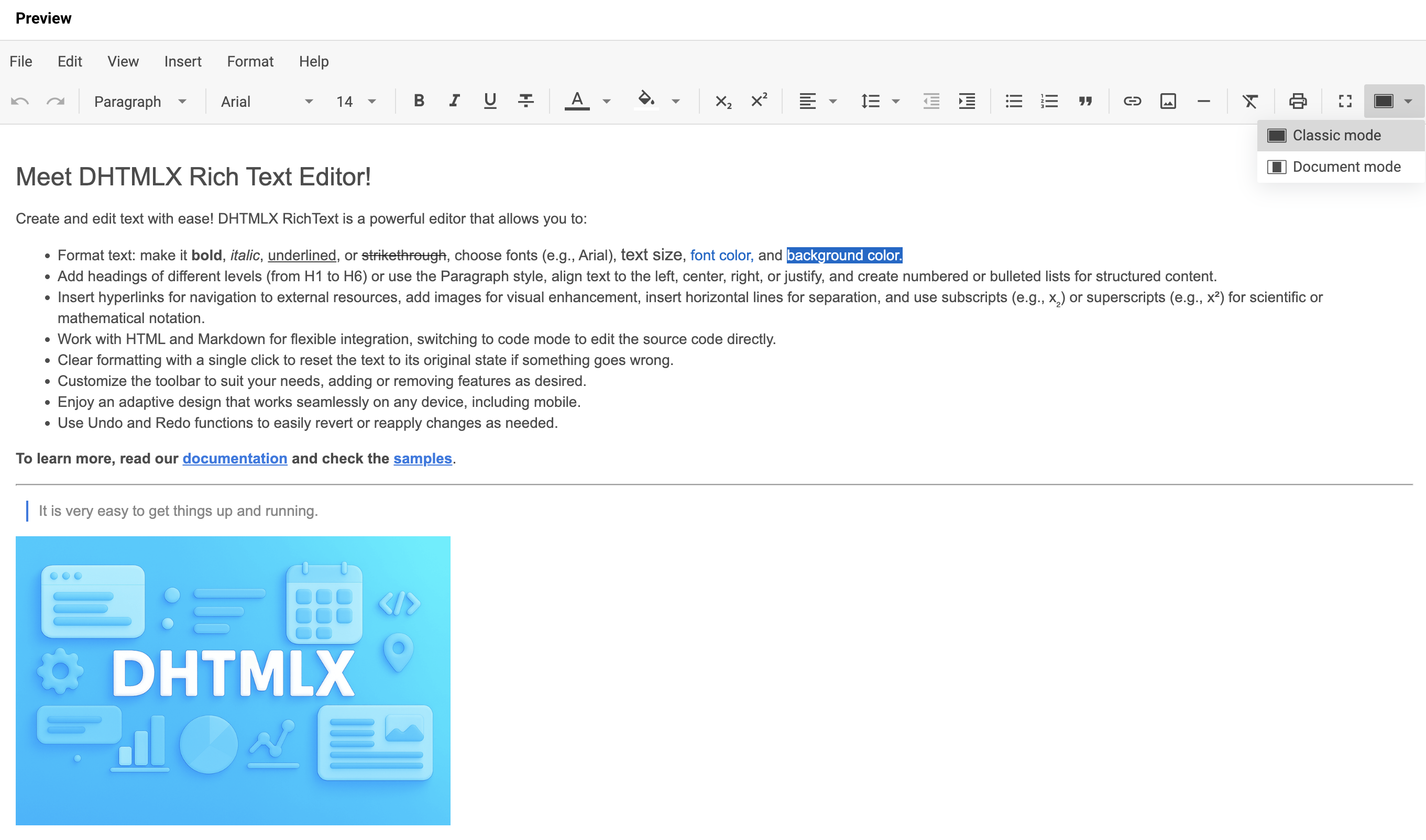
RichText 支持两种编辑区域的布局模式:
"classic"— 编辑区域填满整个页面
"document"— 编辑区域模拟文档页面
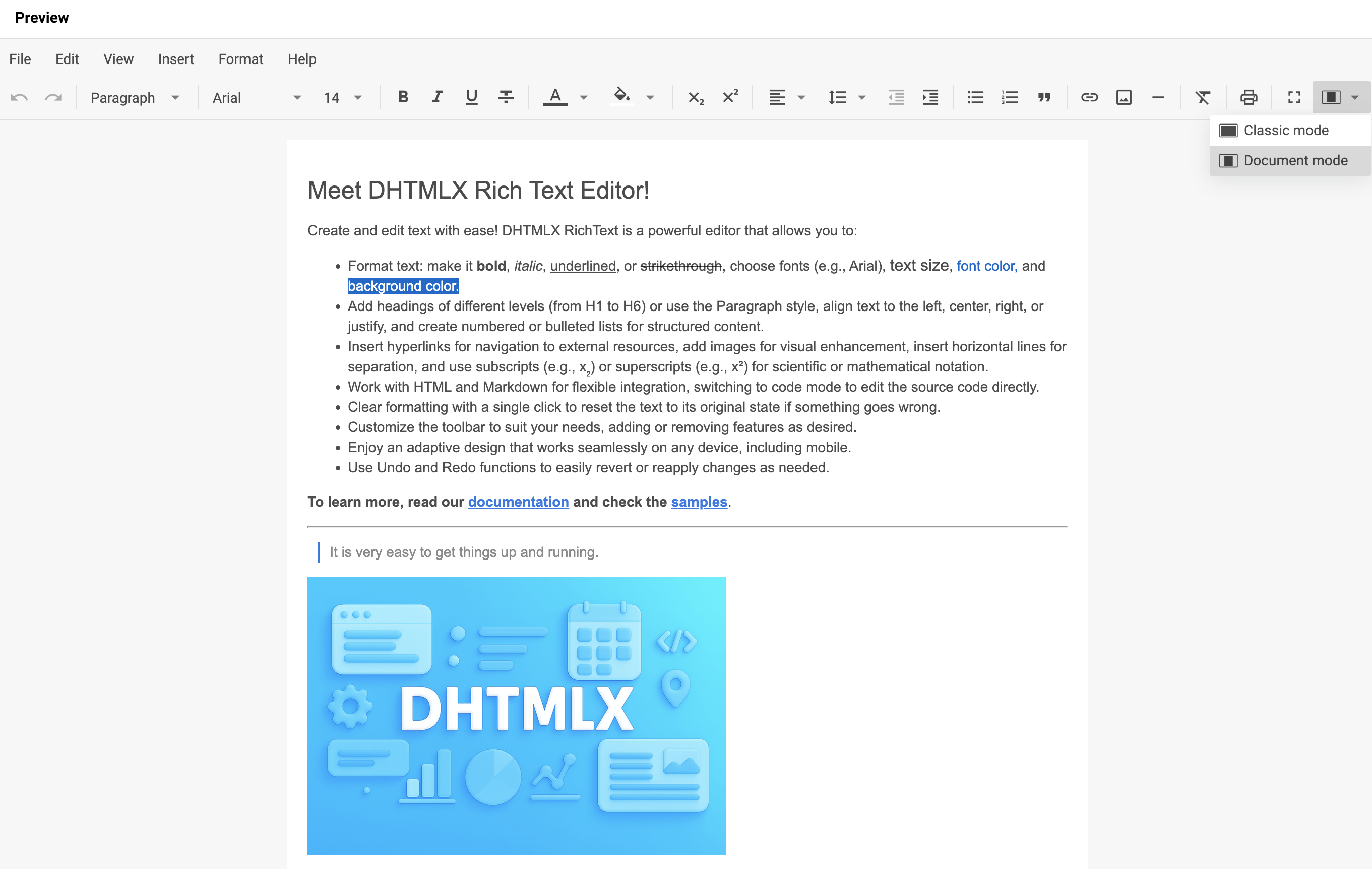
在初始化时设置 layoutMode 属性以选择模式:
const editor = new richtext.Richtext("#root", {
    layoutMode: "document"
});
相关示例: RichText. 文档模式与经典模式
工具栏
RichText 工具栏将控件分组到多个区块中,您可以对其进行自定义。
默认工具栏控件
您可以在 RichText 工具栏中包含以下按钮和控件:
| 按钮 | 说明 |
|---|---|
undo | 撤销最近一次用户操作 |
redo | 重做之前撤销的操作 |
style | 选择文本样式(例如标题、段落、块引用) |
font-family | 更改所选文本的字体 |
font-size | 调整所选文本的大小 |
bold | 对所选文本应用粗体格式 |
italic | 对所选文本应用斜体格式 |
underline | 为所选文本添加下划线 |
strike | 应用删除线格式 |
subscript | 将文本格式化为下标 |
superscript | 将文本格式化为上标 |
text-color | 更改文本颜色 |
background-color | 更改文本的背景(高亮)颜色 |
align | 设置文本对齐方式(左对齐、居中、右对齐、两端对齐) |
indent | 增加段落缩进 |
outdent | 减少段落缩进 |
line-height | 调整行距(行高) |
quote | 将文本格式化为块引用 |
bulleted-list | 创建无序列表 |
numbered-list | 创建有序列表 |
link | 插入或编辑超链接 |
image | 插入图片 |
line | 插入水平线 |
clear | 清除所选文本的所有格式 |
print | 打开打印对话框 |
fullscreen | 切换全屏模式 |
mode | 在 classic 和 document 两种布局模式之间切换 |
shortcuts | 显示可用键盘快捷键列表 |
separator | 在控件之间添加视觉分隔符 |
使用 toolbar 属性将工具栏定义为控件名称字符串数组:
new richtext.Richtext("#root", {
    toolbar: [
        "undo",
        "redo",
        "separator",
        "style",
        "separator",
        "font-family",
        "font-size",
        "separator",
        "bold",
        "italic",
        "underline",
        "strike",
        "separator",
        "text-color",
        "background-color",
        "separator",
        "align",
        "line-height",
        "outdent",
        "indent",
        "separator",
        "bulleted-list",
        "numbered-list",
        "quote",
        "separator",
        "link",
        "image",
        "separator",
        "clear",
        "separator",
        "fullscreen",
        "mode"
        // 其他按钮
    ],
    // 其他配置属性
});
相关示例: RichText. 完整工具栏
添加自定义工具栏控件
向 toolbar 数组传入一个对象,并包含以下字段之一:
type: string— 必填。控件类型:"button"、"richselect"或"colorpicker"id: string— 可选。自定义控件 ID;不能与现有控件 ID 重复icon: string— 可选。图标 CSS 类名;与 label 组合使用label: string— 可选。按钮标签;与 icon 组合使用tooltip: string— 可选。鼠标悬停时显示的提示文字;若未设置则默认使用labelcss: string— 可选。控件的 CSS 类。内置类:wx-primary、wx-secondaryhandler: () => void— 可选。点击时执行的回调函数
以下示例将内置按钮、预定义的 richselect 类型控件以及两个自定义按钮组合在一起:
new richtext.Richtext("#root", {
    toolbar: [
        // 字符串条目代表内置按钮
        "bold",
        "italic",
        // 预定义按钮仅接受 { type: "button", id: string }
        {
            type: "button",
            id: "fullscreen",
        },
        // 对于预定义的 richselect/colorpicker 控件,设置匹配的 type
        // type 不匹配的条目会被忽略
        {
            type: "richselect", // type: "button" 在这里会被忽略
            id: "mode",
        },
        // 自定义按钮(自定义控件不支持 richselect/colorpicker)
        {
            type: "button",
            id: "some",
            label: "Some",
            handler: () => {/* 自定义逻辑 */}
        },
        {
            type: "button",
            id: "other",
            icon: "wxo-help",
            label: "Other",
            tooltip: "Some tooltip",
            handler: () => {/* 自定义逻辑 */}
        }
    ],
    // 其他配置属性
});
相关示例: RichText. 自定义控件与简化工具栏
隐藏工具栏
将 toolbar 属性设置为 false 可隐藏工具栏:
new richtext.Richtext("#root", {
    toolbar: false,
    // 其他配置属性
});
显示菜单栏
启用 menubar 属性可在工具栏上方渲染顶部菜单栏。默认值为 false。
new richtext.Richtext("#root", {
    menubar: true
    // 其他配置属性
});
相关示例: RichText. 初始化时启用菜单栏
设置初始内容
使用 value 属性在初始化时向编辑器传入初始 HTML 内容:
new richtext.Richtext("#root", {
    value: "<h1>some value</h1>"
    // 其他配置属性
});
若要在初始化后替换内容,或以非 HTML 格式通过自定义编码器加载内容,请调用 setValue() 方法。
相关示例: RichText. 使用不同格式(Markdown、HTML、纯文本)
设置初始语言
使用 locale 属性在初始化时应用本地化对象:
new richtext.Richtext("#root", {
    locale: richtext.locales.cn
    // 其他配置属性
});
有关详情以及通过 setLocale() 动态切换语言,请参阅 本地化 指南。
以全屏模式启动
将 fullscreenMode 属性设置为 true 可在初始化时以全屏模式打开编辑器。默认值为 false。
new richtext.Richtext("#root", {
    fullscreenMode: true
    // 其他配置属性
});
配置图片插入
RichText 支持两种通过工具栏、菜单栏、粘贴或拖放插入图片的模式。模式根据 imageUploadUrl 属性自动选择。
上传图片到服务器
向 imageUploadUrl 属性传入 URL,可将每张插入的图片上传到您的端点。RichText 以 multipart/form-data 格式(字段名 upload)发送文件,并插入服务器返回的 URL:
new richtext.Richtext("#root", {
    imageUploadUrl: "https://example.com/upload"
    // 其他配置属性
});
以 base64 格式内联插入图片
省略 imageUploadUrl(或将其设置为空字符串)可将图片作为 base64 数据 URL 直接嵌入文档内容中,无需服务器:
new richtext.Richtext("#root", {
    // imageUploadUrl 未设置,图片以内联方式插入
    // 其他配置属性
});
大于 1024×800 的内联图片将以缩小尺寸显示(width/height 属性会被限制在此范围内),但嵌入的字节数据仍为原始全分辨率文件。客户端不会对其进行降采样或重新编码。
内联(base64)图片不会被内置的 DOCX / PDF 导出 功能保留。如果您依赖导出功能,请提供 imageUploadUrl,以便图片引用外部位置。
请参阅 与服务器配合使用,了解上传端点必须实现的完整请求/响应契约以及内联图片回退方式的详细说明。
配置默认样式
使用 defaultStyles 属性为每种块类型设置默认样式。
defaultStyles 属性的类型签名如下:
defaultStyles?: boolean | {
    "*"?: { // 应用于所有块;为每个块设置公共属性
        "font-family"?: string; // "Roboto"| "Arial" | "Georgia" | "Tahoma" | "Times New Roman" | "Verdana"
        "font-size"?: string; // "12px" | "14px" | "16px" | "18px" | "20px" | "24px" | "28px" | "32px" | "36px"
        color?: string;
        background?: string;
    },
    p?: {
        "font-family"?: string; // "Roboto"| "Arial" | "Georgia" | "Tahoma" | "Times New Roman" | "Verdana"
        "font-size"?: string; // "12px" | "14px" | "16px" | "18px" | "20px" | "24px" | "28px" | "32px" | "36px"
        color?: string;
        background?: string;
    },
    blockquote?: {
        "font-family"?: string; // "Roboto"| "Arial" | "Georgia" | "Tahoma" | "Times New Roman" | "Verdana"
        "font-size"?: string; // "12px" | "14px" | "16px" | "18px" | "20px" | "24px" | "28px" | "32px" | "36px"
        color?: string;
        background?: string;
    },
    h1?: {
        "font-family"?: string; // "Roboto"| "Arial" | "Georgia" | "Tahoma" | "Times New Roman" | "Verdana"
        "font-size"?: string; // "12px" | "14px" | "16px" | "18px" | "20px" | "24px" | "28px" | "32px" | "36px"
        color?: string;
        background?: string;
    },
    h2?: {
        "font-family"?: string; // "Roboto"| "Arial" | "Georgia" | "Tahoma" | "Times New Roman" | "Verdana"
        "font-size"?: string; // "12px" | "14px" | "16px" | "18px" | "20px" | "24px" | "28px" | "32px" | "36px"
        color?: string;
        background?: string;
    },
    h3?: {
        "font-family"?: string; // "Roboto"| "Arial" | "Georgia" | "Tahoma" | "Times New Roman" | "Verdana"
        "font-size"?: string; // "12px" | "14px" | "16px" | "18px" | "20px" | "24px" | "28px" | "32px" | "36px"
        color?: string;
        background?: string;
    },
    h4?: {
        "font-family"?: string; // "Roboto"| "Arial" | "Georgia" | "Tahoma" | "Times New Roman" | "Verdana"
        "font-size"?: string; // "12px" | "14px" | "16px" | "18px" | "20px" | "24px" | "28px" | "32px" | "36px"
        color?: string;
        background?: string;
    },
    h5?: {
        "font-family"?: string; // "Roboto"| "Arial" | "Georgia" | "Tahoma" | "Times New Roman" | "Verdana"
        "font-size"?: string; // "12px" | "14px" | "16px" | "18px" | "20px" | "24px" | "28px" | "32px" | "36px"
        color?: string;
        background?: string;
    },
    h6?: {
        "font-family"?: string; // "Roboto"| "Arial" | "Georgia" | "Tahoma" | "Times New Roman" | "Verdana"
        "font-size"?: string; // "12px" | "14px" | "16px" | "18px" | "20px" | "24px" | "28px" | "32px" | "36px"
        color?: string;
        background?: string;
    }
};
defaultStyles 属性不会将 CSS 直接应用到受影响的块上,需要单独应用匹配的 CSS 样式:
<div id="root"></div>
const editor = new richtext.Richtext("#root", {
    defaultStyles: {
        h2: {
            "font-family": "Roboto",
            "font-size": "28px",
            color: "purple",
            background: "#FFC0CB"
        }
    }
});
#root h2 {
    font-family: Roboto;
    font-size: 28px;
    color: purple;
    background: #FFC0CB;
}
在此示例中,所有 h2 块使用 "Roboto" 字体,字号 28px,紫色文字搭配粉色背景。匹配的 CSS 规则将相同的值应用到渲染的 h2 元素上。