RichText overview
DHTMLX RichText is a flexible and lightweight WYSIWYG editor built with JavaScript. Designed to provide a seamless editing experience in modern web applications, RichText offers a clean UI, rich formatting capabilities, and full control over content rendering. Whether you're building a CMS, an internal admin tool, or an embedded document editor, RichText can be easily integrated and customized to match your needs.
DHTMLX RichText component includes the following features:
-
Two layout modes
-
Content serialization to HTML, plain text, and Markdown
-
Configurable
toolbarwith built-in and custom buttons -
Static
menubarthat can be shown or hidden -
Image uploading with optional server upload or inline base64 embedding, rich formatting, custom styling, and full screen mode
-
Full API access for event handling, content manipulation, and reactive state management
RichText is framework-agnostic and can be easily integrated with React, Angular, Vue, and Svelte frameworks, making it suitable for a wide range of front-end ecosystems.
This documentation provides detailed guidance on installation, configuration, usage, and customization. You'll find examples for common scenarios, full API references, and best practices for embedding RichText into your application.
RichText structure
Menubar
The RichText menubar provides access to editing actions such as creating a new document, printing, importing/exporting content, and more. It is hidden by default.
Use the menubar property to toggle its visibility. While the menubar can be enabled or disabled, its contents are not configurable at this time.

Toolbar
The RichText toolbar provides quick access to text formatting and structural editing features. By default, the toolbar is enabled and displays a predefined set of commonly used controls such as bold, italic, font settings, list formatting, and more.
The toolbar property allows you to fully customize the toolbar’s content and layout. You can enable or disable toolbar, rearrange default controls, or define a fully custom toolbar using an array of predefined button identifiers and custom button objects.

Editor
The RichText editor is the central area where users create and format content. You can control the editor’s appearance and behavior through configuration options such as value, layoutMode, and defaultStyles. RichText also supports custom styling, image embedding, and responsive layout adjustments to match the needs of your application.
Two working modes
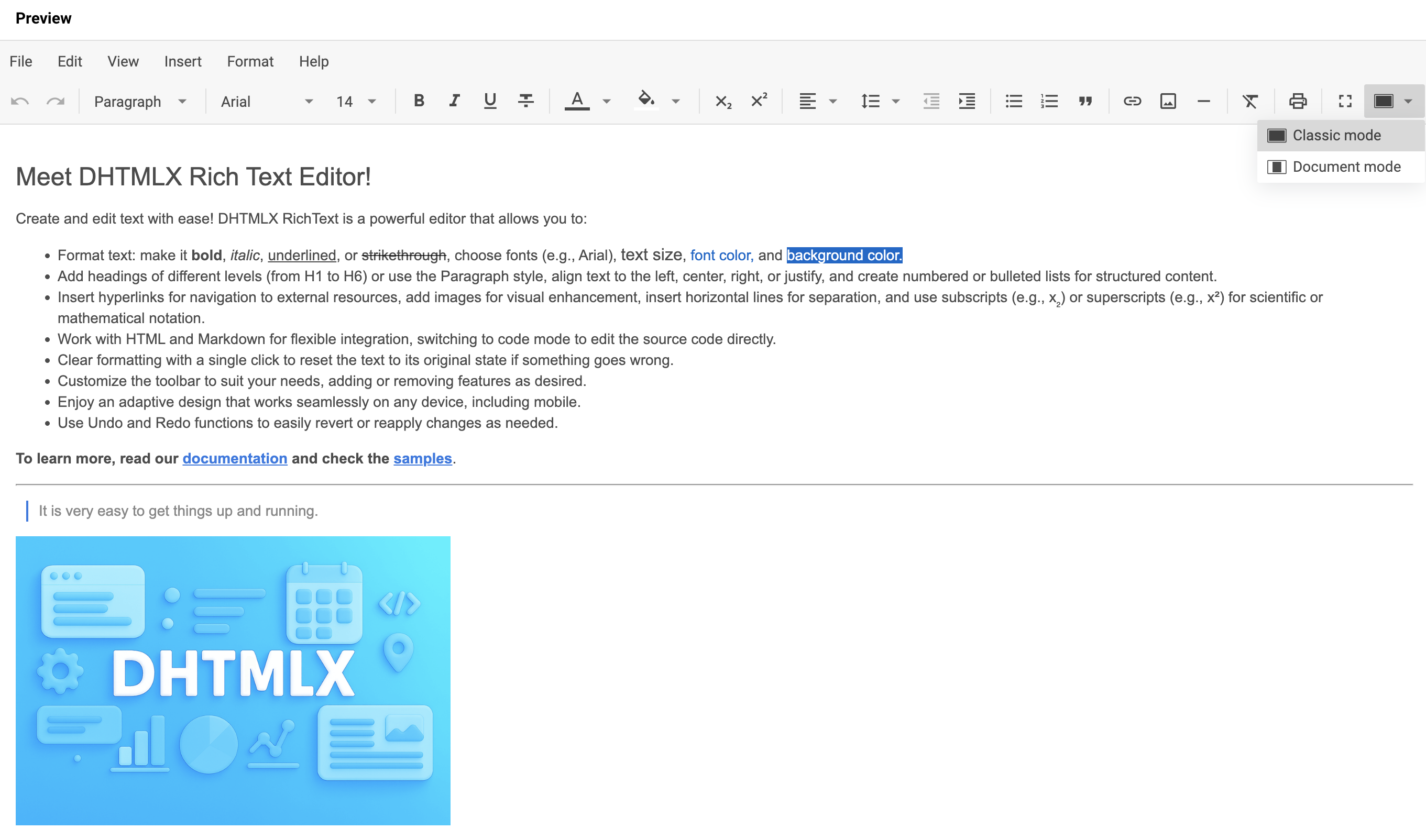
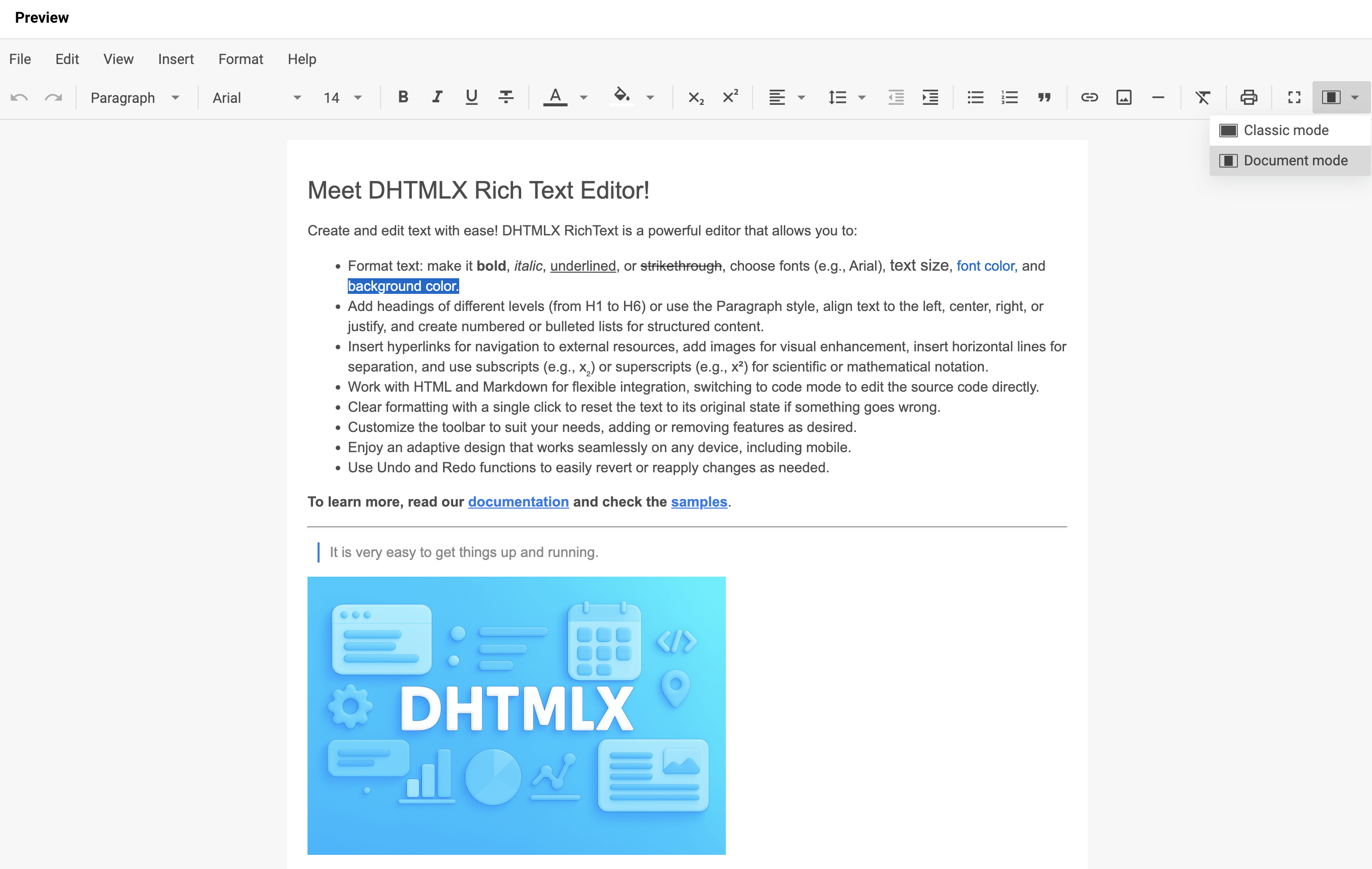
DHTMLX RichText can work with content in "classic" and "document" modes. You can choose the most suitable mode to feel comfortable while editing text. Use the layoutMode property to switch modes programatically.
"classic"
"document"
Supported formats
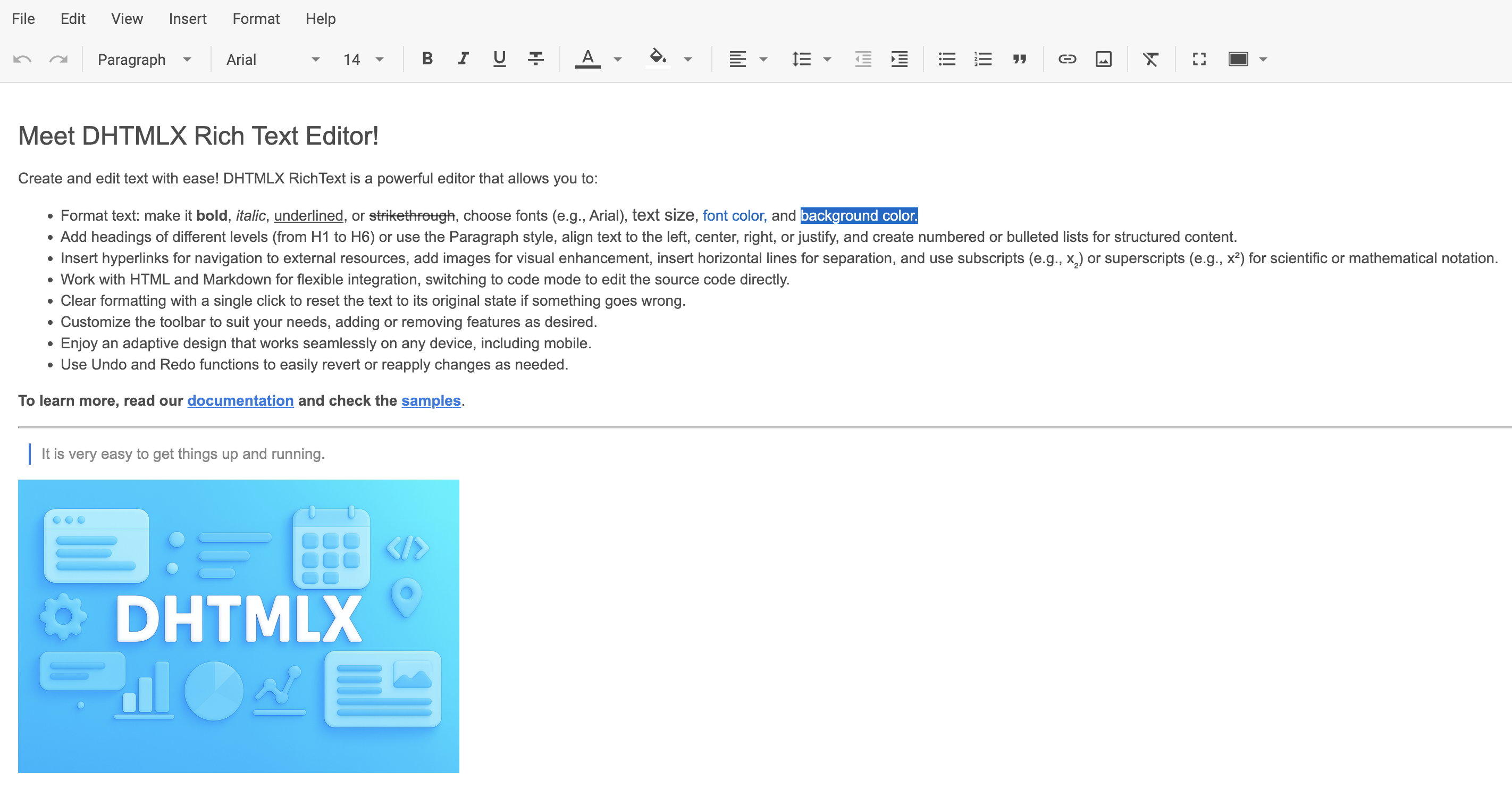
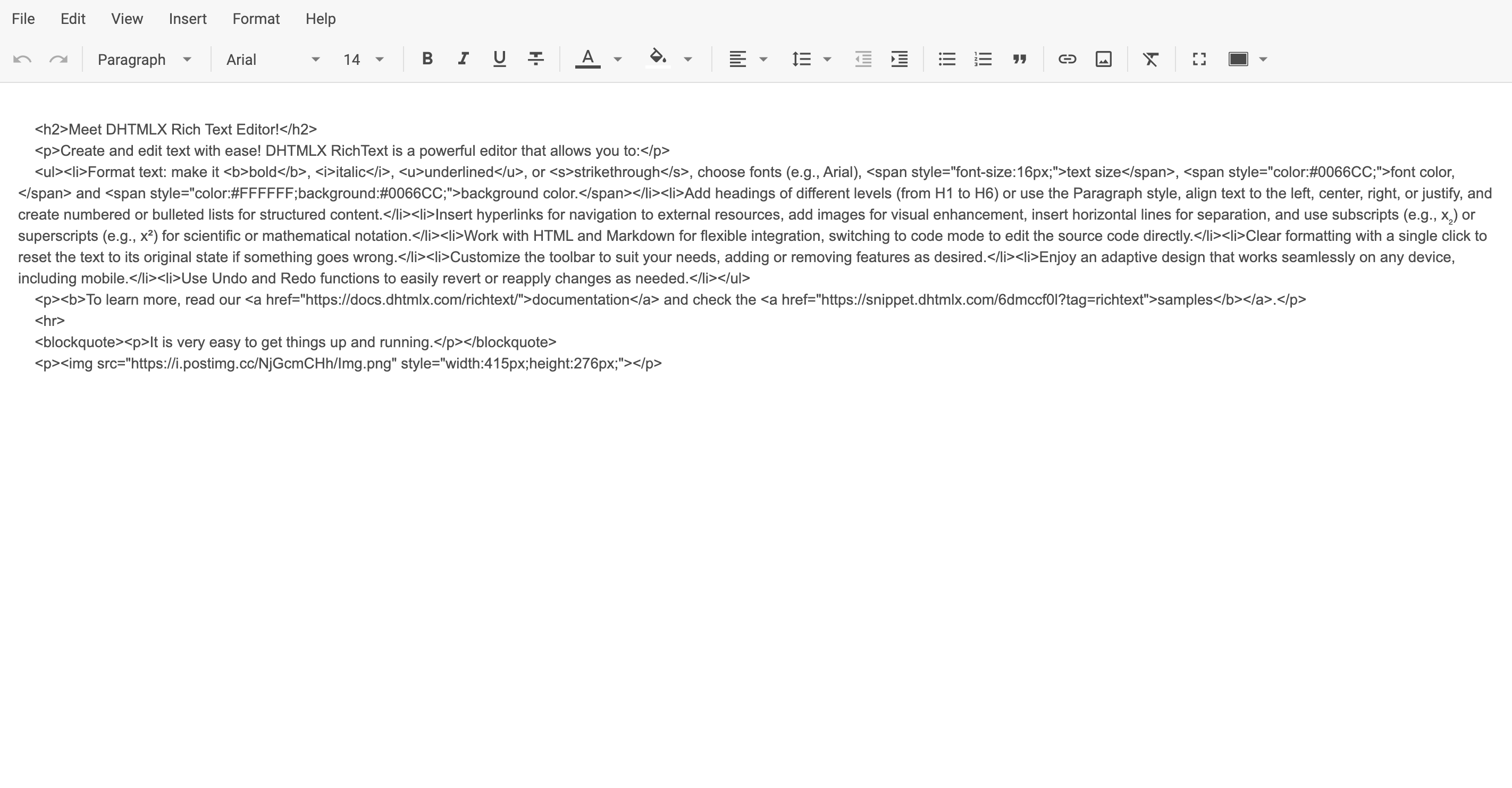
The RichText editor supports parsing and serialization of content in the HTML, plain text, and Markdown formats.
HTML format
Text format
Markdown format
Pass the built-in markdown encoders to setValue() / getValue() to load or serialize content as Markdown:
const editor = new richtext.Richtext("#root", {
    value: "Hello world"
    // other configuration properties
});

// load Markdown into the editor
editor.setValue("# Title\n\nParagraph", richtext.markdown.fromMarkdown);

// read editor content as Markdown
const md = editor.getValue(richtext.markdown.toMarkdown);
Markdown support covers a limited subset of the syntax: common block and inline elements such as headings, paragraphs, line breaks, emphasis, blockquotes, lists, and links. Formatting that has no Markdown equivalent (font family, font size, colors, alignment, line height) is dropped on serialization.
Nested inline structures are not supported, with the only exception of bold inside italic. Combinations such as bold inside a link, italic inside a list item, or multi-level (nested) lists will not render correctly.
Copy and paste
The RichText editor supports clipboard operations through standard system shortcuts (Ctrl+C / Ctrl+X / Ctrl+V on Windows/Linux, ⌘+C / ⌘+X / ⌘+V on macOS), the corresponding toolbar buttons, and the menubar entries.
When content is copied or cut, RichText writes two representations to the system clipboard:
- a plain text version for compatibility with simple targets (terminals, code editors, plain inputs)
- an HTML version that carries all inline and block formatting (bold, italic, underline, strikethrough, font family, font size, text and background color, headings, blockquotes, lists, alignment, indentation, line height, links, and images)
Paste behavior depends on the source of the clipboard payload:
- Pasting between two RichText instances (in the same document or on different pages) uses the HTML representation and preserves the original formatting.
- Pasting from any external source (browsers, word processors, and other editors) is processed as plain text. The inserted content is added as text without external formatting.
The toolbar Paste button uses the asynchronous Clipboard API, which exposes plain text only. To paste content copied from another RichText with its formatting preserved, use the Ctrl+V / ⌘+V shortcut, which receives the full HTML payload directly from the browser's clipboard event.
Keyboard shortcuts
The RichText editor supports a set of common keyboard shortcuts for faster formatting and editing. The shortcuts follow platform conventions and are available on both Windows/Linux (Ctrl) and macOS (⌘).
Text formatting
| Action | Windows/Linux | macOS |
|---|---|---|
| Bold* | Ctrl+B | ⌘B |
| Italic | Ctrl+I | ⌘I |
| Underline | Ctrl+U | ⌘U |
| Strikethrough | Ctrl+Shift+X | ⌘⇧X |
Editing
| Action | Windows/Linux | macOS |
|---|---|---|
| Undo | Ctrl+Z | ⌘Z |
| Redo | Ctrl+Y / Ctrl+Shift+Z | ⌘Y / ⌘⇧Z |
| Cut | Ctrl+X | ⌘X |
| Copy | Ctrl+C | ⌘C |
| Paste | Ctrl+V | ⌘V |
| Delete word | Ctrl+Backspace / Ctrl+Delete | ⌥⌫ / ⌥⌦ |
| Delete line | — | ⌘⌫ / ⌘⌦ |
Indentation
| Action | Windows/Linux | macOS |
|---|---|---|
| Indent block / nest list | Tab | ⇥ |
| Outdent block / lift list | Shift+Tab | ⇧⇥ |
Special actions
| Action | Windows/Linux | macOS |
|---|---|---|
| Insert link | Ctrl+K | ⌘K |
Ctrl+P | ⌘P |
More shortcuts may be introduced in future updates.
To get actual reference related to RichText keyboard shortcuts, press Help and select the Keyboard shortcuts option:
