Integration with React
Familiarize yourself with the basic concepts and patterns of React before reading this documentation. To refresh your knowledge, refer to the React documentation.
DHTMLX To Do List is compatible with React. The examples below show how to use them together. For a complete project, see the example on GitHub.
Create a project
Scaffold a new React project and install dependencies.
Create a basic React project or use React with Vite. The example below names the project my-react-todo-app:
npx create-react-app my-react-todo-app
Install dependencies
Go to the newly created app directory:
cd my-react-todo-app
Install dependencies and start the dev server with a package manager.
Run the following commands with yarn:
yarn
yarn start
Run the following commands with npm:
npm install
npm start
The app runs on a localhost address (for example, http://localhost:3000).
Create the To Do List
Stop the app and install the To Do List package.
Step 1. Install the package
Download the trial To Do List package and follow the steps in the README file. The trial version is available for 30 days only.
Step 2. Create the component
Create a React component to add the To Do List with the Toolbar into the application. In the src/ directory, add a new file named ToDo.jsx.
Import source files
Open ToDo.jsx and import the To Do List source files. Choose one of two import paths:
- PRO version installed from a local folder - import from
dhx-todolist-package - trial version - import from
@dhx/trial-todolist
The example below imports from the PRO package:
import { ToDo, Toolbar } from 'dhx-todolist-package';
import 'dhx-todolist-package/dist/todo.css';
Depending on the package, the source files can be minified. Import the CSS file as todo.min.css in that case.
The snippet below imports from the trial package:
import { ToDo, Toolbar } from '@dhx/trial-todolist';
import "@dhx/trial-todolist/dist/todo.css";
This tutorial uses the trial version.
Set containers and add the To Do List with Toolbar
To display the To Do List with the Toolbar on the page, create containers for both components and initialize them with the constructors. The example below renders both containers and initializes the components inside useEffect:
import { useEffect, useRef } from "react";
import { ToDo, Toolbar } from "@dhx/trial-todolist";
import "@dhx/trial-todolist/dist/todo.css"; // include To Do List styles

export default function ToDoComponent(props) {
    let toolbar_container = useRef(); // initialize container for Toolbar
    let todo_container = useRef(); // initialize container for To Do List

    useEffect(() => {
        // initialize the To Do List component
        const todo = new ToDo(todo_container.current, {});

        // initialize the Toolbar component
        const toolbar = new Toolbar(toolbar_container.current, {
            api: todo.api, // provide To Do List inner API
            // other configuration properties
        });

        return () => {
            todo.destructor(); // destruct To Do List
            toolbar.destructor(); // destruct Toolbar
        };
    }, []);

    return  <div className="component_container">
                <div ref={toolbar_container}></div>
                <div ref={todo_container} className="widget"></div>
            </div>
}
Add styles
Set up styles so the To Do List renders correctly. Use the index.css file to set styles for the To Do List and its containers. The example below defines layout dimensions for the page:
/* styles for the initial page */
html,
body,
#root {
    height: 100%;
    padding: 0;
    margin: 0;
    background-color: #f7f7f7;
}

/* styles for the To Do List and Toolbar container */
.component_container {
    height: 100%;
    max-width: 800px;
    margin: 0 auto;
}

/* styles for the To Do List container */
.widget {
    height: calc(100% - 56px);
}
Load data
Create the data.js file in the src/ directory and add data into it. The following example exports a getData() function that returns tasks, users, and projects:
export function getData() {
    const tasks = [
        {
            id: "temp://1652991560212",
            project: "introduction",
            text: "Greetings, everyone! \u{1F44B} \nI'm DHTMLX To Do List.",
            priority: 1
        },
        {
            id: "1652374122964",
            project: "introduction",
            text: "You can assign task performers and due dates using the menu.",
            assigned: ["user_4", "user_1", "user_2", "user_3"],
            due_date: "2033-03-08T21:00:00.000Z",
            priority: 2
        },
        // ...
    ];
    const users = [
        {
            id: "user_1",
            label: "Don Smith",
            avatar:
                "https://snippet.dhtmlx.com/codebase/data/common/img/02/avatar_61.jpg"
        },
        // ...
    ];
    const projects = [
        {
            id: "introduction",
            label: "Introduction to DHTMLX To Do List"
        },
        {
            id: "widgets",
            label: "Our widgets"
        }
    ];
    return { tasks, users, projects };
}
Open App.js and import the data. Pass the data into the <ToDo/> component as props, as shown below:
import ToDo from "./ToDo";
import { getData } from "./data";

function App() {
    const { tasks, users, projects } = getData();
    return <ToDo tasks={tasks} users={users} projects={projects} />;
}

export default App;
Go to ToDo.jsx and apply the passed props to the To Do List configuration object. The snippet below passes user, task, and project data through configuration:
import { useEffect, useRef } from "react";
import { ToDo, Toolbar } from "@dhx/trial-todolist";
import "@dhx/trial-todolist/dist/todo.css";

export default function ToDoComponent(props) {
    let todo_container = useRef();
    let toolbar_container = useRef();

    useEffect(() => {
        const todo = new ToDo(todo_container.current, {
            users: props.users,
            tasks: props.tasks,
            projects: props.projects,
            // other configuration properties
        });

        const toolbar = new Toolbar(toolbar_container.current, {
            api: todo.api,
            // other configuration properties
        });

        return () => {
            todo.destructor();
            toolbar.destructor();
        };
    }, []);

    return  <div className="component_container">
                <div ref={toolbar_container}></div>
                <div ref={todo_container} className="widget"></div>
            </div>
}
You can also use the parse() method inside useEffect() to load data into the To Do List. The example below loads data with parse() after initialization:
import { useEffect, useRef } from "react";
import { ToDo, Toolbar } from "@dhx/trial-todolist";
import "@dhx/trial-todolist/dist/todo.css";

export default function ToDoComponent(props) {
    let todo_container = useRef();
    let toolbar_container = useRef();

    let tasks = props.tasks;
    let users = props.users;
    let projects = props.projects;

    useEffect(() => {
        const todo = new ToDo(todo_container.current, {});

        const toolbar = new Toolbar(toolbar_container.current, {
            api: todo.api,
            // other configuration properties
        });

        todo.parse({ tasks, users, projects });

        return () => {
            todo.destructor();
            toolbar.destructor();
        };
    }, []);

    return  <div className="component_container">
                <div ref={toolbar_container}></div>
                <div ref={todo_container} className="widget"></div>
            </div>
}
Each call to parse(data) replaces the current dataset.
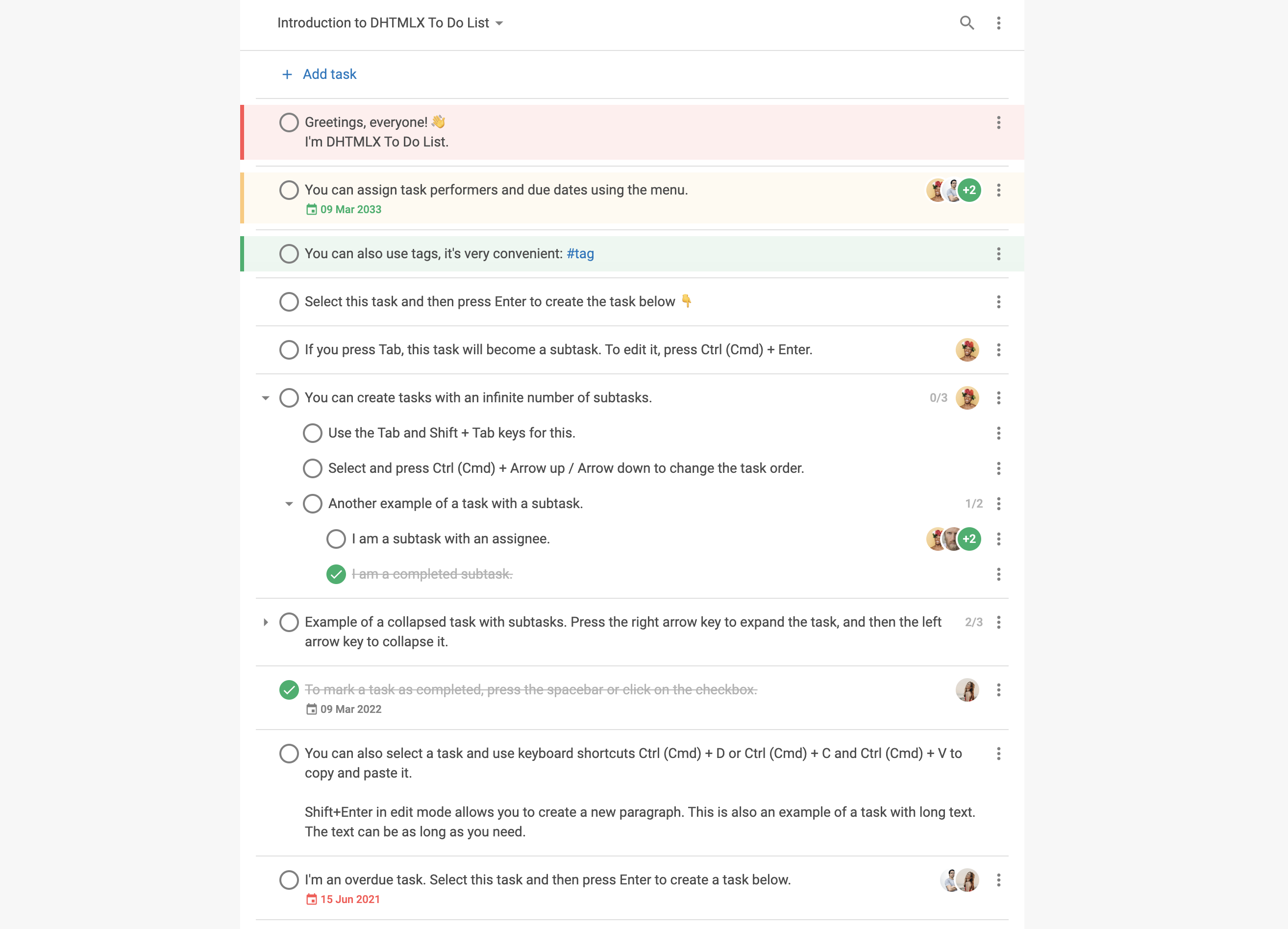
The component now renders a populated To Do List. See the configuration overview for other available properties.
Handle events
Subscribe to events to react to user actions. See the full list of events.
Open ToDo.jsx and complete the useEffect() method. The snippet below attaches a handler to the add-task event:
// ...
useEffect(() => {
    const todo = new ToDo(todo_container.current, {});

    todo.api.on("add-task", (obj) => {
        console.log("A new task is added", obj);
    });

    return () => {
        todo.destructor();
    };
}, []);
// ...
Step 3. Add the To Do List into the app
To add the component into the app, open App.js and replace the default code with the following snippet:
import ToDo from "./ToDo";
import { getData } from "./data";

function App() {
    const { tasks, users, projects } = getData();
    return <ToDo tasks={tasks} users={users} projects={projects} />;
}

export default App;
Start the app. The To Do List renders with sample data:
Find the complete project on GitHub.