dhtmlxScheduler with Angular
This tutorial shows how to use the JS DHTMLX Scheduler directly in an Angular app without the official wrapper.
If you want Angular inputs/outputs, wrapper-managed sync, and Angular template component support, use Angular Scheduler instead.
You should be familiar with basic Angular concepts (components, lifecycle hooks, services). If not, start with the Angular documentation.
DHTMLX Scheduler is compatible with Angular. You can check the related demo repository on GitHub: DHTMLX Scheduler with Angular Demo.
Creating a project
Before you start, install Node.js and Angular CLI.
ng new my-angular-scheduler-app --standalone --routing=false --style=css
cd my-angular-scheduler-app
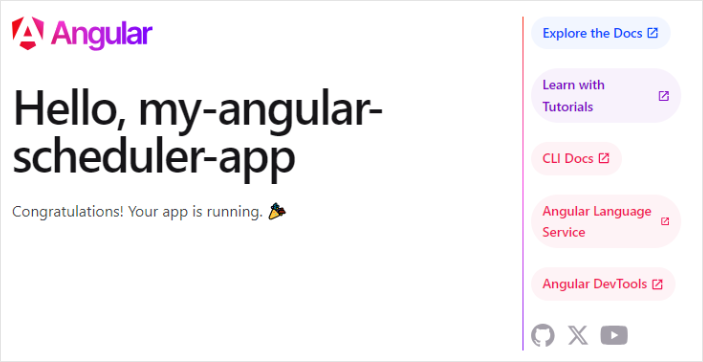
Start the app once to verify the project is working:
- npm:
npm start - yarn:
yarn start - or CLI:
ng serve
The app should be available at http://localhost:4200.
Creating Scheduler
Now we should get the DHTMLX Scheduler code. Firstly, we need to stop the app by pressing Ctrl+C in the command line. Then we can proceed with installing the Scheduler package.
Step 1. Package installation
The PRO versions of the library are available for the npm/yarn install from our private repository, please follow this instruction to gain access to it.
After you've got the Evaluation version of the Scheduler, you can install it with the following commands:
- for npm:
npm install @dhx/trial-scheduler
- for yarn:
yarn add @dhx/trial-scheduler
Alternatively, since the zip-package of the library is structured as an npm module, you can install it from a local folder.
Step 2. Component creation
Now we should create a component to add a Scheduler into the application. Let's create the scheduler folder in the src/app/ directory, add new files into it and call them scheduler.component.ts, scheduler.component.css and scheduler.component.html.
The newly created scheduler.component.html file inside the scheduler folder will contain the template for the scheduler. Let's add the following lines of code into it:
<div #scheduler_here style="width: 100%; height:100vh"></div>
We'll declare scheduler styles in a separate file named scheduler.component.css. The default styles can look like this:
@import "@dhx/trial-scheduler/codebase/dhtmlxscheduler.css";
:host {
   display: block;
   position: relative;
   height: 100%;
   width: 100%;
}
To make the Scheduler container occupy the entire space of the body, you need to add the following styles to the styles.css file located in the src folder:
html,
body {
  margin: 0;
  padding: 0;
  height: 100%;
  width: 100%;
}
Importing source files
Open the scheduler.component.ts and scheduler.component.css files and import Scheduler source files. Note that:
- if you've installed the Scheduler package from a local folder, your import paths will look like this:
import { Scheduler, SchedulerStatic } from 'dhtmlx-scheduler';
@import "@dhtmlx-scheduler/codebase/dhtmlxscheduler.css";
- if you've chosen to install the trial version, the import paths should be as in:
import { Scheduler, SchedulerStatic } from '@dhx/trial-scheduler';
@import "@dhx/trial-scheduler/codebase/dhtmlxscheduler.css";
In this tutorial we will use the trial version of Scheduler.
Setting the container and adding Scheduler
To display Scheduler on the page, we need to set the container to render the component inside. Use the code below:
import { Scheduler, SchedulerStatic } from "@dhx/trial-scheduler";
import { Component, ElementRef, OnInit, OnDestroy,
    ViewChild, ViewEncapsulation } from "@angular/core";

@Component({
  encapsulation: ViewEncapsulation.None,
  selector: "scheduler",
  styleUrls: ["./scheduler.component.css"],
  templateUrl: 'scheduler.component.html'
})

export class SchedulerComponent implements OnInit, OnDestroy {
  @ViewChild("scheduler_here", { static: true }) schedulerContainer!: ElementRef;
  private _scheduler?: SchedulerStatic;

  ngOnInit() {
    let scheduler = Scheduler.getSchedulerInstance();
    scheduler.init(
      this.schedulerContainer.nativeElement,
      new Date(2027, 9, 7),
      "week",
    );
    this._scheduler = scheduler;
  }

  ngOnDestroy() {
    if (this._scheduler) this._scheduler.destructor();
  }
}
In the above code we've used the ngOnInit() method of Angular and also specified the ngOnDestroy() method that contains the scheduler.destructor() call to clear the component when it is no longer needed.
Step 3. Adding Scheduler into the app
Now it's time to add the component into our app. Open src/app/app.ts and use the Scheduler Component instead of the default content by inserting the code below:
import { Component } from '@angular/core';

@Component({
  selector: 'app-root',
  template: `<scheduler></scheduler>`,
})
export class App {}
After that, when we start the app by using:
ng serve
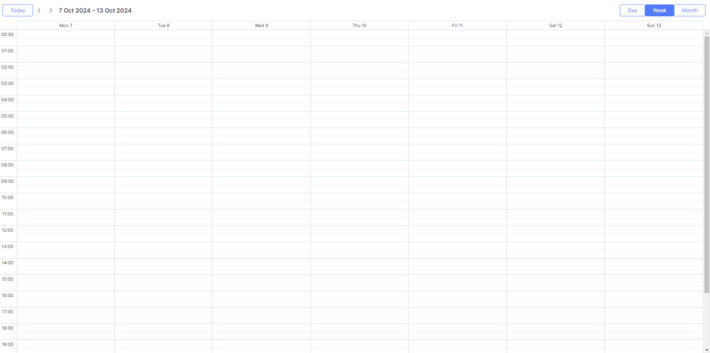
We should see an empty Scheduler on a page.
Step 4. Providing Data
Create src/app/demo-data.ts with a small dataset:
export function getData() {
  return [
    {
      id: 1,
      start_date: new Date('2027-10-06T02:00:00Z'),
      end_date: new Date('2027-10-06T10:20:00Z'),
      text: 'Product Strategy Hike',
    },
    {
      id: 2,
      start_date: new Date('2027-10-07T12:00:00Z'),
      end_date: new Date('2027-10-07T16:00:00Z'),
      text: 'Agile Meditation and Release',
    },
    {
      id: 3,
      start_date: new Date('2027-10-07T06:00:00Z'),
      end_date: new Date('2027-10-07T11:00:00Z'),
      text: 'Tranquil Tea Time',
    },
  ];
}
Now import and parse the data in Scheduler component:
import { getData } from '../demo-data';

...
let scheduler = Scheduler.getSchedulerInstance();
scheduler.init(
  this.schedulerContainer.nativeElement,
  new Date(2027, 9, 7),
  "week",
);
scheduler.parse(getData());
this._scheduler = scheduler;
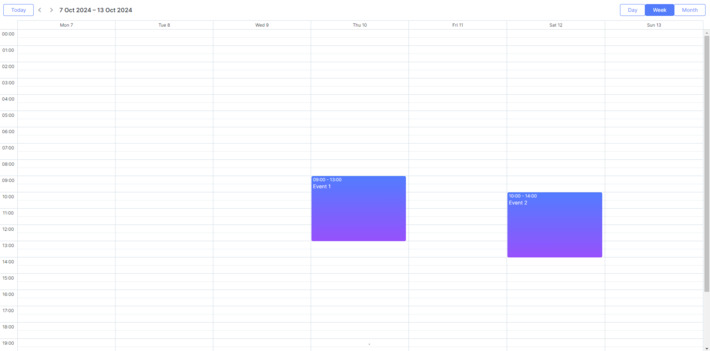
Now, if you reopen the app page, you should see a Scheduler with events.
Step 5. Saving Data
To capture changes made in the Scheduler, you can use a dataProcessor handler that lets you "communicate" with the server-side backend. The handler can be declared either as a function or a router object. dhtmlxScheduler accepts Promise response from the handler, so your Scheduler will correctly process the completion of an action.
You can create a DataProcessor via the createDataProcessor() API method and capture changes, like this:
scheduler.createDataProcessor(function(entity, action, data, id) {
scheduler.message(`${entity} ${action}`);
});
If your service changes the event id after creating a new record (which it usually does), make sure that your Promise returns an object with (id: databaseId) or (tid: databaseId) as a result, so that Scheduler could apply the new database id to the record. Get more information about the server side.
Well, Angular Scheduler is ready, you are welcome to check out the full demo on GitHub.
XSS, CSRF and SQL Injection Attacks
Pay attention that Scheduler doesn't provide any means of preventing an application from various threats, such as SQL injections or XSS and CSRF attacks. It is important that responsibility for keeping an application safe is on the developers implementing the backend.
Check the Application Security article to learn the most vulnerable points of the component and the measures you can take to improve the safety of your application.