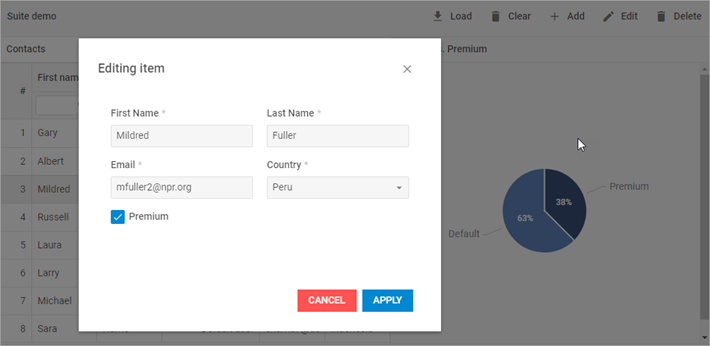
Step 6. Edit data in the Grid
We've already studied how to add and display components on the page.
The last part of this tutorial will teach you how to bind Grid to Toolbar, Window and ContextMenu to make it possible to edit data of the grid.
To implement interaction between Grid and other components we will use custom functions described below.
Creating custom functions
In this step we consider how to perform particular tasks, such as adding, editing and removing tasks. As we will need these solutions in several occasions, it is convenient to use functions.
openAddWindow() function
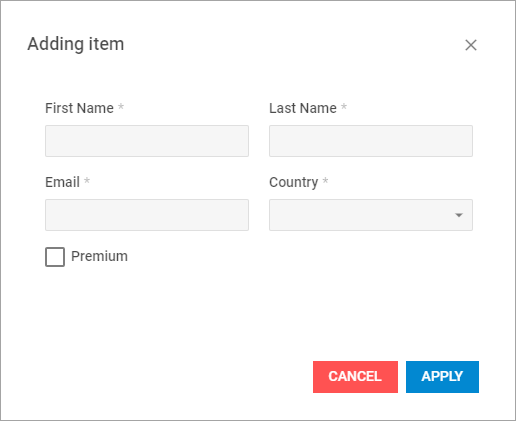
The first function we will describe is used for adding a new item. The function will perform the following actions:
- assign the "Adding item" title to the window
- clear the form
- show a window on a page
function openAddWindow(){
    dhxWindow.header.data.update("title", {value: "Adding item"});
    form.clear();
    dhxWindow.show();
};
openEditWindow() function
In our app we consider several ways to open the editing window. They are:
- double-clicking on a row in the grid
- pressing the "Edit" button in the toolbar
- pressing the "Edit" item in the ContextMenu
In all these cases we'll call the openEditWindow function to display the edit window on the page.
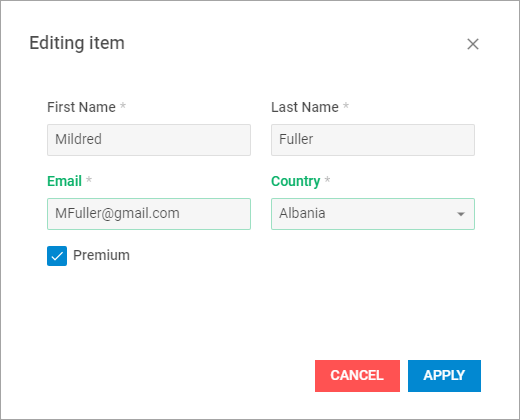
All fields of the form inside the window will be filled with data from a selected grid row. If no row is selected in the grid, all data for the window will be selected from the 1st row of the grid.
function openEditWindow(row){
    // assigns the "Editing item" title to the window
    dhxWindow.header.data.update("title", {value: "Editing item"});
    form.clear(); //clears both form values and validation
    if (!row){ // checks whether any row is selected
        var itemId = grid.data.getId(0); // returns the id of the item by its index
        grid.selection.setCell(itemId); // sets a selection on a grid row by its Id
        row = grid.data.getItem(itemId); // returns the object of the item (row) by id
    }

    form.setValue(row); // sets values of the selected row in the form fields

    dhxWindow.show(); // shows a window on a page
};
deleteItem() function
Now, let's add a function to remove rows from the grid. The logic of the function is shown below:
function deleteItem() {
    // returns a cell of the selected row
    var item = grid.selection.getCell();
      // returns the index of the selected item by its Id
    var index = grid.data.getIndex(item.row.id);
    // deletes an item from the grid by its Id
    grid.data.remove(item.row.id);
    // defines the index of the position to which the new item will be put
    index = index > grid.data.getLength() - 1 ? grid.data.getLength() - 1 : index;
    // gets the id of an item by its index and sets selection on this item
    grid.selection.setCell(grid.data.getId(index));
};
To make sure that after deleting the item, selection is automatically set to the next item, we need to check whether the deleted item was the last one in the array.
With the help of the getLength() method we find out the length of the array. After that we compare the array length and the deleted item index. If it was the last item, selection is set to the new item, which is currently the last item in the array. Otherwise, we set selection to the new item, which replaces the deleted item.
The custom functions, that we've described above, will be used below to edit grid with the help of other components.
Linking Toolbar Buttons and Grid
We've already discussed how to bind Toolbar to Grid via the Click event of the Toolbar. So we suggest to bind the buttons added in the previous step to Grid in the same way.
// id - the Id of the toolbar button,
// e - the default mouse event of a browser
toolbar.events.on("Click", function(id,e){
    switch(id) {
        case 'add': {
            openAddWindow();
            break;
        }
        case 'edit': {
            row = grid.selection.getCell().row;
            //to define a row, a cell of which is selected
               openEditWindow(row);
            break;
        }
        case 'delete': {
            deleteItem();
            break;
        }
    }
});
For details about Toolbar events, see the Event Handling article.
Linking Window and Grid
After double-click on a cell in the grid the editing window will appear. To call it, we will use the CellDblClick() event of the Grid:
grid.events.on("CellDblClick", function(row,column,e){
    openEditWindow(row);
});
Linking Context Menu and Grid
When you press the "Edit" item in the ContextMenu the editing window will appear as well. To implement this, we need to bind the context menu and the grid by using the Click() event of ContextMenu:
contextMenu.events.on("Click", function(id,e){
    switch(id) {
        case 'edit': {
            openEditWindow(grid.selection.getCell().row);
      // in the argument of the function we specify the row the editing
      // window should be opened for
            break;
        }
           case 'delete': {
            deleteItem();
            break;
        }
    }
});
Getting the result
When you complete the steps described in this tutorial, you'll get an advanced demo application that allows editing data in the grid in several ways. This is how the ready app looks like: