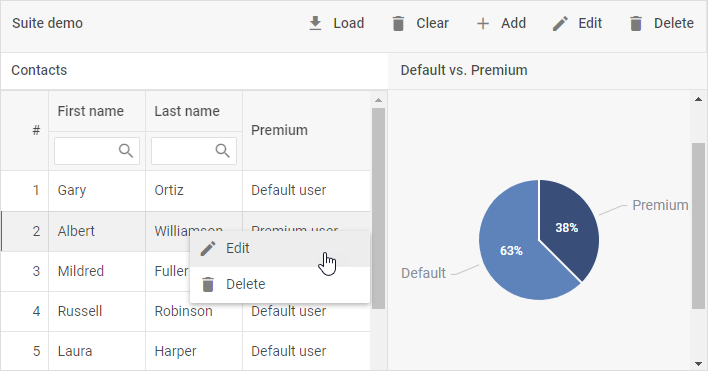
Step 4. Add a ContextMenu
In this step we consider how to add and display a context menu on the page.
##Adding ContextMenu on the page
To add a context menu on the page we should take the following steps:
1. Initialize dhtmlxContextMenu with the constructor in the same way as we initialized the toolbar:
var contextMenu = new dhx.ContextMenu(null, {css: "dhx_widget--bg_gray"});
2. Create a JSON structure with items for ContextMenu:
var contextmenu_data = [
    {
        "id": "edit",
        "icon": "mdi mdi-pencil",
        "value": "Edit"
    },
    {
        "id": "delete",
        "icon": "mdi mdi-delete",
        "value": "Delete"
    }
];
You can find more information about types of the menu controls and their attributes in the List of Menu Controls article.
3. We use the parse() method to load the predefined data set to the context menu:
contextMenu.data.parse(contextmenu_data);
##Displaying the ContextMenu
Let's consider how to display dhtmlxContextMenu on the page after right-clicking on a grid cell.
We need to follow the steps below to do that:
- set a selection on the grid cell using the setCell() method of the Selection object. The setCell() method takes as a parameter the id of a grid row:
grid.selection.setCell(row.id);
- prevent the browser context menu from appearing on the page through the event.preventDefault() method:
e.preventDefault();
- show a dhxContextMenu on the page via the showAt() method of dhxContextMenu:
contextMenu.showAt(e);
Now we should put together the above described steps and place them inside the handler function of the cellRightClick event:
grid.events.on("CellRightClick", function(row,column,e){
    grid.selection.setCell(row.id);
    e.preventDefault();
    contextMenu.showAt(e);
});
After that a right-click on a grid cell will call a context menu we have specified.