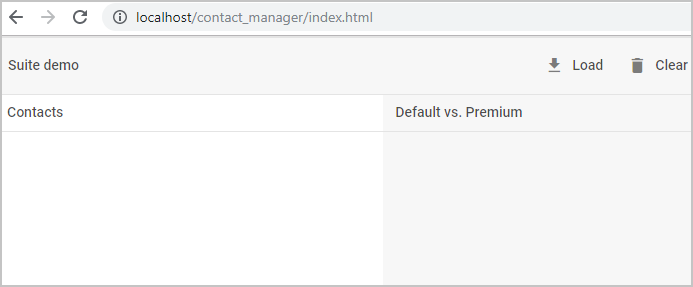
Step 3. Add a Toolbar
To present Toolbar on the page we should take 3 simple steps:
1. To add a toolbar on the page we need to use the constructor, like this:
const toolbar = new dhx.Toolbar(null, {css: "dhx_widget--bordered dhx_widget--bg_gray"});
The constructor function takes two parameters:
-
the first one - is the toolbar container, which is
null, as we are attaching a toolbar to the layout, not to an HTML container -
the second one is the configuration object of the widget, where we set the CSS classes to make the background gray and add borders to the components.
2. To configure buttons on Toolbar we need to define a related JSON structure and use the .parse() API of the widget:
const toolbar = new dhx.Toolbar();
toolbar.data.parse([
    {
      "id": "load",
      "icon": "mdi mdi-download",
      "value": "Load"
    },
    {
      "id": "clear",
      "icon": "mdi mdi-delete",
      "value": "Clear"
    }
      // more buttons

]);
You can add other buttons in a similar manner.
3. Now, we can easily attach a toolbar to the "toolbar-cell" of Layout using the attach() method of a cell, as in:
layout.cell("toolbar-cell").attach(toolbar);