Event Object Operations
Getting the event object
To get the event object, use the getEvent method:
scheduler.parse([
   {id:1, start_date:"2019-05-13 6:00", end_date:"2019-05-13 8:00", text:"Event 1"},
   {id:2, start_date:"2019-06-09 6:00", end_date:"2019-06-09 8:00", text:"Event 2"}
]);
...
var eventObj = scheduler.getEvent(1);
//->{id:1, start_date:"2019-05-13 6:00", end_date:"2019-05-13 8:00", text:"Event 1"}
Getting events from the specified time period
To get a collection of events that occur during the specified period, use getEvents method:
var evs = scheduler.getEvents(new Date(2019,1,10),new Date(2019,2,10));
//where evs is an array of events' objects
Getting all events of the scheduler
To get all events loaded to the scheduler, call the getEvents method without parameters as in:
var evs = scheduler.getEvents();
// returns all events as an array of objects
Getting the next event starting from the current date
var evs = scheduler.getEvents(new Date(), new Date(9999,1,1));
//evs - list of all oncoming events
evs.sort(function(a,b){ return (a.start_date > b.start_date ? 1 : -1); });
//evs[0] - nearest upcoming event
Getting the event's id
To get the event's id by the value of one of the event's properties, use the following technique:
Example: getting the event's id by the event's text.
scheduler.parse([
   {id:1, start_date:"2019-05-13 6:00", end_date:"2019-05-13 8:00", text:"Event 1"},
   {id:2, start_date:"2019-06-09 6:00", end_date:"2019-06-09 8:00", text:"Event 2"}
]);
...

var evs = scheduler.getEvents(); //gets all events of the scheduler
for(var i = 0; i < evs.length; i++){  //goes through all events to find the one needed
    if (evs[i].text == "Event 2")
        var eventId = evs[i].id;// -> 2
};
If you know an approximate time when the needed event occurs, you'd better to limit the returned collection of events, in order to increase the app's speed:
var evs = scheduler.getEvents(new Date(2019,05,01),new Date(2019,05,10));
for(var i = 0; i < evs.length; i++){
    if (evs[i].text == "Event 2")
        var eventId = evs[i].id;// -> 2
};
Changing the event's id
To change the current id of an event, you may use the changeEventId method as in:
scheduler.changeEventId("ev15", "ev25"); //changes the event id "ev15" -> "ev25"
Setting the lightbox option's label as the text of the event
By default the text of a Scheduler event is set via the mapped text field from the lightbox.
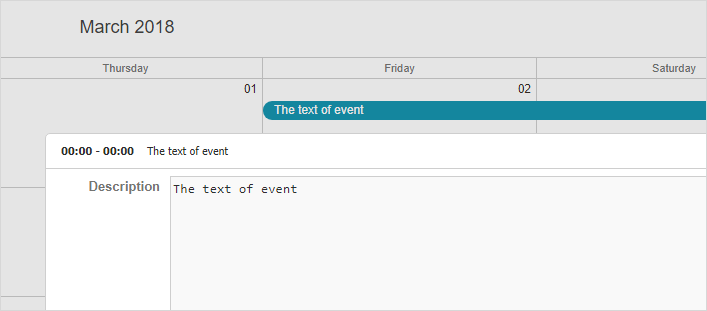
It is also possible to redefine the default behavior and use the label of the option selected in the combobox as the text of the event.
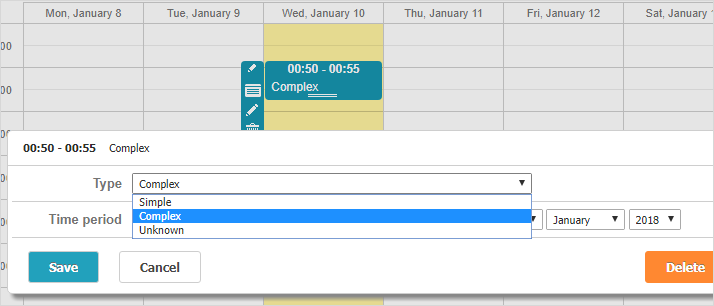
The text of an event is specified by one of the following templates: event_text or event_bar_text, depending on the type of the view. So to change the scheme of adding text into an event, you should redefine the corresponding template.
scheduler.config.lightbox.sections = [
    { name:"type", height:21, inputWidth:400, map_to:"type", type:"select",
        options:scheduler.serverList("options", [
            {key:1, label:"Simple"},
            {key:2, label:"Complex"},
            {key:3, label:"Unknown"}
        ]
    )},
    {name:"time", height:72, type:"time", map_to:"auto"}
];

scheduler.templates.event_text = scheduler.templates.event_bar_text = function(start, end, event){
    var options = scheduler.serverList("options");

    for(var i = 0; i < options.length; i++){
        if(options[i].key == event.type){
            return options[i].label;
        }
    }

    return "";
};
There are several notes concerning the above code:
-
The serverList method is used to provide options for the combobox and retrieve them inside the template. You can load options together with event data via JSON collections (see Data formats) and update them later with updateCollection.
-
Inside the template there is a linear search for a selected item. In some cases when you have a lot of events/options, it may have a noticeable impact on performance, since these templates can be called quite often. To solve this issue, you can create a hash for a quick search instead of constantly iterating an array.
-
The client side should have the complete list of options in order to display them. Otherwise, you will need to load the options manually, e.g. if you use the autocomplete search functionality, which pulls the required options dynamically.