Integration with Vue
Familiarity with the basic concepts and patterns of Vue is assumed. To refresh, see the Vue 3 documentation.
DHTMLX Pivot integrates with Vue as a regular component. For a full working setup, see the Vue Pivot demo on GitHub.
Create a project
Install Node.js before you start.
The following command runs the official Vue project scaffolding tool:
npm create vue@latest
The command installs and executes create-vue. For details, see the Vue.js Quick Start.
Name the project my-vue-pivot-app.
Install dependencies
Change into the new project directory:
cd my-vue-pivot-app
Install dependencies and start the dev server with your package manager:
- with yarn:
yarn
yarn start # or: yarn dev
- with npm:
npm install
npm run dev
The app should run on a local port (for example, http://localhost:3000).
Create Pivot
Add the Pivot package to the project, then wrap Pivot in a Vue component.
Step 1. Install the package
Download the trial Pivot package and follow the steps in the README. The trial Pivot package is valid for 30 days.
Step 2. Create the component
Create a Vue component that mounts Pivot. Add a new file src/components/Pivot.vue.
Import source files
Open src/components/Pivot.vue and import the Pivot source files. The import paths depend on the package edition:
- PRO version (installed from a local folder):
<script>
import { Pivot } from 'dhx-pivot-package';
import 'dhx-pivot-package/dist/pivot.css';
</script>
If the package ships minified assets, import pivot.min.css instead of pivot.css.
- Trial version:
<script>
import { Pivot } from '@dhx/trial-pivot';
import '@dhx/trial-pivot/dist/pivot.css';
</script>
This tutorial uses the trial version of Pivot.
Set up the container and mount Pivot
To display Pivot on the page, add a container div, then initialize Pivot in the mounted hook using the constructor. Destroy Pivot in the unmounted hook.
The following code snippet defines a minimal Pivot Vue component:
<script>
import { Pivot } from "@dhx/trial-pivot";
import "@dhx/trial-pivot/dist/pivot.css";

export default {
    mounted() {
        // initialize the Pivot component
        this.table = new Pivot(this.$refs.container, {});
    },

    unmounted() {
        this.table.destructor(); // destroy Pivot on unmount
    }
};
</script>

<template>
    <div ref="container" class="widget"></div>
</template>
Add styles
To render Pivot correctly, add the following styles to the project's main CSS file:
/* styles for the initial page */
html,
body,
#app { /* use the #app root container */
    height: 100%;
    padding: 0;
    margin: 0;
}

/* styles for the Pivot container */
.widget {
    width: 100%;
    height: 100%;
}
Load data
To feed data into Pivot, prepare a dataset. Create src/data.js and export the data and field metadata:
export function getData() {
    const dataset = [
        {
            "cogs": 51,
            "date": "10/1/2018",
            "inventory_margin": 503,
            "margin": 71,
            "market_size": "Major Market",
            "market": "Central",
            "marketing": 46,
            "product_line": "Leaves",
            "product_type": "Herbal Tea",
            "product": "Lemon",
            "profit": -5,
            "sales": 122,
            "state": "Colorado",
            "expenses": 76,
            "type": "Decaf"
        },
        {
            "cogs": 52,
            "date": "10/1/2018",
            "inventory_margin": 405,
            "margin": 71,
            "market_size": "Major Market",
            "market": "Central",
            "marketing": 17,
            "product_line": "Leaves",
            "product_type": "Herbal Tea",
            "product": "Mint",
            "profit": 26,
            "sales": 123,
            "state": "Colorado",
            "expenses": 45,
            "type": "Decaf"
        }, // other data items
    ];

    const fields = [
        {
            "id": "cogs",
            "label": "Cogs",
            "type": "number"
        },
        {
            "id": "date",
            "label": "Date",
            "type": "date"
        }, // other fields
    ];

    return { dataset, fields };
};
Open src/App.vue, import the data, and expose it through the data() option. Then pass the values to the new <Pivot/> component as props:
<script>
import Pivot from "./components/Pivot.vue";
import { getData } from "./data";

export default {
    components: { Pivot },
    data() {
        const { fields, dataset } = getData();
        return {
            fields,
            dataset
        };
    }
};
</script>

<template>
    <Pivot :fields="fields" :dataset="dataset" />
</template>
Open src/components/Pivot.vue, declare the incoming props, and apply them to the Pivot configuration object:
<script>
import { Pivot } from "@dhx/trial-pivot";
import "@dhx/trial-pivot/dist/pivot.css";

export default {
    props: ["fields", "dataset"],

    mounted() {
        this.table = new Pivot(this.$refs.container, {
            fields: this.fields,
            data: this.dataset,
            config: {
                rows: ["state", "product_type"],
                columns: ["product_line", "type"],
                values: [
                    {
                        field: "profit",
                        method: "sum"
                    }, // other values
                ]
            },
            // other configuration properties
        });
    },

    unmounted() {
        this.table.destructor();
    }
};
</script>

<template>
    <div ref="container" class="widget"></div>
</template>
The component is now ready to use. On mount, Pivot renders with the supplied data. For the full list of configuration properties, see the Pivot API docs.
Handle events
User actions in Pivot fire events that you can subscribe to. For the full list of events, see Events overview.
The following code snippet extends mounted with an open-filter event listener that logs the field ID when a user opens a filter:
<script>
// ...
export default {
    // ...
    mounted() {
        this.table = new Pivot(this.$refs.container, {
            fields: this.fields,
            data: this.dataset,
            config: {
                rows: ["state", "product_type"],
                columns: ["product_line", "type"],
                values: [
                    {
                        field: "profit",
                        method: "sum"
                    }, // other values
                ]
            },
            // other configuration properties
        });

        this.table.api.on("open-filter", (ev) => {
            console.log("The field id for which the filter is activated:", ev.id);
        });
    }
    // ...
}
</script>

// ...
Start the app to see Pivot render the data on the page.
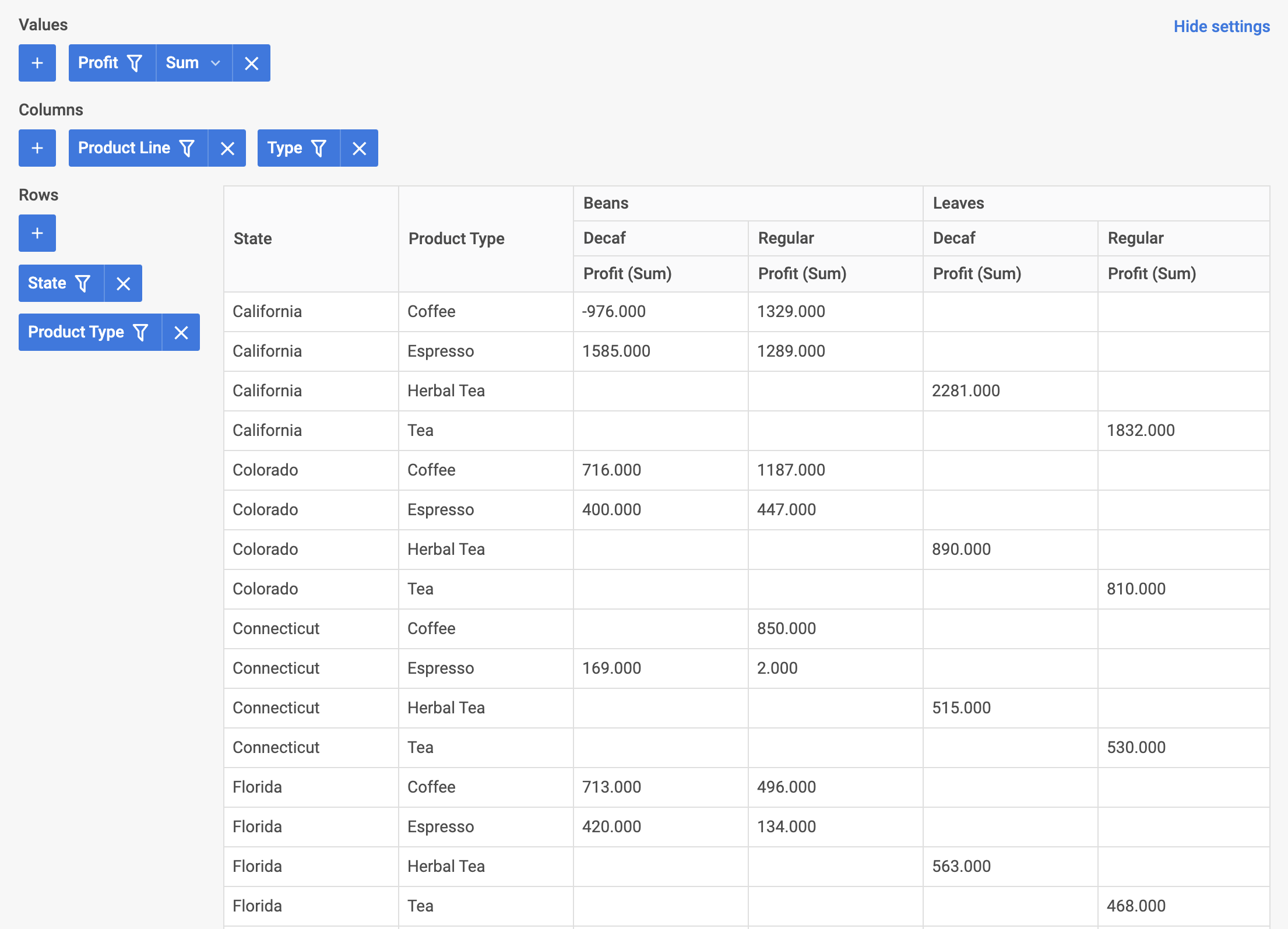
Pivot is now integrated with Vue. Customize the configuration to suit the project requirements. For the final example, see vue-pivot-demo on GitHub.